
Your iPad 10th Generation stores temporary website files and cached data in Safari to make your browsing faster. Over time, this cache can get cluttered, leading to slow page loads, strange formatting issues, or even storage warnings. Clearing it out is a quick refresh for your browser.
Clear All Safari History and Data
For a complete reset, this is the most effective method. Open the Settings app on your iPad and scroll down the left sidebar until you find Safari. Tap it, then scroll down on the right side and tap Clear History and Website Data.
Confirm your choice when prompted. This action removes your entire browsing history, all cookies, and every bit of cached website data. Be aware you'll be signed out of most websites, so it's a good idea to know your passwords beforehand.
Clear Just the Website Cache (Keep History)
If you want to free up space but keep your browsing history intact, there's a more targeted option. Still in Settings > Safari, scroll all the way down and tap Advanced, then select Website Data.
Here, you'll see a list of every website that has stored data on your iPad and how much space it's using. You can swipe left on individual sites to delete them, or tap Remove All Website Data at the bottom for a full sweep. This clears the cached files and cookies without touching your history.
Manage App Caches with Offloading
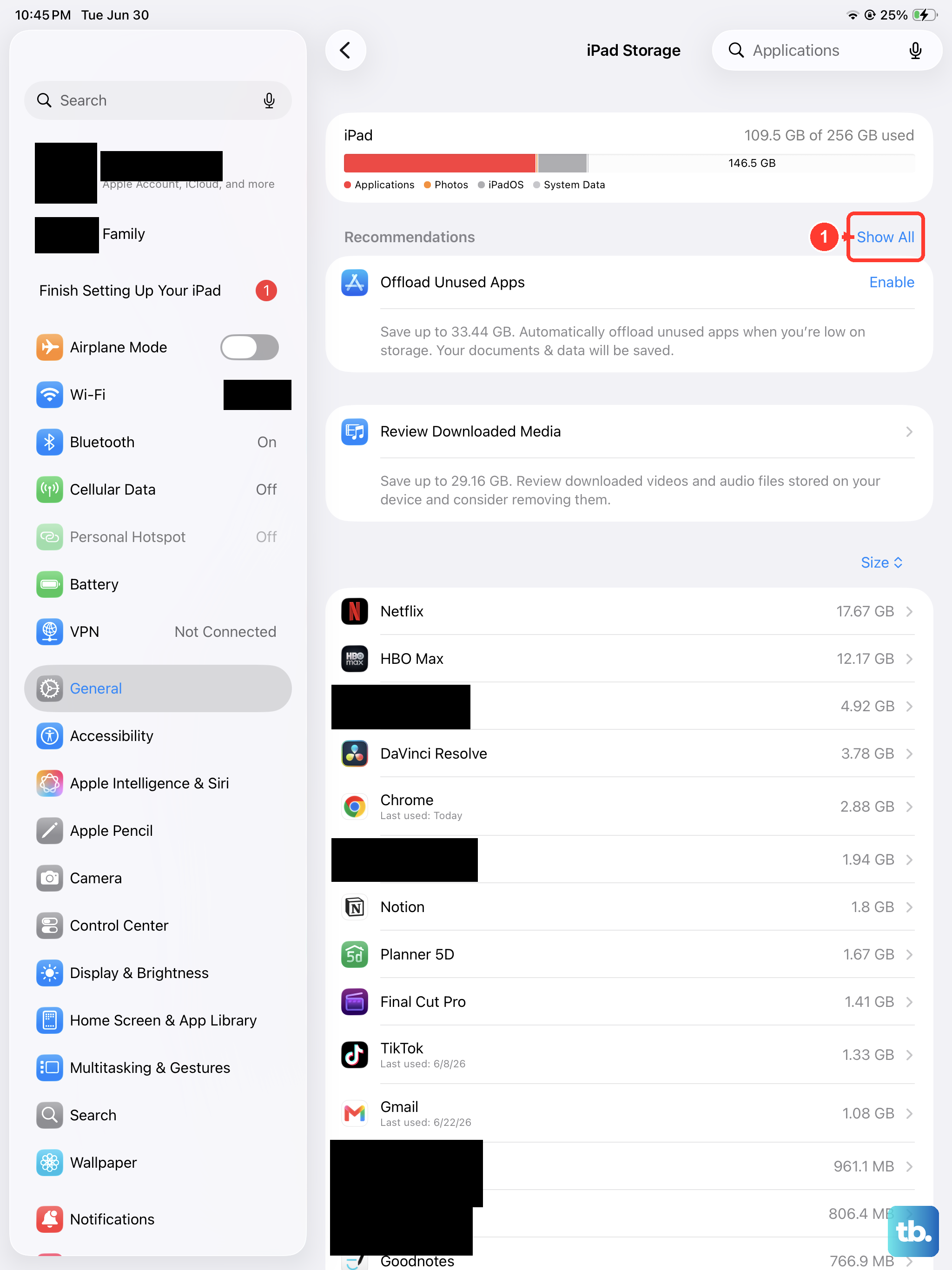
iPadOS doesn't let you clear an app's cache directly, but offloading is a great workaround. Go to Settings > General > iPad Storage. After a moment, a list of all your apps will appear, sorted by the space they use.
Tap on any app, like Facebook or Netflix, and you'll see an option for Offload App. Tapping this removes the app itself but keeps all your documents and data. You can then reinstall it from the App Store. This process deletes the temporary cache the app built up.
Delete and Reinstall Apps for a Deep Clean
For the most thorough cache clearing, deleting the app entirely is the way to go. Press and hold the app's icon on your home screen until the menu appears, then tap Remove App. Choose Delete App to remove it and all its associated data, including the cache.
Head to the App Store to download it again. You'll need to log back in and set up any preferences, but you'll start with a completely clean slate. I'd use this for apps that are particularly sluggish or taking up a surprising amount of space.
Free Up Space in Messages
The Messages app can silently hoard gigabytes of photos, videos, and GIFs. To clean it out, go to Settings > General > iPad Storage and tap on Messages. You'll see a detailed breakdown of storage by category.
Tap into sections like Photos or Videos to review and delete items you don't need. You can also set messages to auto-delete: go to Settings > Messages > Keep Messages and change it from Forever to 30 Days or 1 Year.
Clear the DNS Cache
If websites are failing to load or are taking forever, a clogged DNS cache might be the culprit. The fastest fix is to enable Airplane Mode for a moment. Swipe down from the top-right corner of your screen to open Control Center and tap the airplane icon.
Wait about ten seconds, then tap it again to turn Airplane Mode off. This forces your iPad to fetch fresh address information for websites. A simple restart of your iPad does this too, and clears other system temp files.
Use iPad Storage Recommendations
Your iPad 10th Generation can help you manage space automatically. In Settings > General > iPad Storage, check the recommendations at the top of the screen. iPadOS might suggest enabling Offload Unused Apps, which automatically removes apps you haven't opened in a while but keeps their data.
Other common suggestions include reviewing large email attachments or clearing out your Recently Deleted album in the Photos app. Letting your iPad handle these tasks can prevent storage issues before they start.
Restart Your iPad
Never underestimate a simple restart. It clears out system-level temporary files and frees up memory. To restart your iPad 10th Generation, quickly press and release the Volume Up button, then quickly press and release the Volume Down button.
Finally, press and hold the Top button until you see the Apple logo appear, then let go. Doing this every couple of weeks helps keep everything running smoothly, especially if you use Stage Manager for multitasking, which can be demanding on system resources.