

Need your processor, RAM, Windows version, graphics card, storage, or exact PC model before installing software or troubleshooting a problem? Windows already has the tools you need, and the fastest one is only a few clicks away.
Start with Settings for the basics, then use the deeper tools below when you need graphics, driver, command-line, or manufacturer details. These steps focus on Windows 11; Windows 10 consumer support ended on October 14, 2025.
1. Start in Settings for the main PC specs
For the specs most apps and support forms ask for, Settings is the fastest built-in route.
- 1.Right-click Start.
- 2.Select Windows Settings.
- 3.Open System.
- 4.Select About.
- 5.Under Device specifications, check Processor, Installed RAM, System type, and the other device details shown there.
- 6.Under Windows specifications, check Edition, Version, and OS build.
There is also a keyboard shortcut: press Windows key + Pause. On Windows 11, it opens Settings > System > About.
2. Find storage capacity in Settings
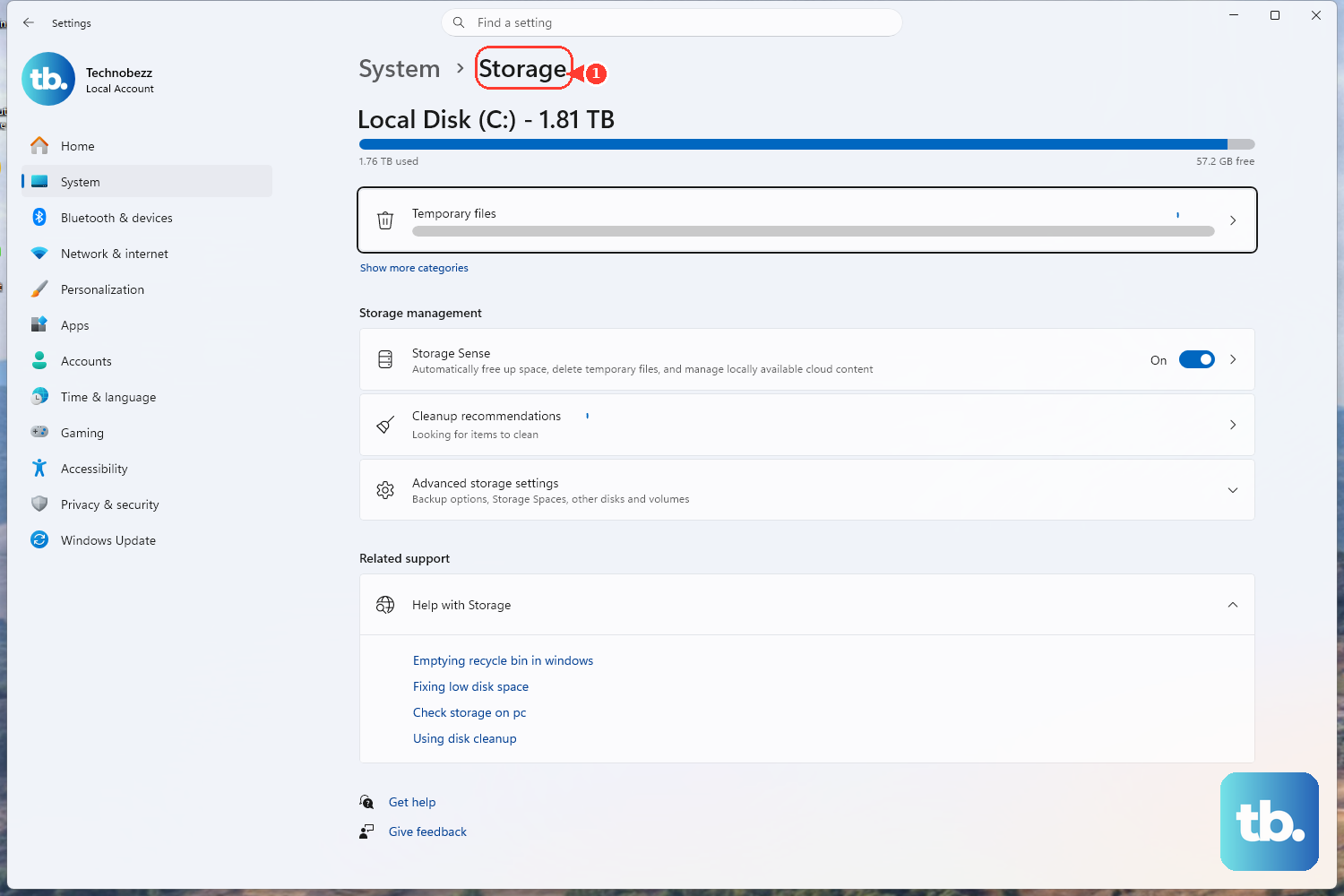
Right-click Start, select Windows Settings, open System, then select Storage.
The About screen does not show your full drive layout, so storage sits one page deeper. That shows storage for your main drive.
If your PC has more than one drive, select Advanced storage settings, then choose Storage used on other drives.
3. Open Task Manager for live hardware details
Task Manager shows what your PC is doing right now, not just what parts it has installed. Press Ctrl + Shift + Esc, select Performance, then choose CPU, Memory, Disk, Wi-Fi, Ethernet, or GPU from the left pane.
For processor details, select CPU and read Cores and Logical processors. For live usage, switch between the performance categories and check the graphs and component details shown on each page.
4. Pull a fuller report with System Information
Open System Information when Settings feels too thin. Select Start, type msinfo32, right-click System Information, select Run as administrator, then review System Summary.
After that, expand Components or Software Environment for more detail. You can also press Windows key + R, type msinfo32, and press Enter.
Use the administrator route when you need more accurate driver and service reporting.
5. Check graphics and DirectX with DxDiag
For gaming, video editing, display issues, audio issues, or DirectX details, use DirectX Diagnostic Tool. Select Search, type dxdiag, then select dxdiag.
Open the System tab for system information and DirectX Version. Then open Display for graphics details, Sound for audio details, and Input for input device details.
The Run command works too: press Windows key + R, type dxdiag, then press Enter.
6. Inspect one device in Device Manager
Use Device Manager for one component instead of a whole-PC summary. Right-click Start, select Device Manager, and expand the device category you need.
Next, right-click the device, select Properties, and check General, Driver, Details, and Events. It is better for identifying installed hardware and driver details than for reading a whole-PC summary.
7. Run current commands for text output
For terminal output, open Command Prompt or Windows Terminal, type systeminfo, and press Enter. systeminfo reports OS configuration and hardware properties, including RAM, disk space, and network cards.
PowerShell has two current routes. Open PowerShell or Windows Terminal, then run Get-ComputerInfo.
To narrow the output, run a filter such as Get-ComputerInfo -Property "*version". For advanced hardware queries, use Get-CimInstance -ClassName Win32_Processor, Get-CimInstance -ClassName Win32_ComputerSystem, Get-CimInstance -ClassName Win32_BIOS, or Get-CimInstance -ClassName Win32_LogicalDisk -Filter "DriveType=3".
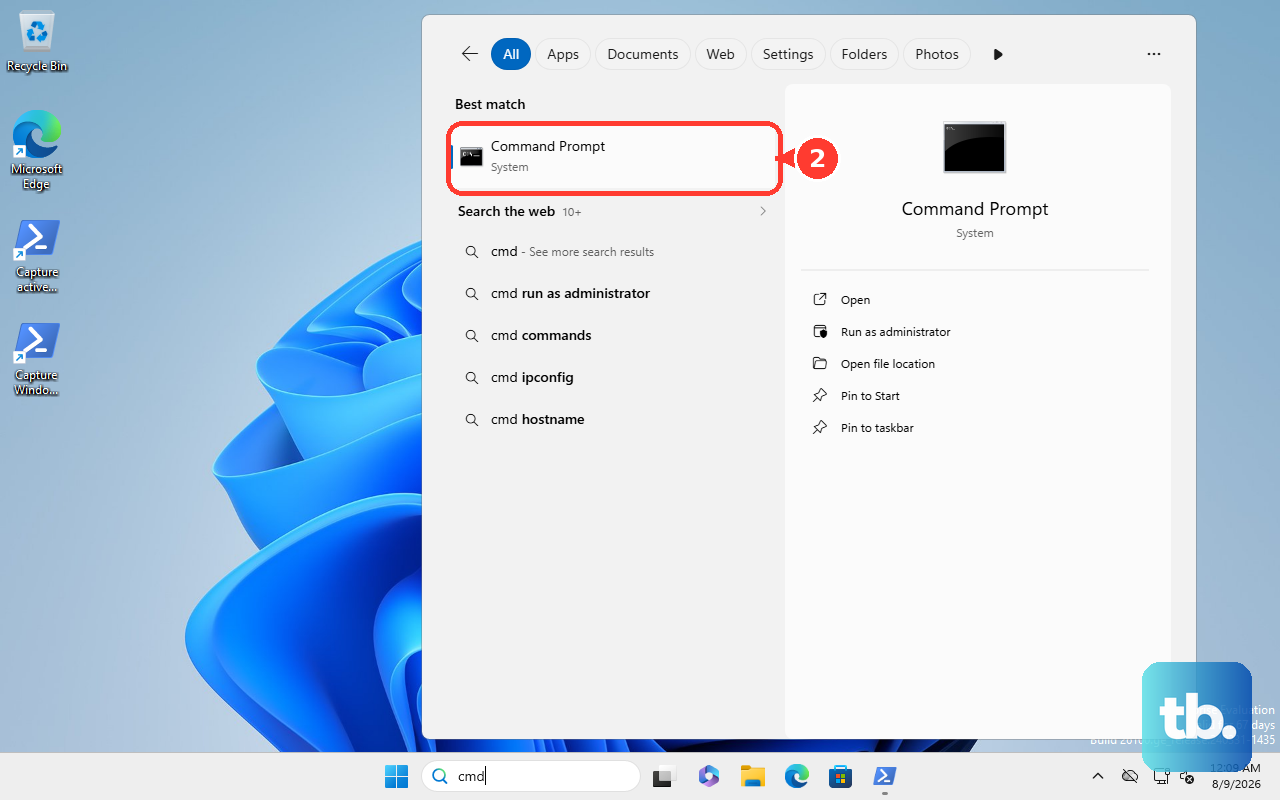
For a saved report, open an elevated Command Prompt: select Search, type cmd, right-click Command Prompt, select Run as administrator, then use MSINFO32 command-line switches to create a .nfo or .txt system information file.
8. Use official maker tools for model details
Microsoft Surface: open the Surface app, expand Device information, and check Surface model. Dell and Alienware: go to Dell.com/support, identify the PC with SupportAssist, Service Tag, Express Service Code, or Serial number, then select View product specs.
For BIOS details, restart the PC, tap F2 at the Dell logo, expand General, then select System Information. HP: open HP Support Assistant, select the HP PC, then open Specifications.
Lenovo: open Lenovo Vantage, then run the hardware scan or performance health check from the Vantage or Diagnostics area. ASUS: open MyASUS, then select System Info on the Home page.
Manufacturer tools help when you need the exact model, serial-linked support information, original configuration, or vendor hardware checks. You can also sign in at account.microsoft.com/devices, choose a registered Windows device, then select Show details or Info & support where available.
The details vary by device and manufacturer.
9. Skip old Control Panel and WMIC instructions
Older PC spec tutorials often point to Control Panel > System, wmic commands, or Get-WmiObject. Use Settings > System > About instead of the classic Control Panel route.
Use Get-CimInstance instead of wmic or Get-WmiObject. For a work or school PC enrolled in Microsoft Intune, the device manager can sign in to the Microsoft Intune admin center, select Devices, open All devices, choose the device, and open Hardware to view inventory details.
Frequently Asked Questions
Where do I find my Windows version and build number?
Right-click Start, open Windows Settings, then go to System > About. Under Windows specifications, check Edition, Version, and OS build.
How do I check PC storage on Windows?
Open Windows Settings, go to System > Storage, and review the main drive. For extra drives, select Advanced storage settings, then Storage used on other drives.
What tool should I use for a full Windows specs report?
Use System Information. Select Start, type msinfo32, right-click System Information, select Run as administrator, then review System Summary, Components, and Software Environment.
Should I use WMIC to check PC specs?
No. Microsoft marks WMIC as deprecated. Use PowerShell Get-CimInstance for WMI hardware queries instead.