
Your iPhone SE 4's battery is its lifeline, and keeping an eye on its health is key to maintaining that great all-day performance. With iOS 18, Apple provides clear, built-in tools to see exactly how your battery is holding up. Let's walk through how to check everything, from overall health to which apps are using the most power.
Find Your Battery Health Percentage
Open Settings > Battery > Battery Health & Charging. Here, you'll see the Maximum Capacity percentage. This number tells you how much charge your battery can hold now compared to when it was brand new. A fresh iPhone SE 4 will show 100%.
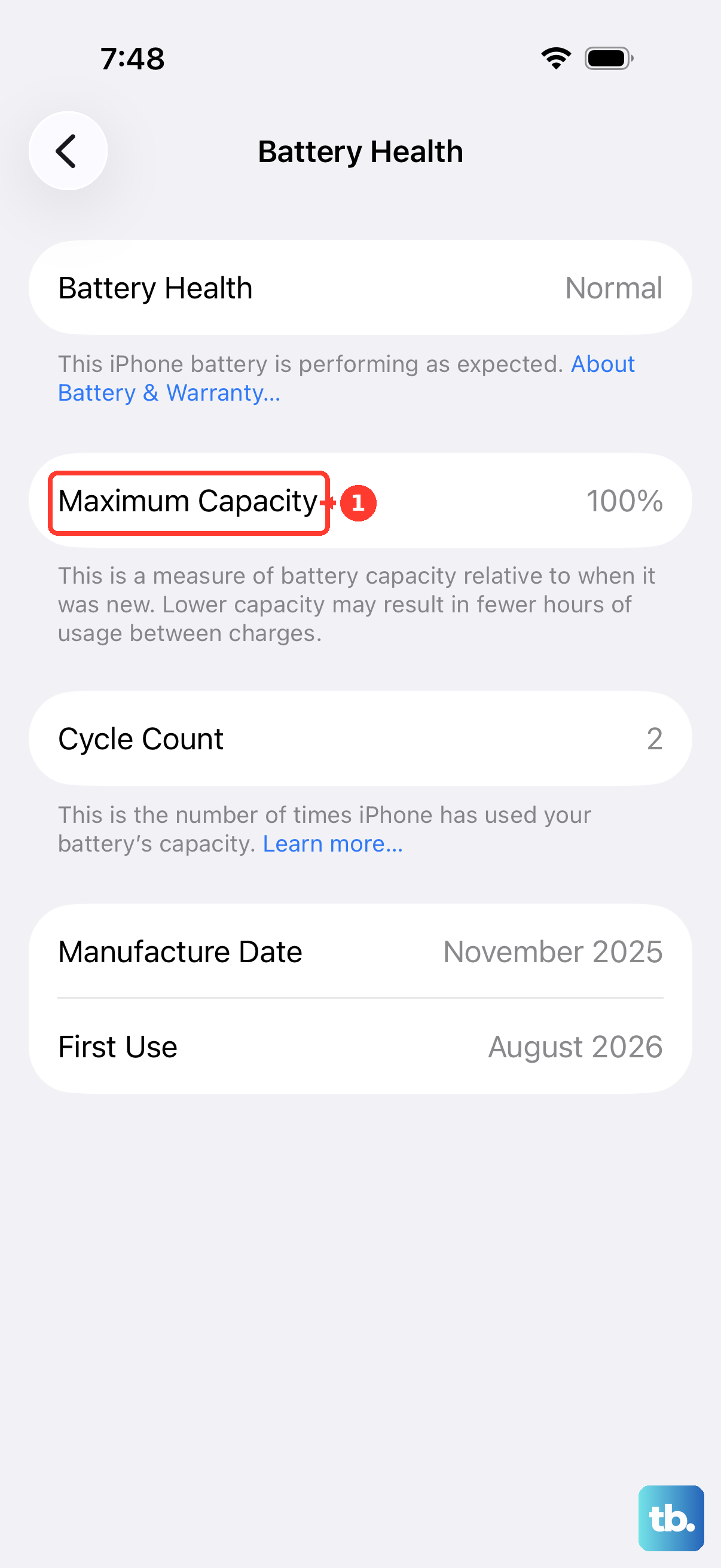
Over time, this number will naturally drop. After a year of typical use, seeing a capacity in the high 80s or low 90s is common. Apple considers the battery significantly degraded once it falls below 80%, which is when you might start noticing your phone needs a charge much sooner than it used to.
Right below the percentage, look for the Peak Performance Capability section. If your battery is in good shape, it will state that your iPhone supports normal peak performance. If there's been significant degradation, a message about performance management may appear here.
Check the Battery Cycle Count on Your SE 4
A charge cycle is counted each time you use 100% of your battery's capacity, which can happen over multiple charges. Apple designs its batteries to retain up to 80% of their original capacity at a certain number of cycles.
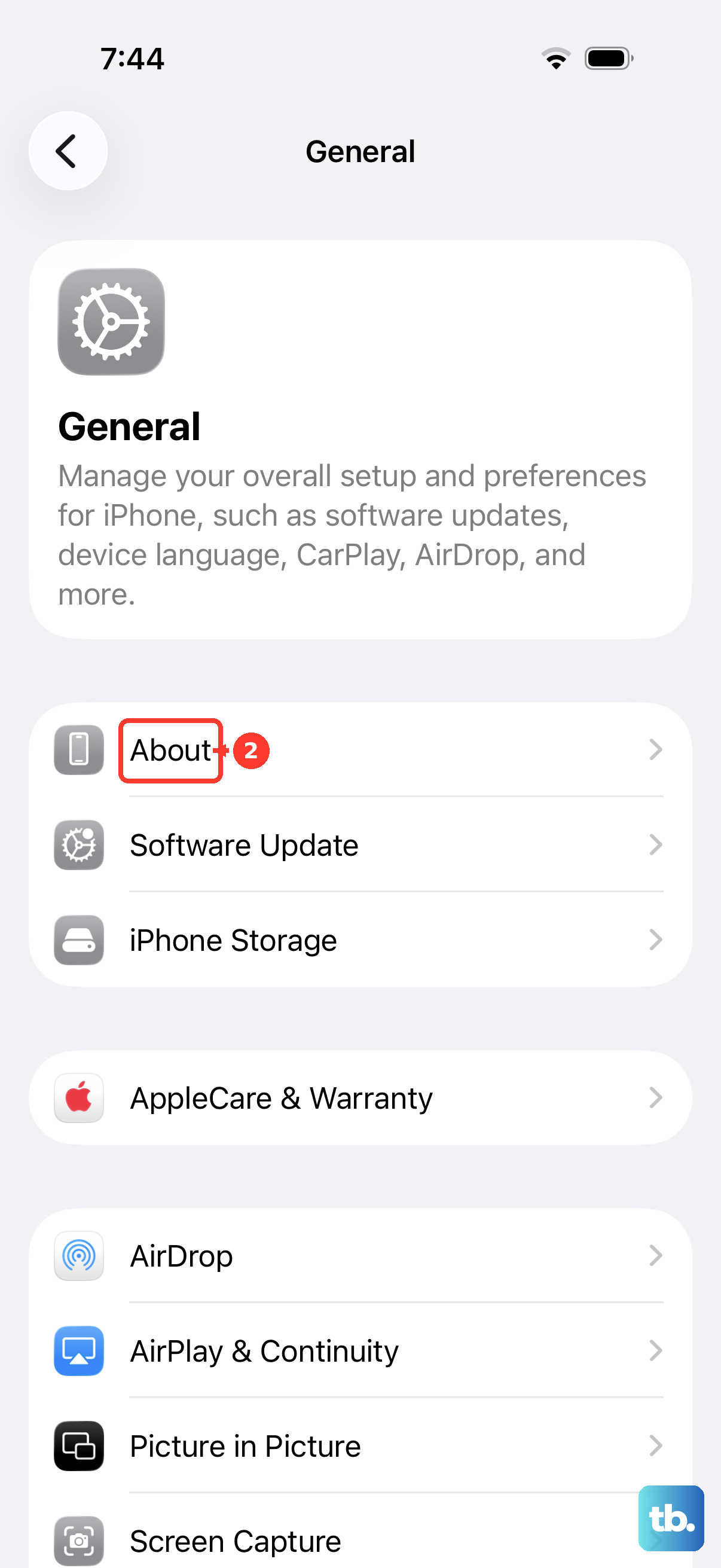
For your iPhone SE 4, you can find this info directly in Settings. Navigate to Settings > General > About. Scroll down, and you should see Cycle Count listed. This number gives you a raw look at how much the battery has been used. You'll also find the battery's manufacture date and first use date here, which is helpful context.
See Which Apps Are Draining Your Battery
Head back to Settings > Battery. Scroll down past the battery level graph, and you'll see a breakdown of battery usage by app. You can view data for the last 24 hours or the last 10 days to spot trends.
Tap Show Activity next to an app to see how much time it spent on screen versus running in the background. If you notice a social media or game app you rarely use is consuming a surprising amount of power, it might be a candidate for deletion or for having its background activity restricted.
Turn On Optimized Battery Charging
This is one of the best features for preserving your SE 4's battery in the long run. Go to Settings > Battery > Battery Health & Charging > Optimized Battery Charging and ensure it's enabled. Your phone learns your daily routine, like when you sleep, and will hold the charge at around 80% until just before you typically wake up.
By avoiding keeping the battery at 100% for prolonged periods, this feature directly slows down chemical aging. Given the SE 4's compact size and battery, I'd recommend keeping this setting on to help maximize its lifespan.
Consider Your Charging Habits
Using the right charger makes a difference. For the fastest wired charging on your SE 4, use a 20W or higher USB-C Power Delivery (PD) charger. For wireless charging, it supports both MagSafe and the newer Qi2 standard. MagSafe will get you up to 15W, which is convenient for a bedside or desk charger.
Try to avoid letting the battery completely drain to 0% regularly. Similarly, it's better not to leave it plugged in at 100% all the time. If you can, keeping it between 20% and 80% for daily use is gentler on the battery chemistry.
When a Battery Replacement Makes Sense
If your Maximum Capacity dips below 80%, you'll likely feel the impact with noticeably shorter battery life, and your phone may begin to manage performance to prevent sudden shutdowns. This is the standard threshold where a replacement is recommended.
Apple offers battery service for the iPhone SE 4. A new battery will reset your Maximum Capacity to 100% and restore the full, snappy performance you had when the phone was new. It's often a more cost-effective choice than upgrading, especially if you're otherwise happy with your device.
Watch Out for Heat
Extreme temperatures are a battery's enemy. Avoid leaving your iPhone SE 4 in a hot car or in direct sunlight for long periods. Also, if you're using graphics-intensive apps or games that make the phone feel warm, consider taking a break to let it cool down. Heat accelerates battery degradation faster than almost anything else.