
Your iPhone 14's battery is a key part of the experience, and keeping an eye on its health helps you understand its performance and lifespan. Apple provides detailed battery information right within iOS, so you don't need to guess how it's doing. Here’s how to check everything specific to your model.
Check the Battery Health Percentage
Open Settings and go to Battery > Battery Health & Charging. You'll see the Maximum Capacity percentage, which shows your battery's current capacity compared to when it was new. A new iPhone 14 starts at 100%. After a year or so of typical use, seeing a number in the high 80s or low 90s is normal.
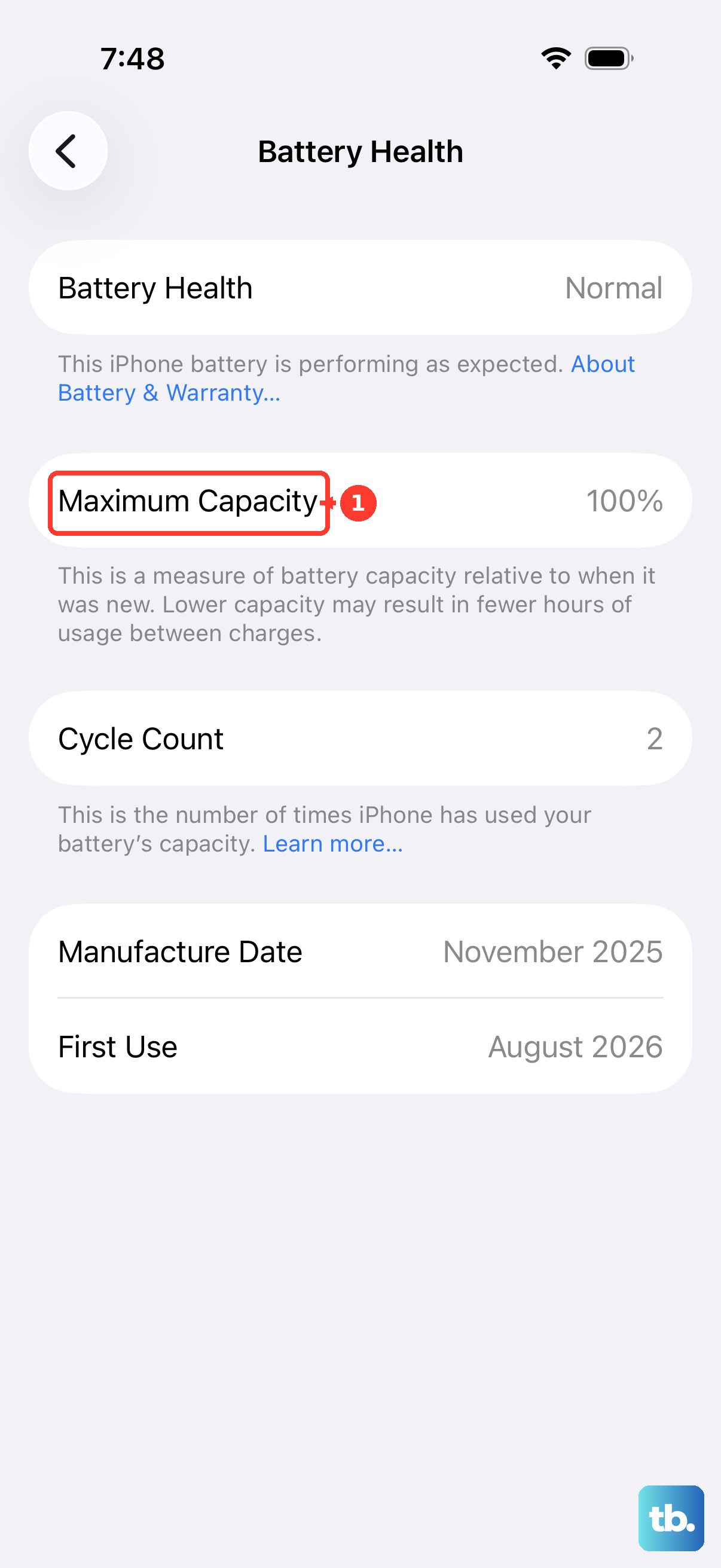
When this number drops below 80%, Apple considers the battery significantly degraded. You might notice your phone doesn't last as long on a single charge. Below the percentage, look for Peak Performance Capability. This will tell you if your battery can support normal performance or if any management features are active.
Find Your Battery Cycle Count
A charge cycle is counted each time you use 100% of the battery's capacity, which can happen over multiple charges. Apple rates the iPhone 14 battery to retain up to 80% of its original capacity at 500 complete charge cycles.
To find the cycle count on your iPhone 14, you'll need to use a Mac or PC. Connect your phone to a computer and open a utility like Apple's System Information on Mac (under Hardware > USB) or a third-party app like coconutBattery. The cycle count won't appear directly in your iPhone's Settings, unlike newer models.
See Which Apps Are Using the Most Battery
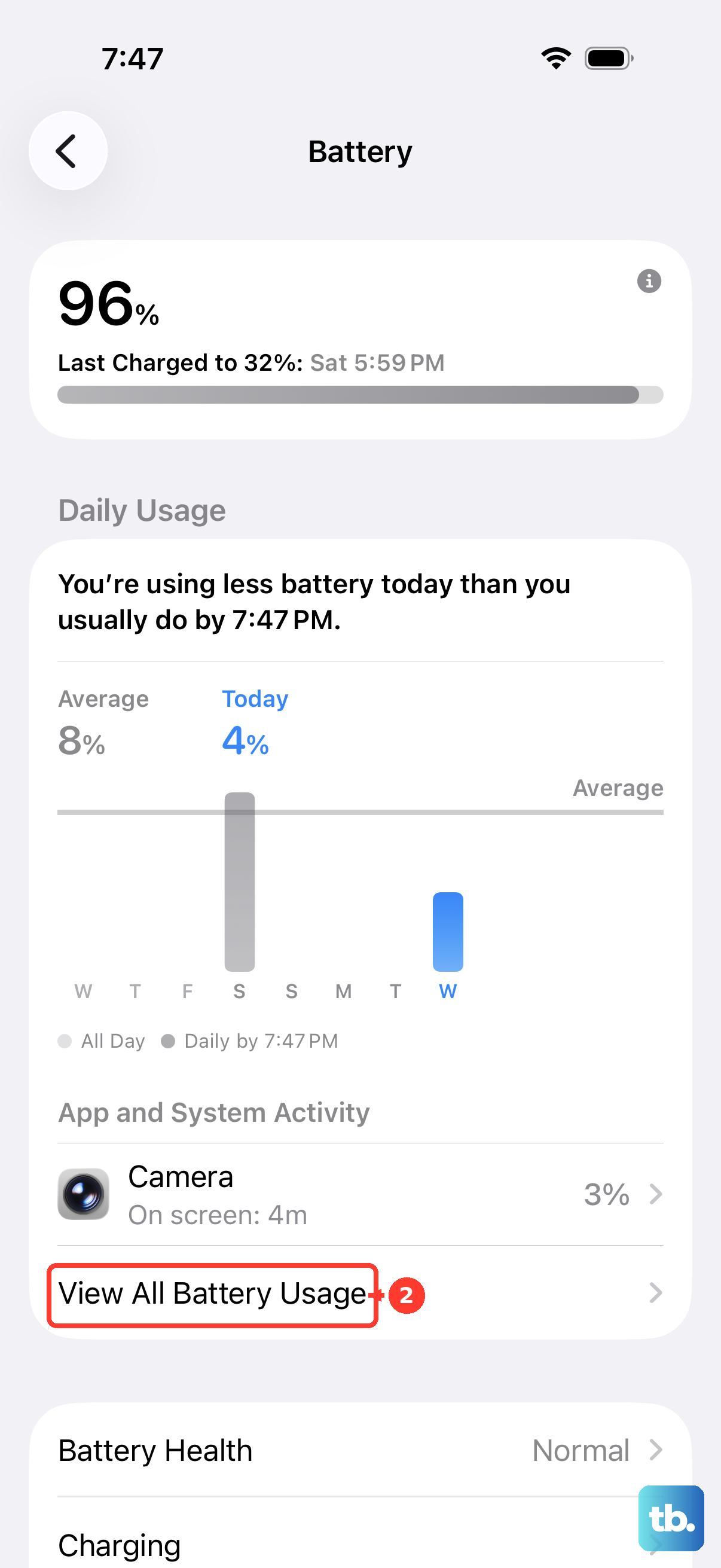
Go to Settings > Battery and scroll down. You'll see a breakdown of battery usage by app for the last 24 hours or the last 10 days. Tap Show Activity next to an app to see how much time it spent on screen versus running in the background.
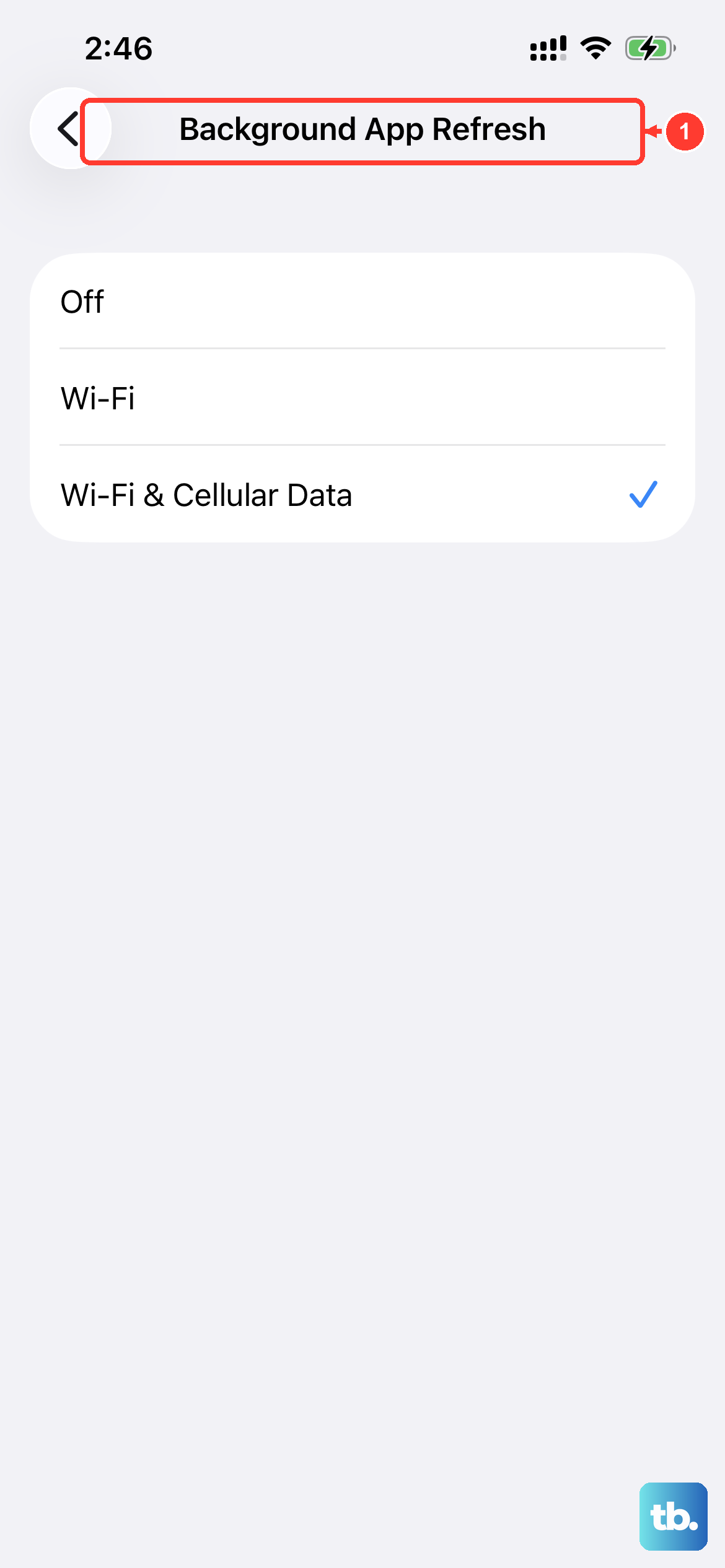
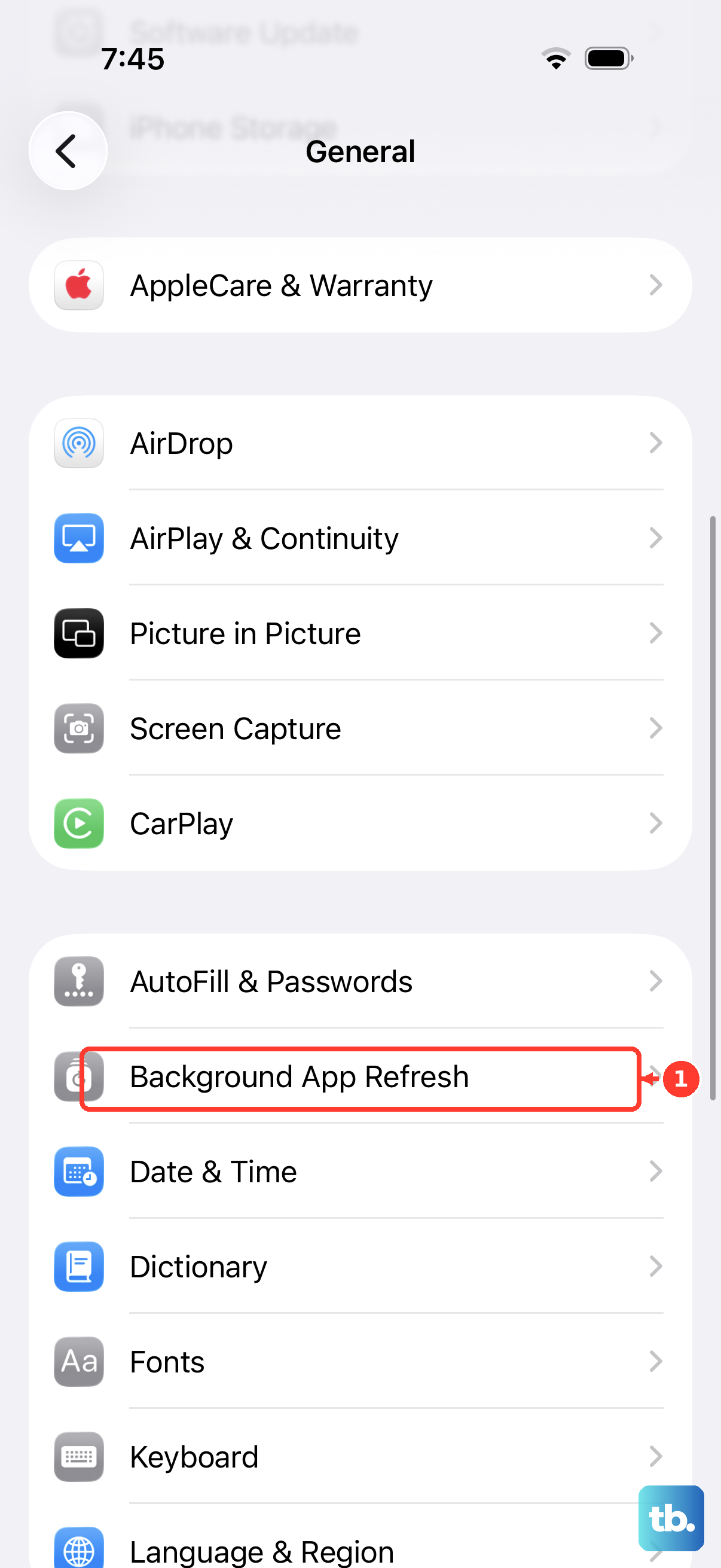
If you spot an app with surprisingly high background activity, it could be draining power unnecessarily. You can manage this by going to Settings > General > Background App Refresh and turning it off for that specific app.
Turn On Optimized Battery Charging
This is a helpful feature for your iPhone 14's long-term health. In Settings > Battery > Battery Health & Charging, make sure Optimized Battery Charging is enabled. It learns your daily routine and will hold the charge at around 80% until you need to use your phone.
By not keeping the battery at 100% for prolonged periods, you help slow down its natural degradation. I've found this setting works best if you have a fairly consistent sleep and wake schedule.
Add a Battery Percentage to Your Status Bar
You can choose to always see the exact battery percentage next to the icon in the top-right corner. Go to Settings > Battery and toggle on Battery Percentage. This gives you a quick, at-a-glance view without needing to pull down the Control Center.
It's a simple switch that saves you from swiping down every time you want a precise number. This works alongside the battery icon, so you get both visual cues.
Consider a Battery Replacement
If your Maximum Capacity falls below 80%, you'll likely experience noticeably shorter battery life. At this point, performance management features may also engage to prevent unexpected shutdowns. Apple offers battery service for the iPhone 14, which restores capacity back to 100%.
You can check the service cost on Apple's website. A new battery can make an older iPhone 14 feel like new again in terms of daily endurance.
Tips for iPhone 14 Battery Longevity
Use official or MFi-certified Lightning cables and a 20W power adapter for the fastest, safest charging. The Lightning port can collect pocket lint, which prevents a good connection. Gently clean it out with a wooden toothpick if your phone won't charge.
For wireless charging, a MagSafe charger offers up to 15W speeds. Avoid leaving your phone in direct sunlight or a hot car, as extreme heat is one of the fastest ways to damage battery health. Try not to let it regularly drain to 0%; plugging in before it hits 20% is a good habit.