Maybe Yahoo just signed you out and is asking for a new password, or you want to lock the account down after spotting something odd. Either way, changing your Yahoo Mail password is quick once you know where the setting lives.
Make the new password count. A free strong password generator produces a long random string or a memorable passphrase locally in your browser, which beats any reused or predictable choice.
The exact path depends on whether you are on the web, the Yahoo Mail app, or a separate mail program like Apple Mail or Outlook. This guide covers all of them, fastest route first.
One thing to know before you start: after a password change, be ready to sign in again anywhere Yahoo asks for the new password. Third-party app passwords are separate; they remain active even after you change your main account password, so delete any old app passwords you do not want to keep.
Before You Start: What You Need
To change your password while signed in, you need access to your signed-in Yahoo session and any verification prompt Yahoo shows. If you are already signed in to a Yahoo mobile app, you can use the app's "Change password" option even if you have forgotten the old password.
If you cannot find a "Change password" option anywhere, Account Key may be turned on. Disable Account Key before setting a regular password.
If you cannot get into a signed-in Yahoo session, use Sign-in Helper with a recovery email address or recovery phone number already on the account.
Change Your Password on the Web (Fastest)
This is the quickest method and the one most people should use. You can go straight to the security settings or navigate from inside your inbox.
The direct route:
- 1.Sign in to the Yahoo Account security page.
- 2.Under "Ways of signing in," click "Password."
- 3.Enter a new password.
- 4.Click "Continue."
If you prefer to start from your inbox at mail.yahoo.com, the click path is slightly longer:
Sign in at mail.yahoo.com and complete 2-step verification if prompted. Hover over your profile icon in the top-right corner and click "Manage Your Accounts." Select "Account Info," then click "Security."
Under "Ways of signing in," click "Password." Enter your new password, then click "Continue."
Change Your Password in the Yahoo Mail App on iPhone or iPad
If you live in the Yahoo Mail app on iOS, you can change the password without opening a browser.
Tap the profile icon, then tap "Manage Accounts." Tap "Account," then tap "Security." Scroll to the bottom and tap "Change password."
Enter a new password, then tap "Continue." If there is no "Change password" option, Account Key may be enabled and must be turned off before setting a new password. If the in-app steps still do not work, open a mobile web browser and use the web method above instead.
Change Your Password in the Yahoo Mail App on Android
On Android, open the Yahoo Mail app and sign in (install it from the Google Play Store first if you do not have it). Tap the profile icon to open your account menu, then look under the account and security settings for the option to change your password. You may be asked to confirm your identity with your device passcode or biometrics along the way.
Menu labels and the exact location of the password setting can shift between app versions and Android releases. If you cannot find a "Change password" option in the app, the most reliable route is to open a mobile browser and use the web method above instead.
Reset a Forgotten Password
If you cannot sign in at all, use Yahoo's account recovery tool. This works on any device with a browser.
Go to the Sign-in Helper at login.yahoo.com/forgot. Enter your recovery email, or click "Use recovery phone number." Click "Next."
Follow the on-screen instructions, which typically means entering the verification code sent to your recovery method and then setting a new password. This is also a good reminder to keep recovery details current. Expired or outdated recovery info can lock you out of your account entirely.
Re-enter the Password on Your iPhone or iPad Mail App
If you read Yahoo through the built-in iOS Mail app, you may need to sign in again after changing your password. If the app cannot verify your account, new mail may stop arriving. A separate app password remains active until you delete it.
The path differs by iOS version. On iOS 17, open Settings > Mail > Accounts, tap your Yahoo account, then tap "Re-enter password." On iOS 18, open Settings > Apps > Mail > Mail Accounts, tap your Yahoo account, then tap "Re-enter Password."
Enter your new Yahoo password in the Yahoo sign-in screen. If prompted, complete the verification step, then tap "Save." If the "Re-enter Password" option is missing, remove the account and add it back, selecting the Yahoo provider logo to use the secure sign-in method. If the app asks for a password without Yahoo's sign-in page, use a Yahoo app password.
Update Yahoo in Apple Mail on Mac
On a Mac, the right password repair path depends on how the Yahoo account was added.
Quit Mail, then open System Settings > Internet Accounts. Click your Yahoo account. If a Details button or password field appears, delete the old password.
Use a Yahoo app password if the setup does not use Yahoo's branded sign-in page; use your current Yahoo password on Yahoo's sign-in page. Open Mail again and test the account. If Mail still rejects the sign-in, remove the Yahoo account and add it back, selecting the Yahoo provider logo to use the secure sign-in method.
Re-sign In to Yahoo in Microsoft Outlook
The steps depend on whether you are using new Outlook or classic Outlook.
In new Outlook for Windows, choose View > View settings, or File > Account info. Then open Accounts > Your accounts. If you need to add the Yahoo account again, select Add Account.
Enter the Yahoo address, then select Continue. When the Yahoo sign-in tab opens in your browser, follow the prompts. Complete any two-factor authentication, then select Agree on the Yahoo permissions screen.
In classic Outlook, use File > Add Account, enter your Yahoo address, and select Connect. Then follow the same Yahoo sign-in and permissions flow and select Agree. If Outlook asks for a password without opening Yahoo's sign-in window, use a Yahoo app password instead, following the app-password steps below. If the account is already listed but still will not sync, remove and add the Yahoo account again using Outlook's account settings.
Generate a New App Password for Other Mail Clients
Some third-party email apps do not use Yahoo's branded sign-in and instead rely on a separate app password. Here is the trap most people miss: app passwords stay active even after you change your main account password. Changing your main password does not rotate them, so an old app password can keep working until you delete it.
To create a new one:
Go to your Yahoo Account Security page. Under "External connections," click "Create app password." Enter your app's name, then click "Generate password."
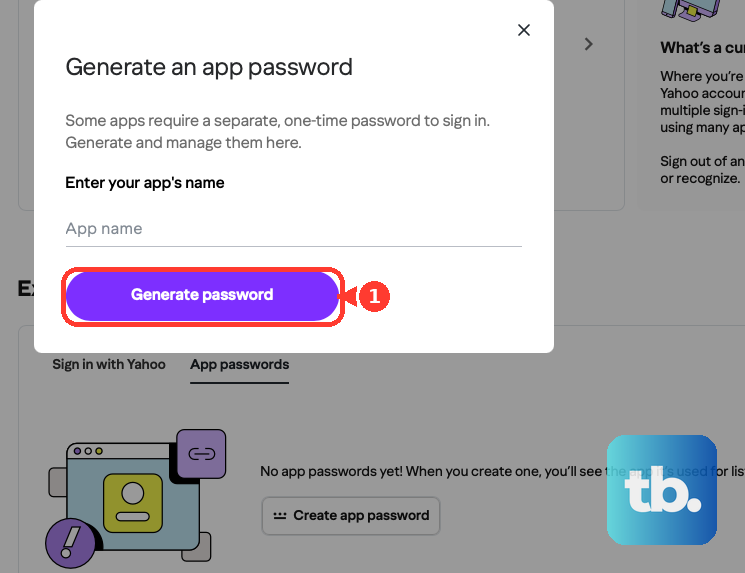
Use the one-time generated password to log into your third-party app. Then click "Done." To revoke an old one, open the app passwords list under "External connections," click "Delete" next to the target, then click "Delete" again to confirm.
For best results, generate app passwords from a browser you have signed into Yahoo with for several days in a row, and avoid Incognito mode. If it fails, use webmail or the official Yahoo app instead.
Frequently Asked Questions
Why is Yahoo forcing me to change my password?
Yahoo prompts a change if it has noticed any unusual activity on your account, or if you are using a password that is old or not strong enough. Creating a new one helps keep your personal info secured from intruders and imposters.
Will I be signed out of my other devices?
Expect to sign in again wherever Yahoo asks for the new password, but do not rely on a password change to revoke every connection. App passwords remain active after a main password change and must be deleted separately.
Why did my inbox stop updating after I changed my password?
The app may need a fresh Yahoo sign-in, an updated stored password, or a new Yahoo app password, depending on how the account was added. If updating the password does not work, remove the account and add it back using the app's current account setup flow.
There is no "Change password" option. What now?
This can happen when Account Key is enabled. Disable Account Key first, then try setting a regular password again.
Do I need to recreate my app passwords after changing my main password?
No. App passwords remain active even after a main password change; to invalidate one you must delete it. If you delete an app password and still want to use that third-party client, generate a new one and sign in with it.
What if I have forgotten my password completely?
Use the Sign-in Helper at login.yahoo.com/forgot with your recovery email or recovery phone number. Just make sure that recovery info is current, since outdated details can leave you locked out.