
Windows volume gets messy when the wrong speaker is selected, one app is muted, or a headset has its own dial turned down. Start with the quickest volume control, then use Sound settings when you need to change the device, one app, the microphone, or call behavior.
These are the current Microsoft-supported Windows controls for July 2026, with old Windows 10 and SndVol32-style fixes left out.
1. Move the taskbar volume slider first
Best first move: use the speaker control on the right side of the taskbar. Select the Speakers icon on the right side of the taskbar, then move the Volume slider up or down. To restore muted sound, select the Unmute speakers icon or move the Volume slider up.
This changes the main output volume for the PC. Use it when every sound is too loud, too quiet, or muted.
2. Switch the output device in Sound settings
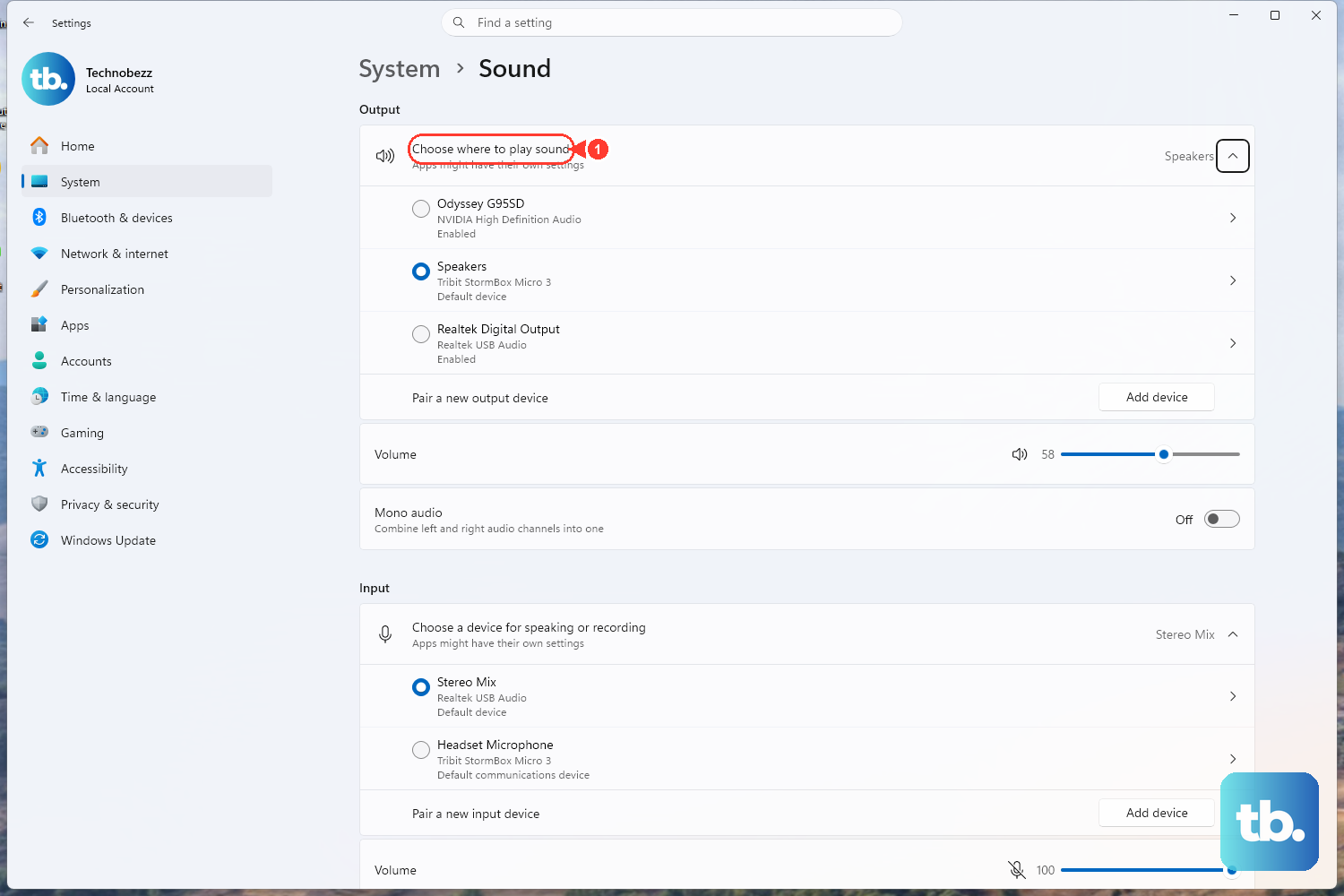
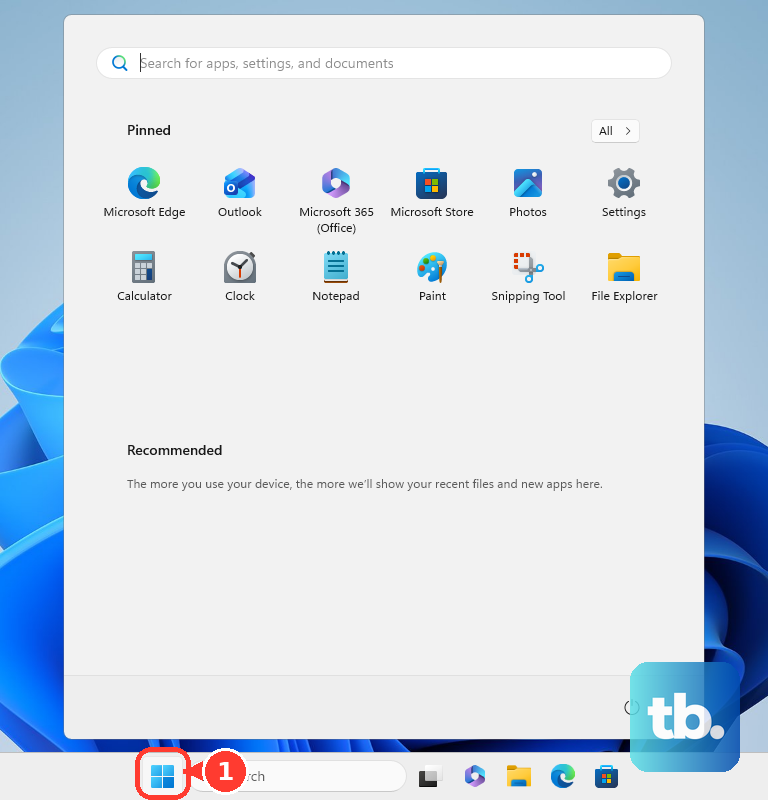
- 1.Open Start.
- 2.Select Settings.
- 3.Select System.
- 4.Select Sound.
- 5.Under Output, select the audio device you want.
- 6.Turn up that device's Volume slider and make sure it is not muted.
Use this when audio comes from the monitor, laptop speakers, headset, or Bluetooth device you did not mean to use. For the faster Windows 11 route, press Windows key + Ctrl + V. That opens the sound output page in Quick Settings, where you can choose the output device, adjust spatial sound, and open the volume mixer.
3. Raise one app in Volume mixer
When one browser, game, meeting app, or media player sounds wrong while everything else sounds normal, use the mixer. Right-click the Volume icon in the taskbar, then select Open Volume mixer. Raise the System slider, then raise the slider for the affected app. Make sure System and the affected app are not muted.
You can reach the same place through Start > Settings > System > Sound > Volume mixer.
4. Check keyboard headset and speaker controls
Press the device's physical Volume up or Volume down button, or use the keyboard Volume up, Volume down, or Mute key. On Surface keyboards and Type Covers, use the top-row Mute key to toggle muting, then use the volume keys to lower or raise sound. After that, open the accessory's software and raise its volume control, then raise the app's own volume slider when the app has one.
Windows is not always the only volume control in the chain. A headset, speaker, keyboard, phone, or accessory app can keep sound low even after Windows looks right. Check these controls after the Windows slider, especially with USB, Bluetooth, and wired headsets or speakers.
5. Adjust microphone input volume
Speaker volume controls what you hear. Microphone input volume controls how loud your voice sounds to other people.
Open Start > Settings > System > Sound. Under Input, select your microphone, then under Input settings, select Start test. Speak normally, select Stop test, and select Play. Adjust the Input volume slider.
Use this before joining a meeting or recording. It checks the microphone level inside Windows instead of guessing from the app.
6. Stop calls from lowering music and game sound
Open Start > Settings > System > Sound. Select More sound settings, then select Communications. Select Do nothing, and select Apply.
When music, videos, or game audio drops during calls, this changes the Windows communications setting. For a hearing-related output change, open Start > Settings > Accessibility > Audio, then switch on Mono audio to combine left and right audio.
7. Control games browser tabs and voice access
Some volume controls are faster inside the thing you are using, especially while gaming, recording, or playing audio in a browser tab. Press Windows logo key + G, then select the Audio widget. Use Mix to choose output speakers and adjust the speaker, app, or game volume sliders.
In Microsoft Edge, press Ctrl + M to mute the current tab. Press Ctrl + M again to unmute it. With Windows 11 voice access, say Show numbers. Say Click plus the number shown beside the volume control you want to use.
Use these for quick changes without leaving the current game, recording session, browser tab, or hands-free workflow.
8. Turn off audio enhancements and update the driver
Use this when volume stays low, sounds distorted, or behaves strangely after the basic controls are set correctly. Open Start > Settings > System > Sound. Under Output, select your audio device, then select Audio enhancements. Turn off enhancements and test the sound.
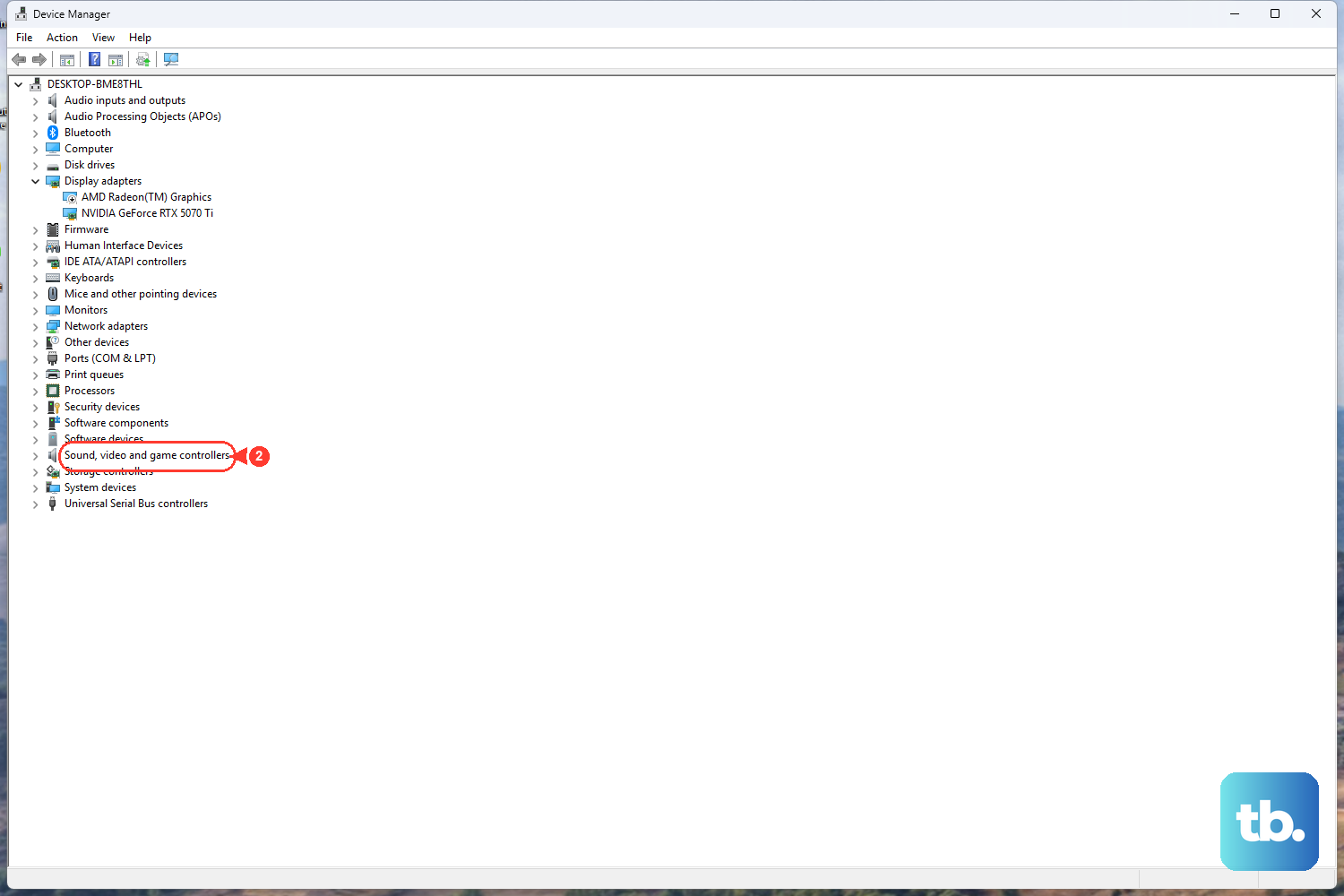
If the volume behavior is still broken, update the audio driver. Select Start, type Device Manager, and select Device Manager from the results. Expand Sound, video and game controllers, right-click your audio device, and select Update driver. Restart your PC.
If the issue continues, uninstall the driver and reinstall it from your PC or audio device manufacturer's official support website.
Frequently Asked Questions
What is the fastest way to change Windows volume settings?
Select the Speakers icon on the right side of the taskbar, then move the Volume slider. To unmute, select the Unmute speakers icon or raise the slider.
How do I open Windows sound output settings with a keyboard shortcut?
On Windows 11, press Windows key + Ctrl + V to open the sound output page in Quick Settings. From there, choose the output device and adjust available sound controls.
How do I make one app louder or quieter in Windows?
Right-click the Volume icon in the taskbar, select Open Volume mixer, then adjust the System slider and the slider for the specific app.
Why is my headset still quiet after turning up Windows volume?
Raise the volume on the headset, speaker, accessory software, and the app itself. Microsoft documents that accessory and app controls work separately from Windows volume.
How do I change microphone volume in Windows?
Go to Start > Settings > System > Sound, select your microphone under Input, run the input test, then adjust the Input volume slider.