Crunchyroll keeps three language settings separate, and that is where most people get stuck. There is the audio (dub) language you hear, the subtitle language you read, and the display language used for the app menus. Changing one does not change the others, so it helps to know exactly which setting controls what.
Most viewers searching for this want to switch the dub or subtitles, not the menu language. The sections below start with those high intent tasks, then cover the app display language and every major platform, including Smart TV, Fire TV, Roku, Apple TV, Android TV and game consoles.
Quick Reference for Each Setting
Use this table to jump straight to the right control. The exact wording can differ slightly by device, but the location is consistent.
| What you want to change | Website | Mobile app | TV and console |
|---|---|---|---|
| Audio (dub) language | Gear icon in player, or Preferences | Gear icon in player | Gear icon in player |
| Subtitle language | Gear icon in player, or Subtitle/CC Language | Profile icon, then Subtitles/CC Language | App Settings, then Subtitle Language |
| App display language | My Account, then Display Language | Change your device system language | Android TV only, or device language |
Change the Audio Dub Language
The fastest way to switch the dub is from inside the video player, and it works on web, mobile and most TV apps. Start playing any episode, open the player controls and select the gear icon.
In the player menu, choose Audio and pick the dub you want, such as English, Spanish, Portuguese or Japanese. Your choice applies right away and usually carries over to the next episodes you watch.
To set a default dub on the website so new shows start in your preferred language, open your account settings:
My Account > Preferences > Audio Language
Pick your default audio language from the list. You can still override it per episode using the gear icon in the player whenever a show offers another dub.
Change the Subtitle Language
Subtitles are controlled separately from audio, so you can watch Japanese audio with English, Spanish or another subtitle language depending on what the title offers. The quickest method is again the gear icon during playback.
While an episode plays, open the player controls, tap the gear icon and choose Subtitles, then select your language. This change applies to the episode you are watching.
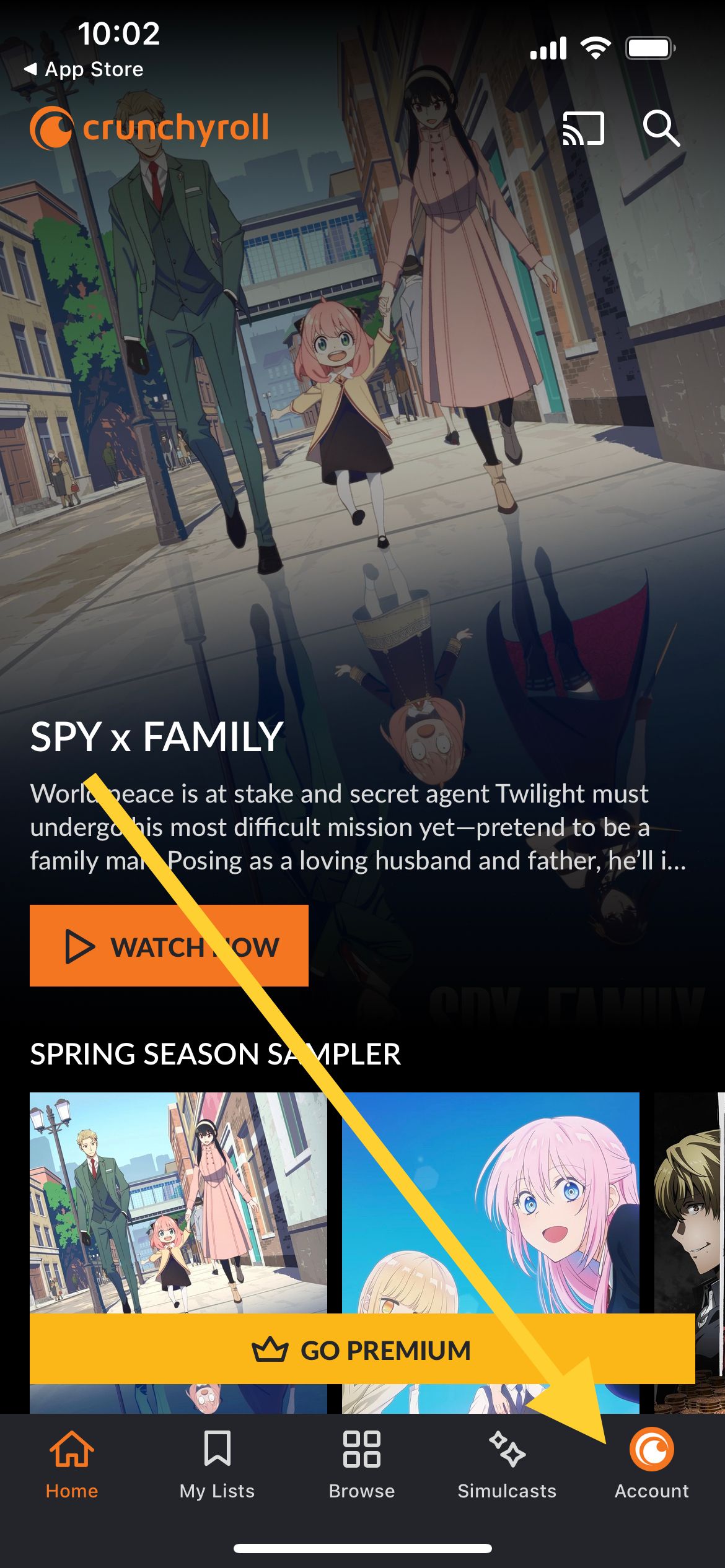
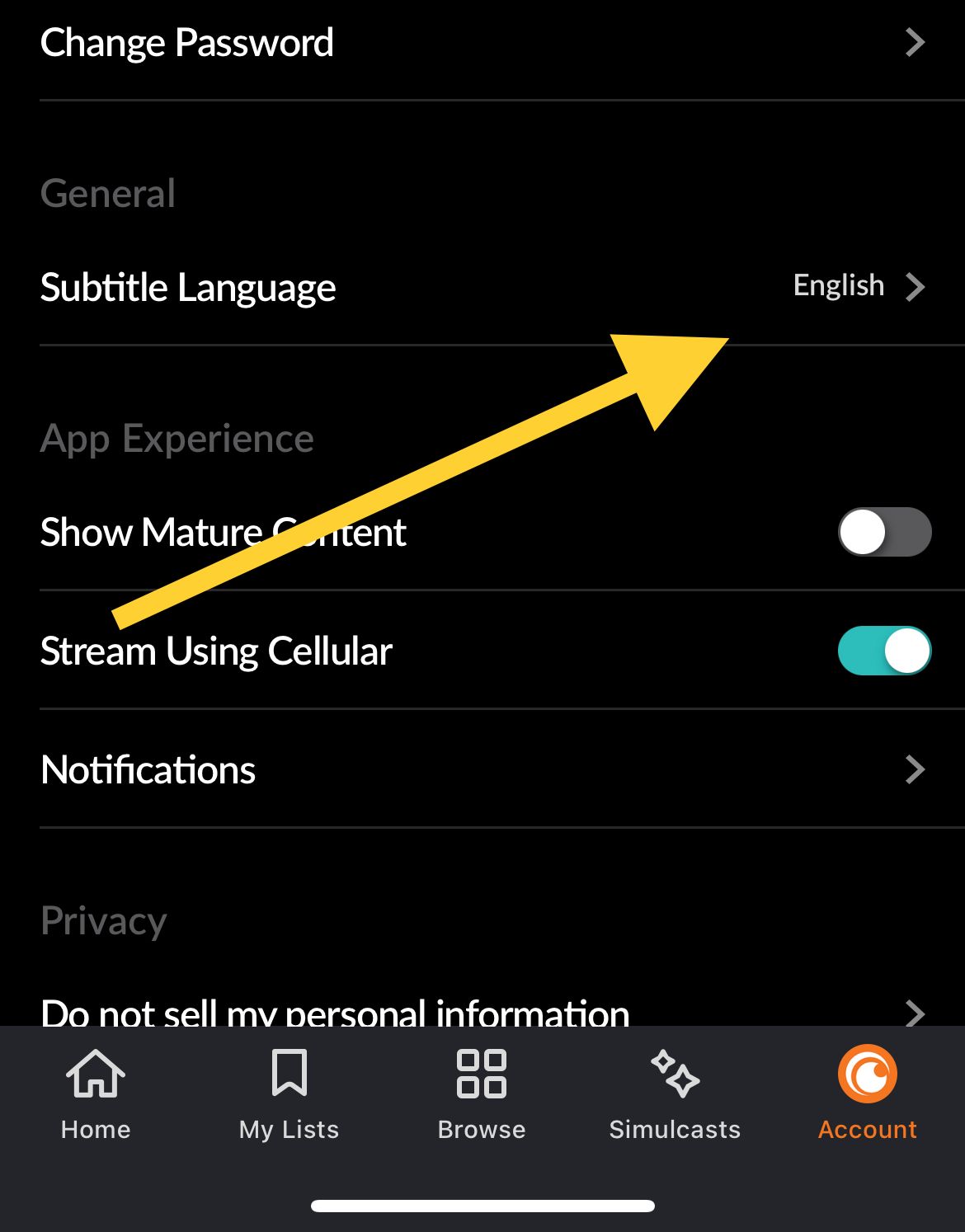
To set a default subtitle language in the mobile app, open the app and tap your profile icon in the bottom right corner. On the My Account screen, choose Subtitles/CC Language and pick your preferred language.
Profile icon > My Account > Subtitles/CC Language
On the website you can set the same default from My Account using the Subtitle/CC Language option. New titles then open with your chosen subtitles already selected.
Change the App Display Language on the Website
The display language controls the menus and buttons across the Crunchyroll interface, not the audio or subtitles. On the website you change it from your account settings.
- 1.Visit Crunchyroll.com and log into your account
- 2.Click your profile picture in the top right corner
- 3.Select My Account, where the Preferences section opens by default
- 4.Open the Display Language dropdown near the top of the page
- 5.Choose your preferred language
The interface updates to your selected language. If you only want a quick switch, there is also a language button at the bottom of the homepage that lets you change the site language without opening your account settings.
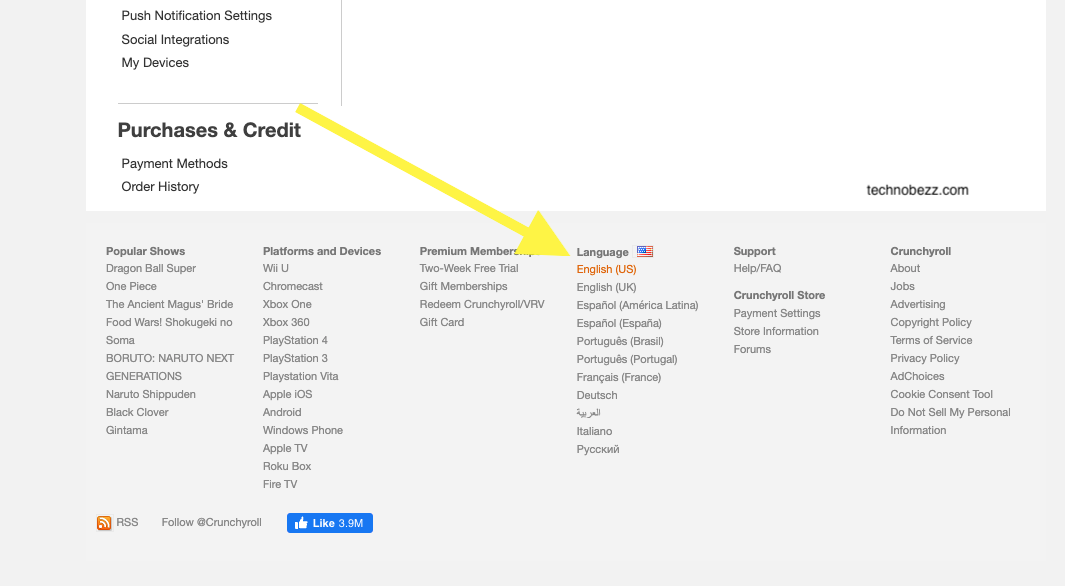
Change the Language on Mobile Apps
The Crunchyroll app on Android and iPhone does not have an in app display language setting. The app follows your phone system language for its menus, so the way to change the interface is to change your device language.
On iPhone running iOS 13 or later, you can set a language for just the Crunchyroll app instead of your whole phone:
Settings > General > Language & Region
Add your desired language if it is not listed, then return to Settings, scroll to Crunchyroll and choose the per app Language option. Android 13 and later offers a similar per app language setting inside your device settings.
Remember that audio and subtitles are still controlled inside the app, not by this device setting. Use the gear icon in the player for the dub and the profile icon for default subtitles.
Change the Language on Smart TV and Fire TV
On most Smart TV and Fire TV apps, the audio and subtitle controls live inside the video player. Start an episode, bring up the playback controls and open the gear icon to switch the dub or subtitle language for what you are watching.
These TV apps generally do not include an in app display language menu. If you want the interface in a different language on a Smart TV or Fire TV, change the system language of the device itself, then reopen Crunchyroll.
Change the Language on Roku and Apple TV
On Roku, you can set a default subtitle language from the app settings. Look for the Subtitle Language option in the General section and choose your language. The Roku app does not offer an in app display language switch, so menu language follows your Roku system settings.
On Apple TV, open the Crunchyroll app and go to its settings. Below the Sign Out option you will find Subtitle Language, where you can pick from the available languages. The Apple TV app does not let you change the display language inside the app.
Change the Language on Android TV and Consoles
Android TV is one of the few TV platforms with an in app display language option. Open the menu in the top left, choose App Language for the interface, or choose Subtitle Language to set your subtitle default.
On game consoles such as PlayStation and Xbox, you can switch the subtitle language while watching a show, though subtitle toggling can be more limited than on web or mobile. Use the player controls during playback to change the dub or subtitles where the title supports it.
Find Which Languages a Show Offers
Not every title is available in every language, and dubs are added over time. Before you start watching, you can check exactly what a show supports.
Open the show page, look under the description and select More Details to see the available Audio and Subtitle languages. Keep in mind that a language listed for a series may not exist for every season or episode, since availability depends on what has been produced and licensed.
Why a Language Option Might Be Missing
If a dub you expect is not in the Audio menu, the most common reasons are licensing and how the title is organized. Some series still list their dubbed versions as separate seasons rather than as an audio track, so the English or other dub may appear as its own season in the episode list. Crunchyroll has said it is working on a more seamless way to switch audio across the library.
Region and licensing rules also affect availability, so a language offered in one country may not appear in another. If a change will not save, sign out and back in, update the app, and confirm you are setting the default in your account rather than only in a single player session.
Frequently Asked Questions
Does changing the display language also change the audio
No. The display language only affects the menus and buttons. You set the audio dub separately using the gear icon in the player or the Audio Language default in your account preferences.
Why is there no English dub for my show
A dub may not be produced yet, may be limited by regional licensing, or may be listed as a separate season instead of an audio track. Check More Details on the show page to confirm which languages are actually offered.
Can I set a default subtitle language
Yes. In the mobile app, tap your profile icon and choose Subtitles/CC Language. On the website, set the Subtitle/CC Language option in My Account so new titles open with your preferred subtitles.
Why does my language keep resetting
Per episode changes made in the player do not always become your global default. Set your defaults in your account preferences for audio and subtitles, and make sure your app is updated so the setting saves correctly.
Can I change the app menu language on my phone
The Crunchyroll app follows your device system language. On iPhone with iOS 13 or later and on Android 13 or later, you can set a language for just the Crunchyroll app from your device settings without changing your whole phone.
How do I switch the audio while watching
Open the playback controls, tap the gear icon and select Audio, then choose your dub. Use Subtitles in the same menu to change the on screen text language for that episode.
First published October 12, 2025. Last updated June 4, 2026.