Unwanted mail keeps landing in your Outlook.com inbox, and you want it gone for good. Maybe it is one persistent address, a marketing domain that ignores your unsubscribe requests, or a sender who keeps slipping past you with new addresses.
The good news: Outlook.com has a built-in blocked senders list, plus quick per-message blocking on the web, desktop apps, and your phone. Once you block a sender, their mail is automatically routed to the Junk Email folder instead of your inbox.
This guide covers every verified method, ordered quickest and most common first, with the menu paths for each surface. Before you start, make sure you are signed in to your Outlook.com or Microsoft account (the web client lives at outlook.com or outlook.live.com; work or school accounts use outlook.office.com or outlook.office365.com).
Block a Sender Straight From a Message on the Web
This is the fastest route when the offending email is already in front of you. You need at least one message from the sender sitting in your Inbox or Junk folder to act on.
- 1.Select the message (or messages) from the sender you want to block.
- 2.Open the ellipsis menu ("... More options") in the top toolbar.
- 3.Under "Move & delete", select "Block".
- 4.Confirm in the popup that appears.
The message is removed, and future mail from that sender is treated as junk and added to your blocked list. No need to copy the address by hand. Exact button wording can vary by interface version, so if you do not see "Block" under "Move & delete", use the Settings method below instead.
Add an Address or Domain to the Blocked List on the Web
Use this when you want to block a sender preemptively, paste in an address, or manage everything in one place. This is also where Outlook's own help points you for reliable list management.
If you have more than one account, select the account you want to manage.
Next, go to Settings > Mail > Junk email.
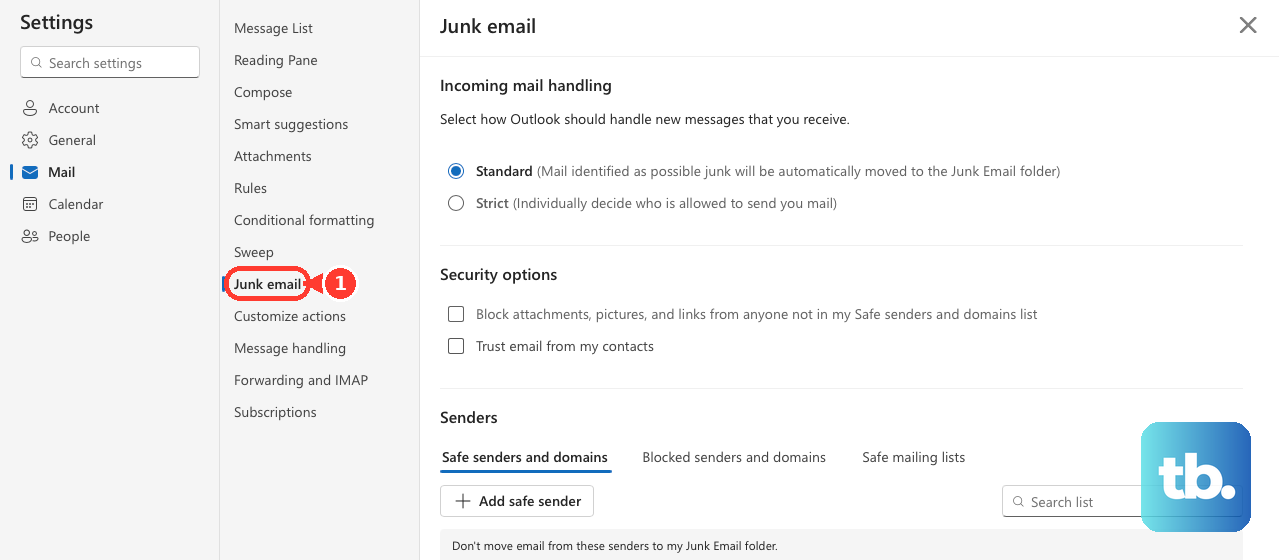
Under "Blocked senders", enter the email address you want to block; or under "Blocked domains", enter the domain you want to block.
Then select Add.
Finally, select Save.
Deciding between the two: block a single address (for example, [email protected]) to stop one person, or block an entire domain (for example, @example.com) to stop all mail from an organization at once. Depending on your interface version, the control may read "+ Add blocked sender" with an "OK" step before Save; the result is identical.
Remove a Sender From the Blocked List
If you blocked someone by mistake, or a sender you now trust stopped arriving, reverse it in the same place.
Go to Settings > Mail > Junk email.
After that, select the address or domain you want to remove.
Select the remove icon (the trash can next to the entry).
Block From a Message in the Outlook Mobile App (iOS and Android)
On your phone, blocking happens one message at a time. Open the email first, because the block option does not consistently appear from the message list view.
Open a message from the sender you want to block.
From there, tap the three dots ("...") in the top-right corner.
Tap "Report junk" (labeled "Report message" on some versions).
Choose "Block sender" from the screen that appears.
Confirm by tapping "Block sender" again.
Future mail from that sender goes to Junk. Menu labels vary by app version, so if you do not see "Report junk", look for the equivalent reporting or block option after opening the email. For bulk cleanup across many senders, switch to the web settings at Outlook.live.com, since mobile only blocks one sender at a time.
Block in New Outlook for Windows
The new Windows app mirrors the web settings.
Select the account if you have multiple.
Then go to Settings > Mail > Junk email.
Enter the address under "Blocked senders" or the domain under "Blocked domains".
Select Add.
Select Save.
To unblock, return to Settings > Mail > Junk email, select the entry, and select the remove icon. Important caveat: new Outlook for Windows does not support blocking senders for third-party connected accounts like Gmail, Yahoo, iCloud, and other domain-based email services. For those, manage blocking in that provider's own service instead.
Block in Classic Outlook for Windows
If you use the classic desktop app (Outlook 2016, 2019, 2021, or Microsoft 365), you have two options. To block straight from a message, right-click it and select "Block" > "Block Sender". The sender is added to your Blocked Senders list and the message moves to Junk Email.
To manage the list directly:
On the Home tab, in the Delete group, select "Block" > "Junk E-mail Options".
On the "Blocked Senders" tab, select "Add".
Enter an email address or domain (for example, [email protected] or @example.com).
Select "OK".
Block in Outlook for Mac
To block, select a message from the sender in the message list, then select "Block" in the Toolbar. Outlook adds the sender's address to the blocked list and routes new mail to Junk. In the legacy Mac app, the path is the "Home" tab, then "Junk" > "Block Sender".
To unblock in the current app, open the Outlook menu, select "Tools" > "Junk Email Preferences", choose the address or domain under Blocked Senders, then select "Remove the selected sender". (In the legacy app, use "Tools" > "Spam Email Preferences" > "Blocked Senders" tab.) Note that on Mac, the block and unblock option only works for Exchange-type accounts such as Outlook.com or an Exchange-hosted work email.
Stop a Sender Who Keeps Changing Addresses
Sometimes a blocked sender still reaches you. There are two common reasons, each with a fix.
If the sender keeps switching to new addresses, blocking each one is a losing game. Instead, create an Inbox rule that picks up common words in the incoming mail and moves those messages to the Deleted Items folder.
If the displayed address looks fake or differs from the real one, the sender may be hiding behind a spoofed name. View the internet message headers to find the sender's true address, then add that real address to your blocked senders list.
What to Know Before and After You Block
A few verified behaviors will save you confusion:
Blocking moves, it does not bounce. A blocked sender's mail is automatically moved to your Junk Email folder. The message still arrives; it just lands in Junk rather than the inbox.
Junk is purged after 14 days. Email is automatically removed from the Junk Email folder after 14 days and cannot be recovered after that, so check Junk for anything important before then.
Blocked beats safe. If the same sender appears on both your Blocked senders and Safe senders lists, the blocked entry takes precedence. Remove the conflicting blocked entry before the allow will work.
Do not block your own contacts. Adding a sender to Blocked while they are also in your contacts or Safe senders can silently route their mail to Junk. Reconcile the lists if a trusted sender stops arriving.
There is a capacity ceiling. You can have up to 10,000 addresses or domains combined across your blocked and safe senders lists.
Work and school accounts answer to the admin. An administrator's server-level rule overrides your personal Safe Senders or Blocked list, so your personal lists only act on mail already allowed through the organization's gate.
Frequently Asked Questions
Does blocking a sender delete their emails?
No. Blocking moves their mail to the Junk Email folder rather than deleting it on arrival. It is not a hard bounce. Junk is then cleared automatically after 14 days, after which those messages cannot be recovered.
Should I block a single address or the whole domain?
Block a single address ([email protected]) to stop one specific person. Block an entire domain (@example.com) to stop all mail from an organization at once. Choose domain blocking when an entire company keeps emailing you.
Why does a blocked sender still reach my inbox?
Two reasons. Either the sender is using a different, changing address to get around the block (fix it with an Inbox rule keyed on common words, or block each new address), or they are hiding their real address so the displayed one differs from the true one (check the internet message headers and block the real address).
Can I block multiple senders at once on my phone?
No. The current Outlook mobile app blocks only one message and sender at a time. In multi-select mode the "Block Sender" option disappears. For bulk list management, use the web settings at Outlook.live.com instead.
Can I block senders for a Gmail or Yahoo account added to Outlook?
Not in new Outlook for Windows, which does not support blocking senders for third-party connected accounts like Gmail, Yahoo, and iCloud. Manage blocking in that provider's own service. On Mac, the block option works only for Exchange-type accounts such as Outlook.com.
A trusted contact's email suddenly went to Junk. Why?
They are likely on your Blocked senders list while also being a contact or on Safe senders. The blocked entry takes precedence, so remove that entry in Settings > Mail > Junk email to let their mail through again.