Apps on your iPhone cannot use the camera until you give them permission. The first time an app needs the camera, iOS shows a one-time prompt explaining why it wants access, and you tap Allow or Don't Allow.
If you tapped Don't Allow, or you skipped the prompt, the app will not work with the camera until you turn the permission back on. You can do that at any time, and you stay in control of which apps can see through your lens.
This guide covers how to allow camera access, how to manage it per app, how to read the privacy indicators, and what to do when the camera stays blocked even after you grant access.
How To Turn On Camera Access For Apps
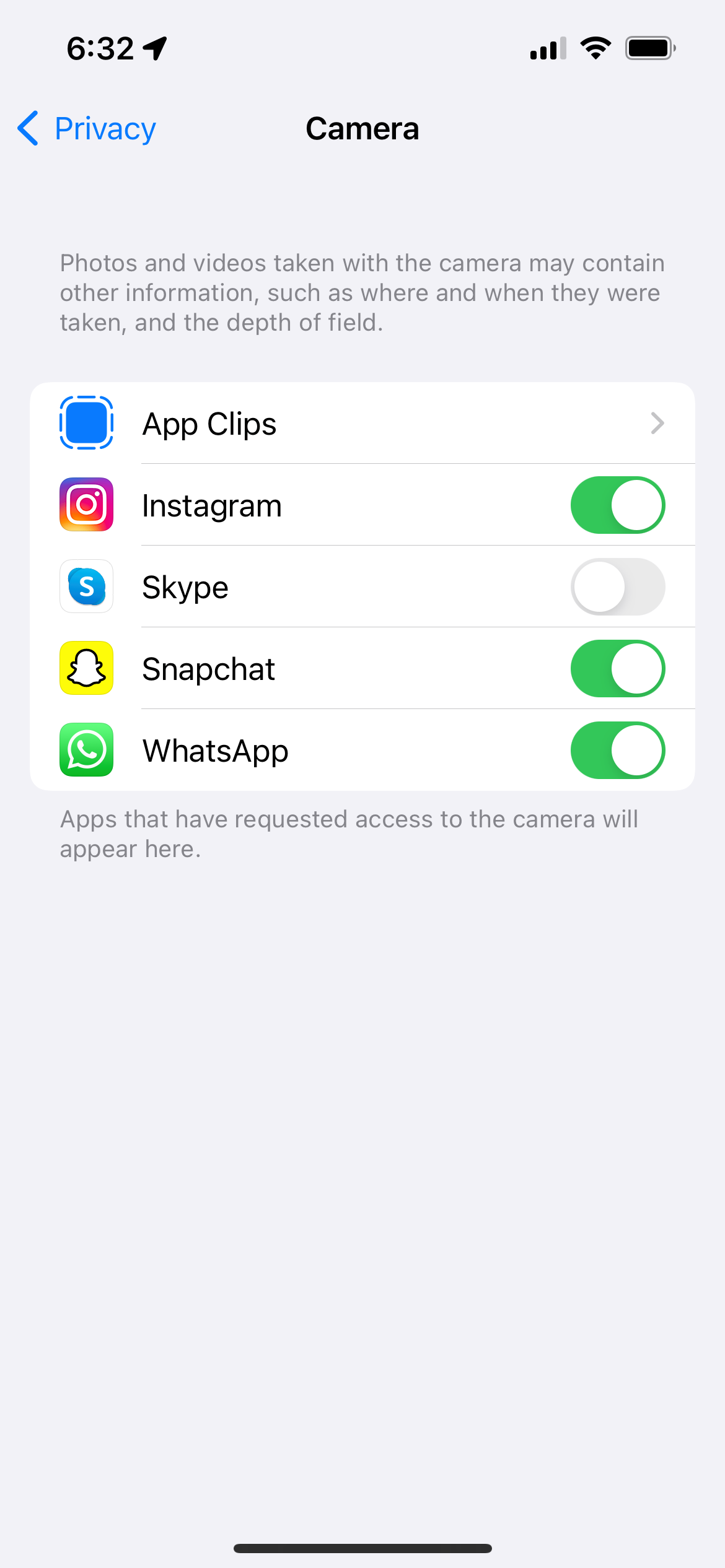
The central place to manage camera permissions is the Privacy & Security menu. Every app that has asked for the camera appears here in one list.
Settings > Privacy & Security > Camera
- 1.Open the Settings app.
- 2.Tap Privacy & Security.
- 3.Tap Camera.
- 4.Find the app you want to allow.
- 5.Toggle the switch on so it turns green.
A green switch means the app can use the camera. Flip the same switch off to block access again at any time.
If an app is not listed here, it has not yet requested the camera, so open the app and try the feature that uses it first.
Allow Camera Access For One App
You can also reach the camera toggle from an individual app's own settings page. This is useful when you want to review everything a single app can access without scrolling the master list.
Settings > [app name]
Open Settings and scroll down to the app you want.
Tap the app's name.
Switch on Camera under its permissions.
This view shows the camera toggle alongside the app's other permissions, such as Photos, Microphone, and Location, so you can grant only what you are comfortable with.
Allow Microphone Access For Video And Calls
The camera permission only covers video and photos. Apps that record video, make video calls, or capture sound need a separate microphone permission, so a working camera with no audio usually points here.
Settings > Privacy & Security > Microphone
Open Settings and tap Privacy & Security.
Tap Microphone.
Toggle on the apps that need to record sound.
If a video app films picture but no audio, the camera switch is on while the microphone switch is off. Turn both on for full video recording and calls.
How To Read The Camera And Microphone Dots
iPhone shows a small indicator at the top of the screen whenever your camera or microphone is in use. These privacy dots have been part of iOS since iOS 14 and cannot be turned off.
A green dot means an app is using the camera, or the camera and microphone together. An orange dot means an app is using the microphone only.
If a dot appears when you are not expecting it, you can find the responsible app.
Swipe down from the top-right corner to open Control Center while the dot is showing.
The name of the app that most recently used your camera or microphone appears at the top.
Review Camera Use With App Privacy Report
Control Center only shows you what is happening right now. To see a history of which apps used the camera, turn on App Privacy Report, available on iOS 15.2 and later.
Settings > Privacy & Security > App Privacy Report
Open Settings and tap Privacy & Security.
Scroll down and tap App Privacy Report.
Tap Turn On App Privacy Report.
From then on, iOS logs each time an app accesses the camera, microphone, location, photos, and contacts over the past seven days, with timestamps.
The report only records activity after you switch it on, so give it a few days to fill in.
The data is stored only on your device.
When The Camera Is Still Blocked
If you allowed access but the app still cannot open the camera, work through these checks in order. Most cases come down to a restriction or a permission that did not take effect.
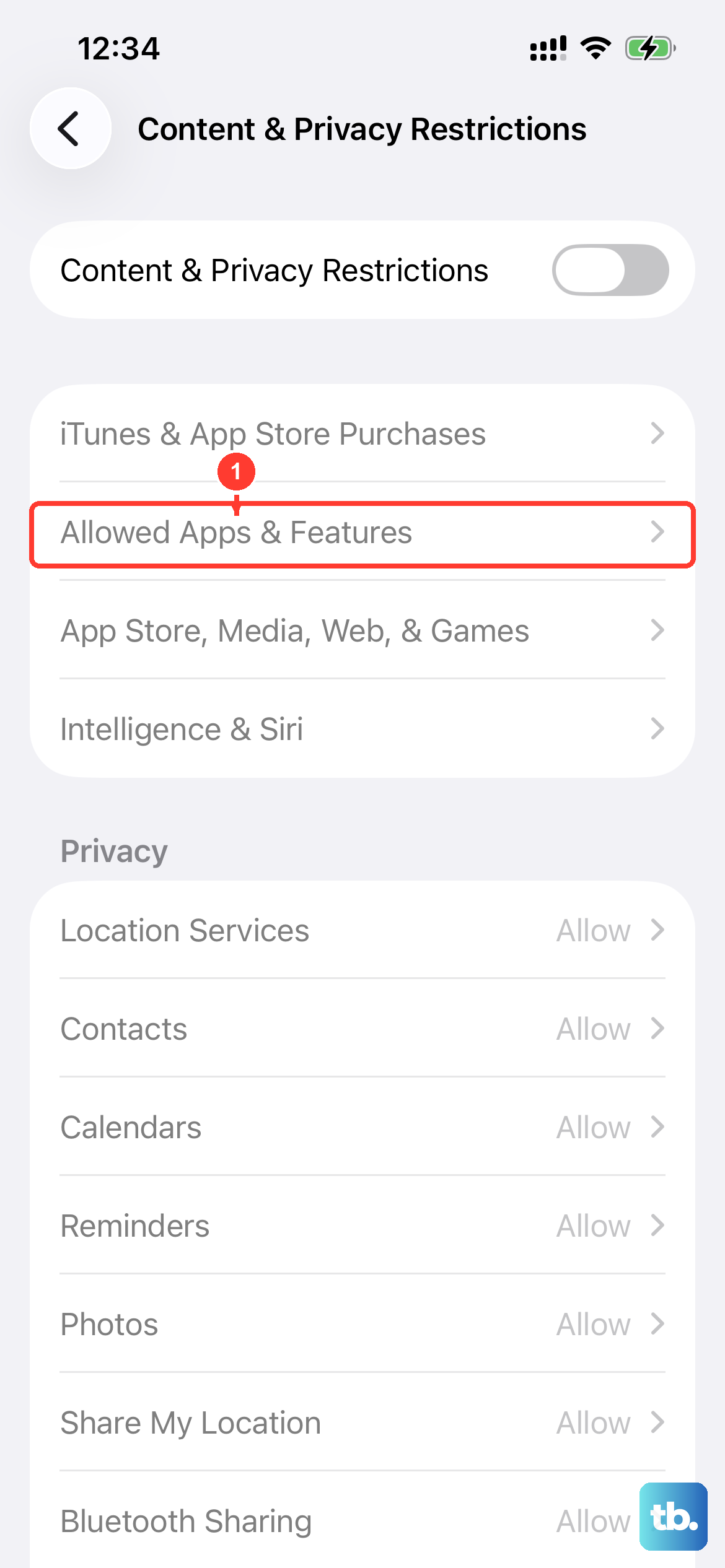
Check Screen Time restrictions. Screen Time can hide or disable the camera for the whole device. Go to Settings > Screen Time > Content & Privacy Restrictions > Allowed Apps (or Allowed Apps & Features) and make sure the Camera switch is on.
If Content & Privacy Restrictions is off, this is not the cause.
Restart the app. Close the app fully by swiping it away from the App Switcher, then reopen it.
Apps sometimes need a fresh start to pick up a permission change.
Restart your iPhone. A reboot clears temporary glitches that can leave the camera unresponsive after you change a setting.
Confirm in-app camera settings. Some apps have their own camera options inside the app. Open the app's own settings menu and check that its camera feature is enabled there too.
Reinstall the app. If access still fails, delete and reinstall the app.
A clean install triggers a fresh permission prompt the next time you use a camera feature.
Look for work or school management. If your iPhone is managed by an employer or school through a device management profile, the camera can be disabled centrally and you will not be able to override it in Settings.
Frequently Asked Questions
Why is an app not showing in the Camera list in Settings?
An app only appears under Settings > Privacy & Security > Camera after it has asked for camera access at least once. Open the app and use the feature that needs the camera, then check the list again.
What is the difference between the green dot and the orange dot?
A green dot means an app is using your camera, or your camera and microphone together. An orange dot means an app is using only your microphone. Both appear at the top of the screen while access is active.
The camera works but there is no sound in my videos. What is wrong?
The microphone has its own permission. Go to Settings > Privacy & Security > Microphone and turn the app on, since the camera toggle does not control audio.
Can I block the camera for one app without affecting others?
Yes. Each app has its own switch under Settings > Privacy & Security > Camera, so turning one off has no effect on the others.
How do I see which apps recently used my camera?
Turn on App Privacy Report under Settings > Privacy & Security > App Privacy Report. It logs camera, microphone, and other sensor access for the past seven days with timestamps. For a real-time check, open Control Center while the green dot is showing.
Why can't I turn the Camera switch on at all?
A Screen Time restriction is the most common reason. Check Settings > Screen Time > Content & Privacy Restrictions > Allowed Apps and make sure Camera is enabled. A work or school management profile can also lock the camera.
First published October 15, 2025. Last updated June 4, 2026.