Windows 11 needs the display hardware connected before the extra screen becomes useful. Once the monitor, dock, or wireless display is detected, you can extend the desktop, put the screens in the right order, and keep your windows where they belong.
To narrow down whether the screen or the signal is at fault, open a online monitor test and step through its patterns. A clean result shifts suspicion to the cable or source device.
Start with the cable or dock, then use the current Windows 11 display controls below.
1. Plug in the monitors
Connect each monitor to the PC, dock, or adapter with a supported video connection: HDMI, USB-C, DisplayPort, VGA, or DVI.
Then check Windows for display-related fixes.
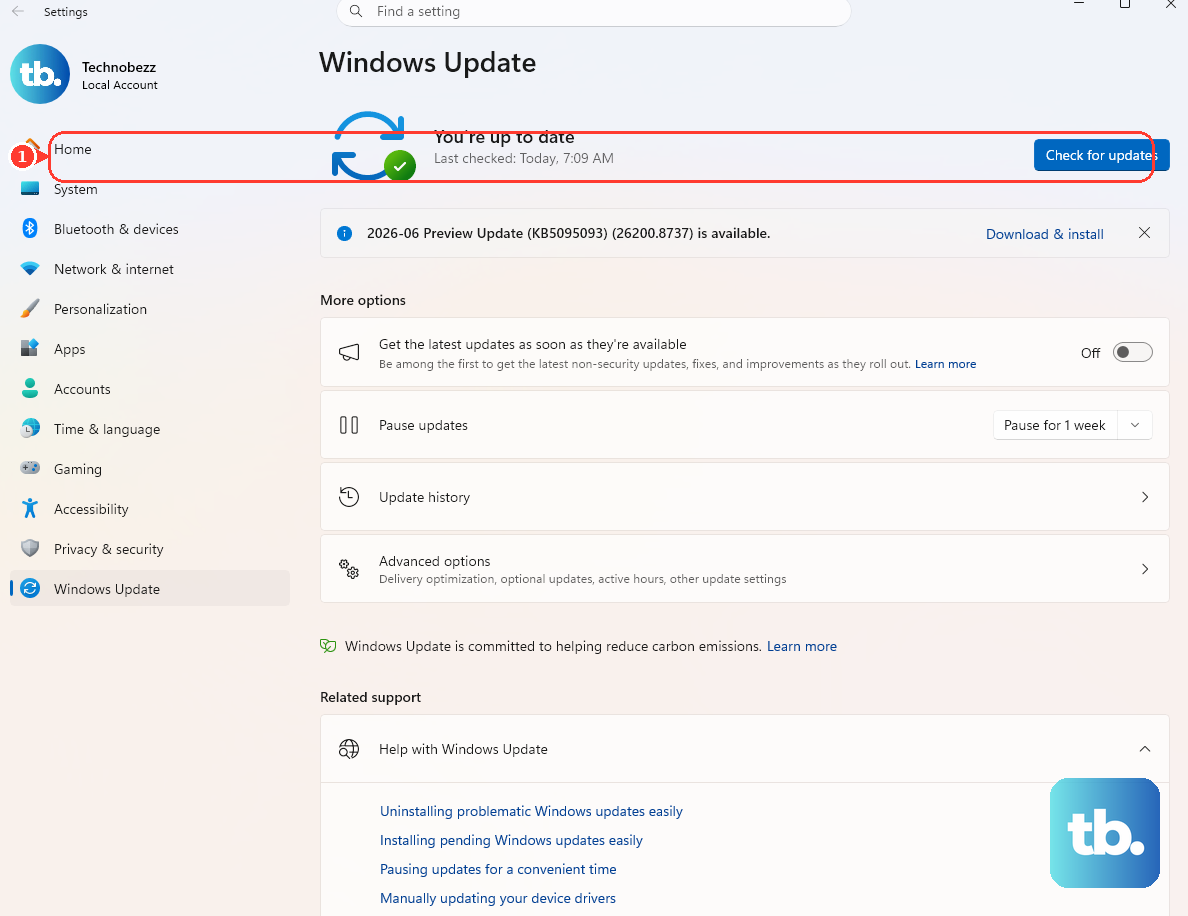
Select Start > Settings > Windows Update > Check for updates.
For two or more external monitors, the PC's graphics hardware must support that many displays.
If the laptop has one video output, use a supported docking station or a USB-C adapter that adds another video output.
Microsoft says to confirm compatible docks and supported monitor counts with the PC manufacturer.
2. Detect the new display
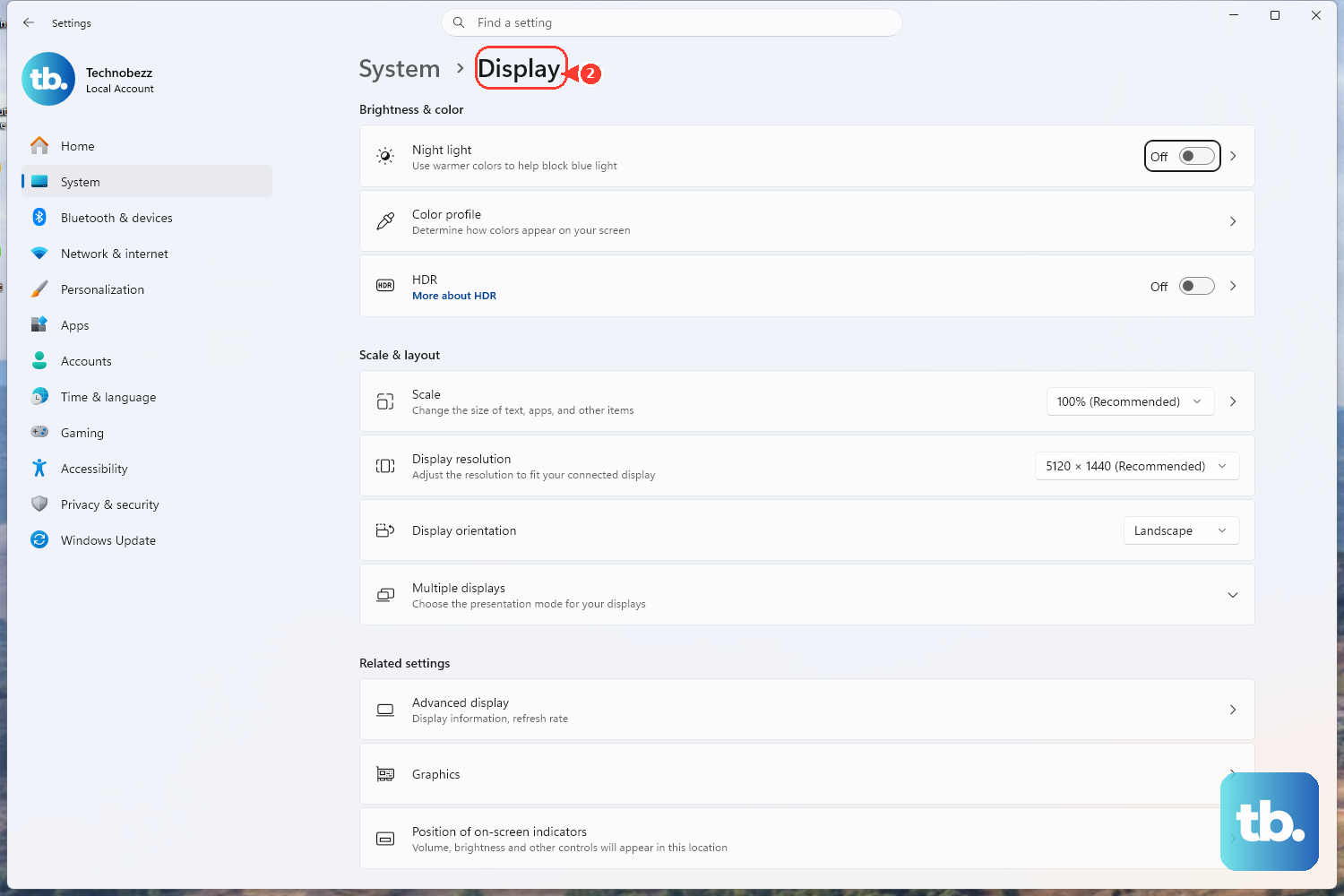
- 1.Select Start.
- 2.Open Settings.
- 3.Go to System > Display.
- 4.Open Multiple displays.
- 5.Select Detect.
Use this when the monitor is connected but Windows does not show it in Display settings.
3. Extend the desktop
Press Windows logo key + P.
Choose the display mode that matches what you want the screens to do.
PC screen only keeps the picture on the main PC screen.
Duplicate shows the same picture on both screens.
Extend turns the added monitor into extra desktop space.
Second screen only uses only the external display.
For a normal multi-monitor desk setup, choose Extend.
4. Arrange the screens
Open Start > Settings > System > Display, then select Identify.
Windows puts a number on each screen.
Drag the display boxes in Display settings until they match the monitors on your desk.
Select Apply.
Your pointer will now move between screens in the same direction as the physical layout.
5. Tune each monitor
One screen can need different sizing than another, especially when the monitors are different sizes or one is rotated vertically.
Open Start > Settings > System > Display.
Select the display you want to change.
Under Scale & layout, adjust Scale, Display resolution, and Display orientation.
Repeat that for each monitor that needs its own layout.
6. Keep windows in place
Docking, undocking, and reconnecting monitors can move open windows.
Windows 11 has two settings built for that.
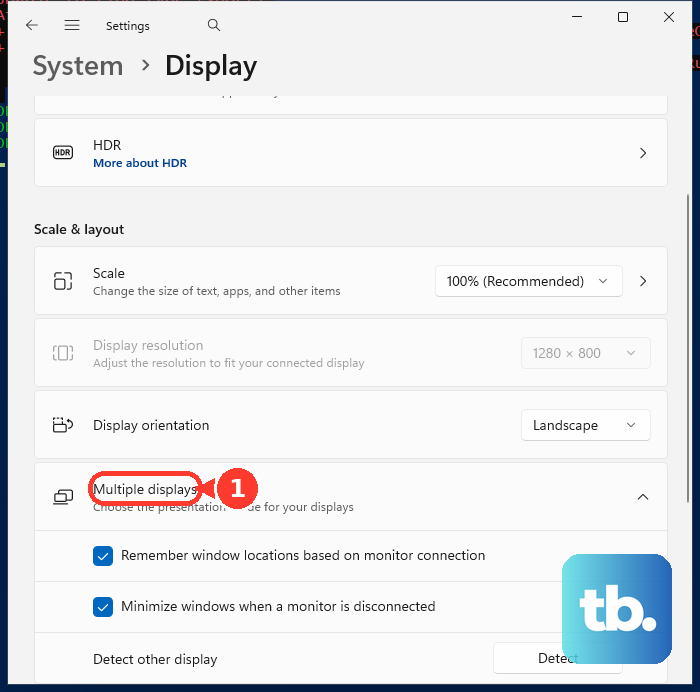
Go to Start > Settings > System > Display.
Scroll down, open Multiple displays, then turn on Remember window locations based on monitor connection and Minimize windows when a monitor is disconnected.
7. Connect a wireless display
For a Miracast display, turn on the TV, projector, or monitor first.
If you use a Miracast dongle or adapter, plug it into the display.
Press Windows logo key + K.
Select the wireless display from the list.
Follow the on-screen instructions.
You can also search for Cast in the Windows search bar, then select Connect to a wireless display.
The Settings path is Start > Settings > System > Display > Multiple displays > Connect, then Connect.
To use another Windows 11 PC as the receiving screen, set up the receiver first.
On that PC, open Start > Settings > System > Projecting to this PC > Optional features.
Next to Add an optional feature, select View features, search for Wireless Display, select it, choose Next, then select Install.
After it installs, open Wireless Display from taskbar search, then press Windows logo key + K on the sending PC and select the receiving PC.
8. Fix connection problems
Start with the quickest reset: press Windows logo key + Ctrl + Shift + B.
That resets the graphics driver.
For a wireless display or dock, remove the saved device and connect it again.
Open Settings > Bluetooth & devices > Devices.
Under Wireless displays & docks, select the device, choose Remove device, then reconnect it with Windows logo key + K or the Display settings path.
If the monitor stopped working after an update, use Microsoft's driver recovery path.
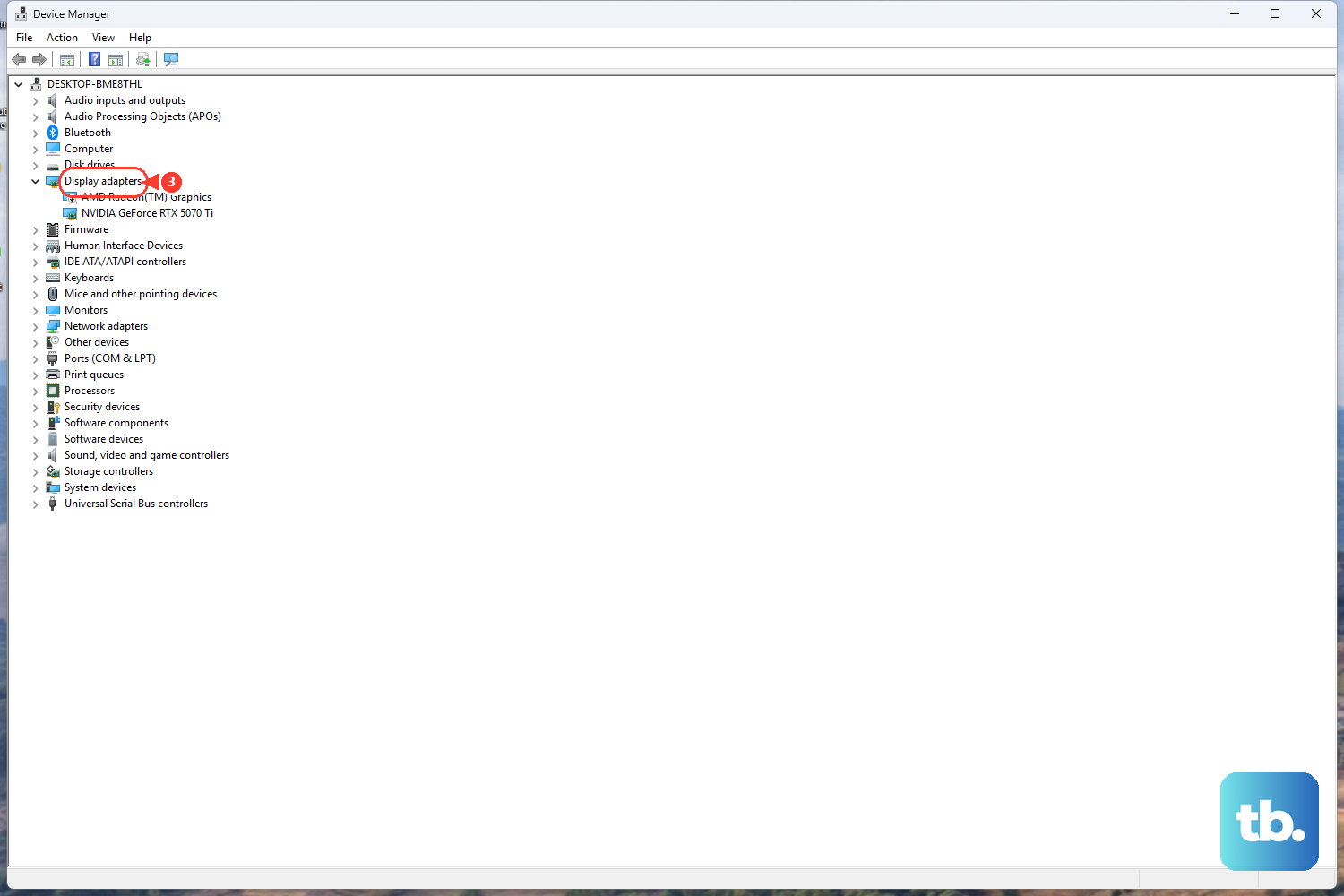
Search for Device Manager, open Display adapters, right-click the display adapter, select Properties, open the Driver tab, then select Roll Back Driver.
To reinstall the driver, right-click the display adapter, select Uninstall device, choose Attempt to remove the driver for this device, select Uninstall, and restart when prompted.
Skip basic HDMI splitters for independent extended desktops.
Microsoft says a splitter duplicates the same signal instead of creating two separate extended displays.
9. Check managed PC limits
Work and school PCs can have wireless display features controlled by device policy.
On those devices, projection from a PC, projection over infrastructure, and projection to a PC can be managed through MDM policy.
Group Policy coverage is narrower; it is documented for the projection-to-a-PC and PIN-for-pairing settings under Windows Components > Connect.
If the wireless display options are missing on a managed laptop, contact the organization that manages the device.
Frequently Asked Questions
Can I use an HDMI splitter to extend my Windows 11 desktop across two monitors?
No. Microsoft says a simple splitter duplicates the same signal instead of creating two independent signals, so it is not the right tool for Extend mode.
What shortcut opens the Windows 11 display mode menu?
Press Windows logo key + P. Choose Extend when you want the added monitor to become extra desktop space.
What shortcut connects Windows 11 to a wireless display?
Press Windows logo key + K, then select the Miracast display, adapter, dock, Teams Room, Surface Hub, or receiving PC from the Cast list.
Why does my laptop need a dock or USB-C adapter for more monitors?
Some laptops have only one video output. A supported docking station or USB-C adapter adds another video output, but the PC graphics hardware still has to support the number of monitors you want.
What app updates Microsoft Wireless Display Adapter firmware?
Install the Microsoft Wireless Display Adapter app from Microsoft Store, connect the PC to the adapter, open the app, then use Update & security or Firmware to install an available update.











