You want to change your Wi-Fi password, set up port forwarding, or update your firmware, and every guide tells you to "log in to your router." But when you type an address into your browser, nothing loads, or you hit a login box you cannot get past.
Reaching your router's settings is straightforward once you know three things: which network to be on, what address to type, and what login to use. Some newer routers skip the browser entirely and live in a phone app instead.
This guide covers every verified method, ordered quickest and most common first, with the exact addresses and menu paths for the major brands. Start at the top and work down only if a step fails.
Connect to the Router's Own Network First
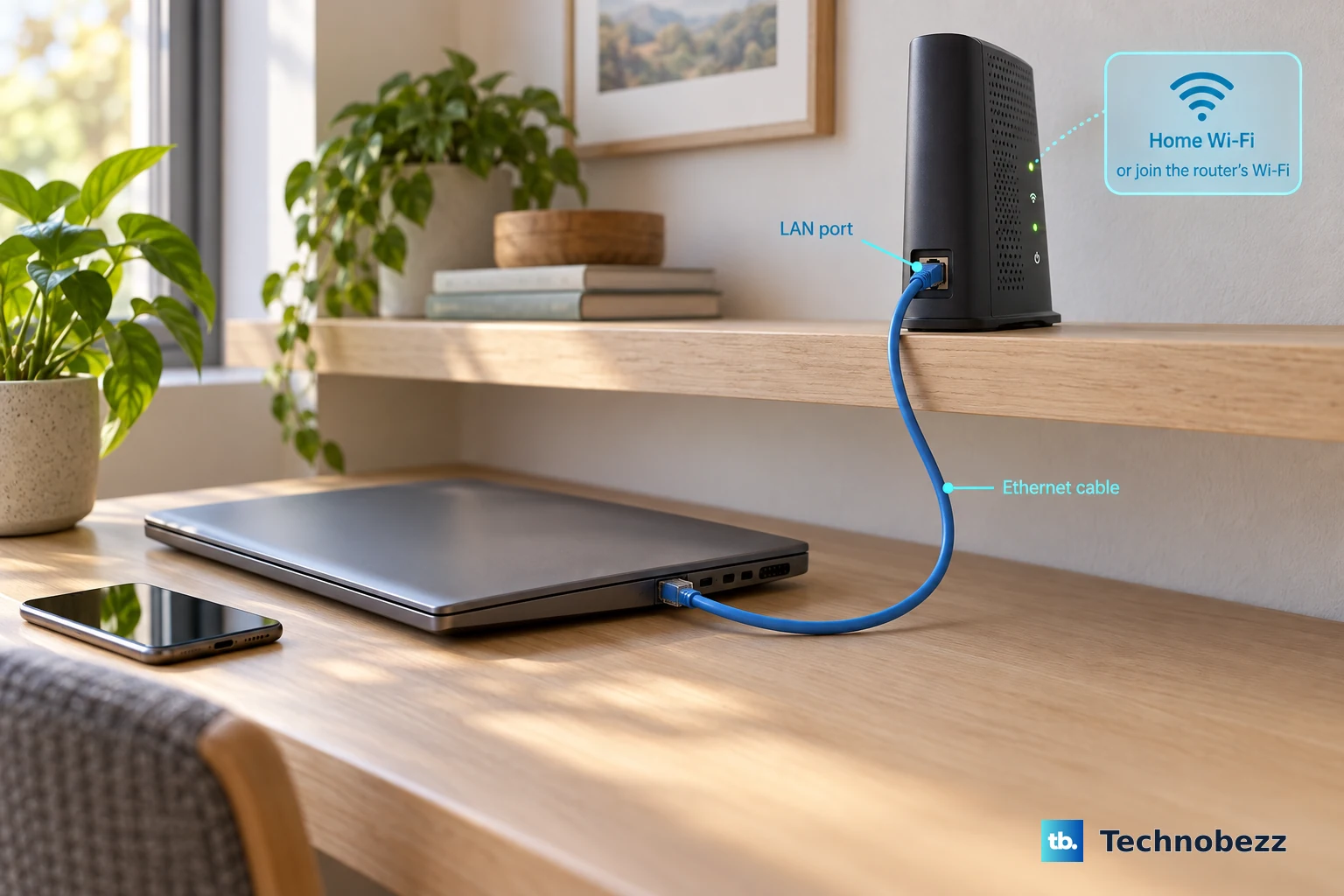
No login address will load unless your device is already on the router's network. Connect your computer to the router with an Ethernet cable into a LAN port, or join the router's Wi-Fi.
This is a hard prerequisite across TP-Link, NETGEAR, Linksys, and ASUS. If you are on a different network, or tethered to a phone, the router page will simply time out.
Open the Router's Address in Your Browser
Use a modern browser (Chrome, Firefox, Edge, or Safari); older browsers can cause login failures.
Type the address into the browser's address bar, not the search box. Typing 192.168.1.1 into a search engine box just runs a web search instead of loading the router.
Most home routers use 192.168.1.1 or 192.168.0.1, which are the most common local addresses.
Another possible local address is 10.0.0.1, used by Xfinity/Comcast and some NETGEAR routers.
For ASUS, try 192.168.50.1.
For TP-Link Deco mesh, try 192.168.68.1.
Many brands also accept a hostname you can type instead of numbers: tplinkwifi.net, routerlogin.net or routerlogin.com, router.asus.com or asusrouter.com, myrouter.local or LinksysSmartWiFi.com, and dlinkrouter.local. If a hostname will not resolve, fall back to typing the numeric IP directly.
Enter the Admin Username and Password
At the login prompt, enter the router's admin credentials. Note that these are case-sensitive.
Older routers ship with defaults printed on a label on the bottom or back of the unit, commonly admin/admin or admin/password.
Newer TP-Link, NETGEAR, and ASUS models force you to create a custom admin password on first login, so use the one you set during setup.
One common point of confusion: the admin login is not the same as your Wi-Fi network name (SSID) or Wi-Fi password, and it is not your ISP account login. ASUS notes that the default credentials are for the router management interface only.
Log In to a TP-Link Router
Connect by Ethernet or join the TP-Link Wi-Fi using the label credentials, then open your browser.
In the address bar type tplinkwifi.net (or 192.168.0.1; try 192.168.1.1 if that fails) and press Enter.
If a privacy warning appears, click Advanced, then Proceed to tplinkwifi.net (unsafe). This is normal for the router's self-signed certificate.
On new models, create a secure admin password when prompted. On older models, log in with admin for both username and password. TP-Link ID users sign in with their account instead.
If it still will not load, try the numeric IP, disable any VPN or proxy, clear your browser cache, use a wired connection, or try another device or browser.
Log In to a NETGEAR Router
On a device connected to the router's network, launch your browser.
Enter routerlogin.net (or routerlogin.com, or http://192.168.1.1) and press Enter.
At the login window, enter Username admin and the password you set during setup.
After login, the BASIC Home page or Dashboard displays. Advanced options live under the ADVANCED tab; for example, update firmware via ADVANCED > Administration > Router Update > Check.
If you cannot connect, try 192.168.1.1 or 192.168.0.1 directly, clear the cache or switch browsers, disable pop-up blockers and ad-blockers, switch between the 2.4GHz and 5GHz bands or use Ethernet, disconnect from any VPN or corporate network, and power-cycle the modem and router.
Log In to an ASUS Router
Confirm the router is on with a stable LED, then connect your device by Wi-Fi or Ethernet.
Enter http://www.asusrouter.com or the LAN IP http://192.168.50.1 in the address bar.
Enter the username and password. Some models default to admin/admin; others print credentials on the label. On first login or after a reset, you must set new credentials.
On first login you are taken automatically to the Quick Internet Setup (QIS) page.
For secure access, use https://www.asusrouter.com:8443 (a non-standard port). If "Your connection is not private" appears, click Advanced, then Go on to the webpage; the router uses a self-signed certificate. The permanent certificate-trust fix works only in Chrome and Edge.
Log In to a Linksys Router
Launch your browser and enter the default IP 192.168.1.1, or myrouter.local, or LinksysSmartWiFi.com.
Choose to sign in with your Linksys cloud account (needs internet, works remotely) or locally with your router password using the "click here" local access link (no internet needed; your computer must be on the router's Wi-Fi).
Enter your Router Password and click Sign In. The default password on an unconfigured router is admin.
Keep firmware updated to avoid access issues. The interface works from Windows, Mac, and iPad browsers.
Log In to an Xfinity/Comcast Gateway
While connected to your Xfinity home Wi-Fi, open a browser and go to http://10.0.0.1.
Log in with the gateway admin credentials. The username is commonly admin; for the password, check the label on the bottom of the gateway, since many gateways use the Wi-Fi password printed there. Use the exact credentials shown on your own device.
To use the Admin Tool when away from home, first enable it in the Xfinity app: WiFi tab > View WiFi equipment > Advanced settings > Admin Tool online access > Allow > Save.
If WiFi Intelligence is enabled, you can no longer change the Wi-Fi name or password in the 10.0.0.1 Admin Tool; you must use the Xfinity app instead.
Manage App-Only Routers (Nest Wifi, Google Wifi, eero)
Some modern routers have no web admin page at all and can only be managed through their mobile apps.
For Google Nest Wifi or Google Wifi, use the Google Home app on a phone connected to the network, then tap Home > Wifi > Network settings, and tap Advanced Networking for WAN options such as DHCP, Static IP, or PPPoE. A WAN change may require the unit to be offline (disconnect its Ethernet cable until the light pulses yellow on Nest Wifi or orange on Google Wifi) while your phone stays on the network.
For Amazon eero, everything (including NAT and port forwarding) is done in the eero app; it cannot be configured from a web browser on Windows, Linux, or Intel-based Mac.
NETGEAR also offers the Nighthawk app as an alternative to the browser: download it, connect your phone to the router's Wi-Fi, launch it, log in with your NETGEAR account, and confirm your model is supported.
Find Your Router's IP Address
If you do not know the address, look it up on the device you are using. The label differs by operating system: Windows calls it Default Gateway, while Mac, iPhone, and iPad call it Router.
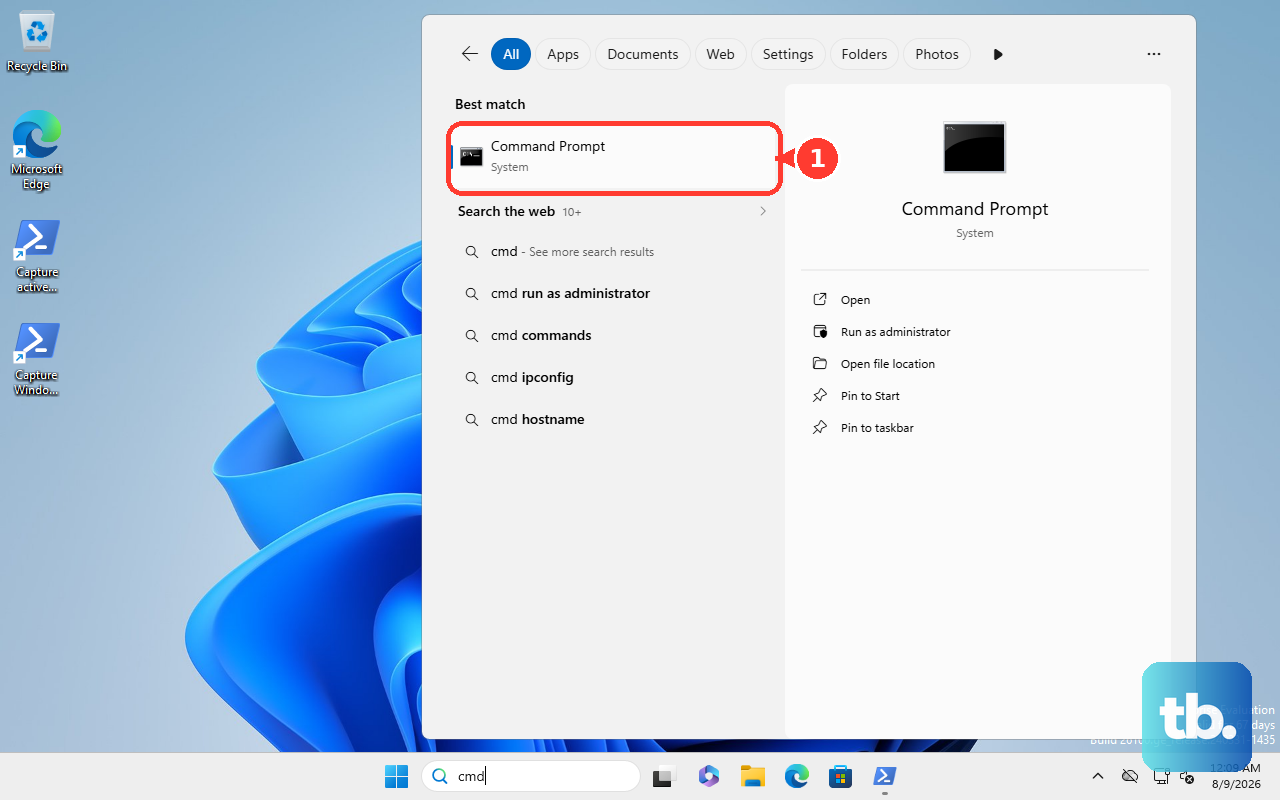
Windows: Open Command Prompt, type ipconfig, press Enter, and read the value next to Default Gateway. (Settings > Network & internet > Wi-Fi shows your own IPv4 address, not necessarily the gateway.)
Mac: Apple menu > System Settings > Network > select Wi-Fi > Details > TCP/IP tab, then read the value labeled Router. On older macOS, use System Preferences > Network > select connection > Advanced > TCP/IP > Router.
iPhone/iPad: Settings > Wi-Fi, tap the connected network's name (or the info icon), scroll to the IPv4 section, and read the value labeled Router.
What to Try When the Page Will Not Load
If the address times out or the login fails after you have connected to the right network, work through these verified causes.
An active VPN, proxy, pop-up blocker, firewall, or ad-blocker can block the local address. Disable them temporarily.
Browser cache or cookies can interfere; clear them or try another browser.
A self-signed certificate warning ("Your connection is not private") is normal; bypass it using the Advanced option described for your brand.
Being connected to two bands at once, or to a VPN or corporate network at the same time, can block access; switch bands or disconnect from other networks.
If the hostname fails, type the numeric IP directly.
If default credentials do not work, they were likely changed previously. The only recovery is a factory reset: press and hold the recessed Reset button (commonly 5 to 30 seconds; about 30 seconds for Xfinity gateways) until the router restarts. This restores the default address and label credentials but erases all custom configuration, which you will have to set up again.
Frequently Asked Questions
Why does typing 192.168.1.1 just run a web search?
You entered it in the search box rather than the address bar. Type the IP into the browser's address bar at the top and press Enter so the browser loads it as an address.
Is my router login the same as my Wi-Fi password?
No. The admin login opens the router's management interface and is separate from your Wi-Fi network name (SSID), your Wi-Fi password, and your ISP account login.
I get a "Your connection is not private" warning. Is something wrong?
No, this is normal for routers using a self-signed certificate. On ASUS, click Advanced, then Go on to the webpage. On TP-Link, click Advanced, then Proceed to tplinkwifi.net (unsafe).
My router has no login page at all. What now?
Some routers are app-only. Google Nest Wifi and Google Wifi are managed in the Google Home app, and Amazon eero only works through the eero app. There is no browser login for these.
The default admin password does not work. How do I get back in?
It was probably changed. Press and hold the recessed Reset button (commonly 5 to 30 seconds, about 30 seconds for Xfinity) until the router restarts. This restores defaults but erases your custom configuration.
How do I find my router's IP if I do not know it?
On Windows, run ipconfig and read Default Gateway. On Mac, check System Settings > Network > Details > TCP/IP and read Router. On iPhone or iPad, open Settings > Wi-Fi, tap the network, and read Router under the IPv4 section.











