You plug in your headphones, expect sound, and Windows acts like nothing happened. The audio keeps playing through your laptop speakers, or the device list shows no headphones at all. This is one of the most common Windows 11 audio headaches, and the good news is that it is almost always a settings or driver issue rather than broken hardware. Work through the fixes below in order, starting with the quickest and safest, and you will usually have sound back in a couple of minutes.
To rule out the headphones themselves, try a quick headphone test in the browser. If every tone plays cleanly, focus on the device settings covered next.
These steps apply to Windows 11 and to Windows 10. Keep in mind that Windows 10 reached end of support on October 14, 2025, so while the Windows 10 paths below still work today, they are no longer officially supported, and upgrading to Windows 11 is the long-term recommendation.
Reconnect the Headphones and Pick Them as the Output
Start with the simplest cause: Windows is still sending sound to a different device. Reseat the plug firmly (the 3.5mm or USB connector) or reconnect a wireless headset, then make sure your headphones are selected as the output device. This single move resolves the most common version of this problem.
- 1.On the taskbar, select the Speakers icon, then select the arrow to the right of the volume slider to open the list of audio devices, and pick your headphones.
- 2.If you prefer the full settings, go to Start > Settings > System > Sound and, under Output, select the correct audio device.
- 3.Confirm the volume is turned up and not muted, then play any audio to test.
If your headphones now appear and play, you are done. If Windows still routes audio elsewhere or shows nothing, move on to the next fix.
Let the Built-In Audio Troubleshooter Diagnose It
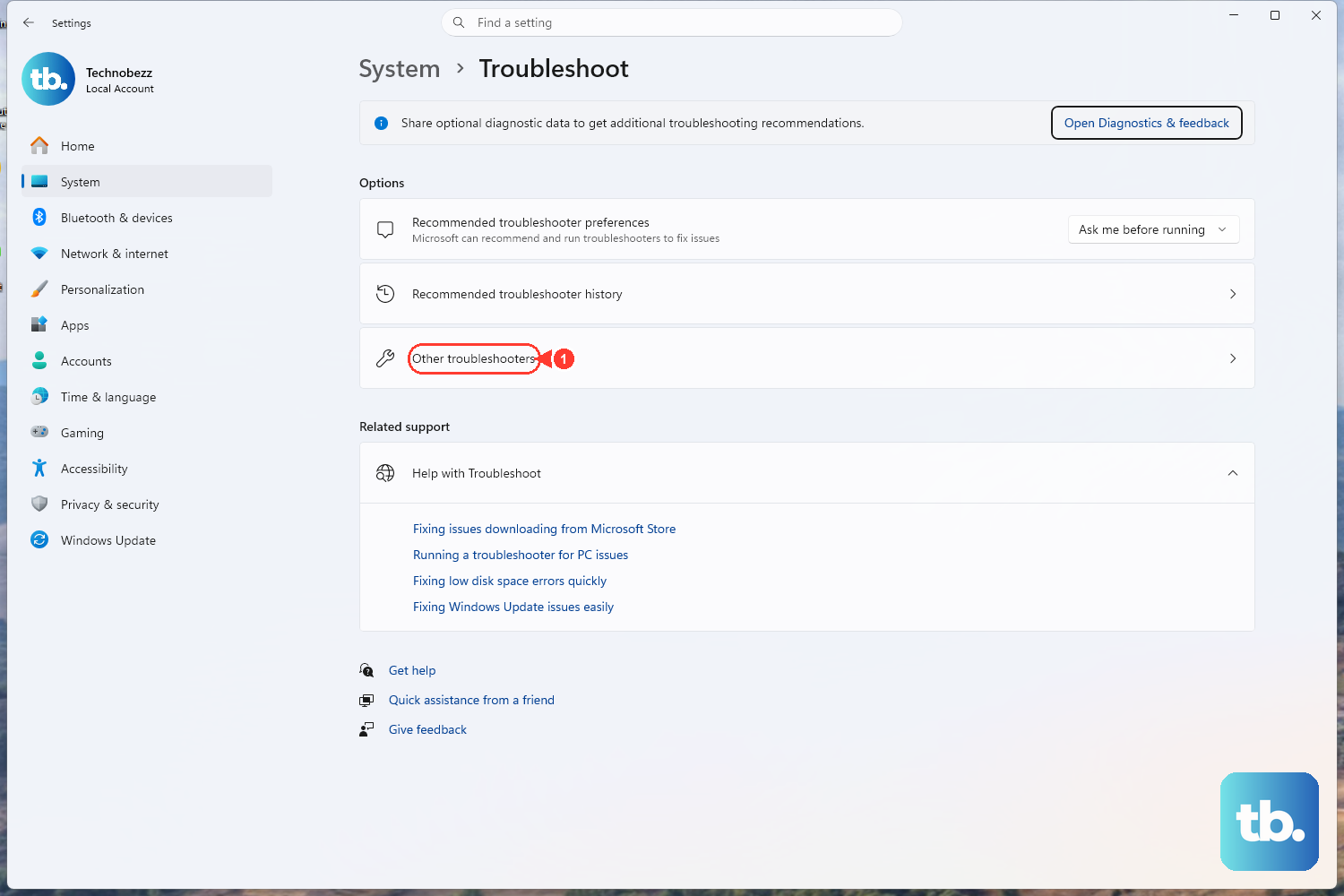
On Windows 11, Microsoft's own automated tool can find and fix many audio problems before you change anything manually. It runs inside the Get Help app and is the recommended first automated step.
Open the Get Help app. You can also go to Start > Settings > System > Troubleshoot > Other troubleshooters and select Run next to Audio.
Type audio troubleshooter in the search bar.
If you are asked to consent to diagnostics, select Yes, then wait for the scan to finish.
Get Help reports what it found and suggests fixes. If it clears the problem, test your headphones again; if not, continue with the manual steps below.
Make the Headphones Your Default Playback Device
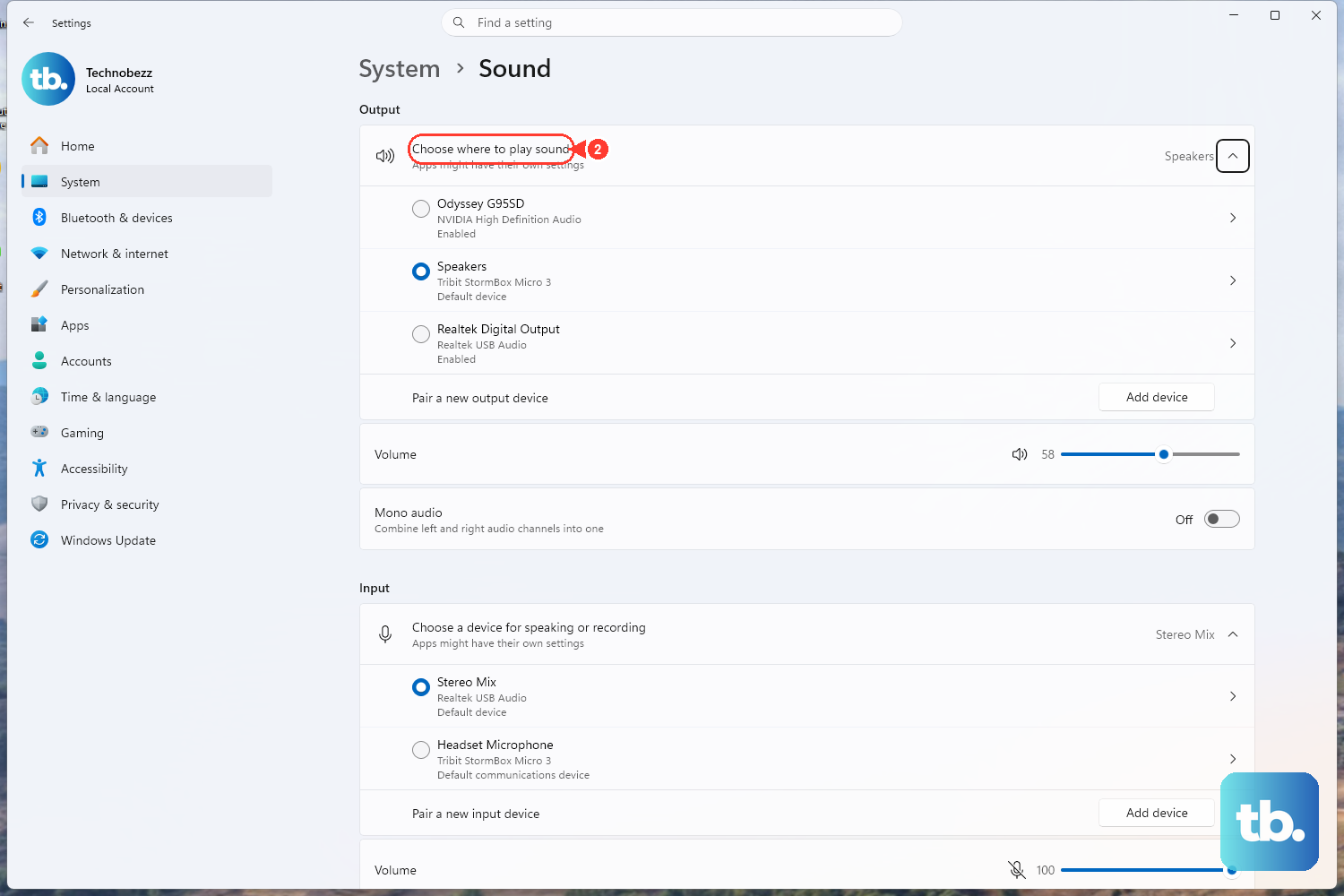
Sometimes Windows can see the headphones but refuses to send sound to them because another device is set as the default. Setting the headphones as the default playback device forces the routing.
On Windows 11, go to Start > Settings > System > Sound and, under Output, select your headphones. Selecting the device also sets it as the default output device.
On Windows 10, go to Start > Settings > System > Sound > Related settings > Sound Control Panel, then on the Playback tab select your device and choose Set Default.
Restart the Windows Audio Services
If the audio services did not start correctly, no device will produce sound until they are restarted. You do not need any command line for this; you just restart two services by name.
Select Start, type services.msc, and press Enter to open the Services console.
Right-click Windows Audio and select Restart.
Right-click Windows Audio Endpoint Builder and select Restart.
Test your audio again.
Those are the exact service names to look for. Restarting both gives the audio stack a clean start and often brings detection back.
Surface a Missing Device in Device Manager
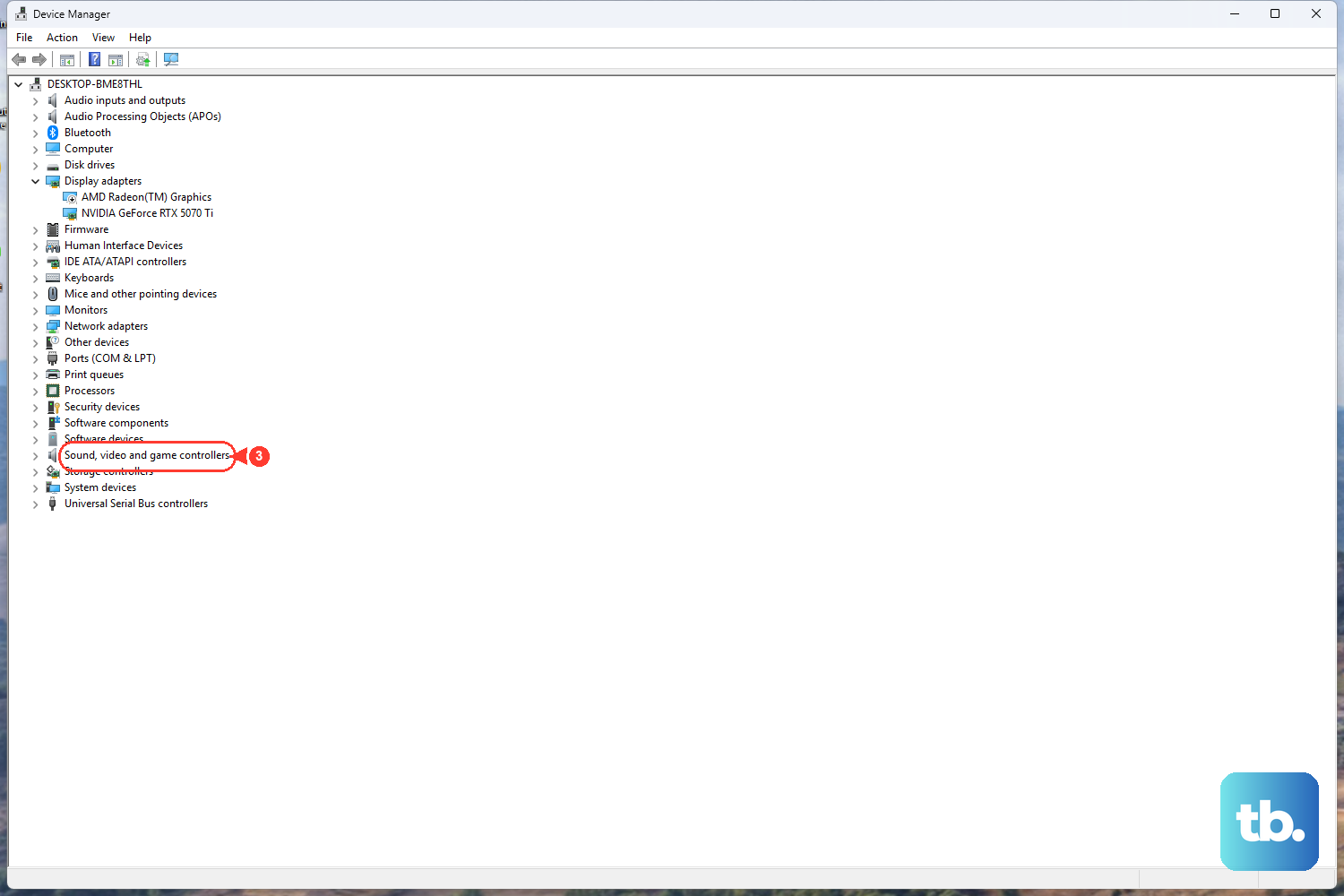
If the headphones do not appear anywhere, you may need to bring the device back into view or re-enable it. Device Manager handles both cases.
Select Start, type Device Manager, and open it.
Expand Sound, video and game controllers.
If your device is listed but disabled, press and hold (or right-click) it and select Enable device.
If the device is missing entirely, select View > Show hidden devices, then choose Action > Scan for hardware changes so Windows re-detects it.
After the scan, check the output list again. A device that was hidden or disabled will often reappear ready to use.
Turn Off Audio Enhancements
Audio enhancements are processing features that can interfere with output on some setups, leaving you with silence even when the device is connected. Disabling them is a safe test.
On Windows 11, go to Start > Settings > System > Sound, select your audio device in the Output section, scroll to Advanced settings, and set Audio enhancements to Off.
On Windows 10, open the Sound Control Panel, select your playback device, choose Properties, open the Enhancements tab, and select Disable all enhancements. Play audio again to see if the headphones respond.
Update or Reinstall the Audio Driver
A bad or outdated driver can hide the headphones from Windows entirely. Start by checking for an official update, then reinstall the driver if needed.
First, check for updates through the recommended path: go to Start > Settings > Windows Update > Check for updates, install anything offered, then restart.
To update directly, open Device Manager, expand Sound, video and game controllers, right-click your audio device, select Update driver, then choose Search automatically for drivers. Follow the on-screen instructions and restart your PC after the update completes.
To reinstall, right-click the same device, select Uninstall device, confirm, and restart your PC. Windows automatically reinstalls the driver on reboot, which often restores a device that had a corrupted driver.
Roll Back the Driver if Sound Broke After an Update
If your headphones stopped being detected right after a driver or Windows update, reverting to the previous driver is the targeted fix. This requires administrator permissions, and the option is only available when a previous driver version exists; if there is none, it will be grayed out.
Open Device Manager and expand Sound, video and game controllers.
Right-click your audio device and select Properties.
Open the Driver tab and select Roll Back Driver.
Follow the prompts, and restart if asked.
Once the older driver is restored, test your headphones to confirm the regression is resolved.
For Bluetooth Headphones: Confirm Bluetooth, Then Remove and Re-Pair
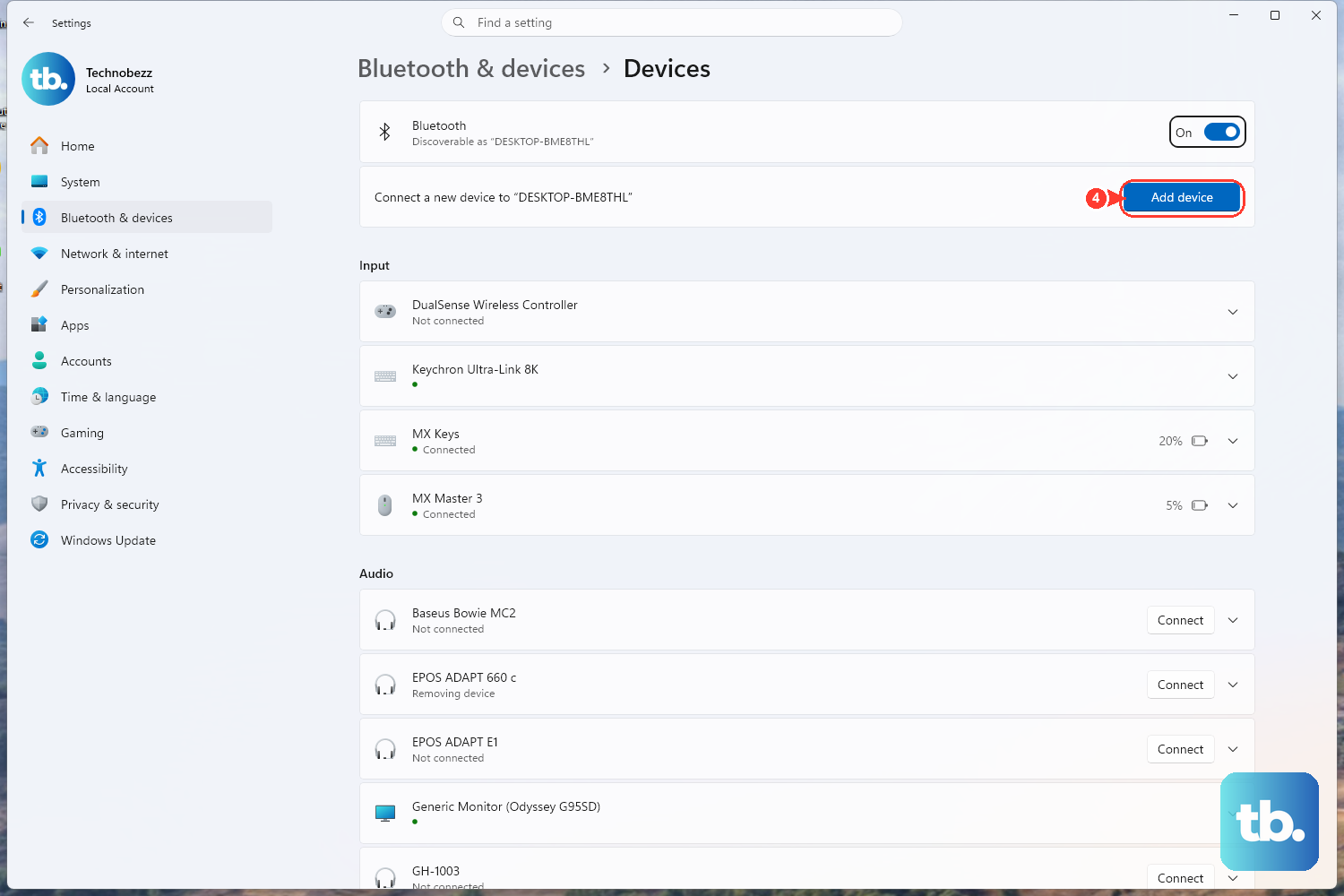
Wireless headsets add one more layer to check. First make sure Bluetooth is actually on: go to Start > Settings > Bluetooth & devices and toggle Bluetooth On.
If the headset still is not detected, remove it and pair again. Go to Start > Settings > Bluetooth & devices > Devices, select the headset, then choose More options (the three dots) > Remove device > Yes.
Next, put the headset back into pairing mode (the exact method depends on your device, so check its manual) and re-add it from Settings > Bluetooth & devices. You can also run the automated Bluetooth troubleshooter from the Get Help app on Windows 11 if pairing keeps failing.
Frequently Asked Questions
Why does Windows 11 keep playing sound through my speakers instead of my headphones?
Windows is still set to use another device as the output. Select the Speakers icon on the taskbar, then the arrow to the right of the volume slider, and pick your headphones; or set them as the default playback device under Start > Settings > System > Sound > More sound settings on the Playback tab.
My headphones do not appear in the device list at all. What now?
Open Device Manager, expand Sound, video and game controllers, and if the device is disabled select Enable device. If it is missing, choose View > Show hidden devices, then Action > Scan for hardware changes so Windows re-detects it.
Is there a faster automatic way to fix this on Windows 11?
Yes. Open the Get Help app, type audio troubleshooter in the search bar, consent to diagnostics if asked, and let it scan. Start with this automated step to diagnose and attempt to fix audio problems.
My headphones broke right after a Windows update. How do I undo that?
Use Roll Back Driver. In Device Manager, right-click your audio device, select Properties, open the Driver tab, and choose Roll Back Driver. This needs administrator permissions and only works if a previous driver version is available.
Do these steps still work on Windows 10?
Yes, the Windows 10 paths above still function, but Windows 10 reached end of support on October 14, 2025, so it no longer receives official support. Upgrading to Windows 11 is the recommended long-term path.