You plug the HDMI cable into your monitor, the screen lights up for a second, then drops to a dark panel reading "No Signal." Your PC is clearly running, the fans are spinning, but the display refuses to wake. The good news is that this is almost always a connection, projection, or driver issue you can fix yourself, and most of the steps below take seconds.
Work through them in order, since the first few are the most common culprits and the safest to try.
To narrow down whether the screen or the signal is at fault, open an online monitor test and step through its patterns. A clean result shifts suspicion to the cable or source device.
The fixes here apply to both Windows 11 and Windows 10, and they are ordered easiest and safest first. Windows 10 reached end of support on October 14, 2025, so it no longer gets regular security or feature updates unless the PC is enrolled in Extended Security Updates. Start at the top and stop as soon as your monitor springs back to life.
Start With the Cable and the Monitor's Input
Before touching any software, rule out the physical link. A loose or damaged cable is a very common reason an external monitor shows no signal, and it costs nothing to check.
- 1.Make sure the cable connecting your PC to the external monitor is firmly seated at both ends.
- 2.Swap in a different cable. If a new cable works, the old one was faulty.
- 3.Confirm the monitor is powered on and that its input source is set to the exact port you plugged into (for example, HDMI).
- 4.Use the shortest practical cable, because overly long cables can cause connectivity problems.
Many monitors have several inputs and need you to select the right one manually using the buttons on the monitor itself. If the monitor is sitting on HDMI 1 while your cable is in HDMI 2, you will see nothing no matter how healthy the connection is.
Strip Away Docks, Dongles, and Adapters
Extra hardware between your PC and your monitor introduces extra points of failure. Connected docks, dongles, adapters, and similar accessories can cause conflicts that block the signal.
Disconnect every accessory from your PC, then plug the monitor straight into the computer to test.
If the screen comes back once the chain is gone, reintroduce accessories one at a time to find the troublemaker.
One important caveat: a display splitter cannot extend your desktop to more than one external monitor, because it only duplicates a single signal. If you need an extra independent screen and your PC has only one video output, use a docking station your PC maker supports or, on a PC with USB-C, a USB-C video adapter.
Test a Different Port and a Different System
If the cable and accessories check out, the problem may be the specific port or graphics output you are using. Many PCs offer more than one video connection, and swapping is a fast way to isolate the fault.
If your PC has more than one video output port (HDMI, DisplayPort, DVI, VGA), plug the monitor into a different one.
If your system has more than one display adapter (graphics card), try switching the default adapter or connecting to the other one.
To rule out the monitor itself, connect that external monitor to a completely different system.
If it stays dark on the second machine too, the monitor or its cable is the likely cause. If it works elsewhere, the issue lives in your original PC.
Set the Right Projection Mode With Windows Logo Key + P
Windows decides how output is sent to external screens through its projection setting, and it can quietly land on a mode that ignores your monitor. This is one of the most overlooked fixes for a blank external display.
Press the Windows logo key + P to open the Project flyout.
You will see four modes: PC screen only, Duplicate, Extend, and Second screen only.
Choose Extend to use both screens together, or Duplicate to mirror your main display.
Microsoft recommends confirming that Extend is selected when a new external monitor shows nothing. If you are stuck on PC screen only, your second monitor will get nothing.
Force Windows to Find the Display
Sometimes the connection is sound but Windows simply has not registered that a screen is attached. You can prompt it to look again from the display settings.
Go to Start > Settings > System > Display.
Expand Multiple displays and select Detect to make Windows search for the connected screen.
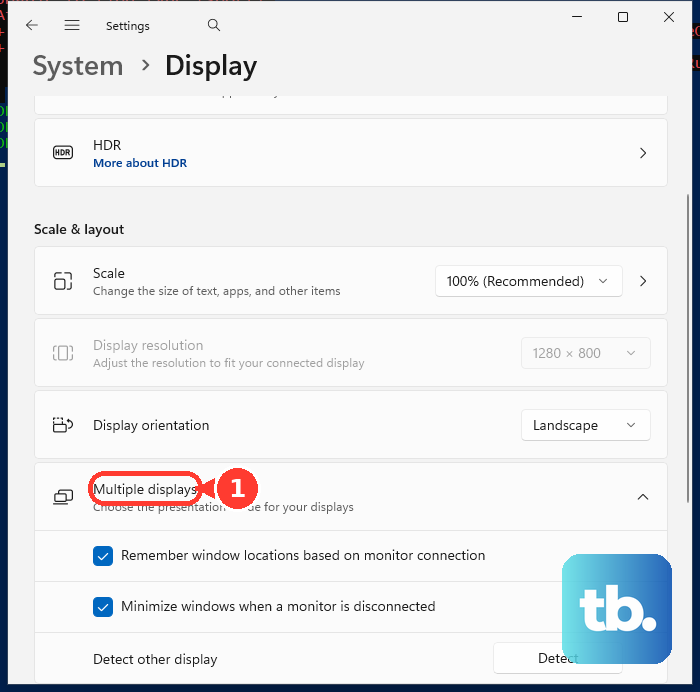
If you have several monitors and are not sure which is which, use Settings > System > Display > Identify. This briefly shows a large number on each screen so you can match the on-screen labels to your physical monitors.
Reset the Graphics Driver With a Keyboard Shortcut
Windows includes a built-in reset for the graphics driver that often restores a lost signal without a full restart. It is quick, safe, and worth trying before you reboot.
Press Windows logo key + Ctrl + Shift + B.
Then check whether the external monitor is now showing a picture.
This shortcut only restarts the display driver. It does not close your apps or affect your open work, which makes it a low-risk first response to a frozen or signal-less screen.
Restart the PC for a Clean Power Cycle
A full restart clears temporary glitches in the way Windows talks to your hardware, and it is sometimes all a stubborn display needs. Reach for this after the lighter fixes above.
Select Start > Power > Restart for a standard reboot.
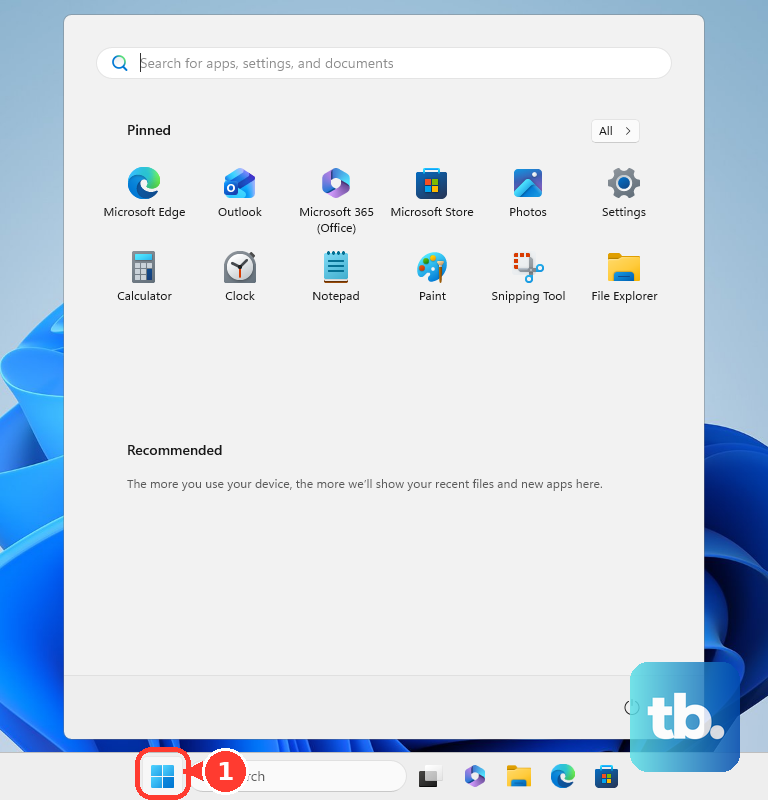
For a more thorough power cycle, choose Start > Power > Shut down instead.
Wait a moment, then power the PC back on.
Shutting down fully and starting again clears more residual state than a simple restart.
Update the Graphics Driver in Device Manager
An outdated or corrupted graphics driver can stop Windows from driving an external monitor correctly. Updating it directly addresses signal problems that survive the steps above.
Right-click the Start button and select Device Manager, or search for "device manager" in the taskbar search box.
Expand Display adapters.
Right-click your adapter and select Update driver.
Choose Search automatically for drivers and let Windows install anything it finds.
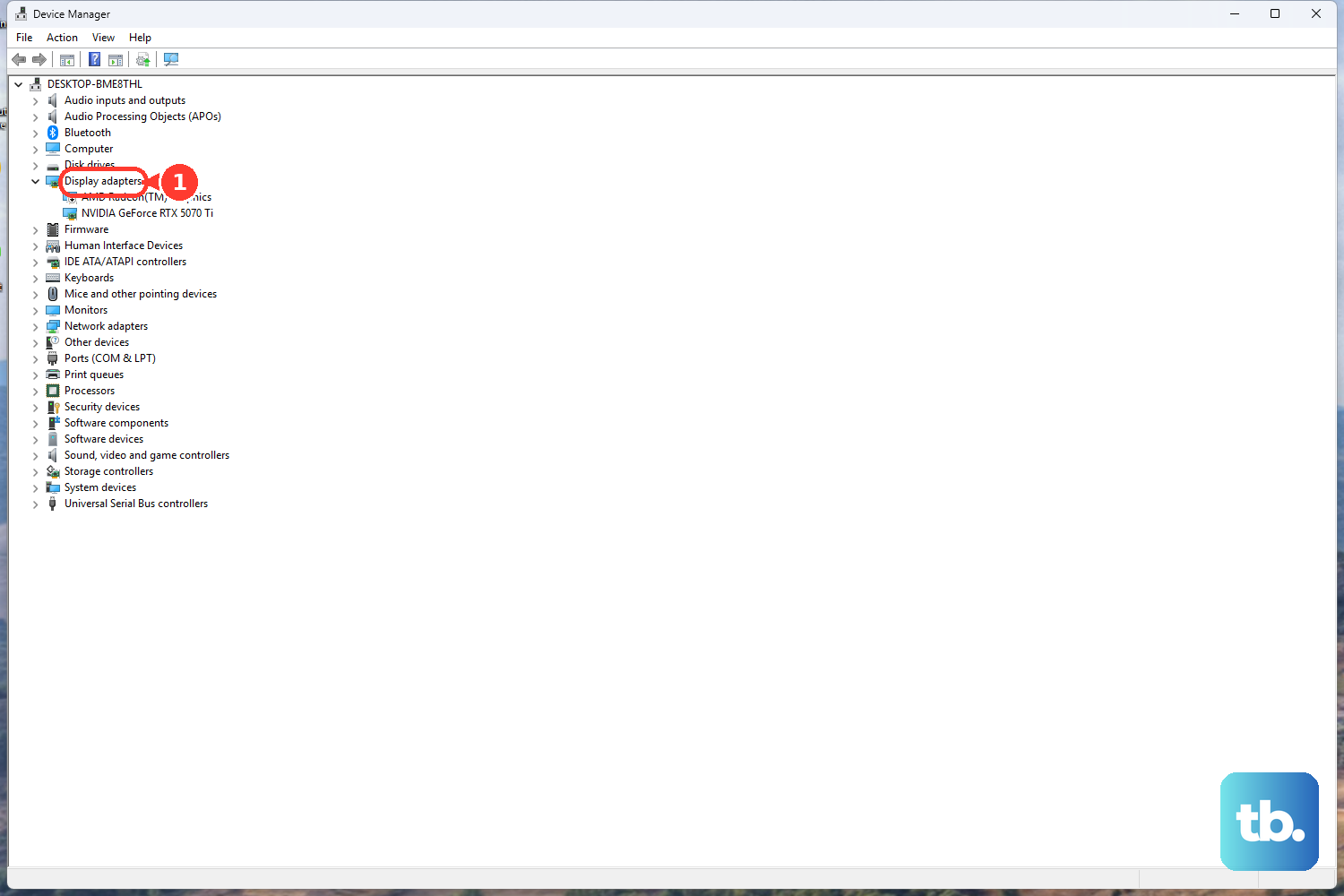
You can also keep these drivers current through Settings > Windows Update, so it is worth checking there for pending updates as well.
Roll Back or Reinstall a Bad Driver
If your monitor only went dark after a recent driver update, the new driver is the prime suspect. Windows lets you revert to the previous version without hunting down old files.
To roll it back, go to Device Manager > Display adapters, right-click the adapter, and choose Properties.
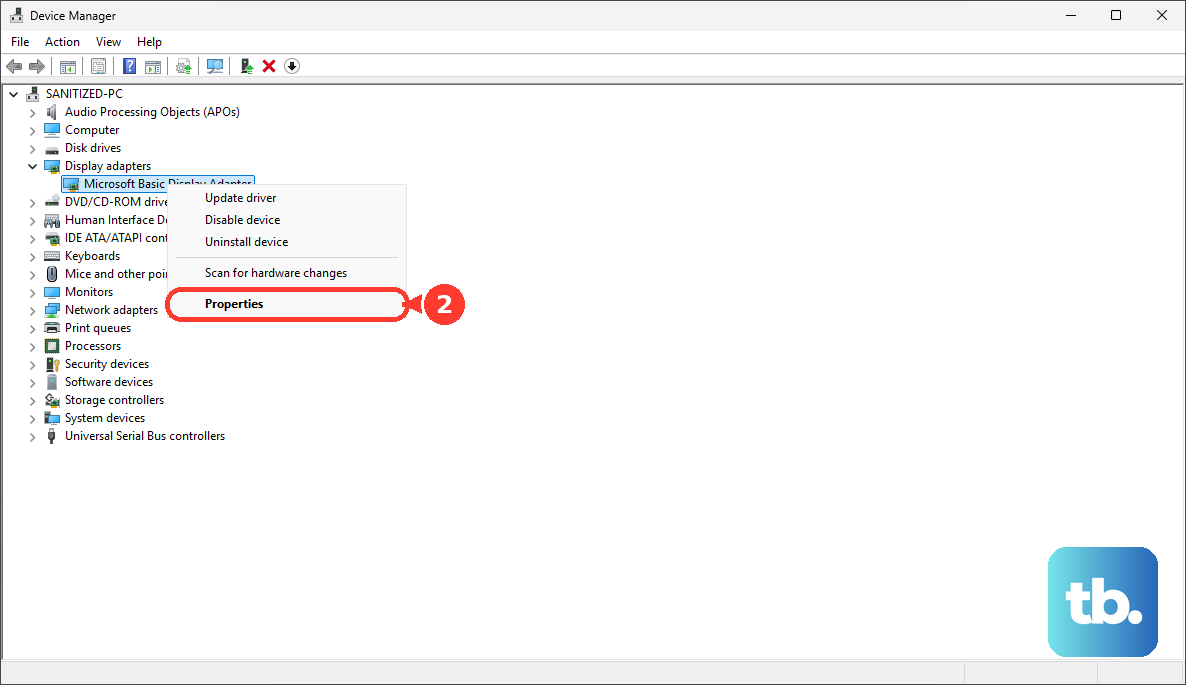
Open the Driver tab and select Roll Back Driver.
If Roll Back Driver is not available or does not help, reinstall the driver instead. Note these steps first, since you will restart partway through.
- 1.In Device Manager, expand Display adapters, right-click your adapter, and select Uninstall device.
- 2.Check Attempt to remove the driver for this device, then select Uninstall.
- 3.Restart your PC.
- 4.Reopen Device Manager, expand Display adapters, right-click the adapter, and select Update driver.
- 5.Choose to search automatically for updated driver software and follow the prompts.
Reset USB Controllers and Power Settings for a USB-Connected Display
If your monitor or its adapter connects through USB rather than a direct video port, the USB layer itself can be the weak link. Resetting the USB controllers gives Windows a fresh start.
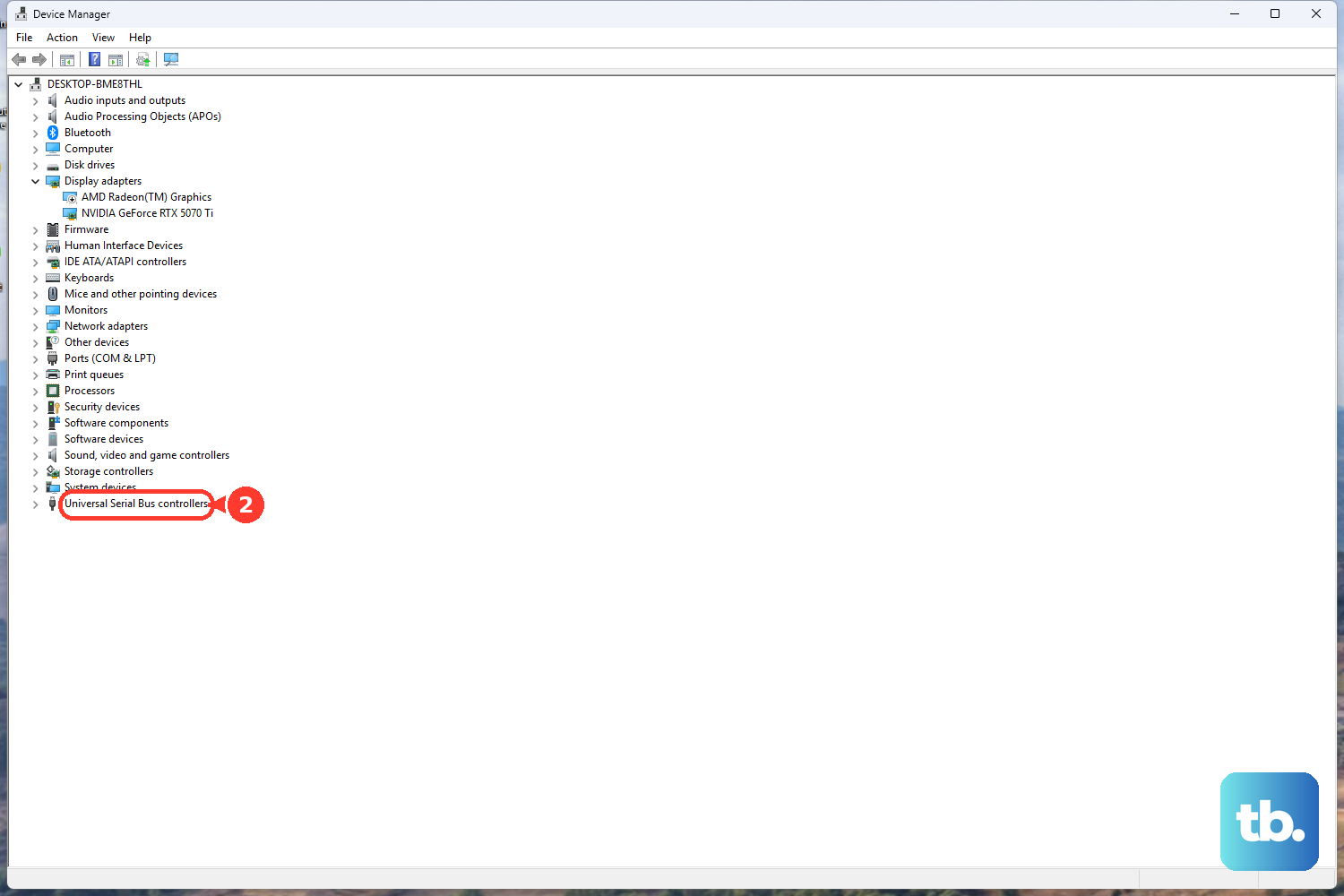
Open Device Manager and expand Universal Serial Bus controllers.
Right-click the device and select Uninstall device.
Restart your PC so Windows reinstalls the USB controllers automatically.
You can also stop Windows from cutting power to the USB port that feeds your display.
Go to Device Manager > Universal Serial Bus controllers, right-click USB Root Hub, and choose Properties.
Open the Power Management tab and clear the box labeled Allow the computer to turn off this device to save power.
The equivalent global control lives under Power Options > Change plan settings > Change advanced power settings > USB settings > USB selective suspend setting, which you can set to Disabled.
This is a general USB port-power adjustment rather than a guaranteed fix for every no-signal situation. Turning selective suspend off keeps USB devices powered, which can slightly increase battery drain on a laptop, so set it back to Enabled if it makes no difference.
When Nothing Has Worked
If you have run every step and the monitor is still dark, the issue may be a hardware fault in the cable, port, monitor, or graphics card that software cannot resolve. At that point, reporting the problem can help surface a known fix.
Microsoft suggests reporting unresolved external-display problems through the Feedback Hub app, with details of what you tried and how to reproduce the issue.
For guided help, open Start and type "get help" to use the Get Help app, which hosts the current Windows troubleshooters and lets you contact Microsoft support.
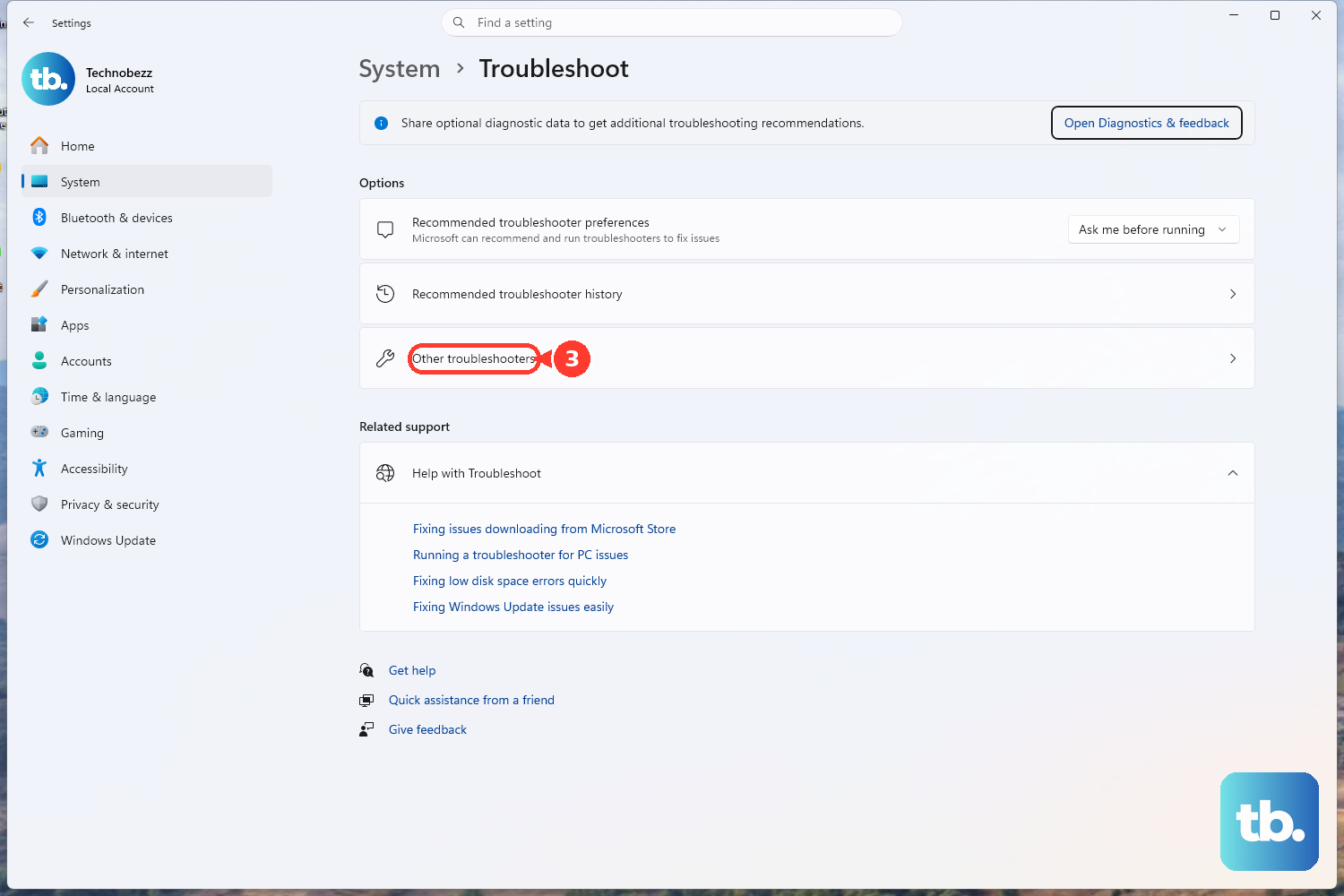
You can also reach the troubleshooter list directly from Settings > System > Troubleshoot > Other troubleshooters on Windows 11, or Settings > Update & Security > Troubleshoot > Additional troubleshooters on Windows 10.
Frequently Asked Questions
Why does my monitor say "No Signal" even though my PC is on?
A running PC does not guarantee the monitor is receiving video. The most common reasons are a loose or faulty cable, the monitor being set to the wrong input source, or Windows projecting only to the PC screen. Reseat the cable, select the correct input on the monitor, and press Windows logo key + P to choose Extend or Duplicate.
How do I quickly reset my display without restarting the whole PC?
Press Windows logo key + Ctrl + Shift + B. This restarts only the graphics driver. Your open apps and work stay untouched, which makes it a safe first try when a signal disappears.
The problem started right after a driver update. What should I do?
Roll back the driver. Open Device Manager > Display adapters, right-click your adapter, choose Properties, open the Driver tab, and select Roll Back Driver. If that option is unavailable, uninstall the device with Attempt to remove the driver for this device checked, restart, then use Update driver to install a fresh copy.
How can I tell whether the fault is my PC or the monitor?
Connect the external monitor to a completely different system. If it stays dark on the second machine, the monitor or its cable is likely at fault. If it works there, the problem is in your original PC's port or graphics hardware. Trying a different video port on your PC helps narrow it down further.
Windows isn't detecting my second display at all. How do I force it?
Go to Settings > System > Display, then under Multiple displays select Detect to make Windows search for the connected screen. If you have multiple monitors and need to tell them apart, use Settings > System > Display > Identify to flash a number on each one.