When your Google Pixel 9a's volume buttons stop responding, it can leave you scrambling to adjust a call or media playback. You press the rocker, but nothing happens, no on-screen indicator, no change in sound. The good news is this is often a software hiccup or a simple obstruction, and there's a solid chance you can fix it yourself without a trip to the repair shop.
Remove Your Phone Case
Start with the most obvious fix. Take your Pixel 9a out of its case. Sometimes, a case can be misaligned or have accumulated grit that physically blocks the button's travel. This is especially true with thicker protective cases or if the case has started to warp over time.
Perform a Force Restart
A force restart is the go-to fix for many unexplained glitches on Android, including unresponsive buttons. This process doesn't delete any of your personal data or settings. For the Pixel 9a, you simply need to press and hold the Power button for about 30 seconds.
Keep holding it even after you see the Google logo or feel a vibration. Only release the button once the screen goes completely black and the phone begins its full restart cycle. This can clear out temporary software conflicts that might be freezing the button inputs.
Check for Physical Debris
Dust and pocket lint are common culprits. The slim gap around the volume rocker on the Pixel 9a can easily trap small particles. Gently blow around the button with a can of compressed air, holding the phone at an angle so the debris falls out.
For any sticky residue, you can lightly dampen a cotton swab with a small amount of isopropyl alcohol (90% or higher is best) and carefully clean around the button's edges. Be very gentle to avoid pushing moisture or dirt further inside the device.
Test the Buttons in Different Modes
See if the problem is context-specific. Try using the volume buttons while on a call, while playing music in YouTube Music or Spotify, and while watching a video. Also, check if they work to silence an alarm or a timer.
If the buttons function in some scenarios but not others, it points to a software or app-specific issue rather than a complete hardware failure. This is a useful clue for narrowing down the cause.
Use the On-Screen Volume Slider
While you're troubleshooting, remember you can still control volume directly. Just press any volume button once to bring up the on-screen slider, then drag it with your finger. You can also always adjust media volume through Quick Settings by swiping down twice from the top of your screen.
Verify Sound Settings
It's worth a quick check in your settings to ensure nothing is misconfigured. Open the Settings app and go to Sound & vibration. Look through the options here to make sure no volume limits are set strangely.
Also, if you use Do Not Disturb or Bedtime mode schedules, check that they aren't interfering with your media volume controls at certain times. These modes can sometimes affect volume behavior.
Boot Into Safe Mode
Safe Mode temporarily disables all third-party apps you've downloaded. If your volume buttons work perfectly in Safe Mode, then a recently installed app is likely causing the conflict. To enter Safe Mode on your Pixel 9a, press and hold the Power button and Volume Up button together until the power menu appears.
Then, tap and hold the "Power off" option on your screen. You'll get a prompt to reboot to Safe Mode. Tap "OK." Once in Safe Mode (you'll see "Safe mode" in the bottom corner), test your volume buttons. To exit, just restart your phone normally.
Update Your Android Software
Google regularly releases updates that fix bugs. A software bug in Android 15 could be the root cause. Connect to Wi-Fi and go to Settings > System > System update to check for and install any available updates.
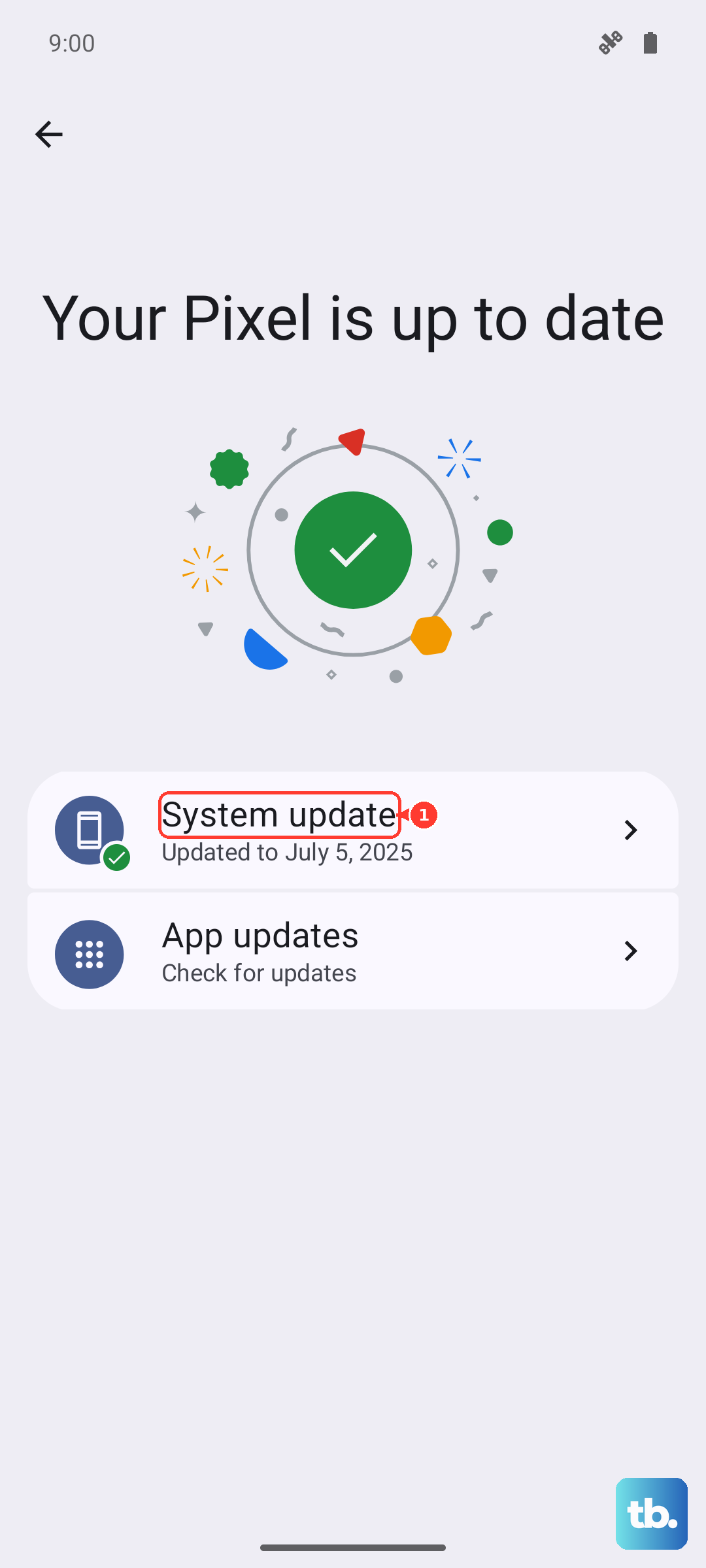
I've seen minor point updates resolve quirky hardware interaction issues like this. It's a simple step that can save a lot of headache, so it's always worth making sure your phone is current.
Check for App Updates
If the problem seems tied to a specific app, like your music player or video streaming service, make sure that app is updated. Open the Google Play Store, tap your profile icon, and go to Manage apps & device > Updates available. Update all apps, or specifically look for the app where you're having volume control issues.
Consider a Factory Reset
If all else fails and the buttons still don't respond in Safe Mode, a factory reset can eliminate deep-seated software corruption. This will erase everything on your phone, so this is a true last resort.
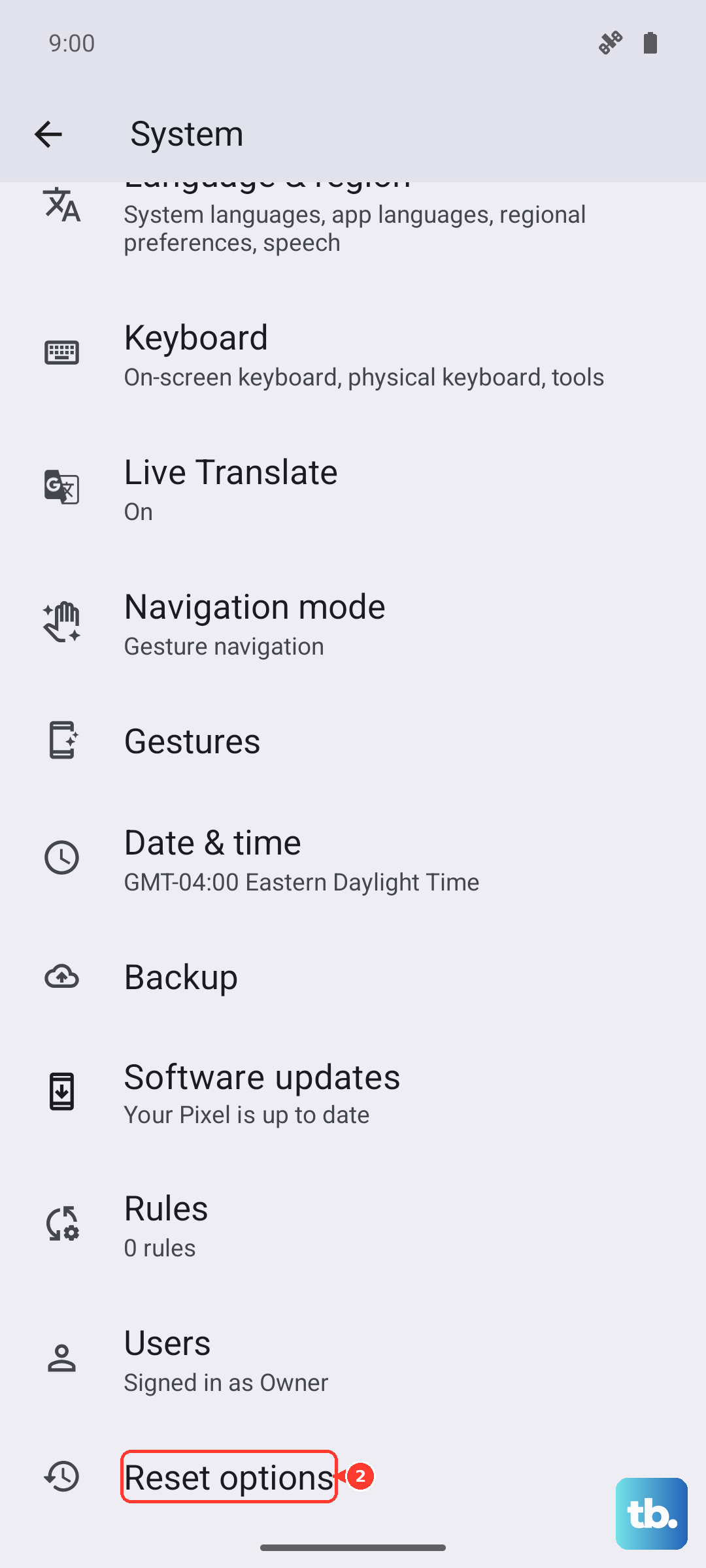
Back up your Pixel 9a first. You can do this through Google One backup in your system settings. Once backed up, go to Settings > System > Reset options > Erase all data (factory reset). Follow the prompts to complete the reset. After the phone reboots, test the buttons before restoring your data to see if the issue is resolved.