If your Google Pixel 9a is making videos look choppy or freeze up, it can really ruin the experience. The good news is that this is usually a software hiccup you can sort out yourself, and I'd start with a simple restart.
A browser based refresh rate test shows the real Hz your display is delivering right now. Many stutter complaints turn out to be a monitor silently running at 60 Hz.
Just press and hold the power button for about 30 seconds until you feel the phone vibrate and the Google logo appears. This force restart clears out any temporary glitches in the system that might be messing with video playback.
Check Your Internet Connection
For any video you're streaming online, a weak connection is the most common culprit. The Pixel 9a's Tensor G4 modem can sometimes struggle in areas with poor coverage, which can lead to constant buffering.
Try switching between Wi-Fi and your mobile data to see if the problem goes away. If you're on Wi-Fi, you can also try restarting your router. For a more reliable test, try playing a video you've downloaded directly to your phone's storage.
Free Up Storage Space
When your phone's storage is nearly full, the system has a hard time managing data smoothly, which can cause videos to stutter during playback. Android needs some breathing room to work properly.
Head to Settings > Storage to see how much space you have left. If you're below 5GB of free space, it's time for a cleanup. You can offload old photos and videos to Google Photos or delete app caches and downloads you don't need anymore.
Update Your Apps and Android
An outdated video app or an old version of Android can have bugs that cause playback issues. Google and app developers release updates all the time to fix these kinds of problems.
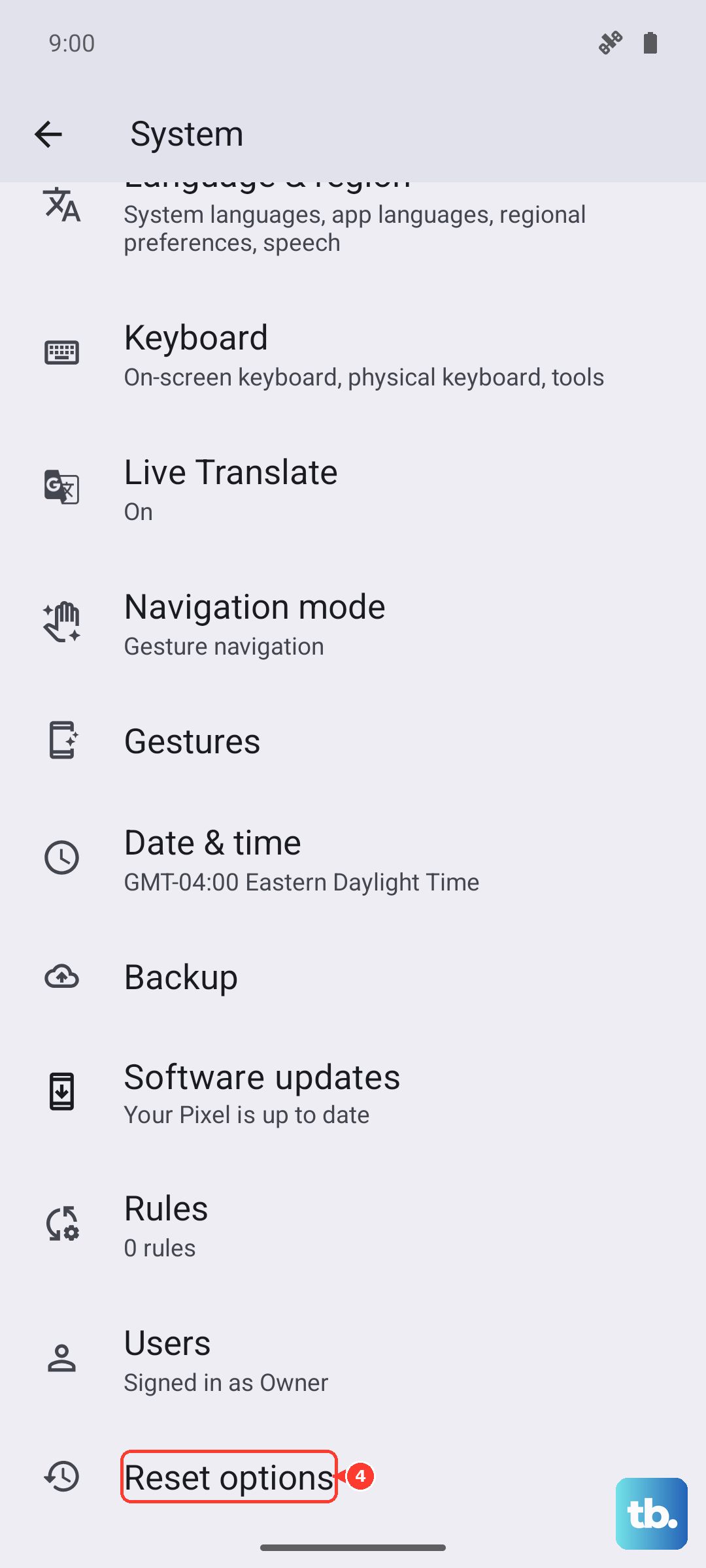
First, open the Play Store, tap your profile icon, and go to Manage apps & device to update all your apps. Then, check for a system update by going to Settings > System > System update. If your Pixel 9a is running Android 15, make sure it has the latest security patch.
Clear the App's Cache and Data
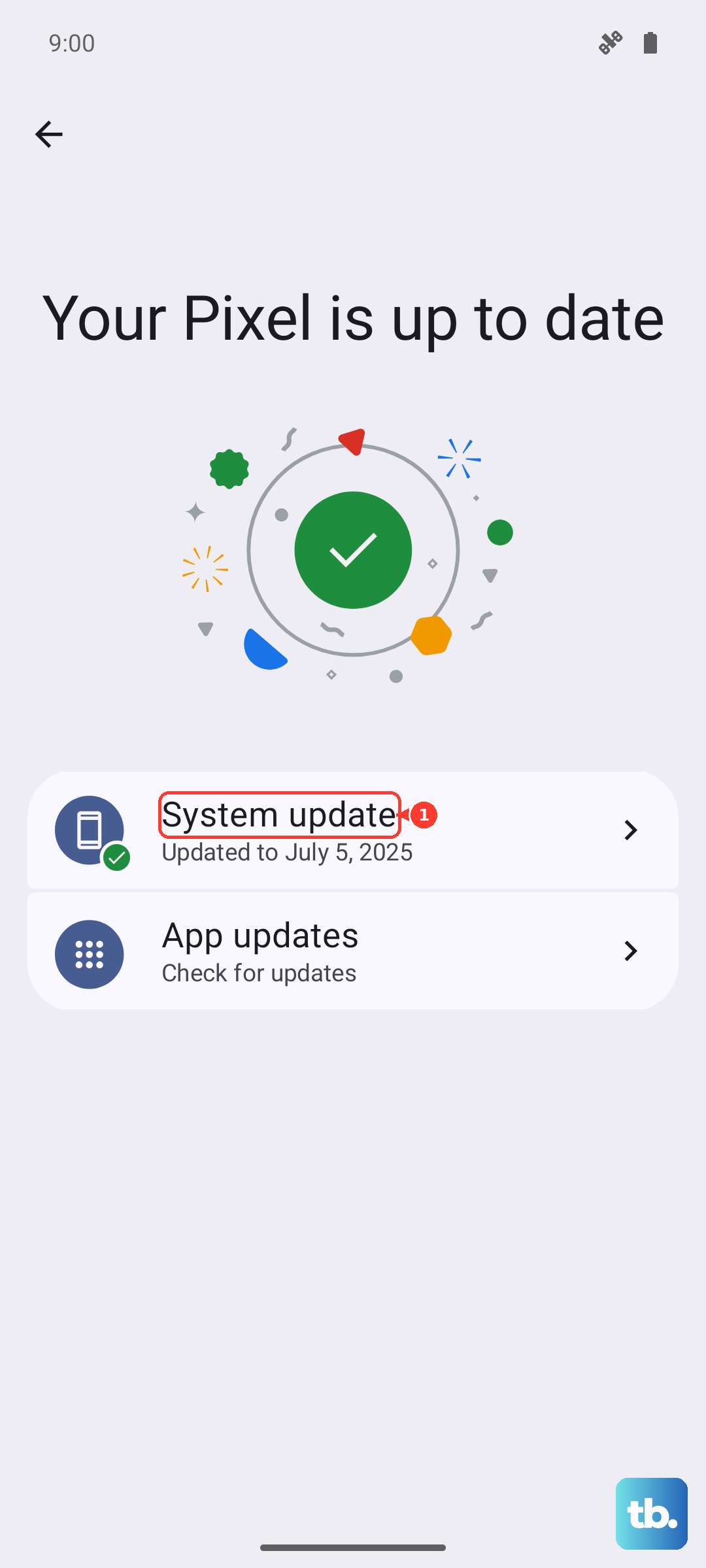
If the stuttering is happening in one specific app, like YouTube or Netflix, the app's temporary data might be corrupted. Clearing this cache can often fix playback problems without affecting your account.
Go to Settings > Apps, select the problematic app, then tap Storage & cache. Tap "Clear cache" first. If that doesn't help, you can try "Clear storage" or "Clear data", but be aware this will log you out and reset the app's settings.
Disable Battery Optimization for Video Apps
Android's battery saver features are great for longevity, but they can sometimes limit an app's performance in the background, which might interrupt video playback. You can tell your phone to leave specific apps alone.
Navigate to Settings > Apps, select your video app, then tap Battery. Change the battery setting from "Optimized" to Unrestricted. This allows the app to use more resources to run smoothly.
Check for Overheating
The Pixel 9a can throttle its performance if it gets too warm, which might lead to video stutter. This can happen if you're using the phone while it's charging, especially with a case on.
If the back of the phone feels hot, give it a break. Take off any case to help it cool down, and avoid using it while it's plugged into that 23W charger. Playing videos in a cool, well-ventilated area can help prevent this.
Try Safe Mode
To figure out if a recently downloaded app is causing trouble, boot into Safe Mode. This temporarily disables all third-party apps.
Press and hold the power and volume up buttons, then tap and hold the "Power off" option on your screen until you see the Safe Mode prompt. Tap OK to restart. If videos play fine in Safe Mode, a downloaded app is likely the issue. You'll need to restart your phone normally to exit Safe Mode and then uninstall apps one by one to find the culprit.
Reset App Preferences
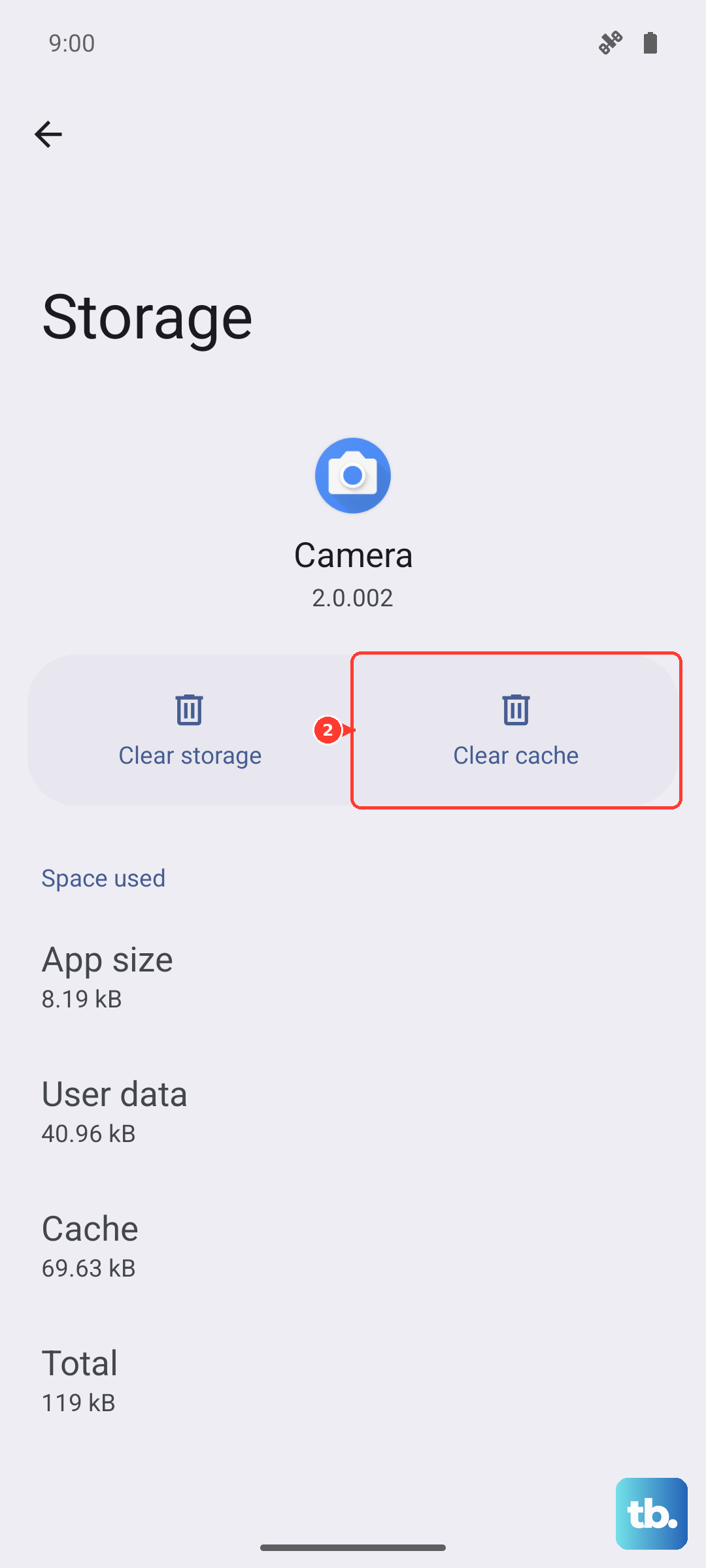
This is a lighter reset that won't delete your personal data. It resets all your app permissions, notifications, and default apps back to their original settings, which can fix conflicts causing video problems.
Go to Settings > System > Reset options. Tap on Reset app preferences and confirm. You'll just need to re-grant permissions to your apps afterward.
Perform a Factory Reset
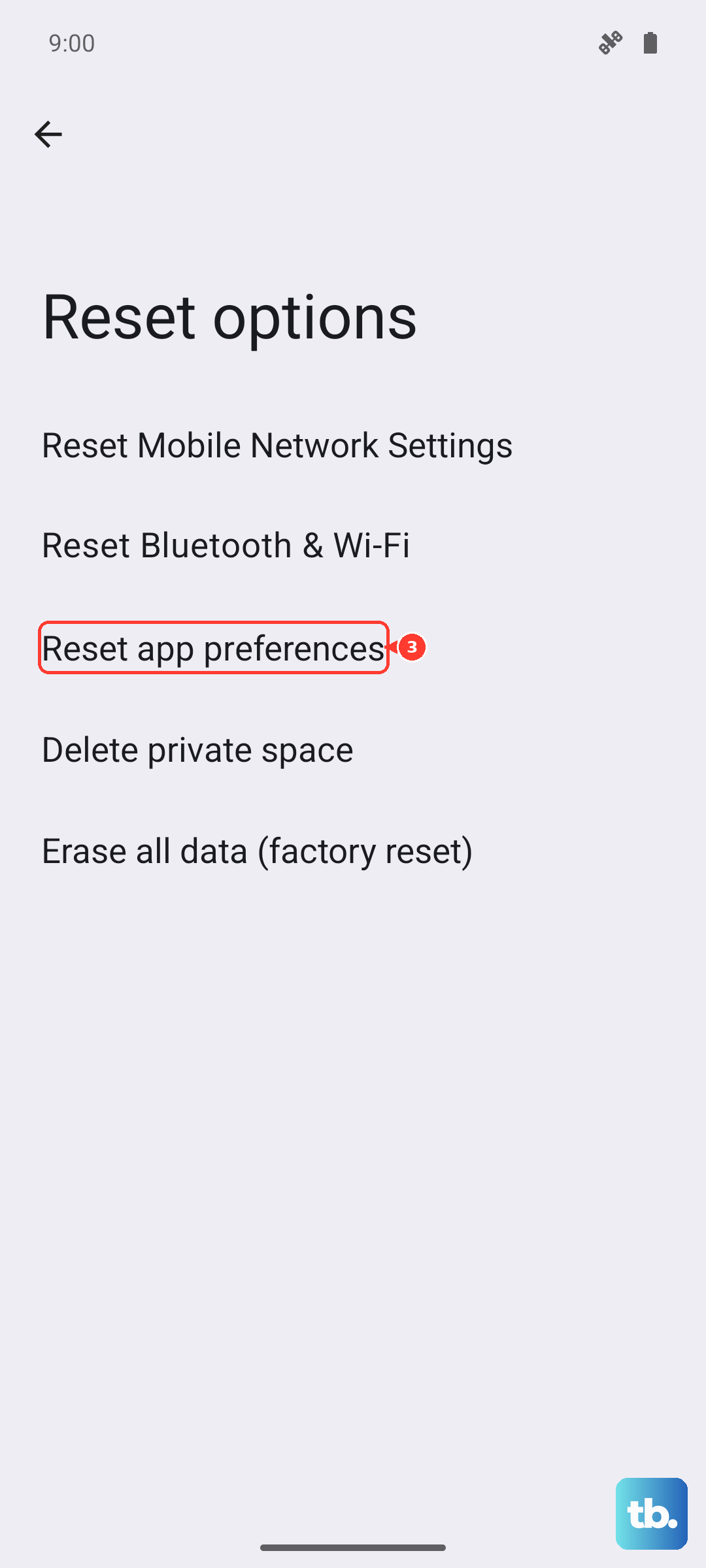
If you've tried everything else and the stuttering persists, a factory reset is the final step. This will erase everything on your phone, so it's crucial to back up your photos, videos, and important data to Google Drive first.
Once backed up, go to Settings > System > Reset options > Erase all data (factory reset). Follow the prompts to reset the phone. After it restarts, set it up as new to see if the problem is resolved before restoring your backup.