
If your Google Pixel 9a has stopped buzzing for calls or notifications, it's a surprisingly common hiccup. The good news is that it's almost always a quick software or settings fix, not a broken motor.
Force Restart Your Pixel
Let's start with the simplest trick. A force restart clears out any temporary glitches that might be freezing the vibration motor. Just press and hold the Power button for a full 30 seconds or more.
Don't let go when you see the power menu or the screen goes black. Keep holding until you see the Google logo appear, which means the phone is restarting. I've seen this fix the issue more often than not.
Check Your Sound and Vibration Settings
Open the Settings app and tap on Sound & vibration. The first thing to look for is the "Vibrate for calls" toggle. Make sure it's switched on.
If it's already on, try turning it off and back on again. Just below that, you'll find the "Also vibrate for calls" option when your phone is in silent or Do Not Disturb mode, which is another good one to verify.
Verify Your Sound Mode
Your Pixel 9a has a few different sound profiles, and some of them disable vibration. Swipe down from the top of your screen twice to open the full Quick Settings panel.
Look for the tile that says "Sound," "Vibrate," or "Silent." Tap it to cycle through the modes. You want it set to "Sound" to ensure both ringtones and vibrations are active for calls.
Adjust Vibration Strength
Sometimes the vibration isn't broken, it's just set too low to feel. Go back to Settings > Sound & vibration and tap on Vibration & haptics.
Here, you can adjust the sliders for "Call vibration" and "Notification vibration." Slide them all the way to the right for the strongest setting. You can also tweak the "Touch feedback" strength for keyboard taps and navigation.
Test App-Specific Notifications
If you're only missing vibrations from a specific app like Messages or Gmail, the problem is likely in that app's notification settings. Go to Settings > Apps > See all apps.
Find and tap the app in question, then select Notifications. Look for the specific notification category (like "Messages" or "Inbox") and tap on it. Make sure the "Vibrate" toggle is enabled for that category.
Update Android
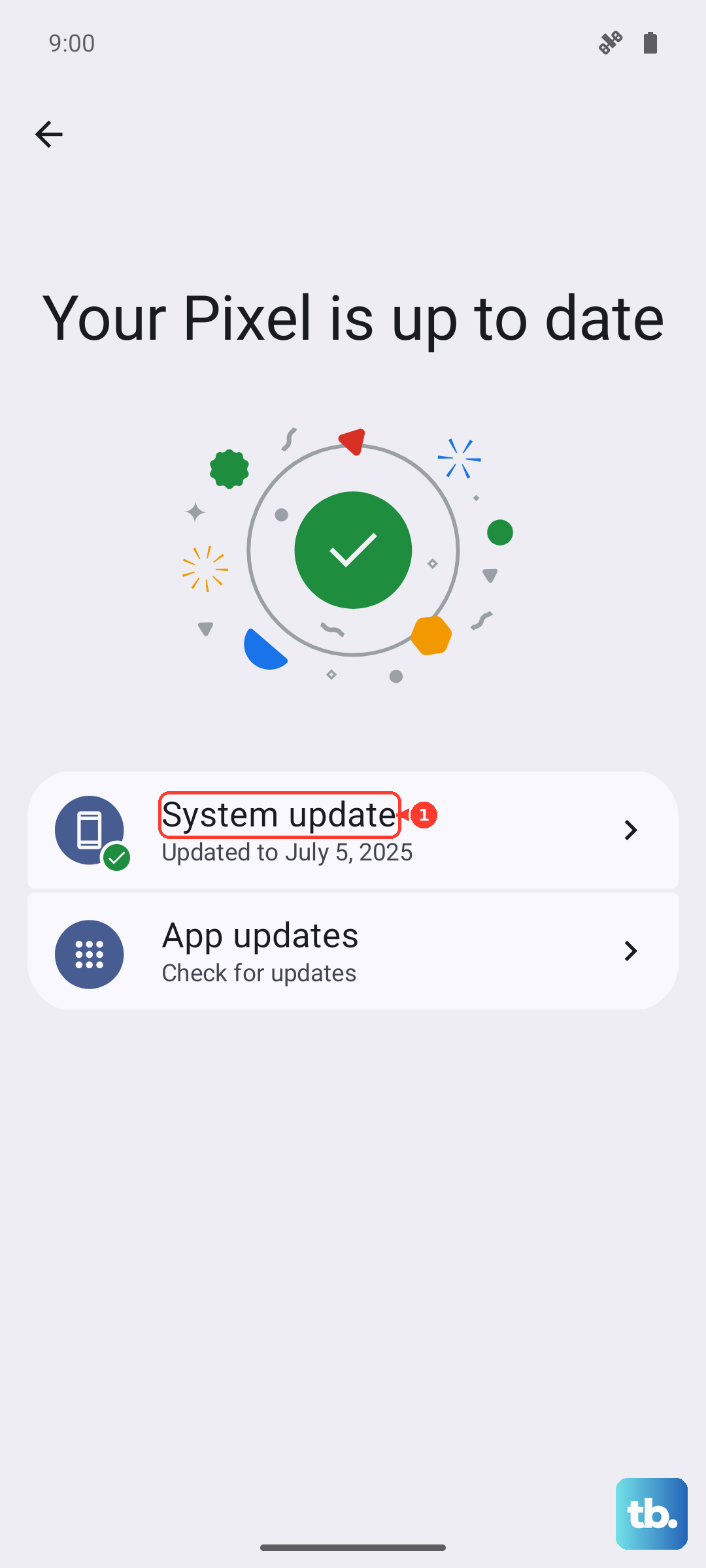
A bug in your current version of Android 15 could be the culprit. Google releases monthly updates that often include fixes for these kinds of small issues.
Go to Settings > System > System update. Tap "Check for update" and install any available software. It's a good habit to keep this updated, especially with the Tensor G4's occasional software quirks.
Boot Into Safe Mode
This will tell you if a third-party app you installed is causing a conflict. To enter Safe Mode, press and hold the Power button and Volume Up button together until the power menu appears.
Then, tap and hold the "Power off" option on your screen. A prompt will appear asking if you want to reboot to Safe Mode. Tap "OK." If vibration works normally in Safe Mode, you'll need to find and uninstall the problematic app.
Check Accessibility Settings
Some accessibility features can alter or disable vibration. Go to Settings > Accessibility. Look under the "Vibration & haptics" section here.
Make sure "Vibration & haptic strength" isn't turned down. Also, check that features like "Touch feedback" or any downloaded accessibility services aren't interfering.
Reset App Preferences
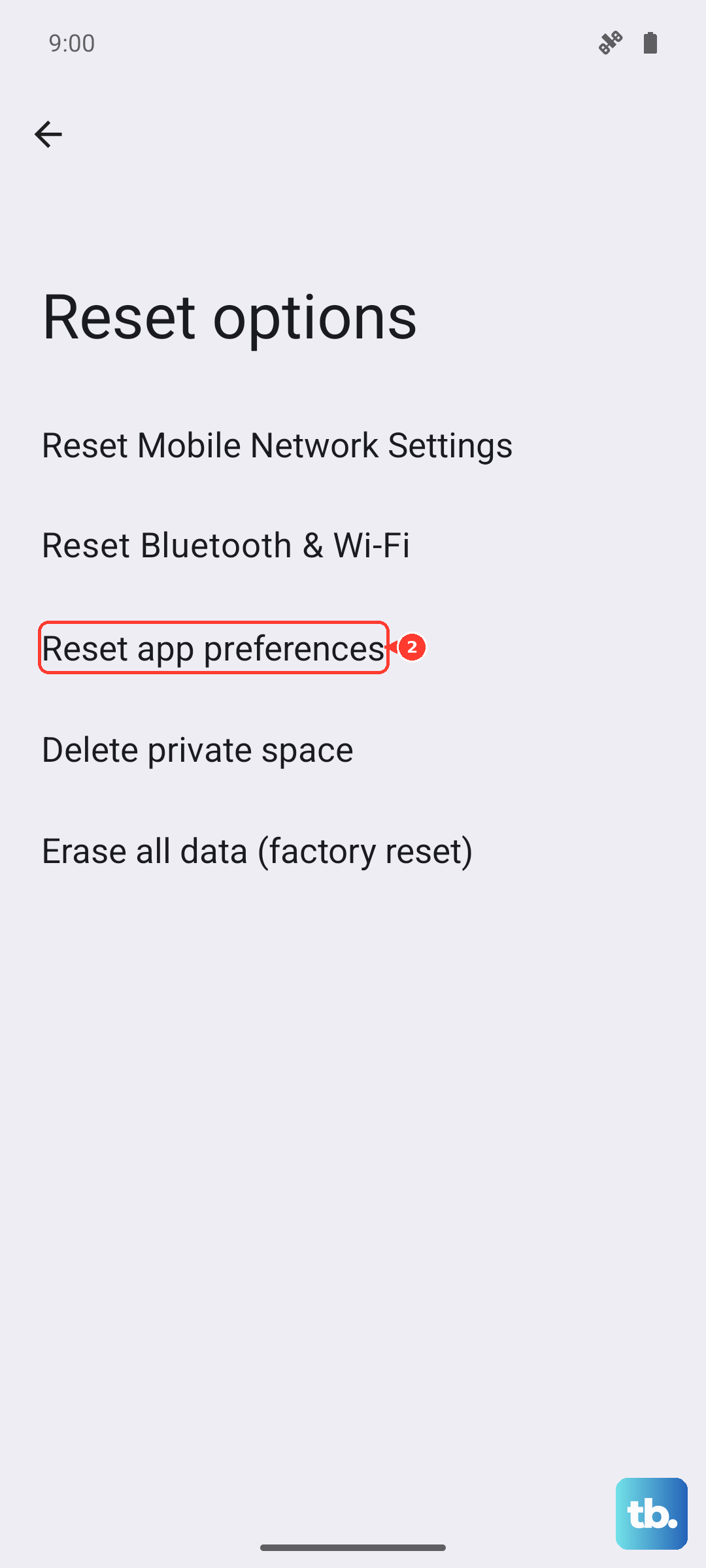
This is a useful reset that won't delete your app data. It clears default apps, background restrictions, and notification permissions, which can sometimes get corrupted.
Navigate to Settings > System > Reset options. Tap on "Reset app preferences" and confirm. You'll need to re-grant notification permissions for your apps, but it can clear up strange behavior.
Test the Vibration Motor
Before considering anything more serious, let's see if the hardware itself is working. Google has a built-in diagnostic tool. Open your Phone app and dial *#*#2486#*#* (which spells *#*#CIT#*#*).
This opens the CIT (Component Inspection Tool) menu. Look for a "Vibrator" test option. Tapping it should command the phone to vibrate. If it works here, the motor is physically fine and the issue is purely software.
If the motor doesn't activate in the diagnostic test, and you've ruled out all software settings, there may be a hardware connection issue. Given the Pixel 9a's build, it's not a user-serviceable part, but confirming the motor works via the test gives you a clear answer.