
Hold down the power button for 30 seconds or more. Keep holding it until you feel the phone vibrate and see the Google logo appear on the screen. This force restart is the single most effective fix for an unresponsive touchscreen, as it clears out any temporary software glitches that are freezing the digitizer.
I'd start with this one every time. It works for most Pixel models and doesn't delete any of your data. If the screen is completely black, you might just feel a long vibration to confirm it's restarting.
Clean the Screen and Remove Any Protector
Turn the phone off and give the screen a thorough clean with a soft, slightly damp microfiber cloth. Oils, lotion, or even a small amount of moisture can confuse the touch sensors. Make sure the screen is completely dry before turning it back on.
If you're using a screen protector, especially a cheap or old one, try peeling it off temporarily. Poor quality or improperly aligned protectors are a very common cause of touch issues. The Pixel 9a uses Corning Gorilla Glass 3, which is decently scratch-resistant, so you might be okay going without one for a bit to test.
Check for Software Updates
Plug your phone into the charger and connect to Wi-Fi. Go to Settings > System > System update to check for any available downloads. Google frequently releases patches that fix bugs, including touchscreen responsiveness problems.
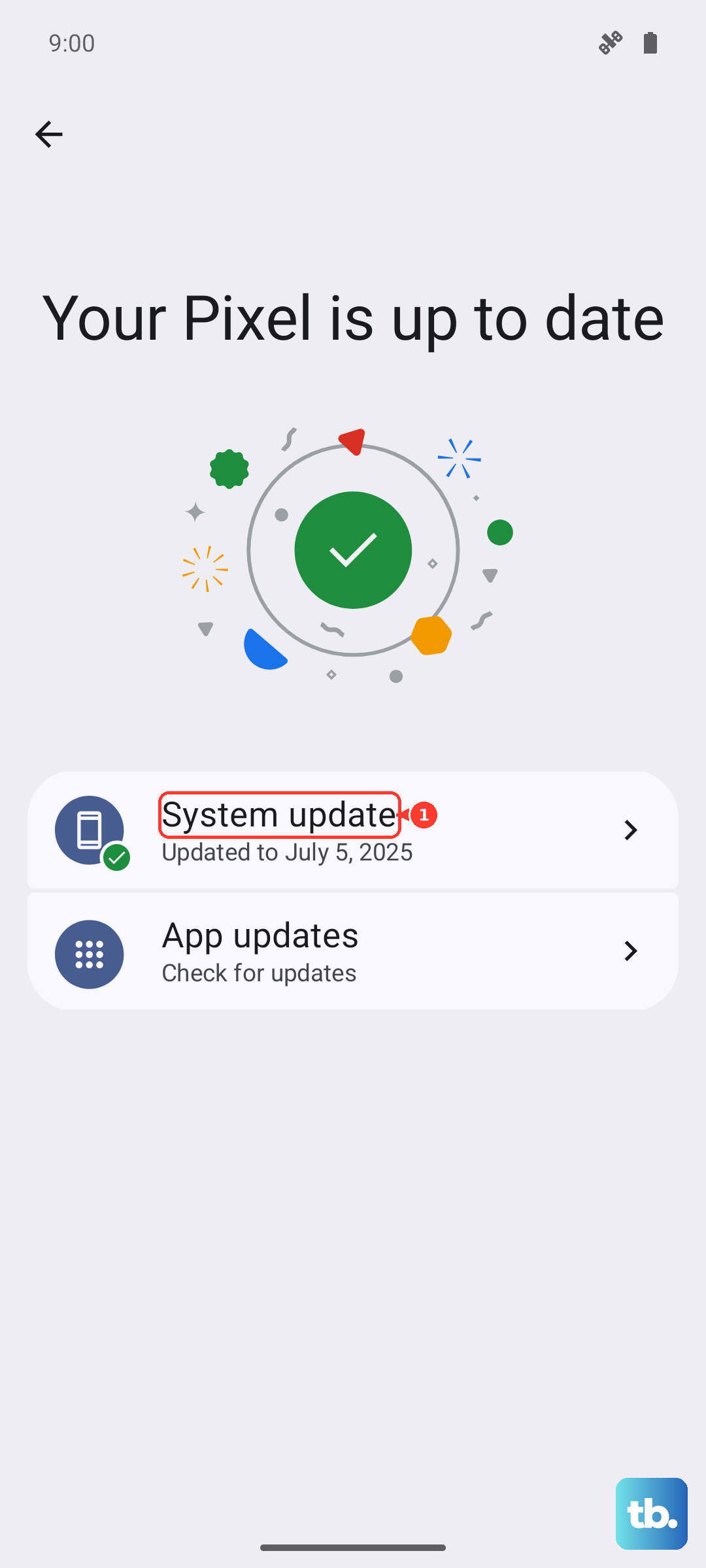
Since the Pixel 9a runs Android 15, it's important to stay current. An update might have been interrupted or installed incorrectly, causing the current issue. Installing the latest update can often resolve it.
Boot Into Safe Mode
Safe mode temporarily disables all third-party apps. If your touchscreen works perfectly in safe mode, you know a recently downloaded app is the culprit. To enter safe mode, press and hold the power button on the screen until the power off menu appears.
Then, tap and hold the "Power off" option on the screen. You'll get a prompt to reboot to safe mode. Tap "OK". Once in safe mode, test the touch response. If it's fixed, you'll need to uninstall apps one by one, starting with the most recent, to find the bad one.
Check the Charging Cable and Source
Unplug your phone from any charger or accessory. Sometimes, using a damaged or non-compliant USB-C cable, or even a wireless charger, can introduce electrical noise that interferes with the touchscreen. This is more common with cheaper, off-brand chargers.
For the fastest and safest charge, use a USB-PD charger rated for 30W or more. The Pixel 9a's maximum is 23W wired, but a higher-rated charger ensures it gets clean, consistent power. Also, make sure the USB-C port on the phone is free of lint and debris.
Calibrate the Display
While Android doesn't have a built-in "calibration" tool, you can use a developer option to get detailed touch data. First, enable Developer Options by going to Settings > About phone and tapping "Build number" seven times.
Then, go back to Settings > System > Developer options and find "Show taps" or "Pointer location." Turning these on will show visual feedback for every touch. This can help you see if certain areas are completely dead or just laggy, which points to a software or hardware issue.
Perform a Factory Reset
This erases everything on your phone, so it's a last resort. Back up your data first if you can. If the touchscreen is partially working, you can initiate a reset through Settings > System > Reset options > Erase all data (factory reset).
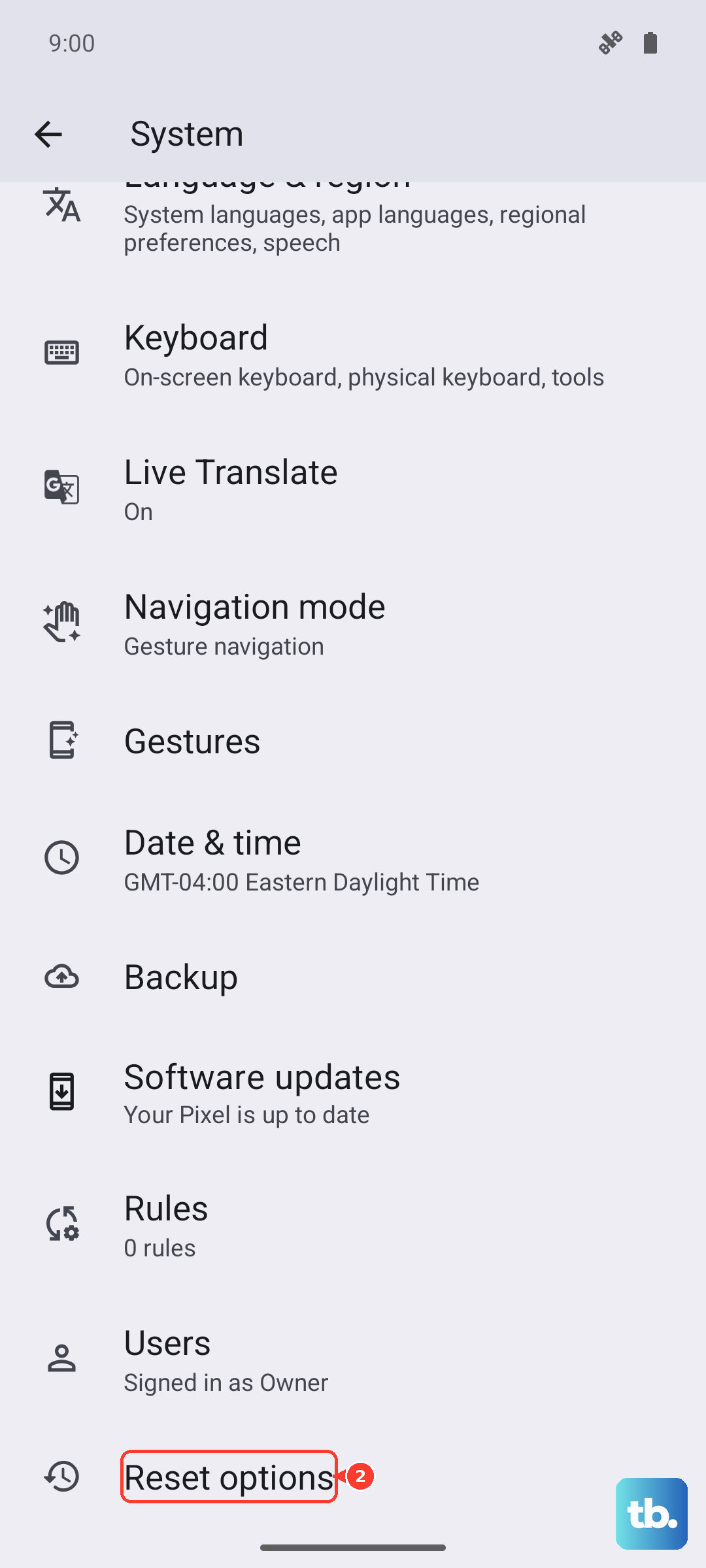
If the screen is totally dead, you can use the hardware buttons. Power the phone off completely. Then, press and hold the power button and volume down button together. When the Fastboot screen appears, use the volume buttons to navigate to "Recovery mode" and select it with the power button. From the Android Recovery screen, select "Wipe data/factory reset."
Consider Environmental and Hardware Factors
Extreme cold can make touchscreens temporarily sluggish or unresponsive. Let the phone warm up to room temperature if you've been outside. Also, check for any physical damage, like a hairline crack you might have missed, especially around the edges of the screen.
In my experience, if none of the software fixes work and the phone has been dropped or exposed to moisture, the digitizer itself might be damaged. The Tensor G4 modem's known signal behavior in weak areas isn't related to the touchscreen, but it's a good reminder that persistent hardware quirks sometimes need professional diagnosis.