
Missing important calls on your Google Pixel 9a is a real headache. You see the notification pop up, but you never heard a sound. The good news is this is almost always a setting that got changed or a minor software hiccup. Let's run through the fixes, starting with the most common ones.
Check Your Volume and Silent Mode
First, unlock your phone and press the volume up button on the side a few times. You'll see a volume slider appear on screen. Make sure it's set to a high level for ringtone and notification volume. If you see a bell icon with a line through it at the top of your screen, your phone is in silent mode.
You can swipe down from the top twice to open your Quick Settings and tap the bell icon to toggle silent mode off. For more control, go into Settings > Sound & vibration and adjust the "Ring & notification volume" slider there.
Review Do Not Disturb and Focus Modes
Android's Do Not Disturb is a frequent culprit. When it's on, calls can come through silently. Swipe down from the top of your screen to check your Quick Settings panel. If you see a circle with a line through it, Do Not Disturb is active. Tap it to turn it off.
For a deeper check, go to Settings > Sound & vibration > Do Not Disturb. Here, make sure the main toggle is off. Also, look at any schedules or rules that might be turning it on automatically, like during your bedtime.
Disconnect Any Bluetooth Devices
If your Pixel 9a is connected to a Bluetooth speaker, headphones, or your car, incoming call audio might be routing there instead of your phone's speaker. The easiest way to check is to swipe down and see if the Bluetooth icon is highlighted in your Quick Settings.
You can tap the Bluetooth icon to turn it off temporarily, or go to Settings > Connected devices and disconnect specific devices. After disconnecting, test a call to see if the ringtone now plays from your phone.
Verify Your Ringtone and App Permissions
Sometimes the selected ringtone file itself can cause issues. Try changing it to a default option. Head to Settings > Sound & vibration > Phone ringtone and pick a different one, like "Pixel Tune" or "Bounce." Test immediately with a call from another phone.
Also, ensure the Phone app has the correct permissions. Go to Settings > Apps > See all apps, find "Phone" in the list, and tap it. Then, go to Permissions and make sure it has access to "Notifications" and "Phone."
Check for Blocked Numbers and Call Settings
You might have accidentally blocked the person trying to reach you. Open your Phone app, tap the three-dot menu in the top right, and go to Settings > Blocked numbers. Review the list to see if any numbers you're expecting calls from are there.
Another setting to check is call forwarding. In the Phone app's settings, look for "Call forwarding" under "Calling accounts." Make sure it's not set to forward all your calls to another number, which would prevent your phone from ringing.
Look at Notification Settings for the Phone App
Android allows very granular control over notifications. The Phone app's notifications might be muted. Go to Settings > Apps > See all apps > Phone > Notifications.
Here, ensure notifications are turned on. Then, tap on "Incoming calls" and make sure the behavior is set to "Make sound and pop on screen." Also, check that no "Conversations" are set to silent.
Restart Your Pixel 9a
A simple restart clears out temporary glitches that can affect system sounds. Just press and hold the power button until the power menu appears, then tap "Restart." If your phone is completely unresponsive, you can force a restart by pressing and holding the power button for about 30 seconds until you feel it vibrate and the Google logo appears.
Update Your Software
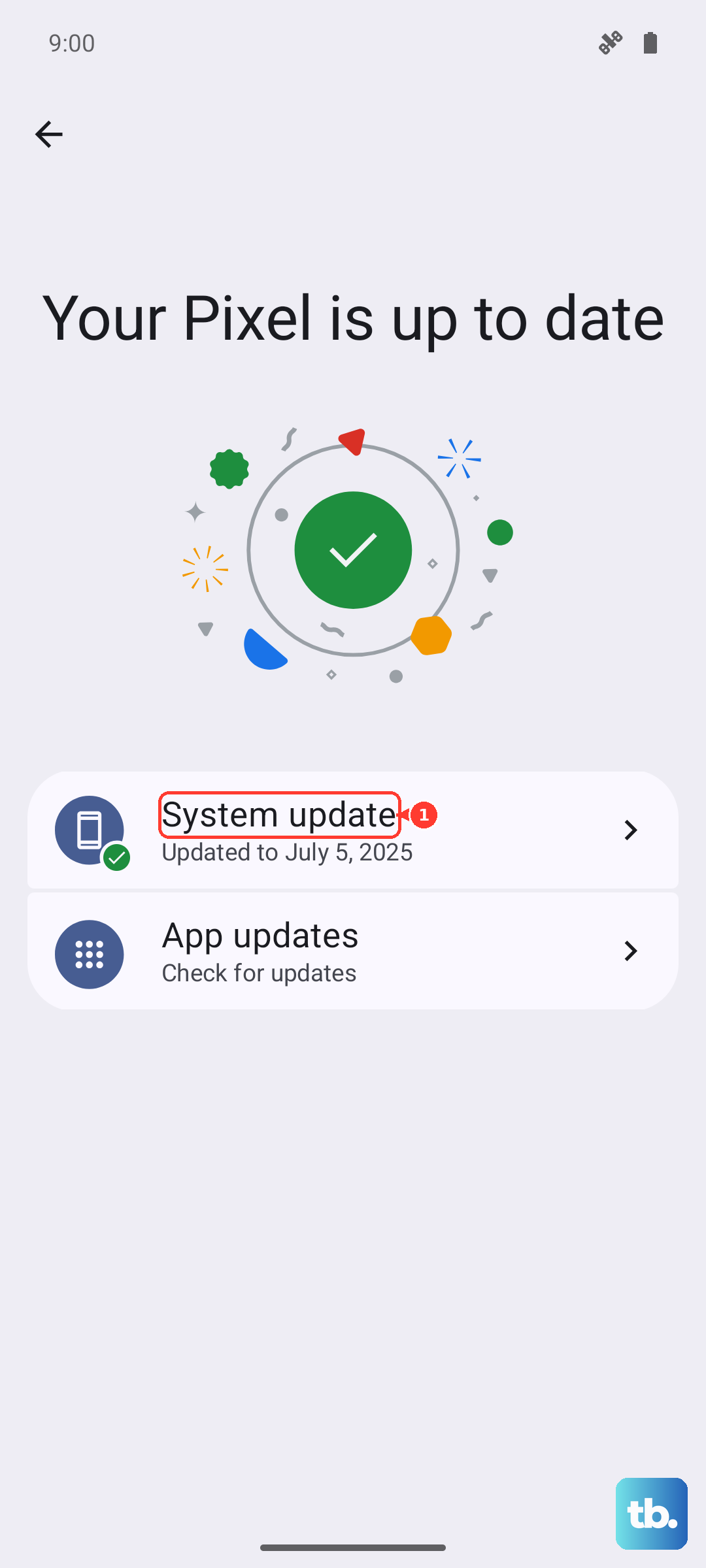
Google frequently releases updates that fix bugs, including ones related to calling. Connect to Wi-Fi, then go to Settings > System > System update. Tap "Check for update" and install any available Android 17 updates. I've seen minor point updates resolve odd audio issues on Pixels before.
Reset App Preferences or Network Settings
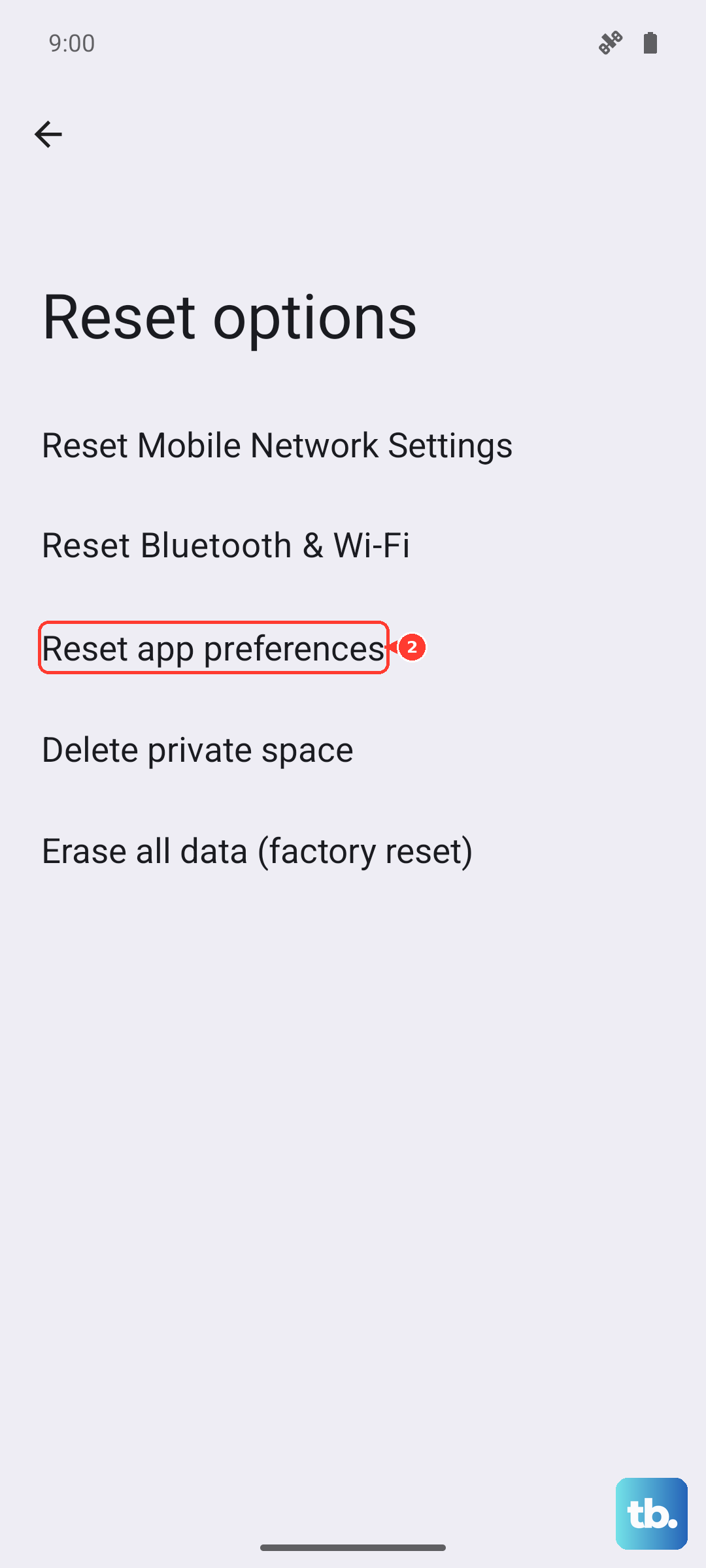
If the issue is specific to calling apps like WhatsApp or Messenger, resetting app preferences can help without deleting your data. Go to Settings > System > Reset options and tap "Reset app preferences." This resets notification settings and app permissions back to defaults.
For general calling issues, especially if you're having signal problems which can sometimes affect ring behavior, try resetting network settings from the same menu. This will erase your Wi-Fi networks and Bluetooth pairings, so you'll need to reconnect to them afterward.
Check for Signal Issues in Weak Areas
The Pixel 9a pairs its Tensor G4 chip with an older Exynos 5300 modem, which some users have reported can struggle in areas with very weak coverage. If you have no service bars, your phone can't receive a call to ring in the first place. Try moving to a different location or, if you're at home, see if enabling Wi-Fi calling helps.
You can turn on Wi-Fi calling by going to Settings > Network & internet > SIMs > [your SIM] > Wi-Fi calling and enabling the Wi-Fi calling option for your carrier. This lets you make and receive calls over a Wi-Fi network when cellular signal is poor.