
Seeing that "No Service" or "Emergency Calls Only" message on your Pixel 9a is a real headache. It cuts you off from calls, texts, and mobile data right when you need them most. The good news is this is usually a temporary glitch you can fix yourself, often in under a minute.
I'd start with the simplest fix first, as it works more often than you'd think. Just give your phone a quick restart. Press and hold the power button, then tap "Restart" on the screen. This clears out any minor software hiccups that might be blocking the cellular radio from connecting properly.
If a simple restart doesn't do the trick, the next thing to check is Airplane Mode. Sometimes it gets turned on accidentally. Swipe down from the top of your screen twice to open the full Quick Settings panel and make sure the Airplane Mode icon isn't highlighted. If it is, tap it to turn it off.
Check Your Physical SIM Card
While the Pixel 9a supports eSIM, if you're using a physical SIM card, it's worth checking its seating. Grab the SIM ejector tool that came in the box (or a small paperclip) and gently push it into the tiny hole on the SIM tray. Pull the tray out, remove the SIM card, and give the gold contacts a quick wipe with a soft, dry cloth.
Blow any dust out of the tray slot, then carefully reinsert the SIM and push the tray back in until it clicks. A poorly seated or slightly dirty SIM is a surprisingly common culprit for sudden signal loss.
Toggle Your Mobile Network
Your next move should be toggling the mobile data connection off and back on. Go to Settings > Network & internet > Internet. Find your mobile carrier's name in the list and tap the settings gear icon next to it. Here, you can toggle the switch for "Mobile data" off, wait a few seconds, and then turn it back on.
This forces your phone to re-register with the nearest cell tower. While you're in this menu, also ensure that "Roaming" is turned on if you're traveling, though be mindful of potential charges from your carrier.
Reset Your Network Settings
If you're still stuck, resetting your network settings can clear out any corrupted configuration data. This will erase all saved Wi-Fi networks and passwords, Bluetooth pairings, and cellular settings, but it won't touch your personal photos, messages, or apps.
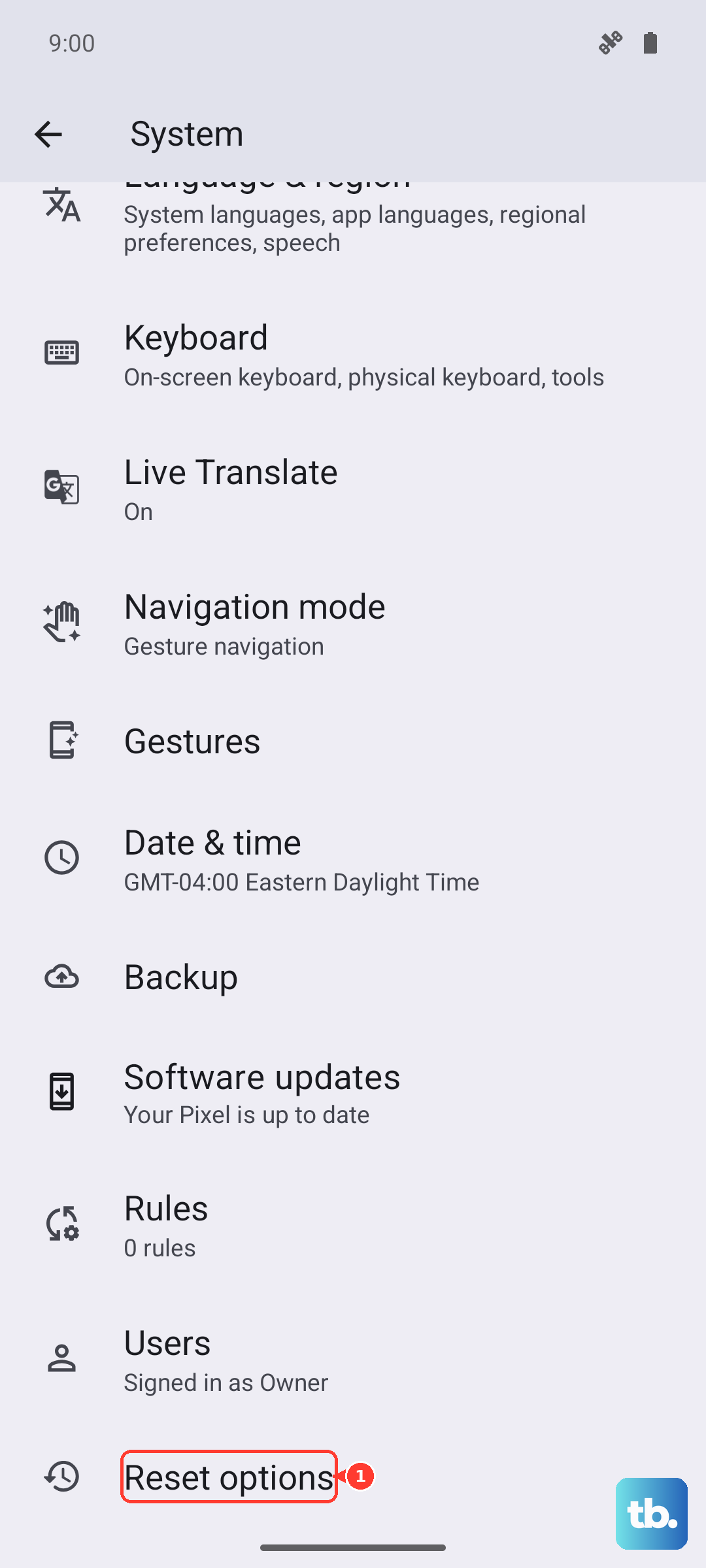
To do this, open Settings > System > Reset options. Tap "Reset Wi-Fi, mobile & Bluetooth" and confirm. After the phone reboots, you'll need to reconnect to Wi-Fi and re-pair Bluetooth devices, but it often resolves persistent network gremlins.
Update Your Access Point Name (APN)
Incorrect APN settings will prevent your phone from accessing your carrier's data network. These settings can sometimes get messed up after a software update. Head to Settings > Network & internet > Internet, tap your carrier's gear icon, then select Access Point Names.
If the list is empty or looks wrong, tap the three-dot menu in the top right and select "Reset to default." Your Pixel should automatically pull the correct settings from the SIM card. If it doesn't, you'll need to get the specific APN details from your carrier's website or customer support and enter them manually here.
Manually Select Your Network Operator
Your phone usually picks the best network automatically, but sometimes it gets stuck trying to connect to a weak or unavailable tower. You can force it to search again. Go to Settings > Network & internet > Internet, tap your carrier's gear icon, and then tap Network operators.
Turn off the "Choose automatically" toggle. Your phone will scan for all available networks. When the list populates, select your specific carrier (e.g., T-Mobile, Verizon, AT&T). Wait a moment, then turn "Choose automatically" back on. This manual nudge can re-establish a solid connection.
Check for a Carrier Services Update
This is a Pixel-specific step that many people overlook. The "Carrier Services" app in the background handles communication between your phone and your carrier's network. If it's out of date, it can cause problems.
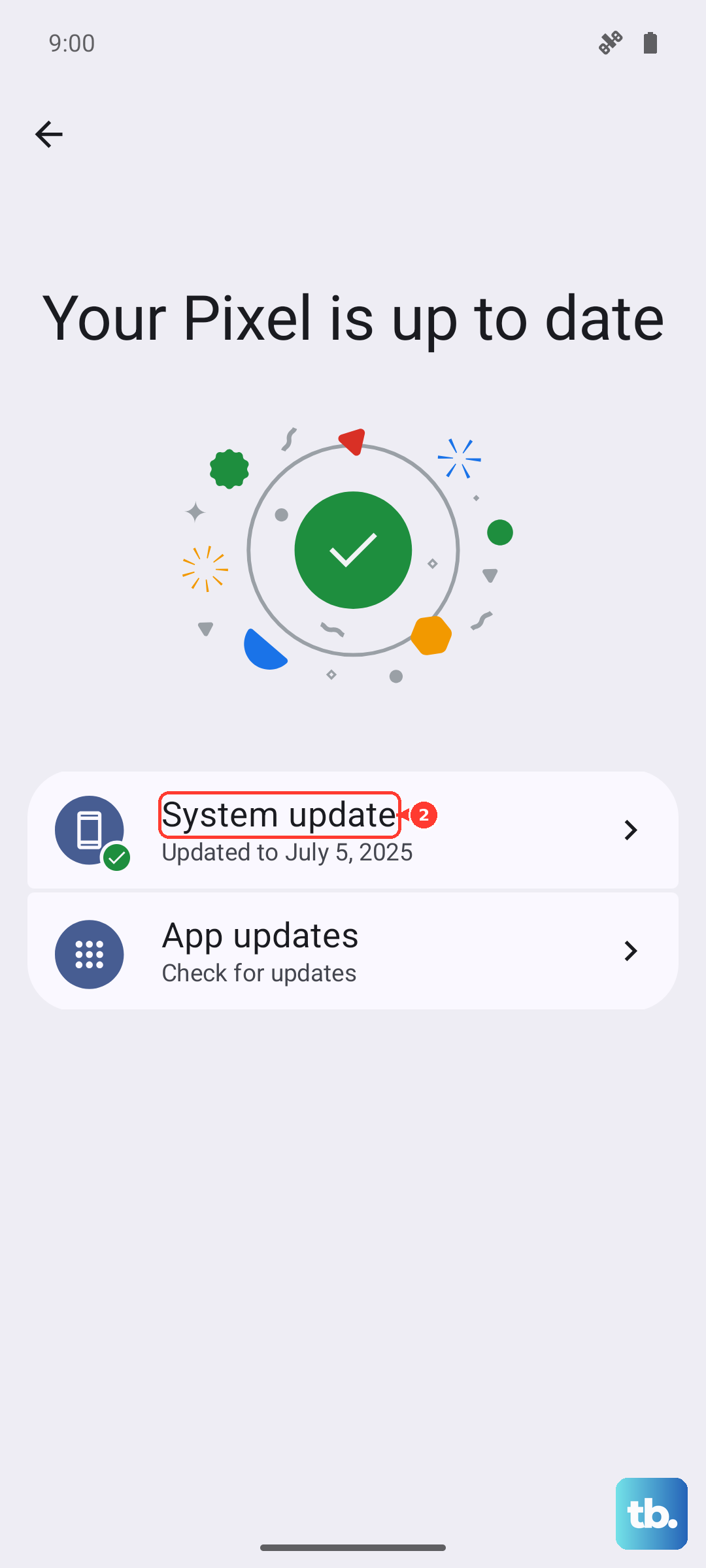
Open the Google Play Store, tap your profile picture, and go to "Manage apps & device." Under "Updates available," see if "Carrier Services" is listed. If it is, update it. Also, check for a general system update in Settings > System > System update, as Google frequently includes modem and connectivity fixes.
Use the Phone Information Menu
Android has a hidden diagnostic menu that lets you see the raw radio status. Open your Phone app and dial *#*#4636#*#*. This will open the testing screen. Tap "Phone information."
Look at the "Set preferred network type" dropdown menu. For the best mix of coverage and speed, select "NR/LTE/WCDMA" or "LTE/WCDMA." You can also try tapping "Turn off radio" and then "Turn on radio" to cycle the cellular modem. This is a more technical reset than a standard reboot.
Review Your SIM Card Status
It's worth checking if your phone even recognizes your SIM card properly. Go to Settings > About phone > SIM status. Look at "Network" and "Signal strength." If it says "Disconnected" or your signal strength is consistently below -110 dBm, you're in a very poor coverage area.
Also, check the "Service state." It should say "In service." If it doesn't, there may be an account issue with your carrier. This screen gives you hard data to share if you need to call customer support later.
Consider the Tensor G4 Modem and Your Case
The Pixel 9a uses Google's Tensor G4 chip, which includes the modem. Some users have reported that this modem can be less robust in very weak signal areas compared to some competitors. If you're frequently in basements or rural spots, this might explain intermittent drops.
Also, take a look at your phone case. A very thick or metal case can slightly interfere with antenna reception. Try removing the case for a few minutes to see if your signal bars improve. It's a long shot, but it costs nothing to test.
If you've worked through all these steps and still have no service, the issue might be with your carrier's network in your area or a faulty SIM card. The final step before thinking about hardware is to contact your carrier. They can check for outages, reprovision your line, or send you a new SIM card, which often solves the problem for good.