
If your Google Pixel 9a is refusing to send picture messages or group chats, it's usually a quick fix. The most common culprit is a simple setting that needs to be toggled. Let's start with the fastest solution.
First, make sure mobile data is turned on. MMS messages, which include photos and group texts, can't send over Wi-Fi alone. Swipe down from the top of your screen twice to open the full Quick Settings panel and tap the mobile data icon to ensure it's active. If you have a weak signal, that could also be the issue, especially in areas with spotty coverage where the Tensor G4 modem can sometimes struggle.
While you're there, try temporarily turning off Wi-Fi. Some networks have firewalls that block MMS traffic. Sending your message over the cellular network instead can often push it through immediately.
Verify Your Messages App Settings
Open the Google Messages app on your Pixel 9a and tap your profile picture in the top right corner. Go to Messages settings > Advanced.
Here, you need to check two key options. Make sure "Auto-download MMS" is enabled. This allows the app to automatically retrieve multimedia messages when you're on mobile data. If you're traveling, you might also want to enable "Auto-download MMS when roaming," but be mindful of potential data charges.
Clear the App Cache for Messages
Temporary files can get corrupted and stop the messaging app from working properly. Clearing the cache is a safe first step that won't delete your conversations.
Go to your phone's Settings > Apps > See all apps. Find and tap on "Messages." Select Storage & cache and then tap Clear cache. This only takes a second. After doing this, try sending your MMS again.
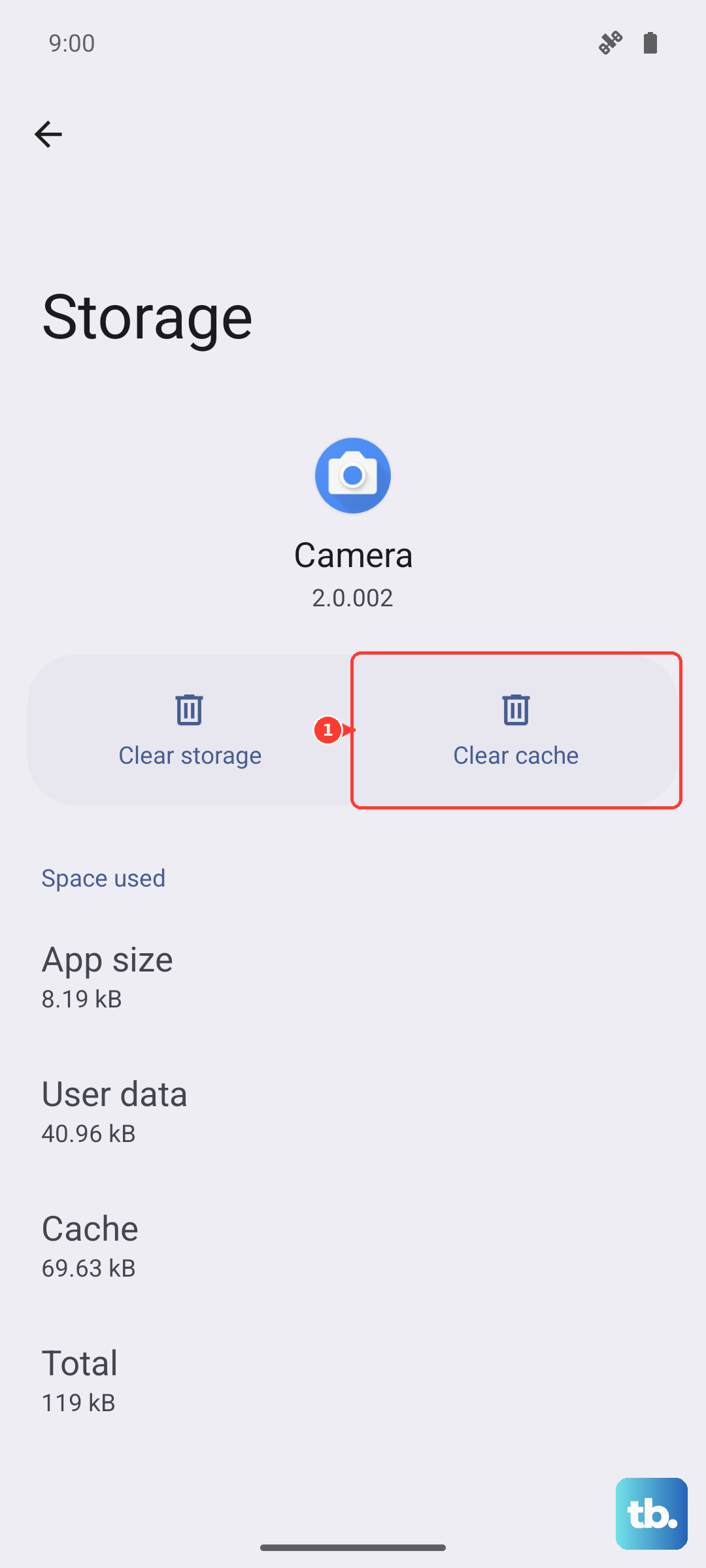
If the problem persists, you can take the more drastic step of clearing the app's data. This will erase all your message history and restore the app to its default settings, so only do this if you're okay with that loss. In the same storage menu, tap Clear storage or Clear data and confirm.
Check and Update Your APN Settings
Incorrect Access Point Name (APN) settings are a frequent cause of MMS failures. These settings tell your phone how to connect to your carrier's multimedia service.
Navigate to Settings > Network & internet > Internet. Tap the settings gear icon next to your carrier's name, then select Access Point Names. You should see a list of APNs, with one selected (usually indicated by a filled-in circle).
Do not change these unless you know the correct values. If they look blank or wrong, the best move is to contact your carrier's support. They can provide the exact APN configuration for your Pixel 9a and often can send it to your phone via a configuration text message.
Perform a Force Restart
A simple reboot can clear out temporary glitches. For a more thorough refresh, use the Pixel 9a's force restart method. Press and hold the Power button for about 30 seconds, or until you feel a vibration and see the Google logo appear on the screen.
This forces the phone to power cycle completely, which can resolve deeper software hiccups that a normal restart might miss. Wait for the phone to fully boot up before testing your messages again.
Ensure Your Software is Up to Date
Running an outdated version of Android can lead to compatibility issues with carrier services. Google frequently releases updates that include connectivity improvements.
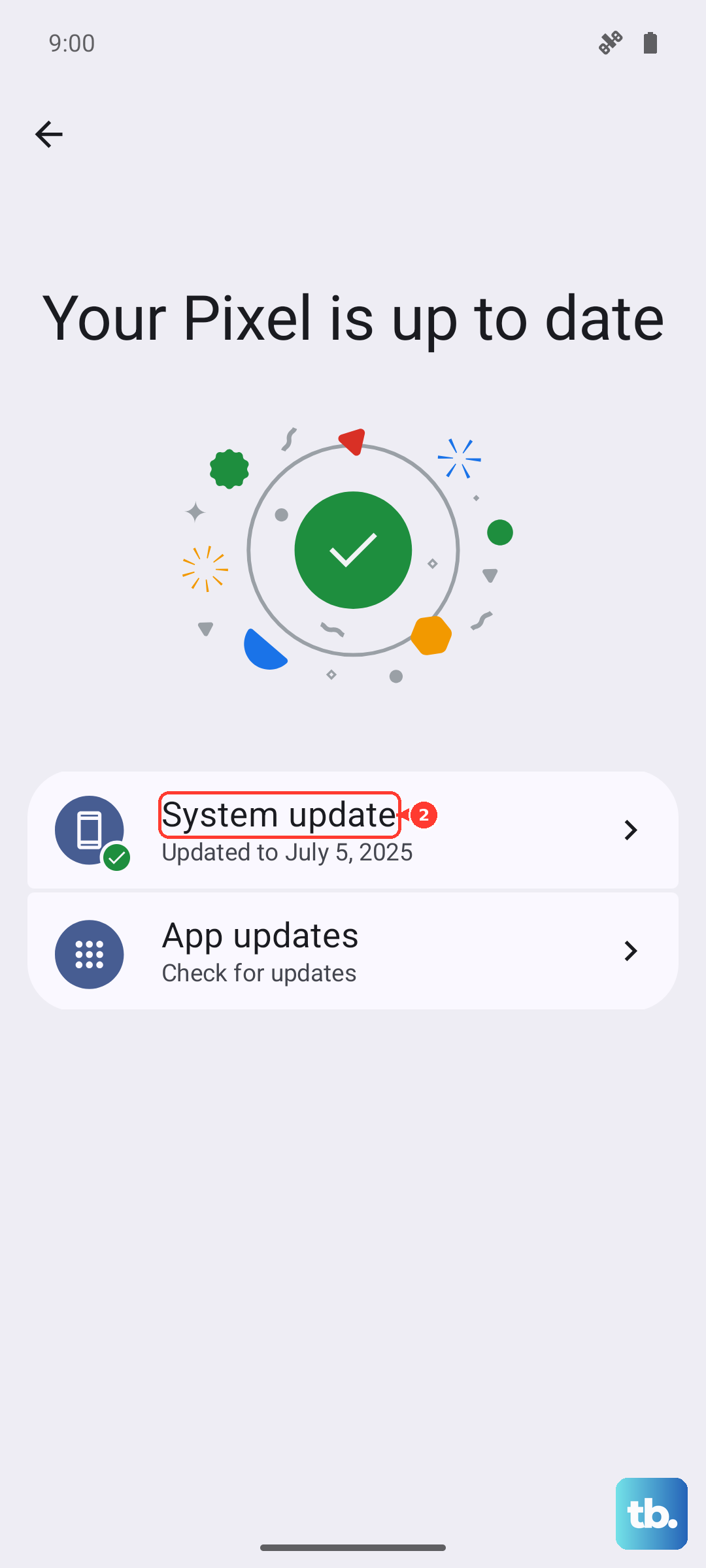
Check for updates by going to Settings > System > System update. Tap "Check for update." If one is available, install it. I'd recommend doing this over a Wi-Fi connection and making sure your battery is above 50%, or plugging in your 23W USB-C charger.
Reset Your Network Settings
This step resets all your network-related configurations back to factory defaults. It will erase saved Wi-Fi networks, paired Bluetooth devices, and cellular settings, but it won't touch your personal data like photos or apps.
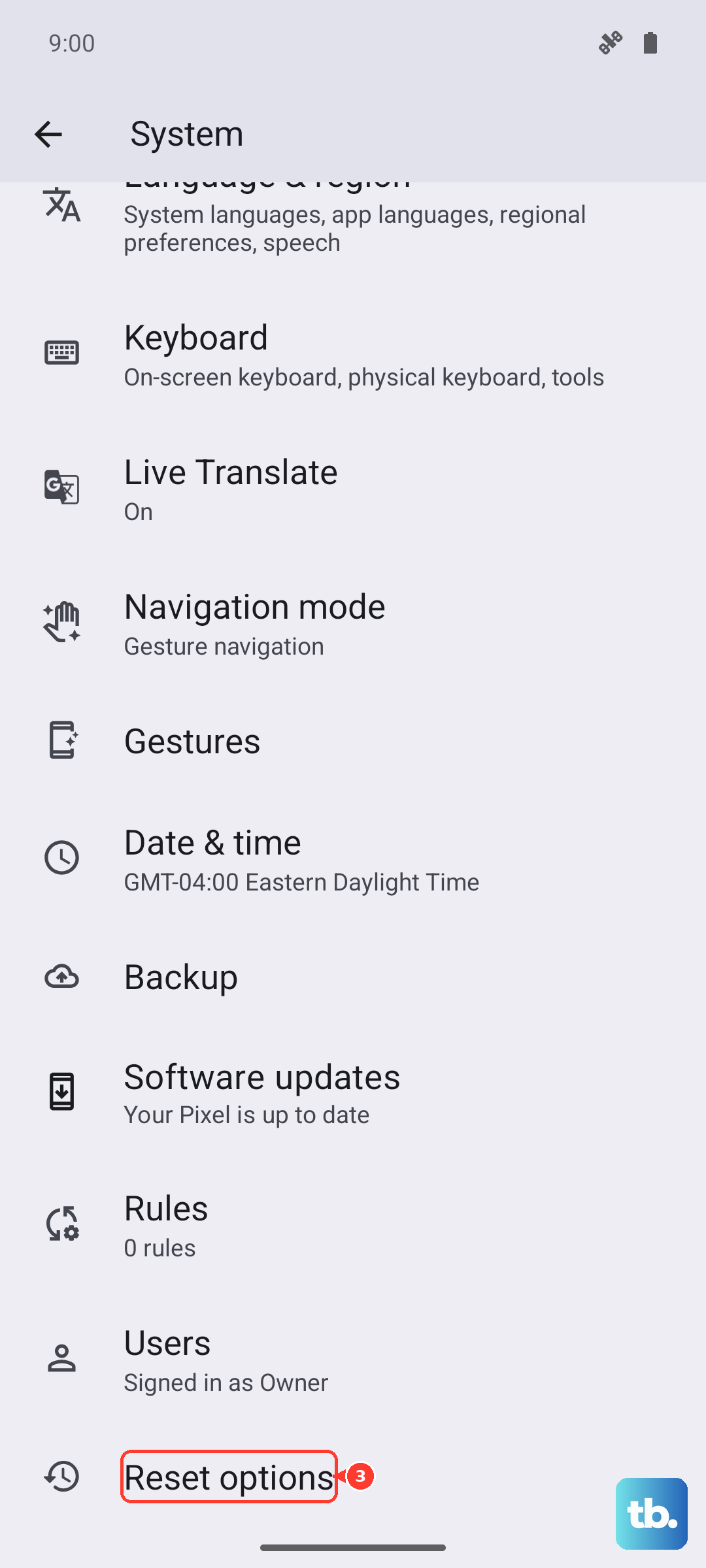
To do this, go to Settings > System > Reset options. Tap Reset Wi-Fi, mobile & Bluetooth and confirm. Your phone will restart. Afterward, you'll need to reconnect to your Wi-Fi and re-pair any Bluetooth accessories, but it often clears up persistent MMS problems.
Check Your Phone's Storage Space
If your Pixel 9a's storage is critically full, it may not have room to process and send multimedia messages. While the requirement isn't huge, having less than 100MB free can cause issues.
Go to Settings > Storage to see how much space you have left. Consider using the built-in cleanup tool to remove junk files or deleting old message threads laden with videos and photos to free up some room.
Try an Alternative Messaging App
If you're still stuck, the issue might be isolated to the Google Messages app itself. Testing with another app can help pinpoint the cause. You can download a different app like Textra or Signal from the Play Store.
Before you send a test MMS, remember to set the new app as your default. Go to Settings > Apps > Default apps > SMS app and select the new application. If MMS works in the other app, the problem is likely with Google Messages' configuration or data.