You raise your Pixel 9a to your ear, start talking, and the person on the other end says they can't hear a word. Maybe a voice recording came out silent, or a video you shot has no sound. The good news is that the Pixel 9a does have working microphones (a Top microphone and a Bottom microphone, according to Google's official hardware diagram), so a dead mic is rarely a hardware death sentence. Most of the time the cause is an accidental mute, a blocked opening, a misbehaving app, or a software hiccup you can clear in a couple of minutes.
If you are not sure whether the mic is dead or just misconfigured, open a microphone test first. A moving level meter means the hardware is healthy, which rules out the worst case before you touch any settings.
Work through the fixes below in order. They start with the safest, fastest checks that solve the majority of cases, and only move toward a full reset or a repair request at the very end. You almost certainly won't need to go that far.
Start by ruling out an accidental mute on the call
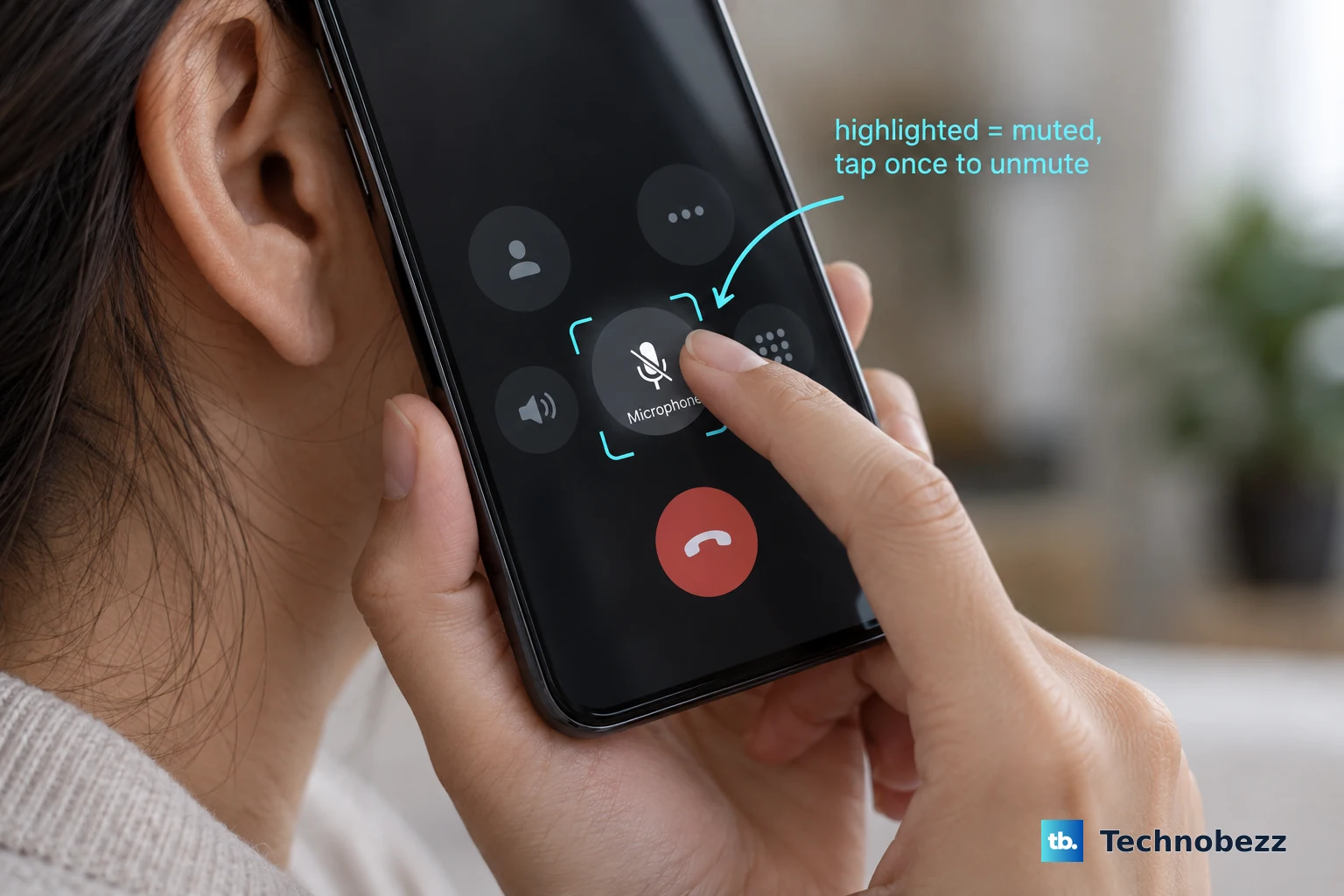
Before you assume anything is broken, check the obvious culprit during the call itself. A surprising number of mic not working reports turn out to be the call simply being muted. This is the single easiest thing to fix, and it costs you nothing to look.
Google's guidance is direct. While on a call, look at your phone and check whether the Microphone button is highlighted. If it's highlighted, tap it to unmute yourself. Once the highlight clears, ask the other person if they can hear you again before moving on.
Disconnect Bluetooth and clear out running apps
If your audio is quietly being routed to a paired Bluetooth device, your Pixel's own microphone may never get a chance to pick up your voice. A headset, car system, or earbuds left connected can hijack the input without any obvious sign.
Turn off Bluetooth on the phone, then close all of your open apps before you retry the call. With everything else out of the way, the call should fall back to the phone's built-in mic. Place a quick test call and confirm you can be heard.
Take off accessories and clean the microphone openings
Physical blockage is one of the most common and most overlooked causes. A thick case, a poorly cut screen protector, or a pair of plugged-in headphones can cover or confuse the mic, and dust or lint packed into a tiny opening can muffle it badly.
Google's instructions are to remove screen protectors, cases, and audio accessories such as headphones first. Then inspect the speakers and microphones, and if they look dirty, gently clean them with a soft, lint-free cloth. On the Pixel 9a, pay attention to the Top microphone and the Bottom microphone openings, and make sure nothing is covering them or the USB-C port.
Give the phone a clean restart
A restart clears the kind of temporary audio glitch that no amount of poking at settings will fix. It's quick, it's safe, and it resolves a meaningful share of sudden mic failures.
On the Pixel 9a, which is a Pixel 6 and later model, press and hold the Power button and the Volume up button for a few seconds, then tap Restart. If the phone is frozen and won't respond, hold down the power button for about 30 seconds to restart it. Once it boots back up, test the mic again.
Figure out which microphone is actually failing
This step tells you whether you're chasing a hardware problem or a software one, which saves you from wasting time on the wrong fixes. Because the Pixel 9a has two microphones, you can compare results across different apps to narrow down the cause.
- 1.Open the Recorder app, record a short voice clip, and play it back to check whether your voice is captured.
- 2.Open the Camera app, record a short video with sound, and play it back to check whether that audio is captured.
If one app captures sound cleanly and another doesn't, the issue is almost certainly app-side rather than a broken mic. If both come back silent or distorted, the problem is more likely with the hardware or the system, which the later steps address.
Check the app's microphone permission and update it
When the trouble shows up only in a specific calling or recording app, the app may be out of date or simply may not have permission to use the microphone. Both are quick to confirm.
Open Settings and verify that the problem app has microphone permission. Then update your apps in the Google Play Store. Tap the profile icon at the top right, choose Manage apps and devices, then tap Update available apps. With the latest version installed and permission granted, reopen the app and test it.
Install the latest Android update
Software bugs that affect the microphone are often patched in routine system updates, so running an outdated build can keep a fixable problem alive. The Pixel 9a receives 7 years of OS, security, and Pixel Drop updates, so there's a good chance a relevant fix is already waiting.
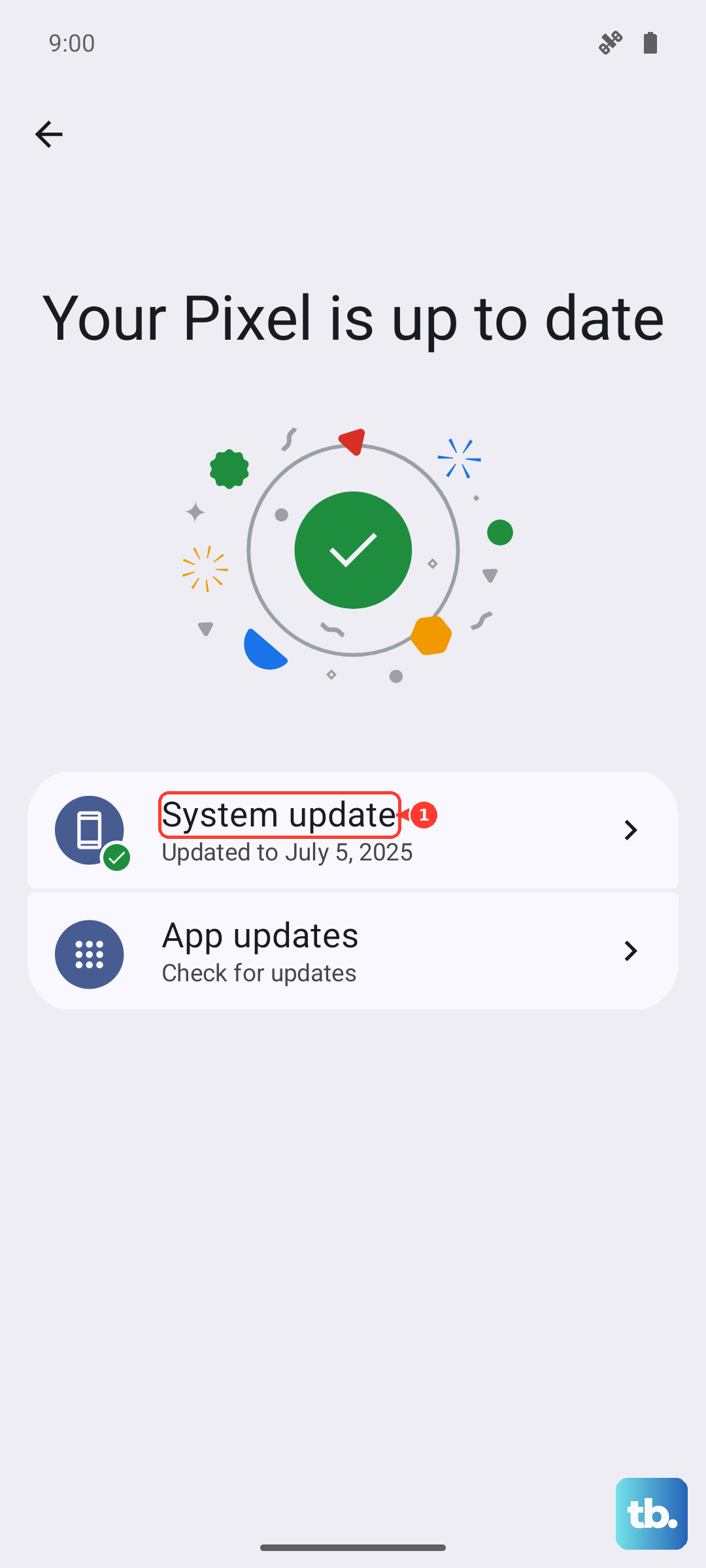
Go to Settings, then System, then Software update, and follow the on-screen steps to download and install whatever is available. After it finishes installing and the phone restarts, test the mic once more.
Boot into Safe Mode to expose a problem app
Safe mode temporarily disables every app you've downloaded, leaving only the system software running. If the microphone works fine in safe mode, you've proven that one of your installed apps is the culprit.
On the Pixel 9a, which is a Pixel 6 and later model, press and hold the Power and Volume Up buttons for a few seconds. On the screen, tap and hold either the Power off or Restart button, then tap OK. When you see Safe mode at the bottom of the screen, test the mic. If it works there, restart the phone normally and remove recently installed apps one at a time until the problem disappears.
Remove and reinstall the troublesome app
For an app where the mic fails even though it works everywhere else, a clean reinstall often clears corrupted data or settings that updating alone won't touch. Do this only after you've confirmed the app has microphone permission and is fully updated.
Uninstall the problem app, then reinstall it from the Google Play Store. Sign back in, grant the microphone permission when prompted, and run a test to confirm your voice is coming through.
Factory reset as a last resort, then reach out to Google
If you've worked through everything above and the microphone still won't cooperate, Google lists a factory reset as the final software step. This is a major action, so take the precautions first.
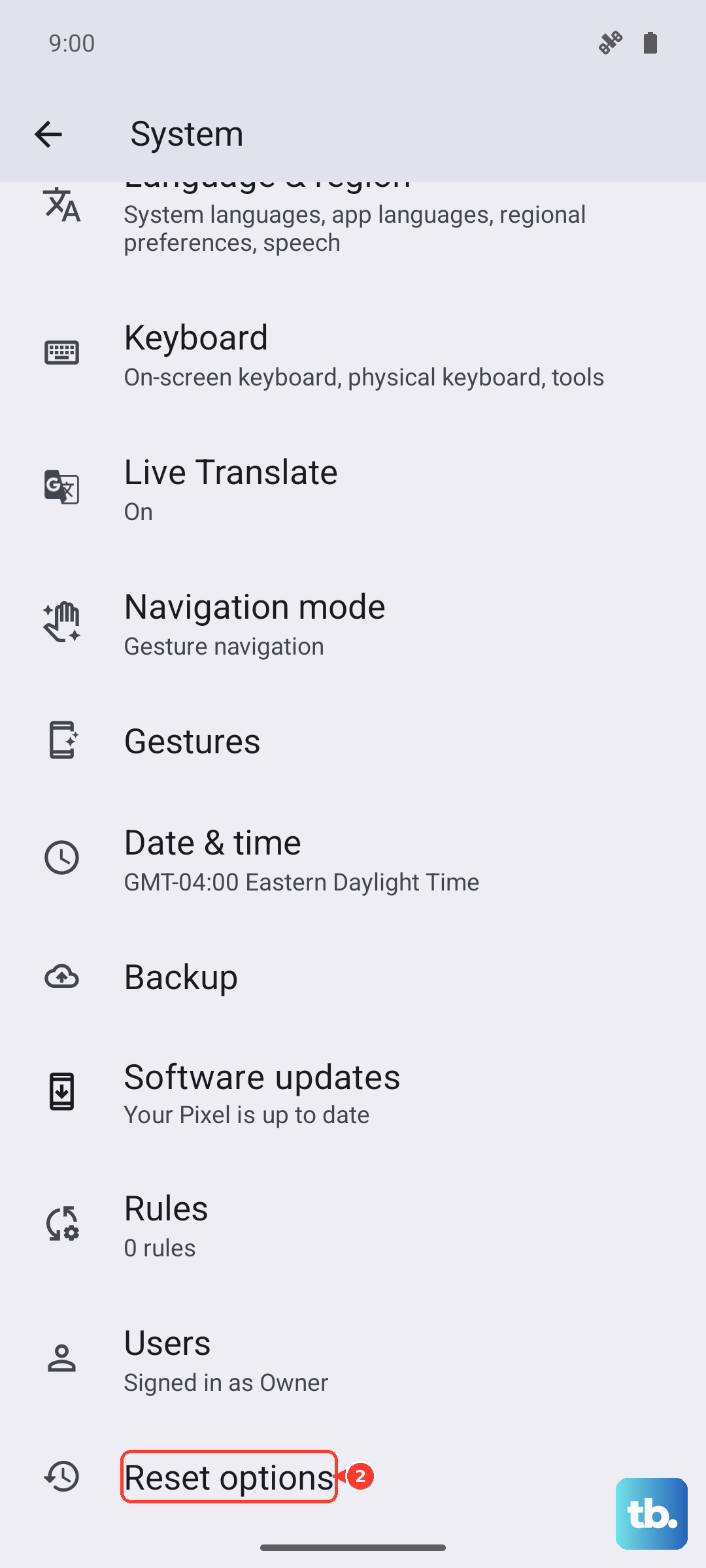
Be aware that a factory reset erases all your data from your phone, though data tied to your Google Account can be restored afterward. Back everything up before you begin and charge the phone to at least 70 percent. Then follow these steps.
- 1.Open Settings, then System, then Reset options, then Erase all data (factory reset).
- 2.Tap Erase all data.
- 3.Enter your PIN if prompted.
- 4.Tap Erase all data again to confirm.
If the microphone still fails after a full reset, the problem is most likely a hardware fault. At that point, contact Google Pixel support to arrange a repair.
Frequently Asked Questions
How many microphones does the Google Pixel 9a have?
According to Google's official Pixel 9a hardware diagram, the phone has two microphones, a Top microphone and a Bottom microphone. To narrow down a problem, record a voice clip in the Recorder app and a video with sound in the Camera app, then compare the results.
Why can people hear me on some apps but not others?
When the mic works in one app and fails in another, the problem is almost always app-side rather than a broken microphone. Confirm the failing app has microphone permission in Settings, update it in the Google Play Store, and if that doesn't help, uninstall and reinstall it.
Will updating Android really fix a microphone problem?
It can, because Google fixes mic-related software bugs through routine updates. Go to Settings, then System, then Software update and install whatever is available. The Pixel 9a is supported with 7 years of OS, security, and Pixel Drop updates, so a relevant fix may already be ready to install.
Does a factory reset erase everything on my Pixel 9a?
Yes. A factory reset erases all your data from your phone, although data linked to your Google Account can be restored afterward. Back up first and charge the phone to at least 70 percent before you start, and treat it as a last resort after the other fixes.
What should I do if the mic still fails after a factory reset?
If the microphone doesn't work even after a full reset, the cause is most likely a hardware fault rather than software. Contact Google Pixel support so they can arrange a repair.