
If your Google Pixel 9a is starting to feel sluggish, you're not alone. Even with the Tensor G4 chip, phones can slow down over time as storage fills up and background processes pile up. The good news is that Android 15 gives you a lot of control to speed things back up.
I'd start with a simple restart. It's the quickest way to clear out any temporary glitches or memory leaks that might be bogging down the system.
Force Restart Your Pixel 9a
If your phone is so slow it's unresponsive, a force restart is the way to go. Just press and hold the power button for about 30 seconds. Keep holding it until you see the Google logo appear on the screen, then let go.
This is a hard reboot that clears the phone's active memory. It can fix temporary freezes and lag without affecting your data.
Check for Software Updates
Google is constantly pushing out updates that include performance improvements and bug fixes. Making sure you're on the latest available version of Android is crucial.
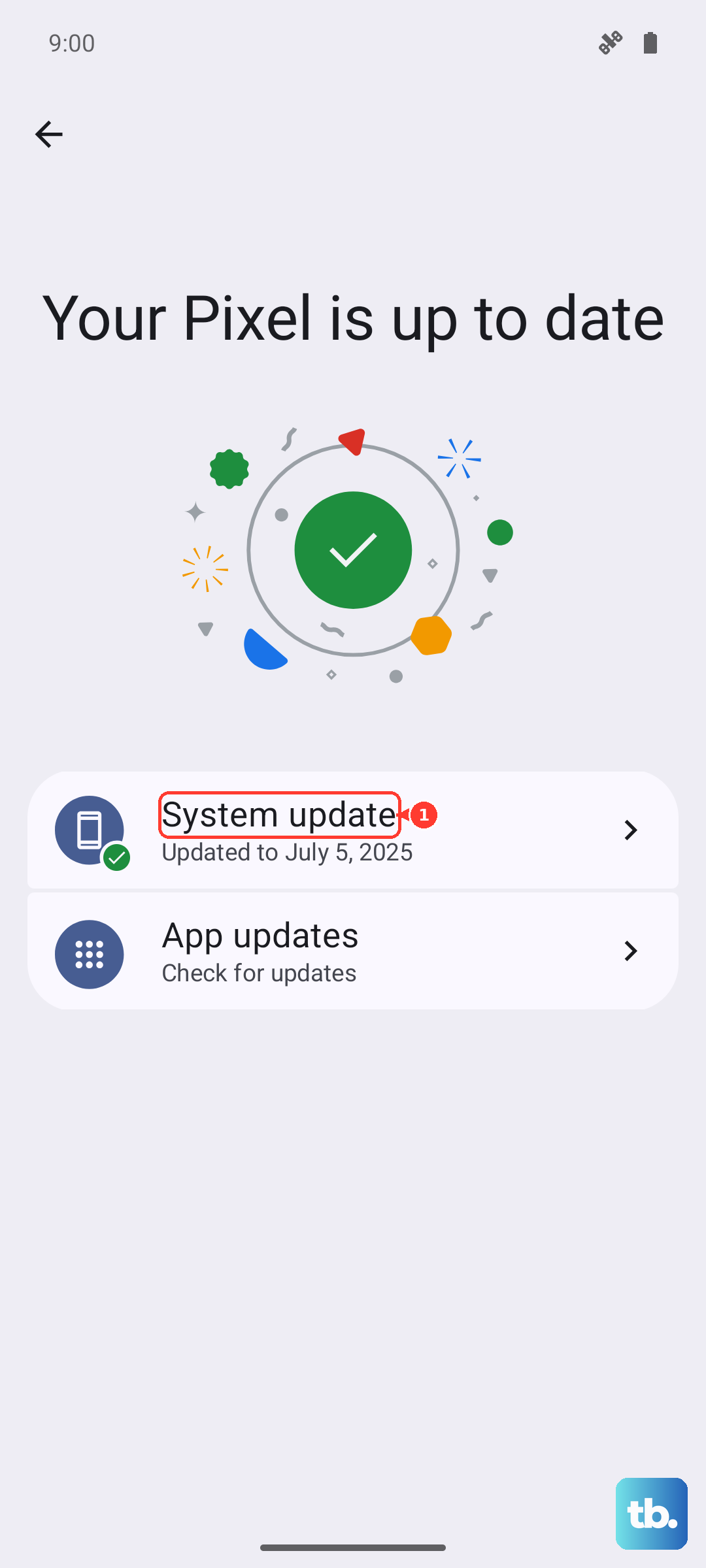
Go to Settings > System > System update. Tap "Check for update" and install anything that's available. It's a good idea to do this over Wi-Fi and while your phone is charging, as the Tensor G4 modem can sometimes struggle with large downloads in weak signal areas.
Free Up Storage Space
When your internal storage gets too full, everything slows down. Android needs free space to operate smoothly. Head to Settings > Storage to see what's taking up room.
The Pixel 9a has some great built-in tools here. You can use "Free up space" to quickly delete junk files. For photos, consider turning on the "Storage saver" upload option in Google Photos, which backs up high-quality versions without using your full storage quota.
Manage Your Background Apps
Too many apps running in the background will drain your battery and processor. Unlike iPhones, Android lets you see and control this more directly. Swipe up from the bottom and hold to enter the recent apps view.
You can swipe away apps you're not using. For more control, go to Settings > Apps and check which apps are using excessive battery in the background. You can restrict background activity for the troublemakers.
Clear App Caches
Over time, apps store temporary data that can become corrupted and cause slowdowns. Clearing an app's cache can give it a fresh start without deleting your login info or personal data.
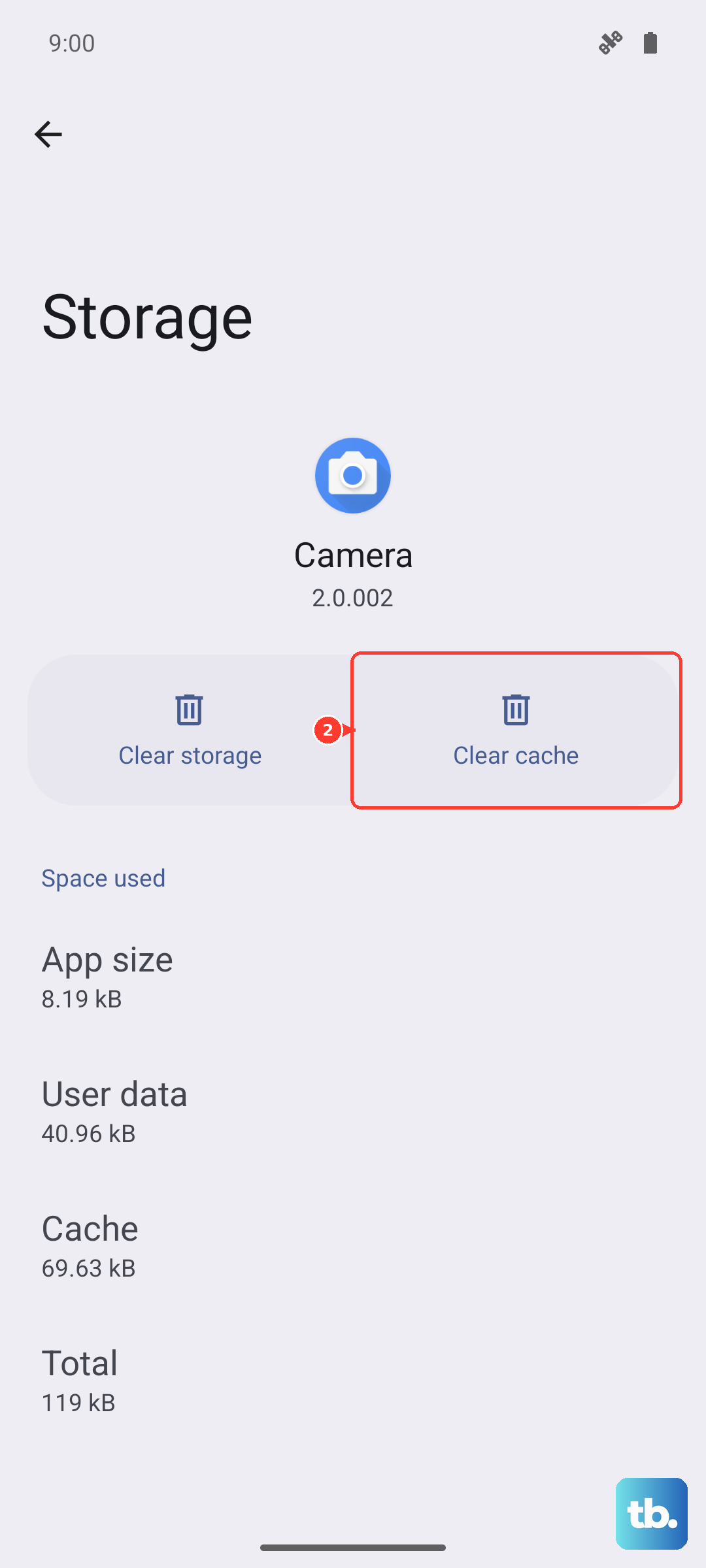
Go to Settings > Apps, select a specific app, then tap Storage & cache. Tap "Clear cache." Do this for apps that feel particularly slow, like your web browser or social media apps.
Review and Remove Widgets
Live widgets on your home screen are convenient, but they constantly update and use system resources. If you have a lot of them, they can contribute to lag.
Long-press on any widget you don't absolutely need and tap "Remove." Stick to just a few essential ones. I've found this makes the home screen feel much snappier, especially when swiping between pages.
Enable Adaptive Battery
Your Pixel 9a has a smart feature called Adaptive Battery that learns how you use apps and limits battery for ones you rarely use. This not only saves power but can also reduce background processing load.
Make sure it's turned on by going to Settings > Battery > Adaptive preferences. Ensure "Adaptive Battery" is toggled on. For the best long-term battery health, also use Adaptive Charging by plugging in your phone at night with an alarm set.
Use Extreme Battery Saver for a Quick Boost
When you're in a pinch and need every bit of performance, Extreme Battery Saver is a powerful tool. It severely restricts background activity and limits apps to only the essentials.
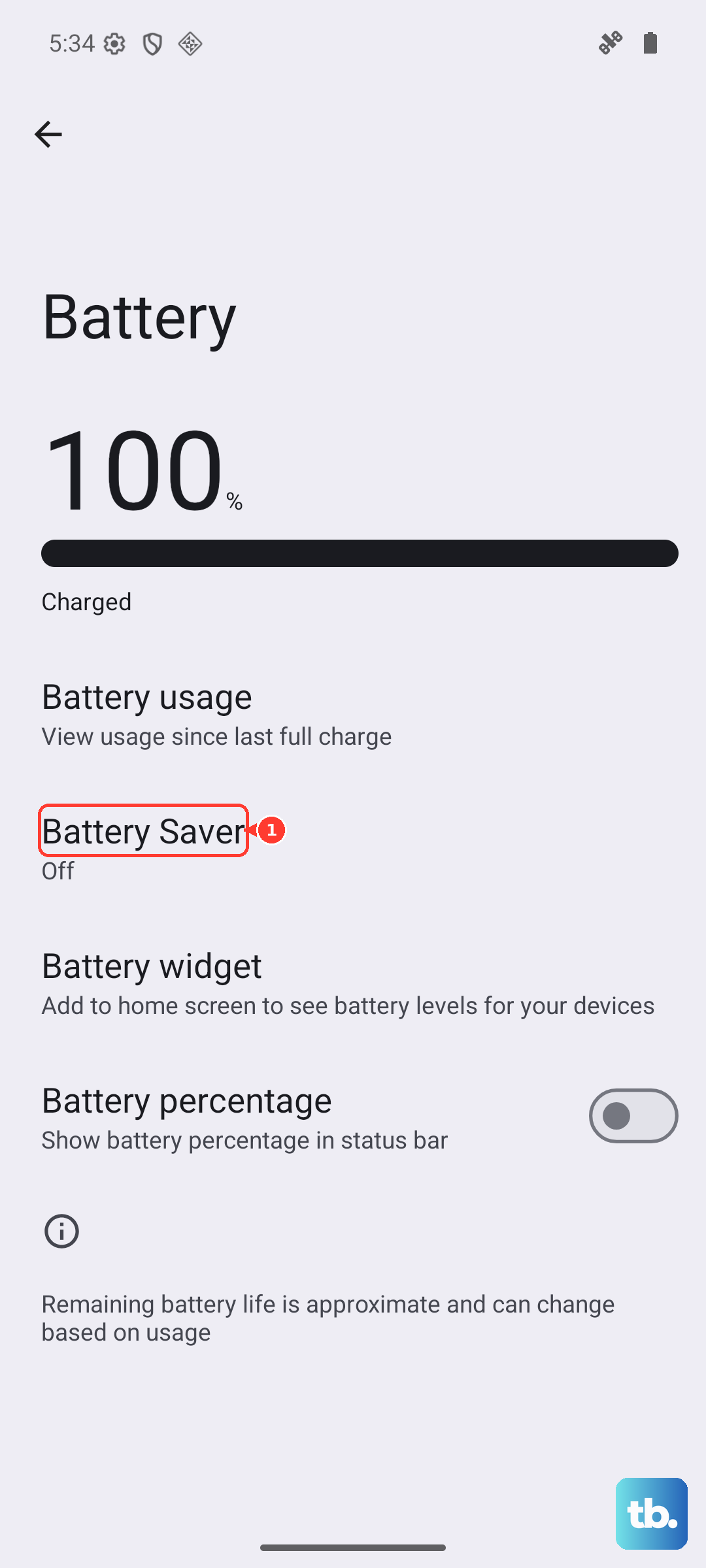
You can turn it on in Settings > Battery > Battery Saver. Tap the settings icon next to "Extreme Battery Saver" to choose which apps are allowed to run. It's a drastic measure, but it can make a very slow phone feel usable again temporarily.
Reduce Animations
The smooth animations in Android look great, but they take processing power. Speeding them up or turning them off can make your phone feel instantly faster.
You'll need to enable Developer Options first. Go to Settings > About phone and tap "Build number" seven times. Then, go back to Settings > System > Developer options.
Scroll down to the "Drawing" section. Look for "Window animation scale," "Transition animation scale," and "Animator duration scale." Change each of these from "1x" to ".5x" to speed them up, or turn them off entirely.
Perform a Network Settings Reset
If your slowdown seems related to connectivity, like apps hanging while loading data, a network reset can help. This is worth trying if you're experiencing the known Tensor G4 modem issues in poor coverage areas.
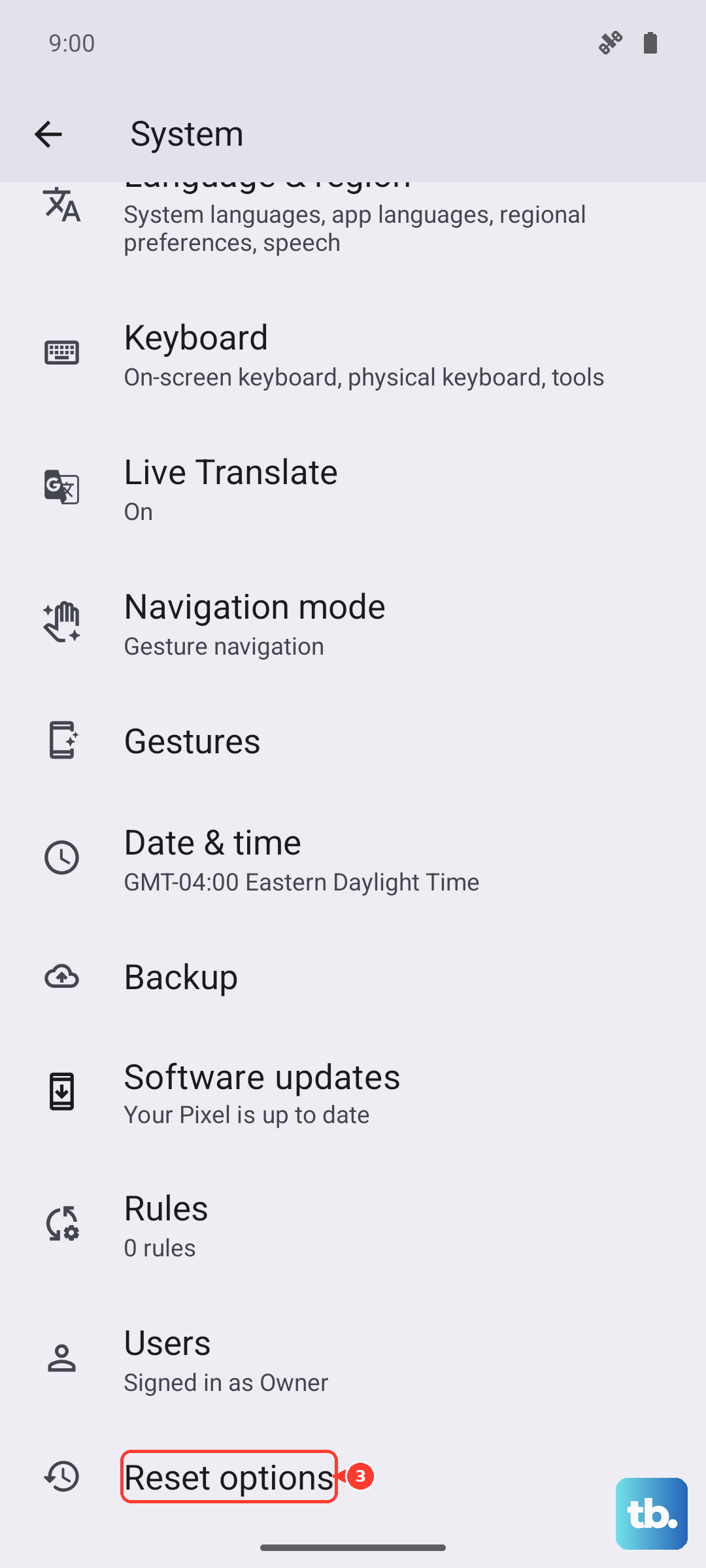
This will erase all your Wi-Fi networks, paired Bluetooth devices, and mobile network settings. Go to Settings > System > Reset options. Tap "Reset Wi-Fi, mobile & Bluetooth." You'll have to reconnect to your networks and re-pair devices afterward.
Consider a Factory Reset
If you've tried everything and your Pixel 9a is still crawling, a factory reset is the nuclear option. This will wipe your phone back to its original out-of-the-box state, so you must back up everything important first.
Go to Settings > System > Reset options and select "Erase all data (factory reset)." After the reset, set up your phone as new instead of restoring from a backup. Sometimes, a corrupted setting or app data in a backup can carry the problem over.