
When your Google Pixel 9a's GPS keeps dropping out mid-navigation, it's more than a little annoying. That spotty signal can leave you guessing at turns or cause your ride-share driver to miss you completely. The good news is this is usually a software hiccup you can fix yourself.
I'd start with the quick refresh below. It solves the problem more often than you'd think.
Refresh Your GPS Connection
Swipe down from the top of your screen twice to open the full Quick Settings panel. Find the tile labeled "Location" and tap it to turn it off. Wait about 30 seconds, then tap it again to turn it back on. This simple reset clears the temporary connection to the satellites and often snaps everything back into place.
Restart Your Pixel 9a
If toggling location didn't help, a full restart is the logical next step. It clears out any minor system glitches that might be interfering with the GPS radio. Just press and hold the Power button and Volume Up button together until the power menu appears, then tap "Restart."
For a more thorough reset, you can perform a force restart. Press and hold the power button for 30 seconds or longer, until you feel the phone vibrate and see the Google logo. This is particularly useful if the phone is acting sluggish or unresponsive alongside the GPS issue.
Check Your Location Mode and Permissions
Android offers different location modes, and the wrong one can cause problems. Open Settings and go to Location. At the top, make sure "Use location" is switched on.
Then, tap "Location services" and ensure "Google Location Accuracy" is enabled. This setting uses Wi-Fi and mobile networks to assist the GPS chip, providing a faster and more stable lock, especially in urban areas.
Also, verify your navigation app has permission. Go to Settings > Apps, select your app (like Google Maps or Waze), then tap Permissions. Make sure "Location" is set to "Allow all the time" or "Allow only while using the app" for the best experience.
Disable Battery Saver and Adaptive Features
Battery saving features are great for longevity, but they can aggressively limit background processes like constant GPS polling. Swipe down your Quick Settings and make sure Battery Saver is off. For a deeper check, go to Settings > Battery and turn off "Adaptive Battery" temporarily to see if it makes a difference.
While you're thinking about battery, using the Pixel's Adaptive Charging by plugging in at night is great for battery health long-term, but it doesn't affect GPS performance. The 23W wired charging is on the slower side, so for a quick top-up before a trip, I'd use a 30W+ USB-PD charger.
Reset Your Network Connections
Sometimes the modem, which helps with location assistance, needs a reset. The quickest way is to use Airplane Mode. Swipe down for Quick Settings and tap the Airplane Mode icon to turn it on. Wait 15 seconds, then tap it again to turn it off. This cycles all radios, including the cellular modem that can assist your GPS.
It's worth noting that the Pixel 9a uses a Tensor G4 chipset. Some users in forums have reported that the integrated modem can be less robust in very weak signal areas, which can indirectly affect location speed when using network-assisted GPS.
Update Everything
An outdated app or system software can absolutely cause location bugs. Head to the Google Play Store, tap your profile icon, and go to "Manage apps & device." Install any pending updates, especially for Google Maps, Google Play Services, and any other navigation apps you use.
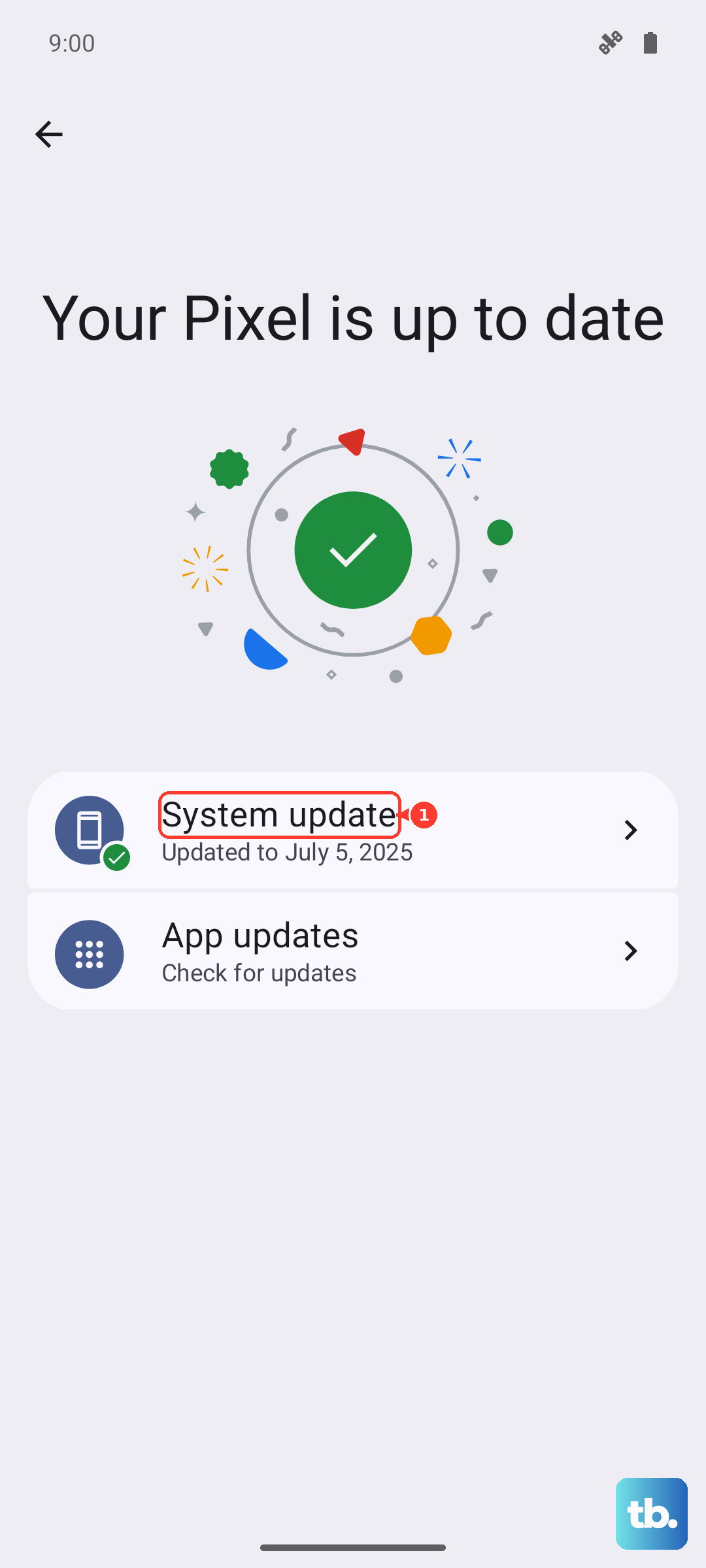
Next, check for a system update. Go to Settings > System > System update. If an update is available, install it. These updates often include stability improvements and bug fixes for the GPS and other radios.
Clear the App's Cache and Data
If a specific app like Google Maps is misbehaving, its stored data might be corrupted. Go to Settings > Apps, find the app, and tap it. Select Storage & cache. First, tap "Clear cache." This is safe and won't delete your saved places.
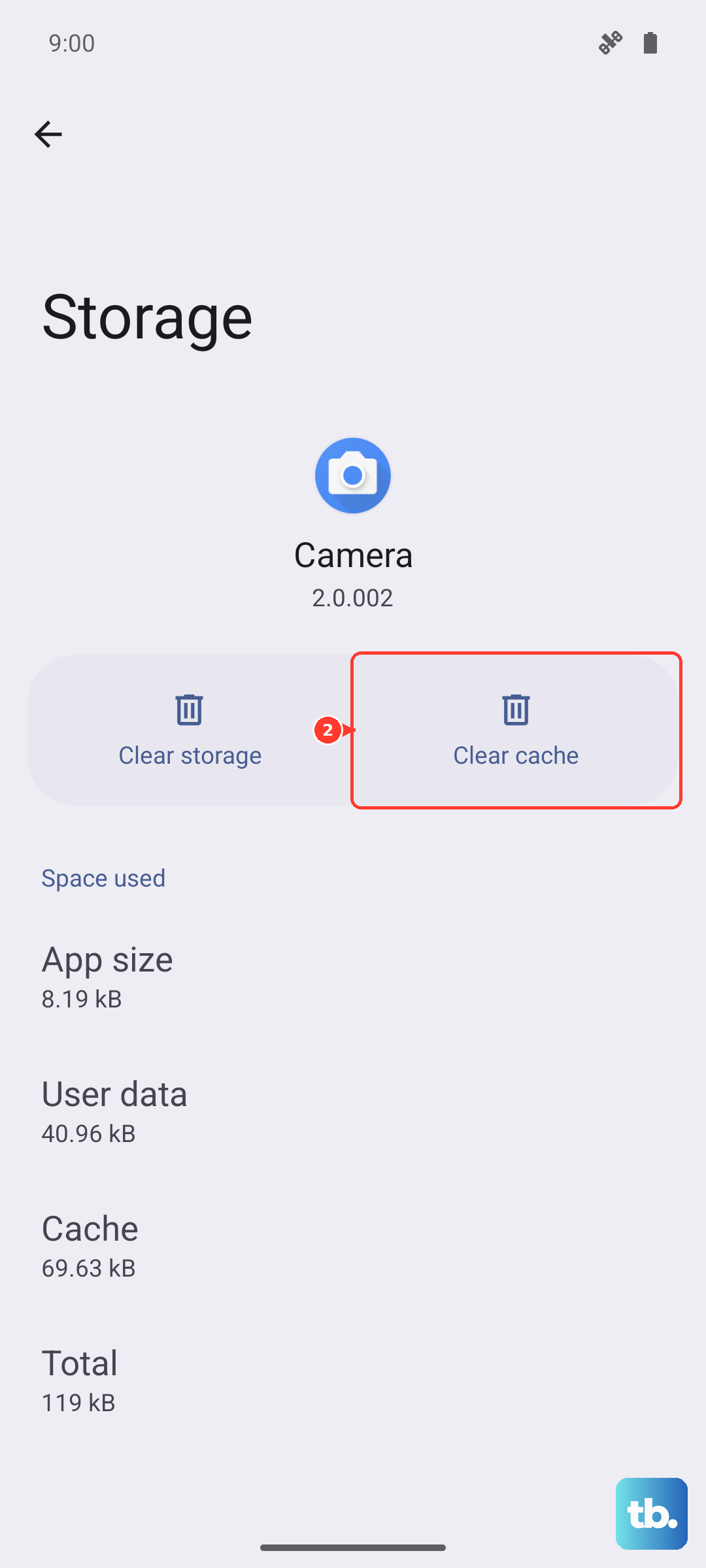
If the GPS is still losing signal, you can try "Clear storage" or "Clear data." Be warned, this will reset the app to its default state, deleting offline maps and potentially your search history within the app.
Check for Physical and Environmental Issues
GPS signals are line-of-sight to satellites. A thick metal phone case, especially one not designed for the Pixel 9a, can interfere. Try removing the case to see if your signal improves. Also, be aware of your surroundings.
Being inside a building, in a dense urban canyon with tall buildings, or under heavy tree cover will weaken or block the signal. Moving to a window or stepping outside can make a big difference. This isn't a phone flaw, just a limitation of the technology.
Boot Into Safe Mode
This tests whether a third-party app you've installed is causing the conflict. Press and hold the power button on the screen. When the "Power off" option appears, press and hold it until you see a message about Safe Mode. Tap "OK" to reboot.
In Safe Mode, all downloaded apps are disabled. Open Google Maps and see if the GPS signal is stable now. If it is, a recently installed app is likely the culprit. Restart normally to exit Safe Mode and try uninstalling apps one by one to find the offender.
Use a GPS Diagnostic Tool
Before considering more drastic steps, it helps to know what's happening. Download a free app like "GPS Test" or "GPS Status & Toolbox" from the Play Store. Open it and go to the satellite view.
If you're outside with a clear view and the app shows your phone connecting to multiple satellites (you'll see them turn from gray to green) but your navigation app still fails, it's almost certainly a software or app configuration issue. If the diagnostic app can't see *any* satellites, it points more toward a deeper system or hardware problem.
Reset Your Network Settings
This is a stronger step that resets all network-related configurations back to default. Go to Settings > System > Reset options. Tap "Reset Wi-Fi, mobile & Bluetooth." Confirm and enter your PIN if prompted.
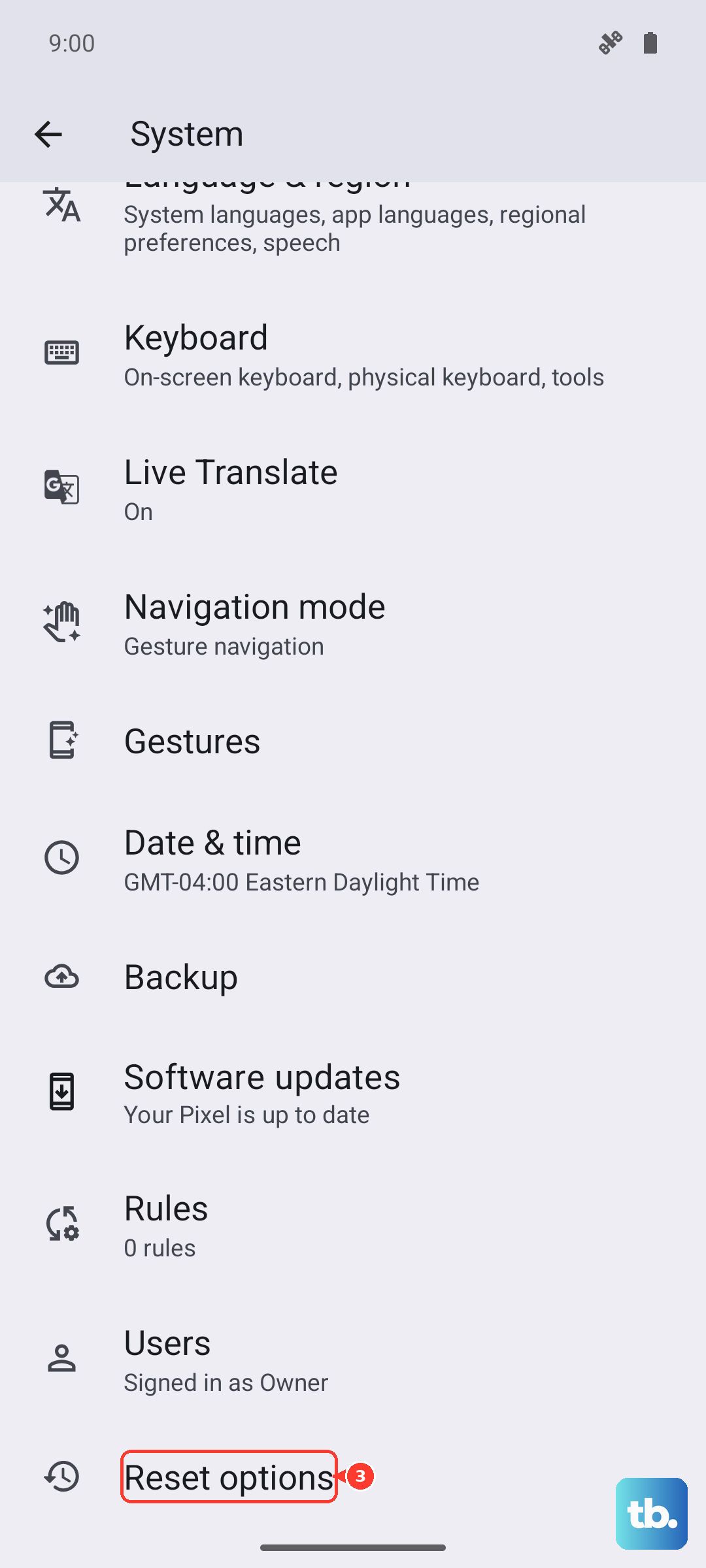
This will erase all saved Wi-Fi networks, Bluetooth pairings, and cellular network preferences. You'll need to reconnect to Wi-Fi and re-pair Bluetooth devices afterward, but it can resolve persistent radio conflicts.
Consider a Factory Reset
This is the last resort software fix. A factory reset wipes your phone back to its original out-of-the-box state. Before you do this, ensure all your important data is backed up to Google Photos, Google Drive, or another service.
To proceed, go to Settings > System > Reset options. Select "Erase all data (factory reset)" and follow the prompts. If a widespread software corruption was causing the GPS failure, this should resolve it after you set the phone up again.