
When your Google Pixel 9 gets stuck on an update, it can leave you staring at a frustrating error or a download that just won't finish. You might see a message like "Couldn't download update" or the progress bar might freeze. Here's how to get your Pixel back on track and install the latest Android 15 features.
Check Your Wi-Fi Connection
Android updates require a stable Wi-Fi connection. First, make sure you're not trying to download over mobile data. Open a webpage in Chrome to test your network speed. If it's slow, try restarting your router or connecting to a different network. Public Wi-Fi networks often block large downloads, so your home network is best.
Free Up Storage Space
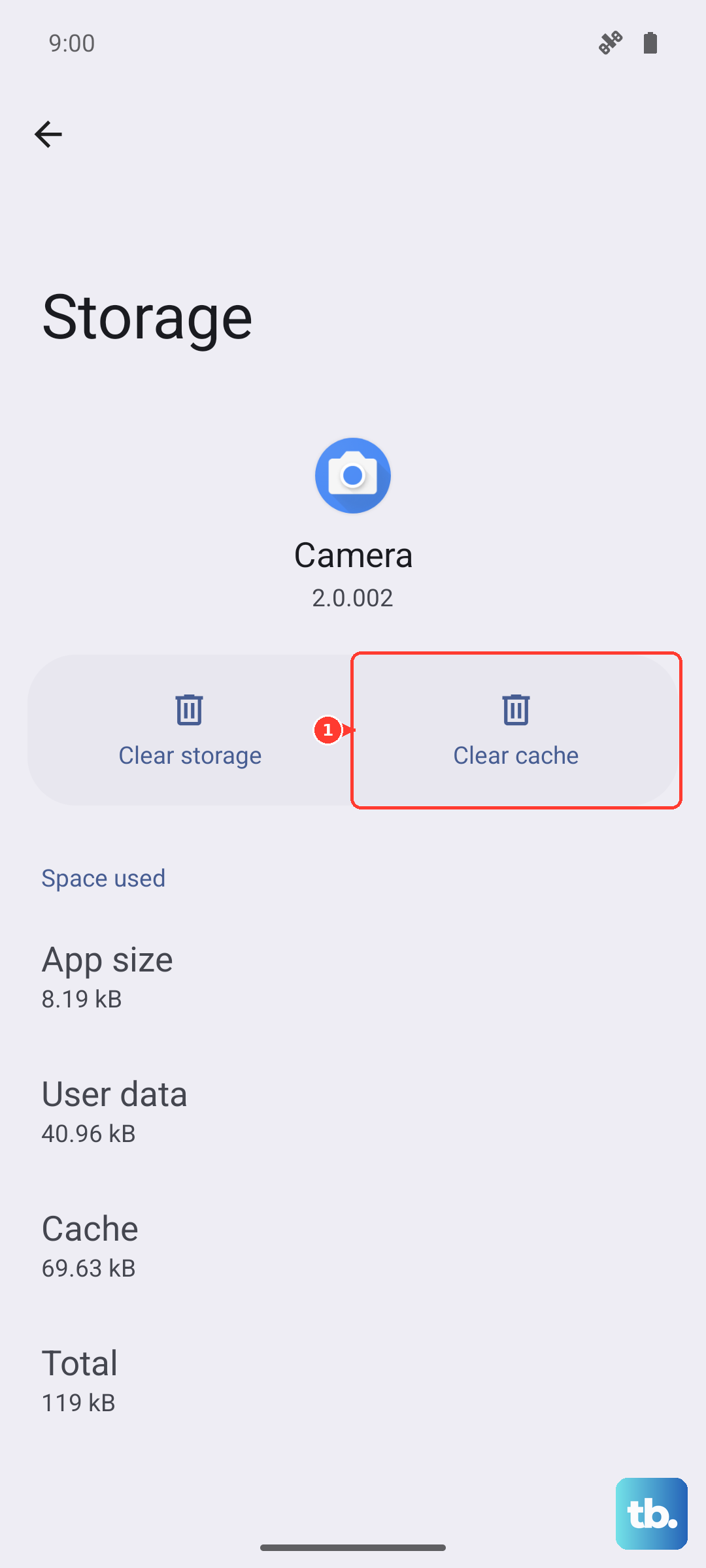
Your Pixel 9 needs enough free space to download and unpack the update file. Go to Settings > Storage to see how much room you have. A major Feature Drop or security update can require several gigabytes. You can quickly free up space by clearing cached data from apps or moving photos to Google Photos cloud storage.
Delete a Stuck Update File
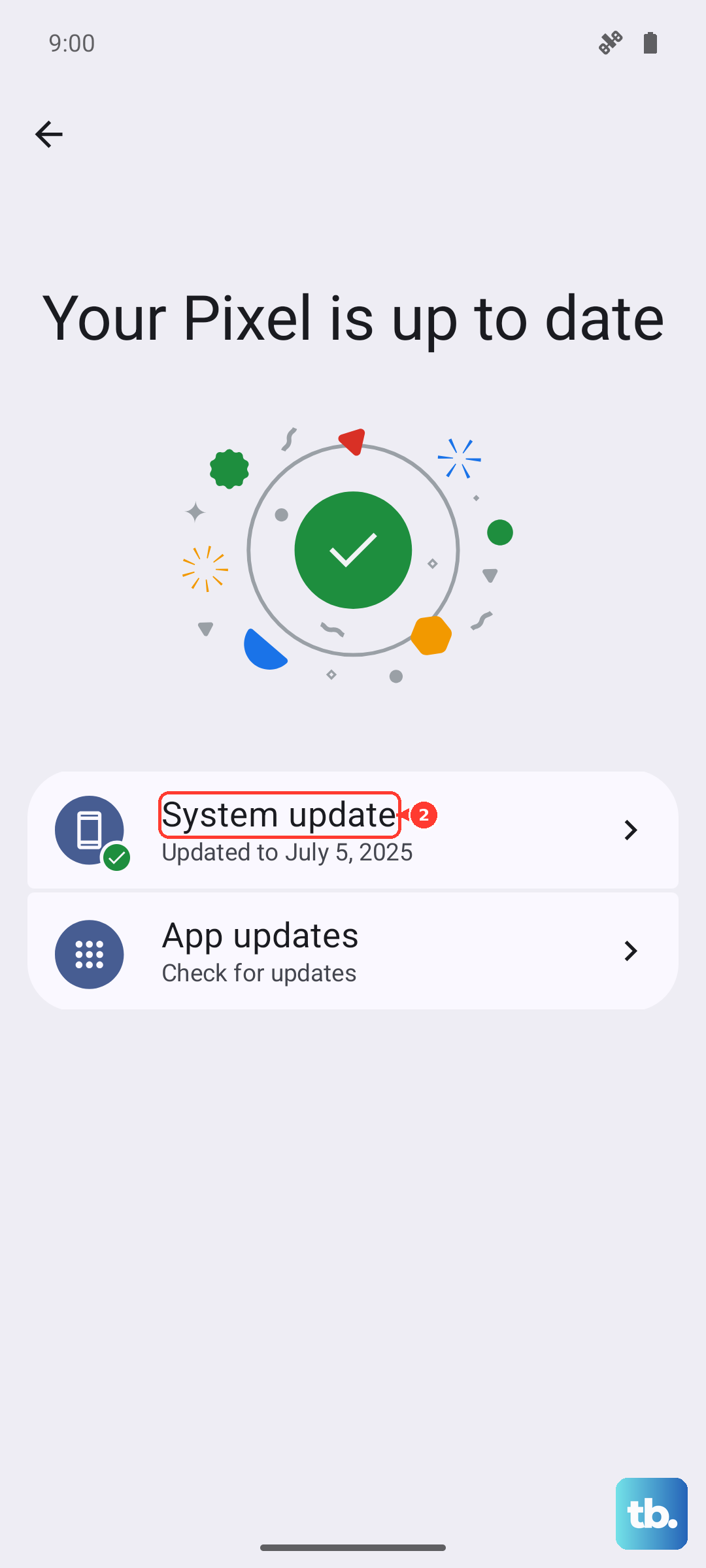
If a previous update download failed or got corrupted, it can block new attempts. To clear it, go to Settings > Apps and tap See all apps. Find and select Google Play services. Tap Storage & cache and then Clear cache. This often removes the problematic update data. After that, head back to Settings > System > System update to try again.
Restart Your Pixel 9
A simple restart can clear out temporary glitches that are blocking the update process. Just press and hold the Power button until the power menu appears, then tap Restart. Once your phone boots back up, go directly to the system update page and check for the update again. I've found this resolves the issue more often than not.
Reset Your Network Settings
Network configuration problems are a common culprit. You can reset them by going to Settings > System > Reset options. Tap on Reset Wi-Fi, mobile & Bluetooth. This will erase all your saved networks and Bluetooth pairings, so you'll need to reconnect to your Wi-Fi afterward. Once you're reconnected, attempt the system update once more.
Update Using a Computer
If the over-the-air update keeps failing, you can use the Android Flash Tool. This is a web-based tool from Google that bypasses your phone's internal update process. On a computer, visit the Android Flash Tool website, connect your Pixel 9 with a USB-C cable, and follow the on-screen instructions to sideload the update. It's a more direct method that avoids Wi-Fi and storage issues on the phone itself.
Check for Server Issues
Sometimes the delay isn't on your end. During a major Android release or Feature Drop, Google's servers can be overwhelmed. You can check the status of Google Play services, which handles updates, by visiting the Google Workspace Status Dashboard. If there's an incident, you'll just need to wait a few hours and try the update again later.
Try Updating During Off-Peak Hours
When a new update rolls out, millions of Pixel users hit the servers at once. This high demand can cause downloads to time out or fail. Try initiating the update early in the morning or late at night when overall internet traffic is lower. This can give you a clearer path to Google's servers.
Check for Compatibility Issues
While the Pixel 9 is new and will receive updates for years, it's worth ensuring your device is in a normal state. Go to Settings > About phone to check your model number and current Android version. If your phone has been modified or is running a beta version that has expired, it may not see the standard public update.
Update in Safe Mode
A third-party app could be interfering with the download process. To test this, restart your Pixel 9 in Safe Mode. Press and hold the Power button, then tap and hold the "Power off" option on your screen until you see the Safe Mode prompt. In Safe Mode, try checking for the system update again. If it works, a recently installed app is likely the cause, and you can uninstall apps one by one to find the culprit.