You pressed the Power button on your Pixel 9 expecting your home screen, but instead the colorful "G" logo is sitting there and refusing to move. Maybe it appeared for a second, faded, and came back again, or maybe it has been frozen there since you last picked the phone up. A boot logo that never finishes loading usually points to something simple, like a drained battery or a temporary software hang, rather than a broken phone, and most of the time you can clear it yourself in a few minutes.
The fixes below are ordered from the easiest and safest to the most involved, so start at the top and only move down if the previous step does nothing. The last two steps erase your data, so treat them as genuine last resorts and read the warnings before you tap anything. Every button sequence and settings path here follows Google's official Pixel support guidance for the Pixel 9 and the Pixel 6 and later generation it belongs to.
Start With Power, Not Panic
Before anything else, rule out a battery that is simply too low to complete a boot. The Pixel 9 can show the logo and then stall (or show nothing at all) when the charge is too low to finish starting up, and the cause is often the cable, adapter, case, or outlet rather than the phone itself.
Plug the phone into a known-good wall outlet, and test that outlet with another device first so you know it actually delivers power.
Remove the phone case so it doesn't block the charging connection.
Check the charging port for dust or lint and clear anything you find.
Try a different cable and a different adapter, in case one of them has quietly failed.
Leave it to charge for at least 10 minutes with working equipment before you try to power it on again.
A surprising number of "stuck on logo" cases are really "not enough charge to boot," so give this step real time before you decide it didn't work.
Turn the Phone On the Right Way
If the phone has been charging and the screen was simply off, you may just need to power it on properly. On the Pixel 9, press and hold the Power button until you feel a buzz, which can take up to 7 seconds.
That single, deliberate press is often all that is needed once there is some charge in the battery. If the screen lights up and boots past the logo, you are done; if it climbs back to the "G" logo and stalls, move on to the force restart.
Force a Restart When the G Logo Freezes
When the screen is genuinely stuck on the "G" logo or otherwise frozen and unresponsive, Google's official way to force a Pixel to restart uses one long Power-button hold. This cuts power to the stuck boot attempt and starts a clean one.
Press and hold the Power button for up to 60 seconds.
Once your phone begins to reboot and the screen displays the "G" logo, release the Power button.
The key detail is patience: keep holding for as long as it takes, up to that full 60 seconds, and only let go once the phone has clearly started rebooting and the logo reappears. Releasing too early is the most common reason this step seems to fail.
If Your Phone Still Boots, Restart It Normally Too
If you can reach the screen even briefly, a normal restart is worth a try as well. Press and hold the Power button and the Volume up button together for a few seconds, then tap Restart. This is gentler than the long force-restart hold and can clear a one-time glitch without any fuss.
Confirm the Screen Is Actually Working
Sometimes the phone is running but the display stays dark, which can look exactly like a boot that never finishes. If your Pixel 9 won't show a battery icon even after charging, you can test whether the screen is the real problem.
Reboot by holding the Power button for about 35 seconds.
Wait 2 minutes for it to come up.
From another device, call the phone, or use the Find Hub app (formerly Find My Device) to ring it.
If the phone rings but the screen stays blank, the display may be the issue rather than the software, and you should contact an authorized repair center. If it does ring and the screen wakes, the boot itself succeeded and you can move to the software steps below.
Install Pending Software Updates
If you can get the phone to boot, even intermittently, an outstanding system update can resolve a boot or stability fault. The Pixel 9 launched on Android 14 and receives 7 years of OS and security updates, so there is usually a fix already waiting to be installed.
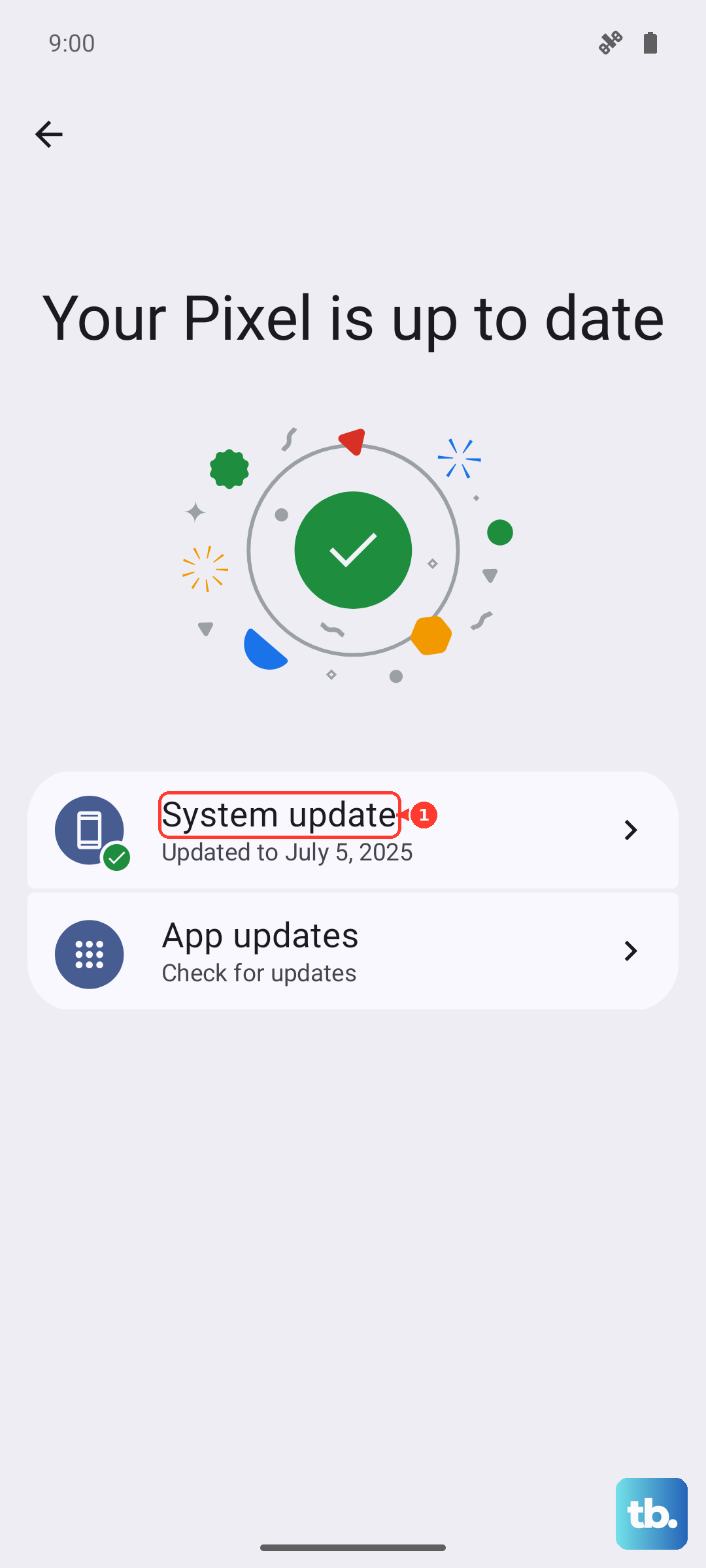
Open Settings, tap System, then Software updates (it may appear as System update), and follow the on-screen instructions. You can confirm what you are running under Settings > About phone > Android version. Let any update download and install fully, then watch whether the phone boots cleanly afterward.
Use Safe Mode to Catch a Misbehaving App
If the phone boots but then freezes or loops back to the logo, a downloaded app may be the trigger. Safe mode temporarily disables apps you installed yourself, which lets you test that theory without removing anything permanently.
Restart the Pixel 9 in safe mode and use it for a while. If the freezing or looping stops while you are in safe mode, a downloaded app is the likely cause, and you can boot normally again and uninstall recently added or updated apps one at a time until the problem disappears.
Erase All Data From Settings
If the phone still boots but keeps failing, a factory reset from Settings is the next step. This is destructive, so it belongs near the end of the list.
A factory reset erases all your data from the phone. Data stored in your Google Account can be restored afterward, but installed apps and their data are removed. Back up anything you care about first, charge the phone to at least 70 percent, and connect to Wi-Fi (or a mobile network) before you begin.
Open the Settings app.
Go to System > Reset options > "Erase all data (factory reset)."
Tap "Erase all data."
If prompted, enter your PIN and tap "Erase all data" again to confirm.
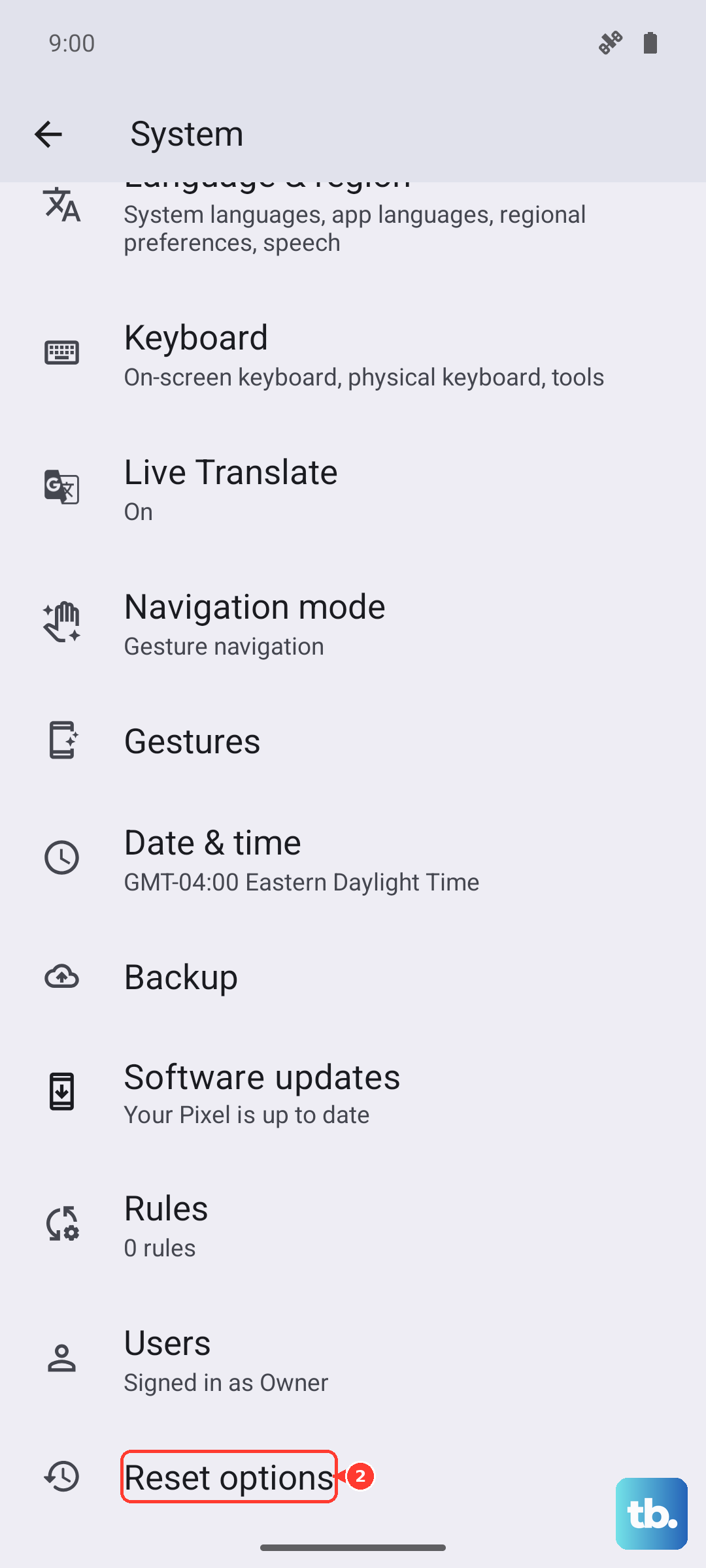
Once the reset finishes, set the phone up fresh and sign back in to your Google Account to restore what was backed up there.
Manual Reset Through Fastboot and Recovery Mode
If the Pixel 9 won't start at all and you can never reach Settings, Google provides a manual reset using the phone's built-in Fastboot and Recovery modes. This is the genuine last resort.
This procedure erases all data on your device, so back up beforehand if you possibly can. Work through it carefully, because the on-screen prompts use the Volume and Power buttons rather than touch.
- 1.Press and hold the Volume down and Power buttons at the same time for up to 30 seconds, until the Fastboot mode screen shows.
- 2.Use the Volume buttons to highlight Recovery Mode, then press Power to confirm.
- 3.At the "No command" screen, hold Power and press Volume up, then release.
- 4.Choose "Wipe data/factory reset," then "Factory data reset."
- 5.After "Data wipe complete," choose "Reboot system now."
If the phone reboots successfully, set it up again like a new device. If it still won't recover even after a manual reset, the issue is likely beyond a software fix, so check your warranty and repair options and contact an authorized repair center.
Frequently Asked Questions
How long should I hold the Power button to force restart a Pixel 9 stuck on the logo?
Press and hold the Power button for up to 60 seconds. Once the phone begins to reboot and the "G" logo appears, release the button. Do not let go early; keep holding until you clearly see it restarting.
Will any of these steps delete my photos and files?
The first six steps (charging, turning it on, force restart, ringing the phone, updating software, and safe mode) do not erase anything. Only the last two, the Settings factory reset and the manual Fastboot/Recovery reset, erase all data on the phone, so back up first and use them only as last resorts.
What if the phone rings when I call it but the screen stays black?
That suggests the phone is powered on and the display, rather than the software, may be at fault. In that case Google's guidance is to contact an authorized repair center rather than continue resetting the phone.
My Pixel 9 won't charge at all. What should I check first?
Remove the case so it doesn't block the connection, inspect the charging port for dust or lint, and try a different cable, adapter, and a known-good wall outlet that you have tested with another device. Then let it charge for at least 10 minutes before trying to power it on.
Does the Pixel 9 use a separate app to fix boot problems?
No. There is no separate companion app for the Pixel 9; troubleshooting, updates, and resets happen on the phone itself through the Settings app, or through the physical buttons and on-device Fastboot and Recovery modes when the phone won't boot. The Find Hub app on another device is only used to ring the phone and confirm it is powered on.