
Seeing that "Storage Full" warning on your Google Pixel 9 can really stop you in your tracks. It pops up when you're trying to take a photo, update an app, or even download a file. The good news is Android 15 gives you some powerful tools to see exactly what's eating up space and clear it out quickly.
Start With the Storage Manager
Head to Settings > Storage. This is your command center. It shows a color-coded breakdown of what's using your space, like photos, apps, and system files. Give it a moment to fully calculate. You'll often find that photos, videos, and a few specific apps are the main culprits taking up the most room.
Free Up Space Automatically
Right at the top of the Storage settings, you'll see a Free up space button. Tap it. Your Pixel 9 will scan and suggest items you can safely remove, like downloaded files you no longer need, old screenshots, and app caches. It's a fantastic way to quickly reclaim a gigabyte or two without having to dig through each app individually.
Manage Your Photos and Videos
Google Photos is usually the biggest storage user. Open the Google Photos app and tap your profile picture in the top right. Go to Photos settings > Backup & sync. If "Storage saver" backup is enabled, your full-resolution photos are already safe in the cloud. You can then use the "Free up space" tool within Photos to remove the local copies from your phone. Also, take a minute to delete blurry shots, old screenshots, and duplicate photos from your library.
Clear App Caches and Data
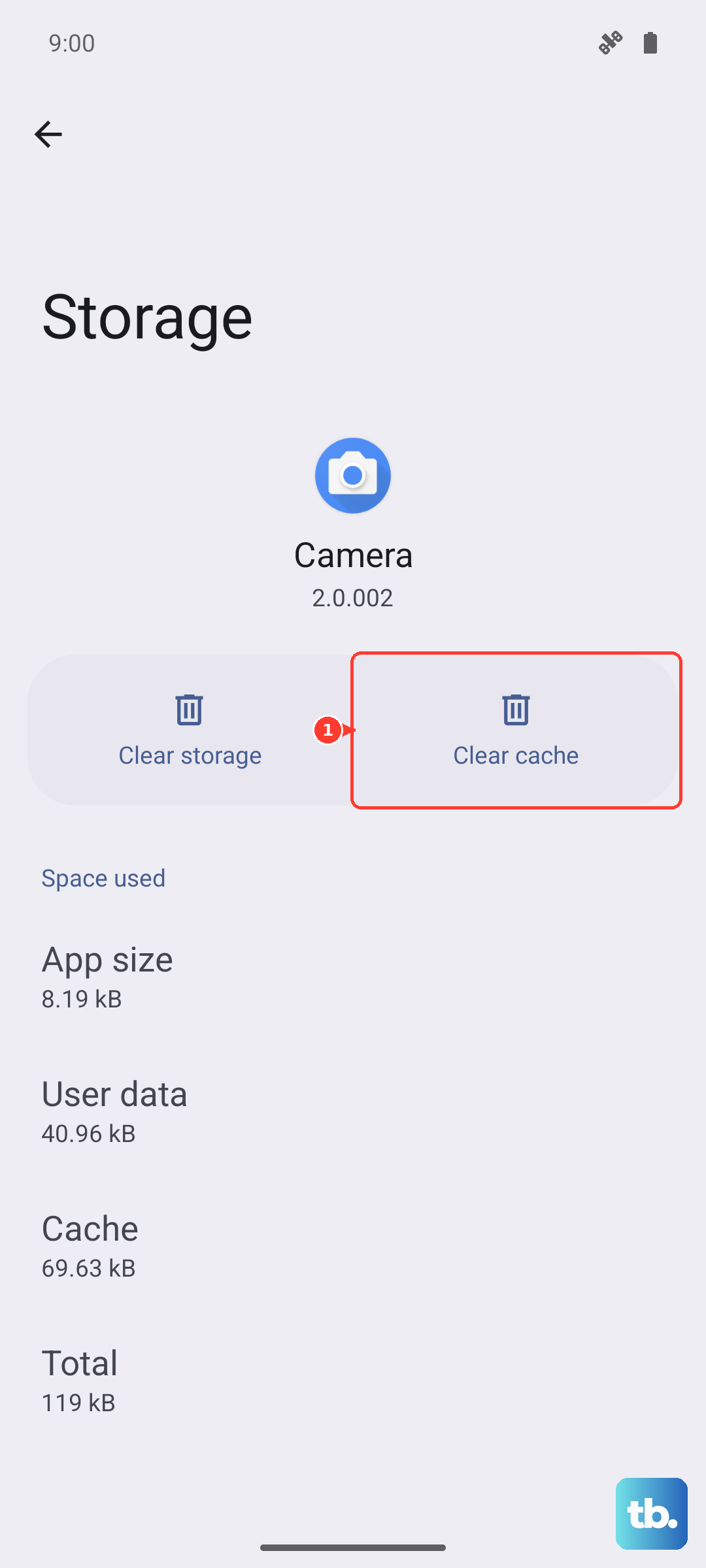
Go back to Settings > Storage and tap on Apps. This lists all your apps sorted by how much space they use. Tap on a large app like Instagram, Chrome, or TikTok. You'll see two options: Clear cache and Clear storage. Clearing the cache removes temporary files and is completely safe. If an app is still huge, clearing its storage will reset it (like a fresh install), so make sure you know your login details first.
Review Your Downloads Folder
Files you've downloaded from the web, email, or messaging apps can accumulate without you noticing. Open the Files by Google app and tap on Browse at the bottom. Then, select Downloads. Scroll through and delete any PDFs, documents, or images you no longer need. This folder is a common source of hidden clutter.
Check Streaming App Downloads
Apps like Spotify, Netflix, and YouTube Music store content offline. These downloads can take up several gigabytes. Open each app and navigate to your library or downloads section. In Spotify, go to Your Library > Downloads to see all saved music and podcasts. Removing albums or playlists you've already listened to is an easy win.
Manage Messages and Attachments
If you use Google Messages, media files from chats can pile up. Open the Messages app, tap the three-dot menu, and select Messages settings > Storage. Here, you can see how much space photos, videos, and other files are using. You can choose to auto-delete OTP messages after 24 hours and manually review and delete old media from specific conversations.
Look at System and Miscellaneous Files
In your Storage settings, you might see categories labeled "System" or "Other." A large "System" size is normal, but if it seems abnormally high after an update, a simple restart can sometimes help the system re-index files properly. The "Other" category often contains app data and system caches that the "Free up space" tool can often handle.
Use Google One for Deeper Insights
If you have a Google One subscription, its storage manager is even more powerful. Open the Google One app and tap Storage. It provides personalized cleanup suggestions, like identifying similar photos or large files you might have forgotten about. It also makes managing your cloud storage across Gmail, Drive, and Photos much simpler from one place.