
When your Google Pixel 9's speaker suddenly goes quiet, it can turn a great phone into a frustrating brick. Sound issues can pop up from a simple software hiccup to something more persistent, but the good news is you can usually fix it yourself. Whether you're getting no sound on calls, muffled media, or audio that cuts in and out, these Pixel-specific steps will help you get your sound back.
A browser based speaker test helps narrow this down fast. If test tones play clearly, the speakers work and the problem lives in an app or setting.
Check Your Volume and Sound Mode
This is always the best place to start. Your Pixel might be in a silent mode, or the media volume could be turned all the way down without you realizing it. Press the volume up button on the side of the phone while you're trying to play something like a YouTube video.
You should see the media volume slider appear. Make sure it's not set to zero. Also, swipe down from the top of your screen twice to open the full Quick Settings panel and look for the bell icon. If it has a slash through it, your phone is in Do Not Disturb or Silent mode, so tap it to turn sound back on.
Disconnect Bluetooth and Accessories
Your Pixel is probably trying to be helpful by sending audio to a paired device. Go into Settings > Connected devices and see if any Bluetooth headphones, speakers, or your car are actively connected. Tap the device name and select Disconnect, or simply toggle the main Bluetooth switch off at the top of that screen to rule it out completely.
Also, physically remove any accessories. A thick case can sometimes muffle the bottom-firing speaker, and if you have any debris or a screen protector film covering the earpiece grill at the top, that will block call audio. Give those areas a quick visual check.
Clean the Speaker Grills Carefully
Lint from your pocket or dust can easily clog the small speaker openings. The main speaker is on the bottom edge next to the USB-C port, and the earpiece is a thin slit along the top frame. Take a soft, clean, dry toothbrush or a small artist's brush and gently brush across these grills to dislodge any loose particles.
You can also use a can of compressed air, but hold it upright and use very short, gentle bursts from a few inches away. Never use a toothpick, paperclip, or anything metal, as you can easily puncture the delicate speaker mesh inside and cause permanent damage.
Restart Your Pixel 9
A simple reboot clears out temporary glitches that can affect the audio system. Just press and hold the Power button and Volume Up button together until the power menu appears, then tap Restart. If your screen is unresponsive, you can force a restart by pressing and holding the power button for about 30 seconds until you feel the phone vibrate and see the Google logo.
I've found this force restart method solves a lot of quirky Pixel issues that a normal reboot doesn't. It's a full power cycle that doesn't erase any of your data.
Check for App-Specific Sound Issues
If sound works in some apps but not others, the problem is likely with that specific app. First, try closing the app completely. Swipe up from the bottom and hold, then swipe the app's window up to close it. Reopen it and test the sound again.
Next, check the app's own permissions and settings. Go to Settings > Apps, select the problematic app, and tap Permissions. Make sure the Microphone permission is allowed if you're having issues with call audio. Also, look inside the app's own settings menu for any audio or sound options it might control independently.
Review Accessibility and Sound Settings
Some helpful features can accidentally mute your phone. Go to Settings > Sound & vibration and look at the Volume section. Tap on each category (Media, Call, Ring, Alarm, Notification) and ensure none are slid all the way to the left.
Then, visit Settings > Accessibility. Scroll down and tap Audio adjustment. Here, make sure options like Mono audio are turned off unless you need them. Also, go back to the main Accessibility menu and check Interaction controls to ensure nothing like Accessibility shortcut is being triggered to mute sounds.
Update Your Pixel's Software
Google is constantly pushing updates and "Feature Drops" that fix bugs, including audio-related ones. Connect to Wi-Fi and go to Settings > System > System update. Tap Check for update. If an update is available, install it.
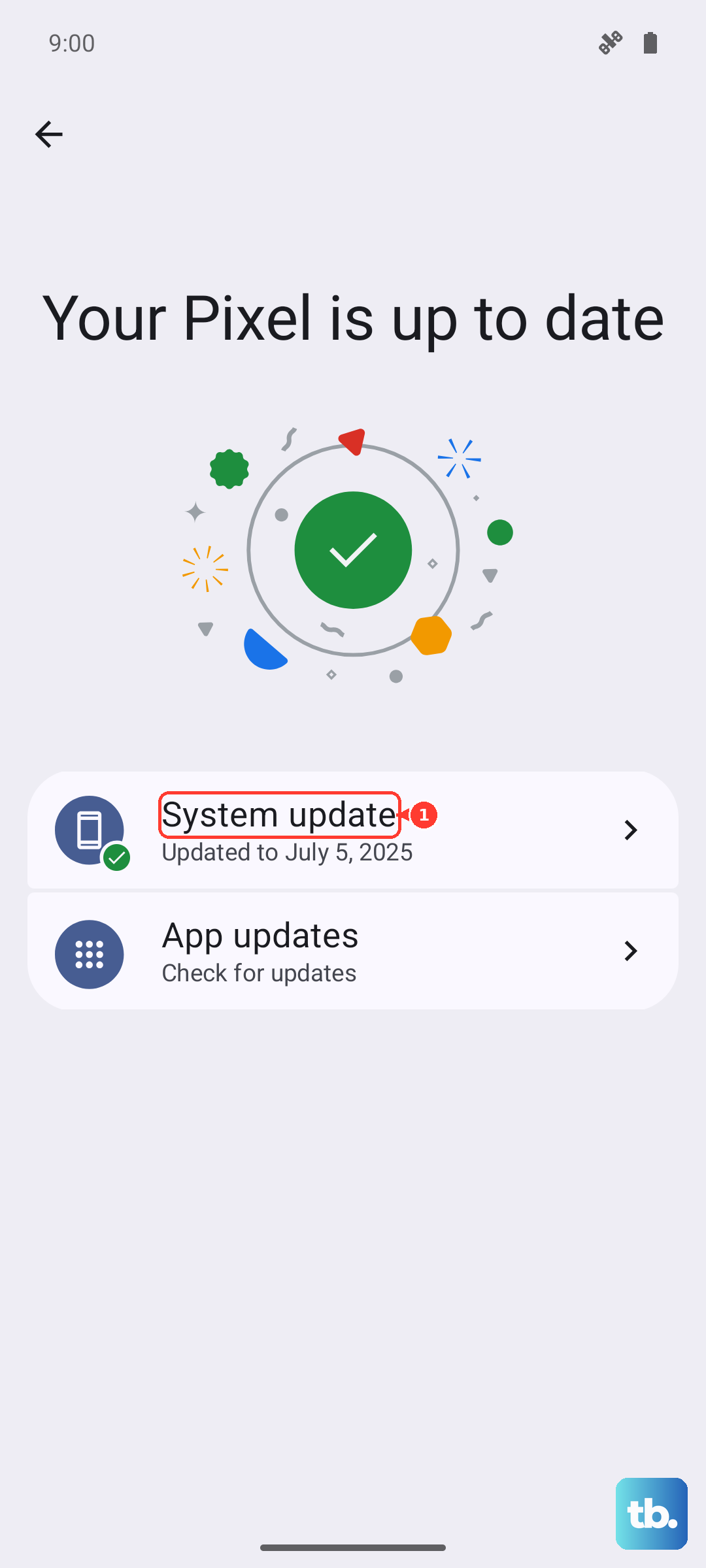
It's a good idea to plug your phone in during this process. After the update completes, restart your phone one more time to ensure all the new software components are loaded correctly, then test your speakers again.
Boot Into Safe Mode
Safe Mode temporarily disables all third-party apps you've downloaded. If your speaker works perfectly in Safe Mode, you know a recently installed app is the culprit. To enter Safe Mode, press and hold the power button on the screen until the power menu appears.
Then, press and hold the Restart option on the screen. You'll get a prompt asking if you want to reboot into Safe Mode. Tap OK. Your phone will restart with "Safe mode" visible in the bottom corner. Test your sound with a built-in app like YouTube or by playing a ringtone.
To exit Safe Mode, just restart your phone normally. If sound works here, you'll need to uninstall apps one by one, starting with the most recent, to find the offender.
Reset App Preferences or Network Settings
This is a less nuclear option before a full reset. Resetting app preferences returns all your app permissions, notifications, and default apps to their original states without deleting any app data. Go to Settings > System > Reset options and tap Reset app preferences.
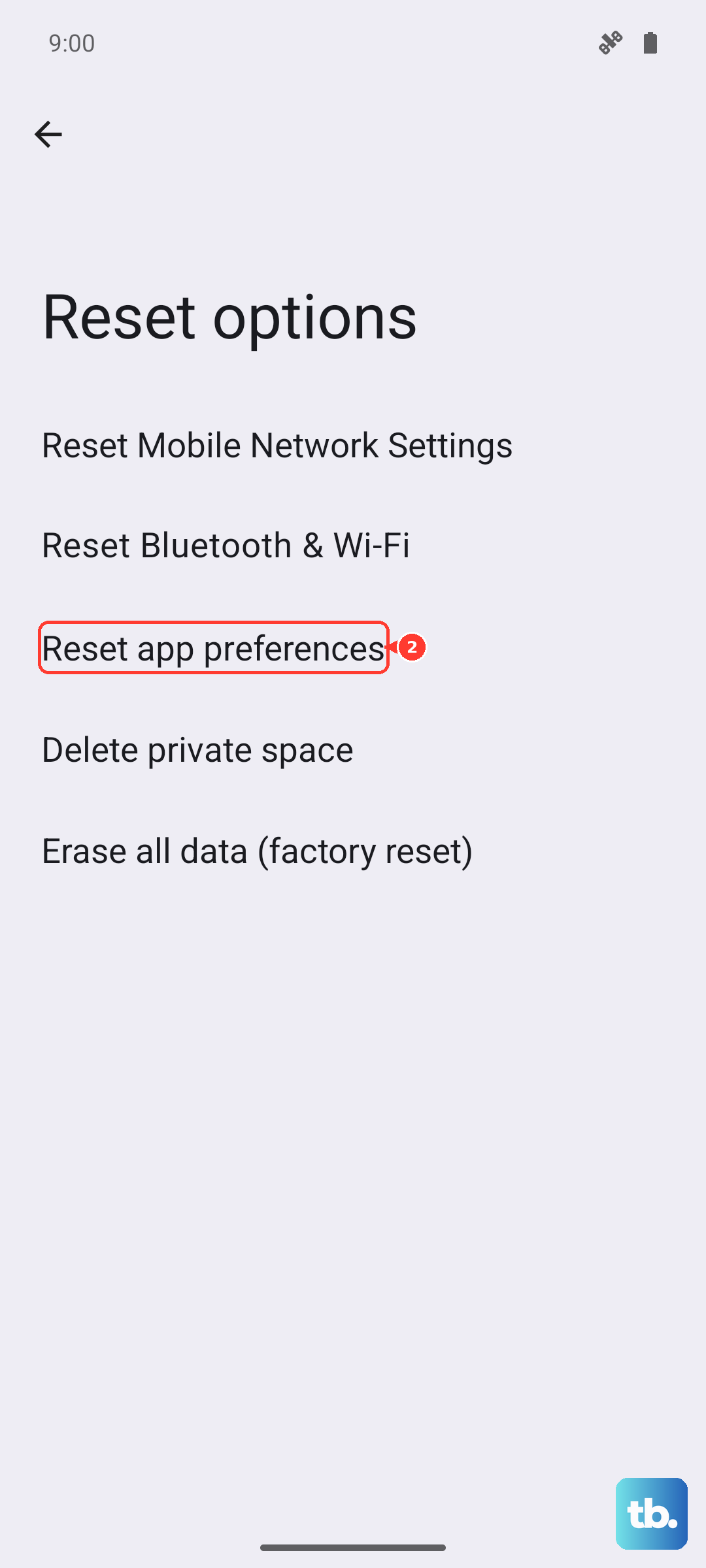
If your issue is specifically with Bluetooth audio or call quality, you can try resetting your wireless settings from the same menu. Tap Reset Wi-Fi, mobile & Bluetooth. Just remember, this will erase all saved Wi-Fi networks and paired Bluetooth devices, so you'll have to reconnect to them all afterward.











