
If your Google Pixel 9 feels sluggish online, you're not imagining it. A slow internet connection on a new phone is incredibly annoying, especially when you're trying to stream or browse. The good news is that a few quick adjustments to your Pixel's settings can often get things moving again.
I'd start with the simplest fix first. Give your phone a quick restart by pressing and holding the Power button for about 30 seconds until you see the Google logo. This clears out any temporary software glitches that might be bogging down your connection. It's a good first step before diving into settings.
Check Your Mobile Network Mode
Your Pixel 9 can connect to different types of cellular networks, and sometimes it gets stuck on a slower one. You can manually tell it to prefer the fastest available. Open the Settings app and go to Network & internet > Internet. Tap the settings gear next to your carrier's name.
Look for an option called "Preferred network type" or "Network mode." On the Pixel 9, you'll want to select 5G/LTE or 5G/LTE/WCDMA. This ensures your phone will use the fastest network it can find, instead of potentially lingering on a slower 3G or 2G signal.
Reset Your Network Settings
If you're still having issues, resetting your network settings is a powerful next step. This will erase all saved Wi-Fi networks, Bluetooth pairings, and cellular settings back to factory defaults. It fixes a lot of weird, persistent connection problems.
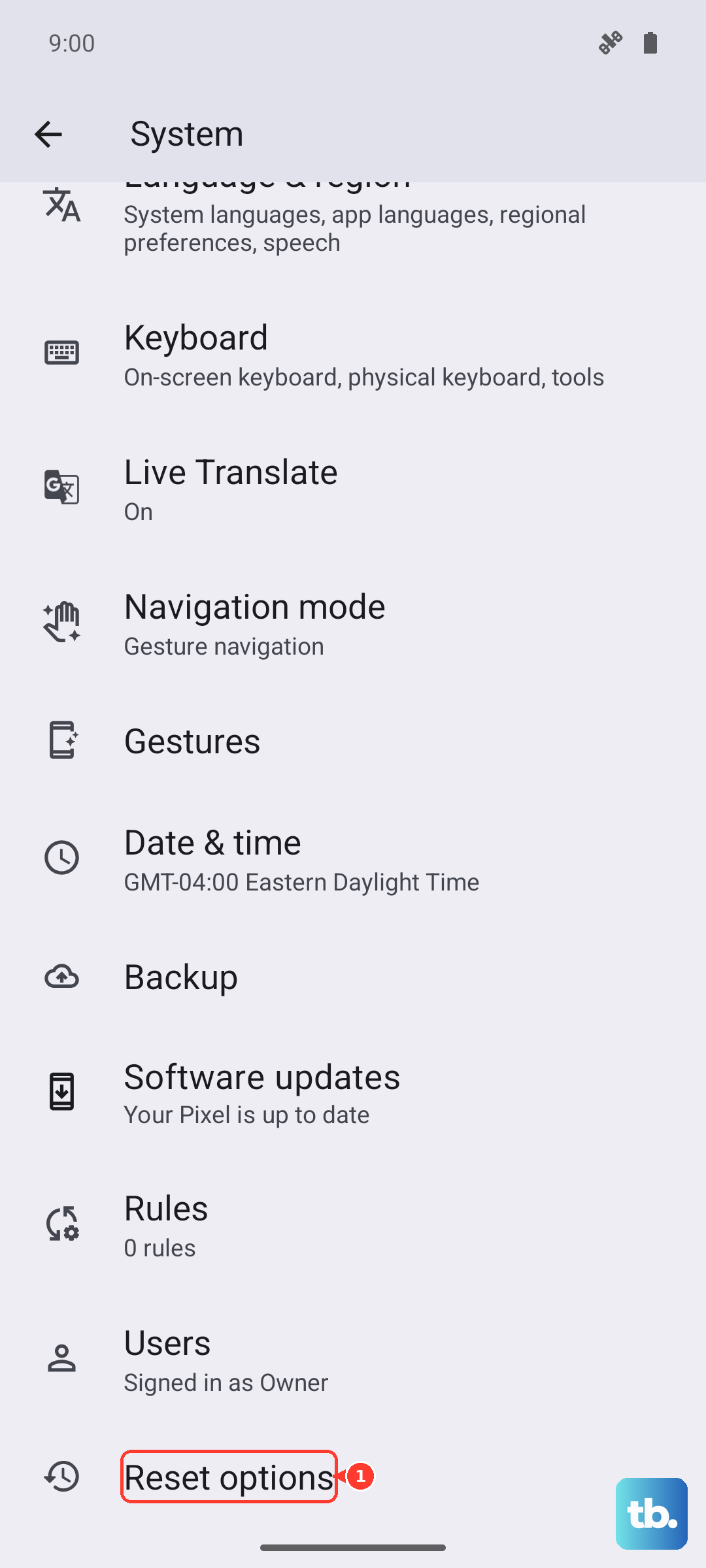
To do this, go to Settings > System > Reset options. Tap on Reset Wi-Fi, mobile & Bluetooth. You'll need to enter your PIN or password to confirm. After the reset, you'll just need to reconnect to your Wi-Fi and re-pair any Bluetooth devices.
Manage Your Data Usage with Data Saver
Android's Data Saver mode is great for conserving your monthly data, but it can also help streamline performance by restricting what apps do in the background. When enabled, most apps won't use mobile data unless you're actively using them, which can free up bandwidth.
You can turn it on by going to Settings > Network & internet > Data Saver. Toggle it on. You can also tap on "Unrestricted data" to allow specific apps, like your music streaming service, to bypass the restriction.
Clear the Cache for Google Play Services
Google Play Services is a core system app that handles a lot of background connectivity. Its cache can sometimes become corrupted and cause slowdowns. Clearing it is safe and won't delete any personal data.
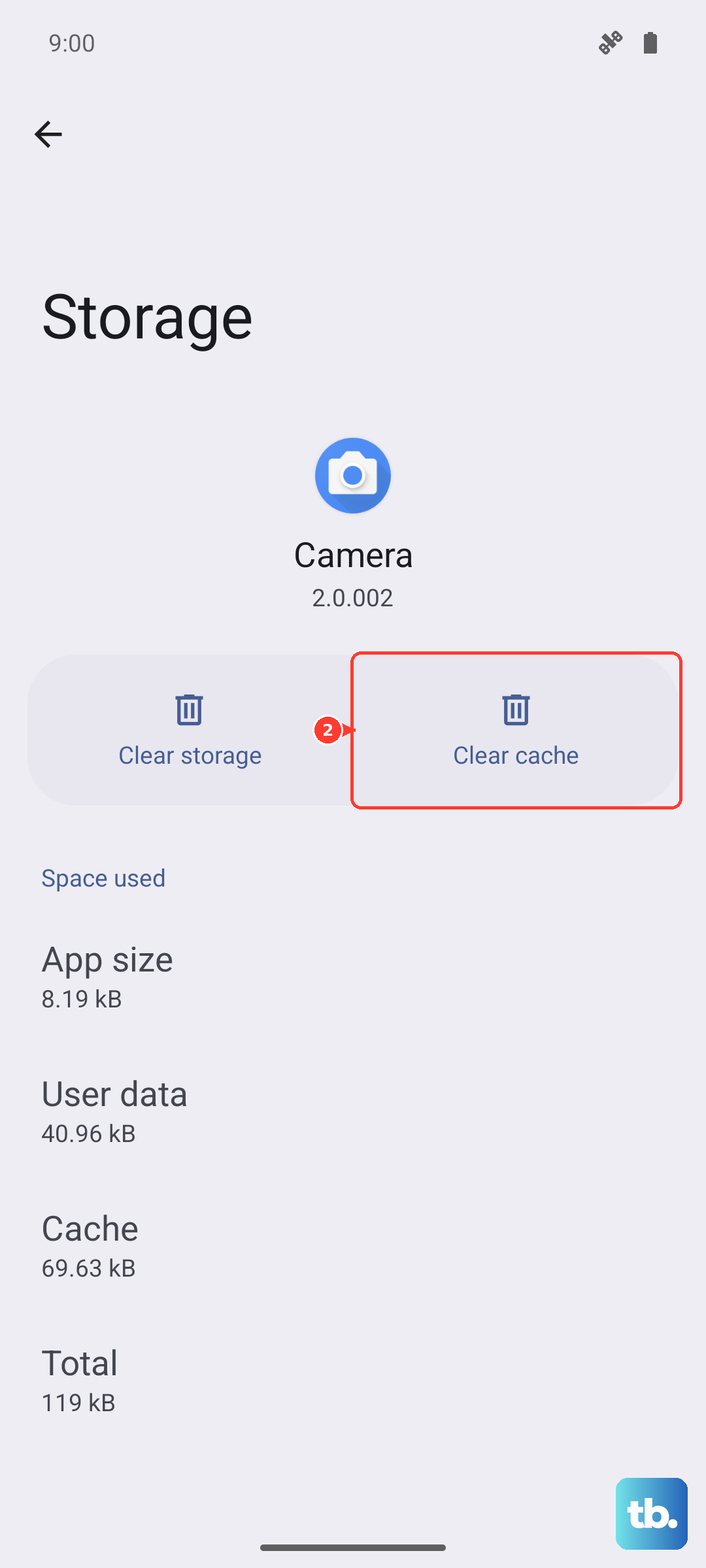
Go to Settings > Apps > See all apps. Find and tap on Google Play Services. Tap Storage & cache, then tap Clear cache. Do not tap "Clear storage" or "Manage space," as that can delete important data. After clearing the cache, restart your phone.
Review Your Installed VPN Apps
Using a VPN is a common cause of slower internet speeds, as your data is being routed through another server. If you have a VPN app installed and active, try disabling it temporarily to see if your speed improves.
You can usually do this by opening the VPN app and tapping the disconnect button. For a more thorough check, go to Settings > Network & internet > VPN to see if any VPN profiles are currently active.
Check for System Updates
Google regularly releases updates for the Pixel 9 that include performance improvements and bug fixes for connectivity. It's always worth making sure you're running the latest software. Go to Settings > System > System update.
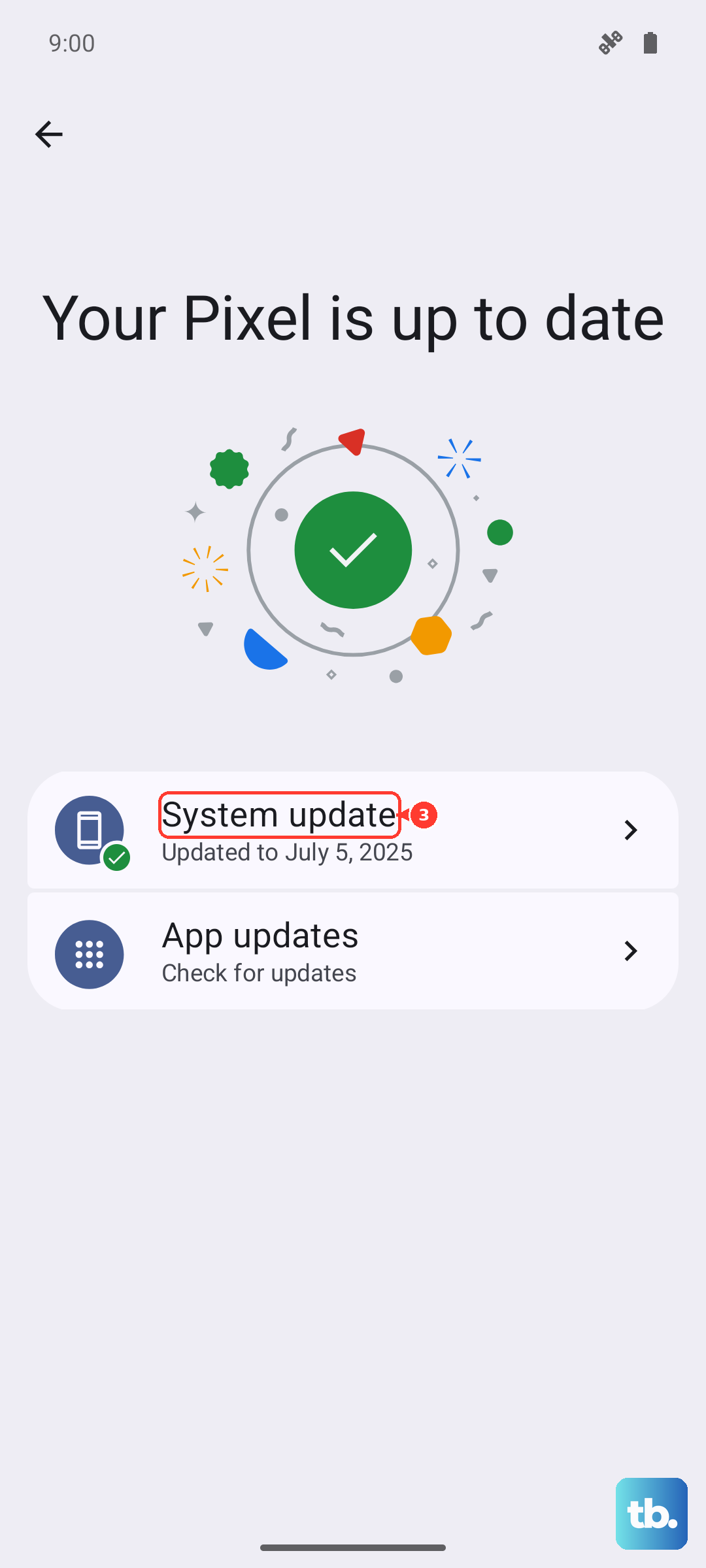
Tap "Check for update." If an update is available, install it. These updates, especially the larger Feature Drops, can include important fixes for network-related issues that might be slowing you down.
Try a Different DNS Server
Your phone uses a DNS server to translate website names into numerical addresses. Sometimes your default DNS can be slow. You can change it to a faster public DNS like Google's or Cloudflare's. For Wi-Fi, go to Settings > Network & internet > Internet.
Tap the settings gear next to your connected Wi-Fi network. Tap on "Advanced" and then "Private DNS." Select "Private DNS provider hostname" and enter one of these addresses: dns.google (for Google DNS) or 1.1.1.1 (for Cloudflare DNS). Tap Save. This can make websites feel like they resolve faster.
Disable Adaptive Connectivity
The Pixel 9 has a feature called Adaptive Connectivity that tries to save battery by switching between Wi-Fi and mobile data based on network quality. In some cases, it can be a bit too aggressive and cause lag. You can try turning it off to see if it helps.
Navigate to Settings > Network & internet > Adaptive connectivity. Toggle the switch off. Test your internet speed for a bit. If you don't notice an improvement, or if your battery drains faster, you can always turn it back on.