
Seeing a "SIM Not Provisioned" message on your Google Pixel 9 can stop you in your tracks. It means your phone can't connect to your carrier's network, so calls, texts, and mobile data won't work. This is usually a provisioning issue on your carrier's end, but there are several things you can try on the phone itself to get back online.
I'd start with the simplest fix first. Restart your Pixel 9 by pressing and holding the power button for about 30 seconds until you see the Google logo. This force restart can clear out temporary software glitches that might be blocking the network connection. It's a quick step that solves more problems than you'd think.
Check Your SIM Card and Account Status
Before diving into settings, it's worth confirming the basics. If this is a brand new SIM card, it might not be activated yet. You'll need to contact your carrier to complete the activation process. For existing lines, check your account balance or billing status through your carrier's app or website, as an unpaid bill can lead to a suspended service.
Physically, the SIM card might not be seated right. Power off your Pixel 9, use the SIM ejector tool to pop out the tray, and take a look at the card. Check for any obvious scratches, dirt, or damage on the gold contacts. Give it a gentle wipe with a soft, dry cloth and reinsert it firmly before turning your phone back on.
Refresh Your Network Connection
Your next move should be toggling Airplane Mode. Swipe down twice from the top of your screen to open the full Quick Settings panel and tap the airplane icon. Wait for about 30 seconds, then tap it again to turn it off. This forces your phone's modem to disconnect from and then search for all networks again, which can re-establish a proper connection.
If that doesn't work, try manually selecting your network. Go to Settings > Network & internet > SIMs. Tap on your SIM, then tap Carrier. Turn off the "Automatically select network" toggle. Your phone will search and present a list. Choose your specific carrier's name from the options shown.
Update Your Phone and Carrier Services
Software bugs, especially after a major Android update or a Pixel Feature Drop, can sometimes interfere with network provisioning. Head to Settings > System > System update to check for any available Android updates. Install it if one is pending.
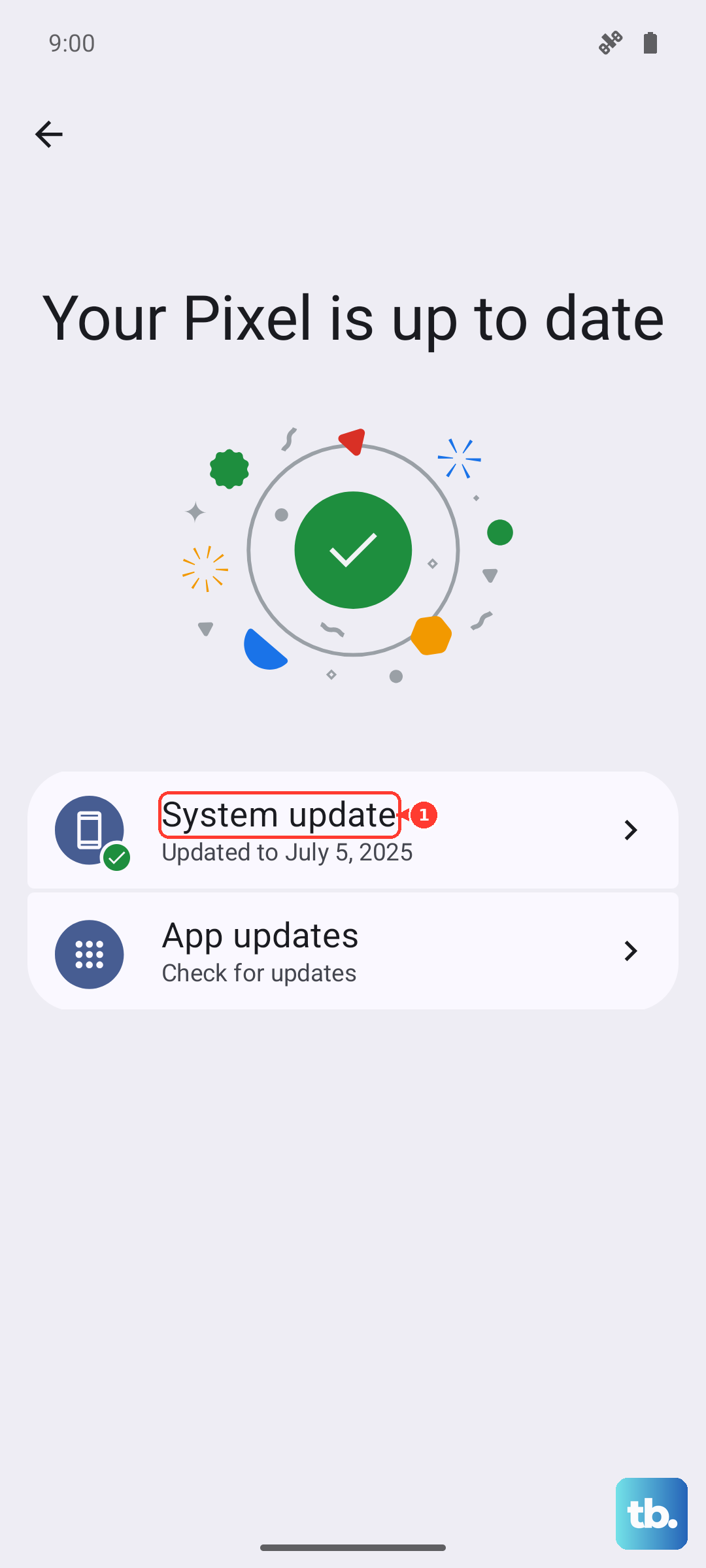
Next, open the Google Play Store, tap your profile icon, and go to Manage apps & device. Under "Updates available," look for an app called "Carrier Services" and update it. This app handles communication between your Pixel and your carrier's network, and an outdated version can cause errors.
Reset Your Pixel's Network Settings
When other steps fail, resetting network settings is a strong next move. This will erase all saved Wi-Fi networks, Bluetooth pairings, and cellular settings, but it won't touch your personal data. Go to Settings > System > Reset options.
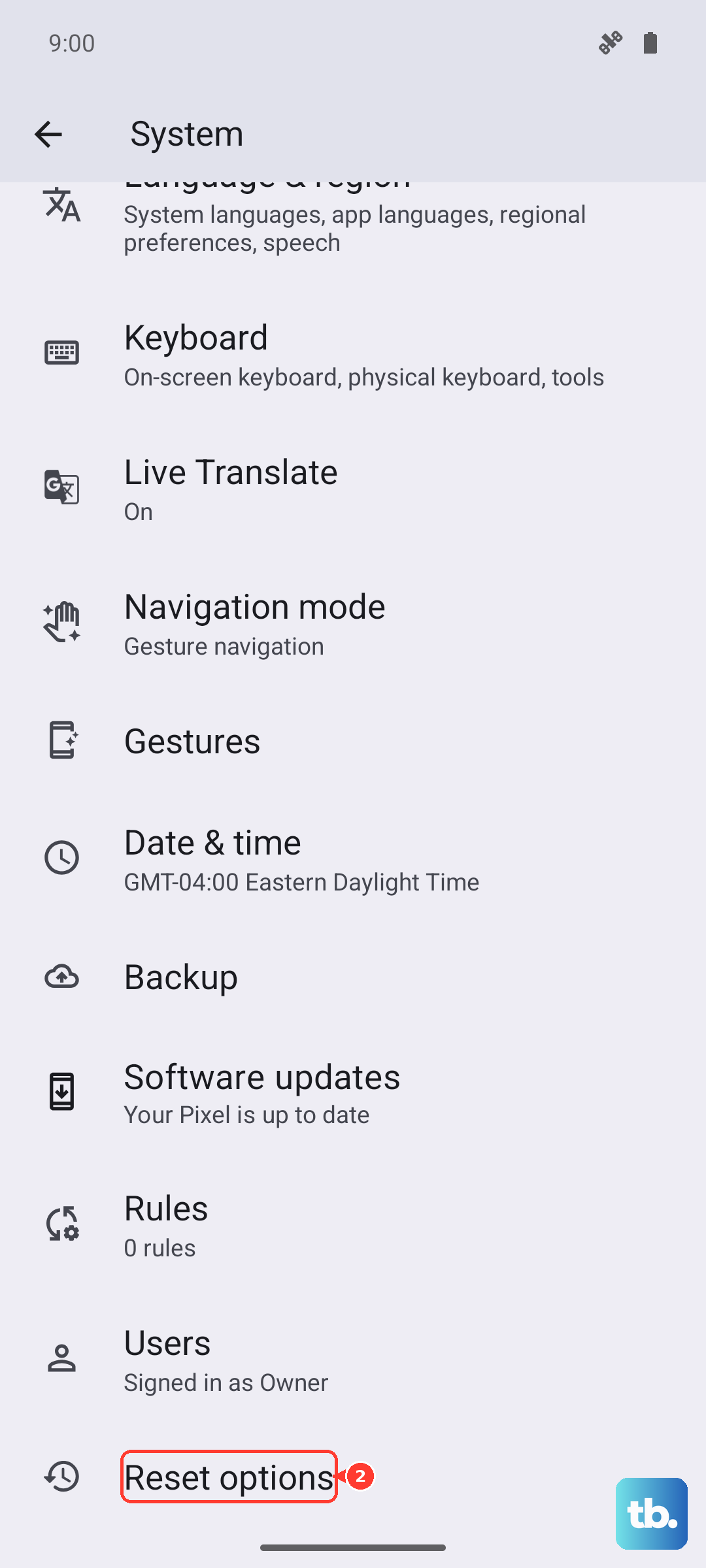
Tap on Reset Wi-Fi, mobile & Bluetooth and confirm. Your Pixel 9 will reboot. After it restarts, you'll need to reconnect to Wi-Fi and re-pair Bluetooth devices, but this often clears deep-seated network configuration problems that cause the provisioning error.
Contact Your Carrier for Support
If you've tried everything on the phone, the issue is almost certainly on your carrier's side. They need to check that your line is properly activated and provisioned in their system. Give them a call or use online chat.
Be ready to provide your account details and the IMEI number of your Pixel 9, which you can find in Settings > About phone. They may need to reprovision your line on their network or, if the SIM card is faulty, send you a replacement. Testing your SIM in another compatible phone can also help pinpoint the problem before you call.











