You have a Pixel 9 Pro XL in your hand and saying "Hey Google" does nothing. The Assistant isn't responding, not even a chime. Let's get it sorted.
Check Your Google Assistant Settings
The first thing to check is whether Hey Google is actually enabled on your device. It sounds basic, but it's easy to toggle this off without realizing it.
Open the Google app on your Pixel 9 Pro XL and tap your profile picture in the top right corner. Go to Settings > Google Assistant > Hey Google & Voice Match. Make sure both Hey Google and Voice Match are toggled on.
While you're in this menu, check that "Lock screen" access is set how you want it. If you want voice commands to work when the phone is asleep, make sure that option is enabled here too.
Retrain Your Voice Model
In my experience, retraining the voice model is usually the fastest fix. The initial voice sample can degrade over time or with phone updates.
Go back to Hey Google & Voice Match and tap Voice Match. Select "Retrain voice model" and repeat the six phrases it shows you. Do this in a quiet room and speak at a natural volume.
This gives the Pixel's Assistant a fresh reference for how you sound. Most people see Hey Google start working again immediately after this step.
Check for a Blocked Microphone
The Pixel 9 Pro XL has multiple microphones, but the ones used for voice commands are at the bottom and top edges. A case or screen protector is often the culprit here.
Take your case off and test Hey Google again. If it works without the case, you know the mic grill on your case is blocked or misaligned.
Also check the bottom USB-C port area for pocket lint or debris. Use a dry, soft-bristled brush or compressed air to clean the mic openings gently.
Verify the Google App Has Microphone Access
Android 14 can revoke permissions for apps you don't use often. If the Google App lost its microphone permission, it literally cannot hear you.
Open Settings > Apps > Google App > Permissions. Make sure Microphone is set to "Allow only while using the app" or "Ask every time." "Denied" will block Hey Google completely.
While you're here, verify that "Physical device sensors" is also allowed. The Google App needs this permission to listen for the wake word.
Pause Modes Like Do Not Disturb or Bedtime Mode
Pixel's Digital Wellbeing features can quiet the Assistant alongside your notifications. Do Not Disturb is the most common offender.
Swipe down twice to open Quick Settings and long-press the Do Not Disturb tile to check its schedule. If it's active, turn it off temporarily and test your voice commands.
Also check Settings > Digital Wellbeing > Bedtime Mode. Bedtime Mode can disable voice commands entirely. You can configure it under this menu if you want to keep the mode but allow Hey Google to still work.
Update the Google App and System Software
An outdated Google App is a common reason for voice command failures. The app is updated through the Play Store, not through system updates.
Open the Play Store, search for "Google", and tap Update if it's available. Do the same for "Google Play Services" under your apps menu.
For the system itself, go to Settings > System > Software Update. The Pixel 9 Pro XL runs Android 14, and Google regularly ships bug fixes that address Assistant reliability.
Restart Your Pixel 9 Pro XL
A simple restart clears out temporary software glitches. On the Pixel 9 Pro XL, press and hold the Power button and Volume up button simultaneously until the power menu appears.
Tap Restart and wait for your phone to fully reboot. Once it's back on, say "Hey Google" to see if the issue is resolved.
If the touchscreen isn't responding, you can force a restart by holding the Power and Volume up buttons for about 30 seconds. The phone will reboot on its own.
Clear the Google App Cache
Corrupted cache files can prevent the Google App's voice recognition engine from loading properly. This is a safe step that won't delete your accounts or personal data.
Go to Settings > Apps > Google App > Storage & cache. Tap Clear cache.
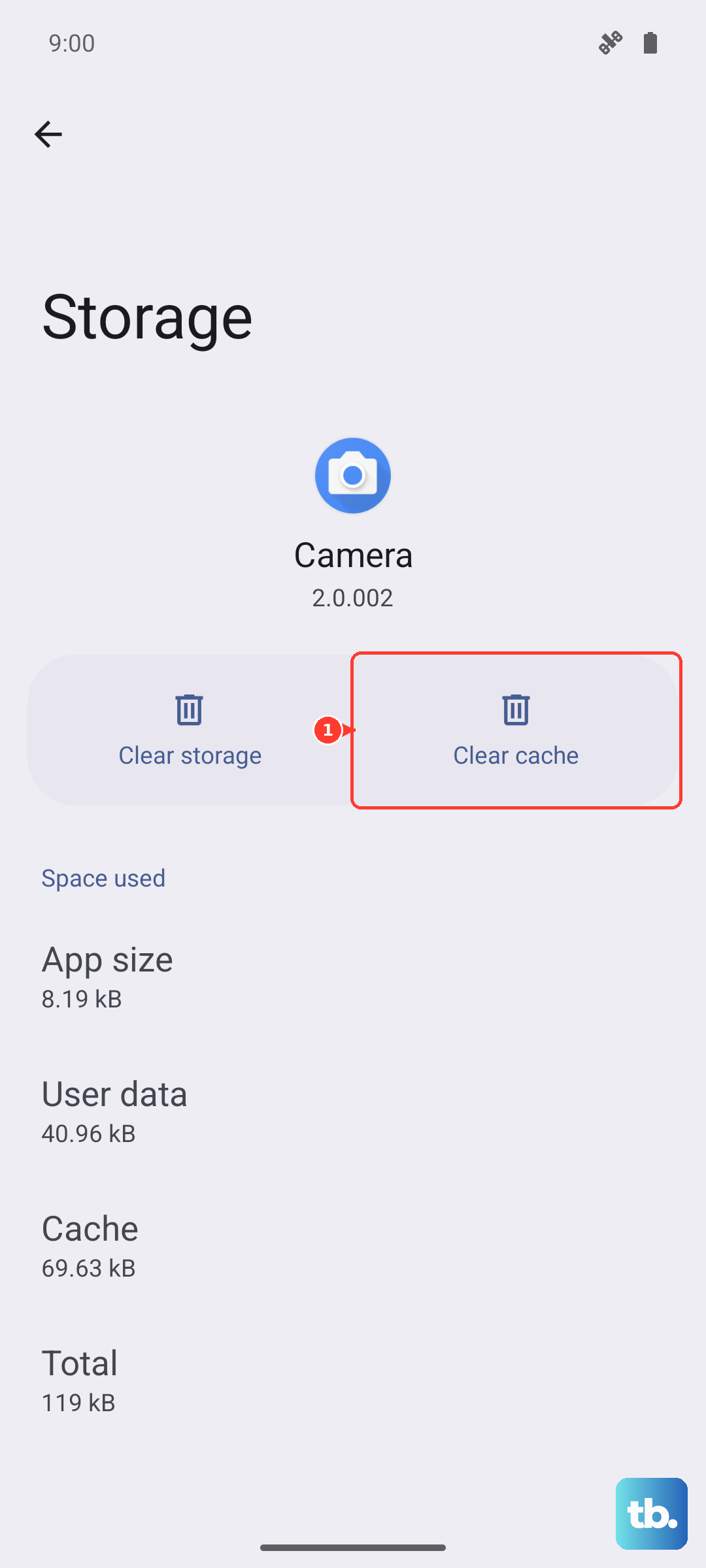
If that doesn't work, you can tap Manage space > Clear all data. This is more aggressive and will sign you out of the Google App and reset its settings. You'll need to enable Hey Google again afterward.
Check Your Wi-Fi or Mobile Data Connection
While some basic commands work offline, most voice requests need an internet connection. Swipe down twice to open Quick Settings and check your connection status.
If you're on Wi-Fi, try toggling it off and on. If you're on mobile data, check that you have a strong signal. You can also toggle Airplane Mode on, wait a few seconds, and toggle it off to reset the radios.
Reset Your Phone to Factory Settings
If you've gone through every step and Hey Google still won't listen, a factory reset will clear out any underlying software conflicts. This should be your absolute last resort.
Before you do anything, back up your photos, contacts, and files. You can find backup options under Settings > System > Backup.
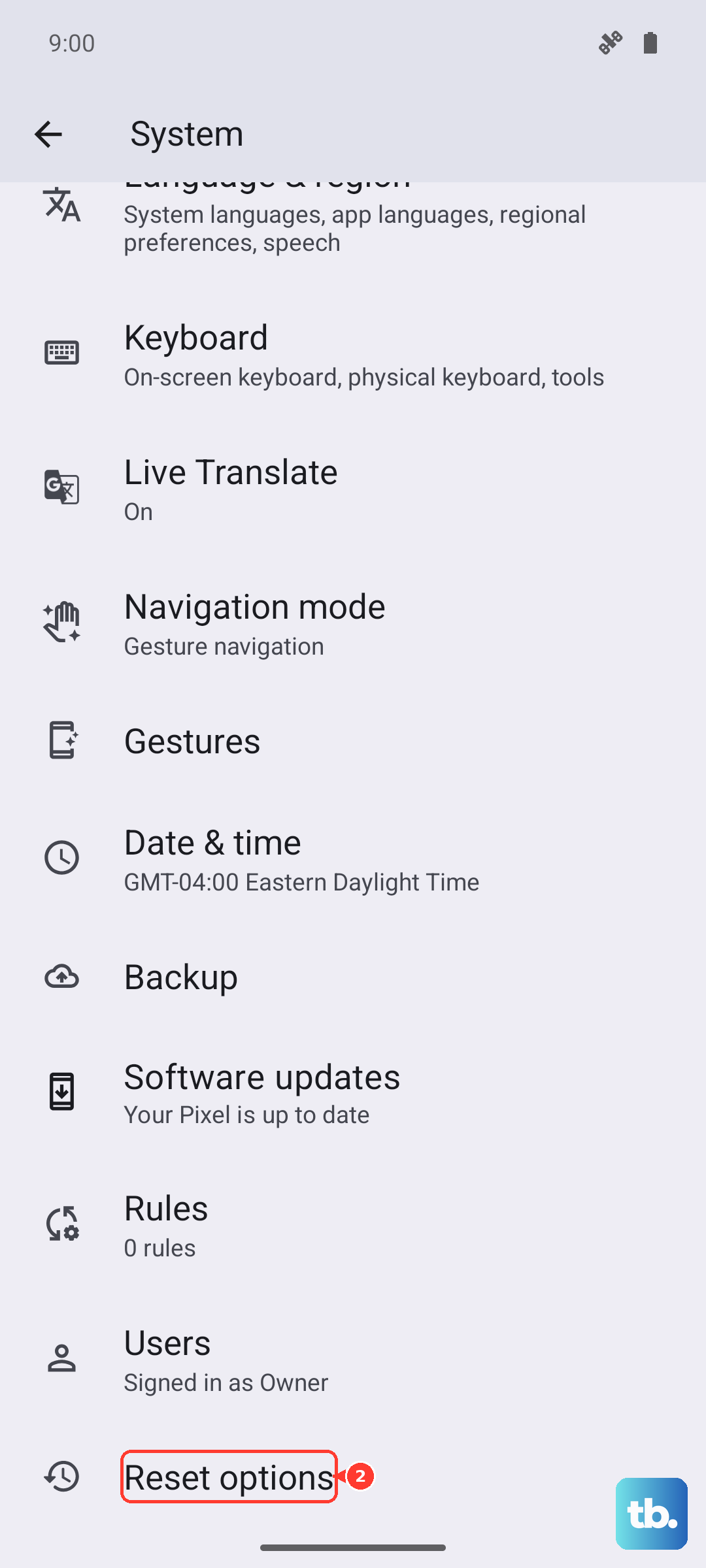
To reset, go to Settings > System > Reset options > Erase all data (factory reset). Make sure your Pixel is charged above 50% or plugged in before starting.