
Seeing "Storage space running low" on your new Pixel 9 Pro XL is a real buzzkill, especially since you bought it to handle everything. It stops you from recording 8K video, installing the latest games, or even taking a simple screenshot. The good news is Android 14 gives you several ways to claw back space without deleting anything important.
Start with the Storage Analyzer
Open up the Files by Google app, it has a built-in storage analyzer that makes this whole process easier. Tap the "Clean" tab at the bottom and let it scan your device for a few seconds. You'll see exactly what's taking up space, from large videos to duplicate downloads and bloated app caches.
You can also check the system-level breakdown under Settings > Storage for a quick summary. Both tools show the same core information, so pick whichever feels faster to you. For actual cleanup, Files by Google is slightly better.
Turn On Smart Storage
If you want your phone to handle some of this automatically, enable Smart Storage. Go to Settings > Storage > Smart Storage and toggle it on. Once enabled, it automatically removes backed-up photos and videos that have been sitting on your device for over 60 days.
This works best when paired with Google Photos backup set to "Storage saver" quality. You get unlimited free backup at that setting on Pixel devices, so there's no reason not to turn it on.
Clear App Caches (This Alone Frees Up Gigabytes)
Apps like Instagram, TikTok, Chrome, and YouTube build up massive caches over time. Go to Settings > Apps > See all apps, find the biggest ones, and tap Storage & cache > Clear cache. I've seen social media caches hit 4-5GB on the Pixel 9 Pro XL without any user data being lost.
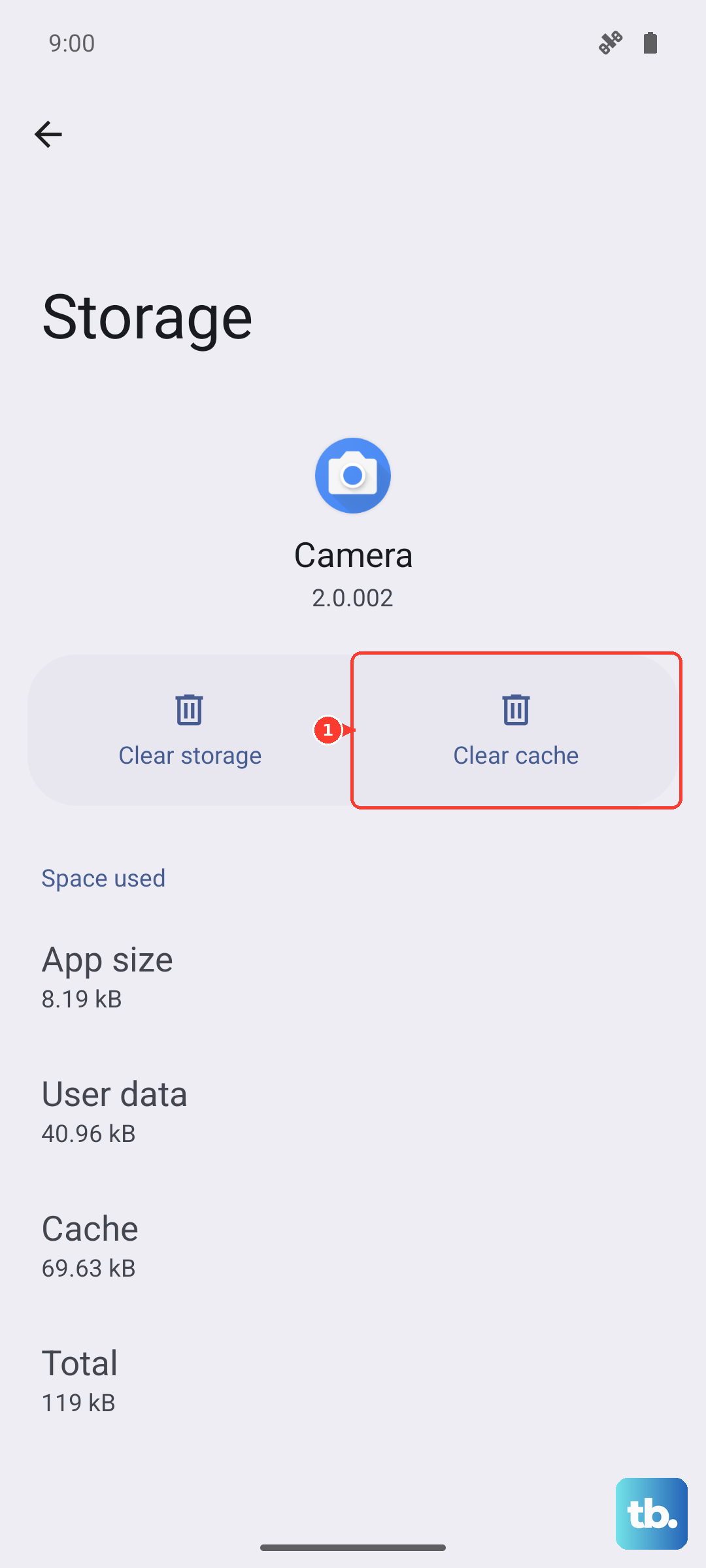
For streaming apps like Spotify and Netflix, you need to delete offline downloads from within the app. In Spotify, go to Settings > Storage > Remove all downloads. In Netflix, check My Downloads and swipe away completed shows.
Cut Down on RCS and SMS Messages
Messages takes up more space than most people realize, especially if you send a lot of photos and videos. Open the Messages app, tap the three-dot menu, and go to Settings > Advanced > Manage storage. You'll see a breakdown of media files and how much space each conversation is using.
Delete the biggest threads you no longer need. You can also set messages to auto-delete after a year or 30 days to prevent this from building up again in the future.
Review Google Photos Backup Settings
Photos and videos are usually the single biggest storage hog on any phone. Open the Google Photos app, tap your profile picture, and go to Photos settings > Backup. Make sure backup quality is set to "Storage saver" so your cloud storage stays free.
Once your photos are backed up, tap the "Free up space" option in the app. This deletes the local copies from your Pixel that are already safely stored in the cloud. It's the safest and fastest way to reclaim 10-20GB or more.
Clear Chrome's Browsing Data
Chrome stores cached images, cookies, and site data that grows significantly over normal browsing. Open Chrome, tap the three-dot menu, and go to Settings > Privacy and security > Clear browsing data. Check "Cached images and files" and hit "Clear data."
If Chrome is using over a gig of cache, this is an easy cleanup with absolutely no downside. You won't lose any bookmarks or saved passwords.
Check for System Data Bloat
Go back to Settings > Storage and look at the "System" or "Other" category on the storage bar. If it's eating up 20GB or more, your phone might have leftover update files or corrupted cache data.
The quickest fix here is a force restart. Press and hold the Power button and Volume up button simultaneously, then select Restart from the menu. If that doesn't shrink the system data, you may need to back up your data and do a factory reset, which always clears system bloat.
Review Google One Storage and Backups
Your Pixel comes with 15GB of free Google One storage, but that space is shared between Drive, Gmail, and Google Photos backups. Open the Google One app and check the "Storage" section to see what's using your cloud quota.
If your backup is full, you won't be able to back up your device until you free up space. Consider upgrading to a larger Google One plan if you regularly hit the limit, especially since this phone shoots 8K video that fills storage fast.