
You're sending a text and it just spins, or worse, you get a "Not sent" message with a red exclamation mark. It's one of the most frustrating things on a phone that otherwise works perfectly. The Google Pixel 9 Pro XL handles messages through the Google Messages app, and when they won't go through, the fix is usually straightforward.
Check Your Signal and Data Connection
Text messages need either a cellular signal (for SMS/MMS) or an internet connection (for RCS chats). Look at the signal bars at the top of your screen. If you have no bars, move to a spot with better reception. Quick test: open a webpage to see if mobile data is working. If not, toggle Mobile data off and on in Settings > Network & internet > Internet.
Force Restart Your Pixel
Press and hold the Power button and Volume up button simultaneously until the power menu appears. Tap Restart. This clears minor software glitches that can hang messaging services. It's the first thing to try because it takes about 30 seconds and fixes most temporary failures.
Update the Messages App
An outdated Messages app can cause sending failures. Open the Play Store, tap your profile icon, then Manage apps & device. Look for Messages under updates pending. If it appears, tap Update. After updating, try sending a text again.
Make Sure RCS Chat Features Are Enabled
The Pixel 9 Pro XL uses RCS (Rich Communication Services) for enhanced messaging, but sometimes it gets stuck during setup. Open Messages, tap the three-dot menu, then Settings > RCS chats. If it says "Connected," you're good. If it says "Disconnected" or "Setting up," tap the toggle to turn it off, wait 10 seconds, then turn it back on. This re-registers your device with Google's servers.
Clear the Messages App Cache
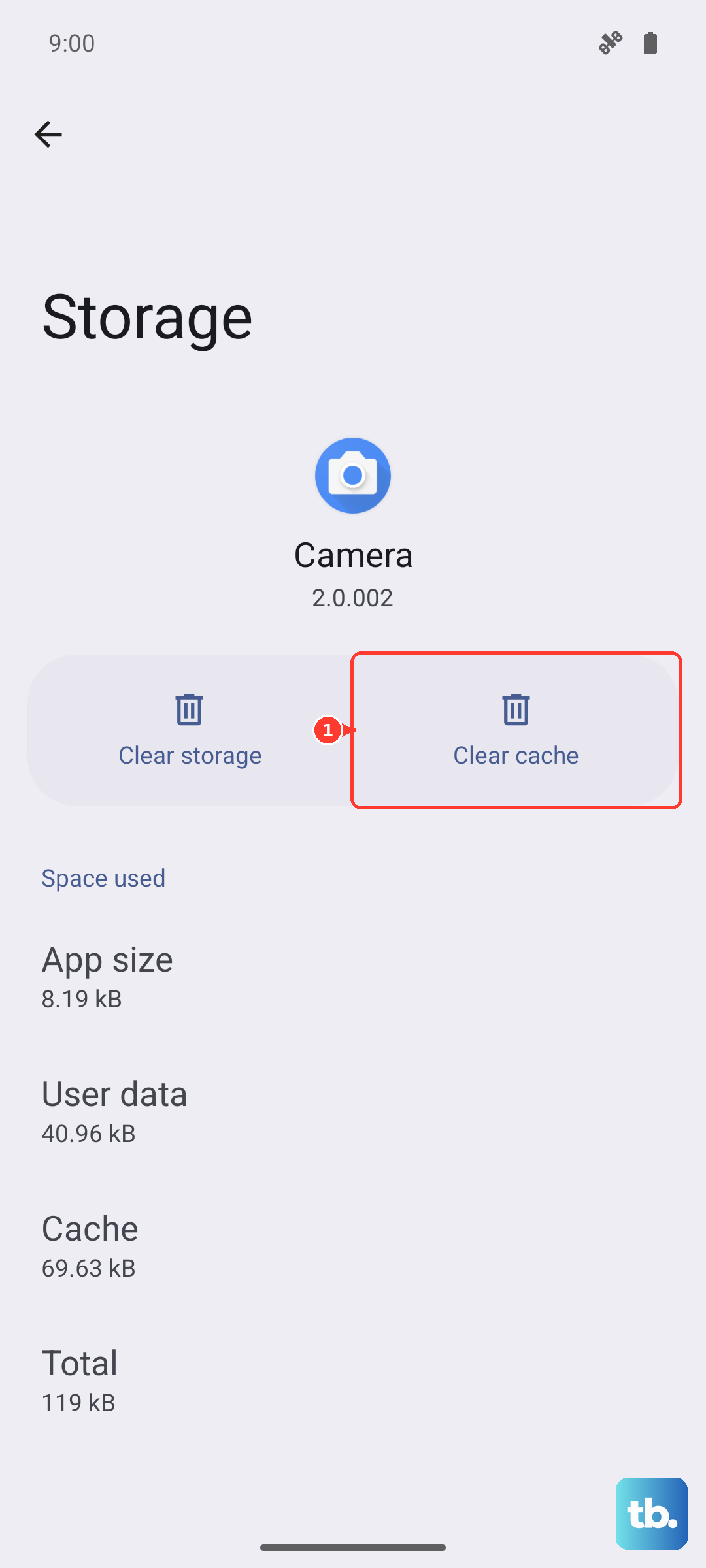
Go to Settings > Apps > Messages > Storage & cache. Tap Clear cache. Don't tap "Clear storage" unless you're okay with losing your message history. The cache stores temporary files that sometimes corrupt and block sending. Clearing it takes one second and doesn't delete any conversations.
Check Your Airplane Mode and Do Not Disturb Settings
If you accidentally turned on Airplane Mode, all radios are off. Swipe down from the top to open Quick Settings. If the airplane icon is blue, tap it to disable. Similarly, Do Not Disturb won't stop messages from sending, but it can hide notifications so you might miss confirmations. Verify it's off in Settings > Sound & vibration > Do Not Disturb.
Reset Network Settings
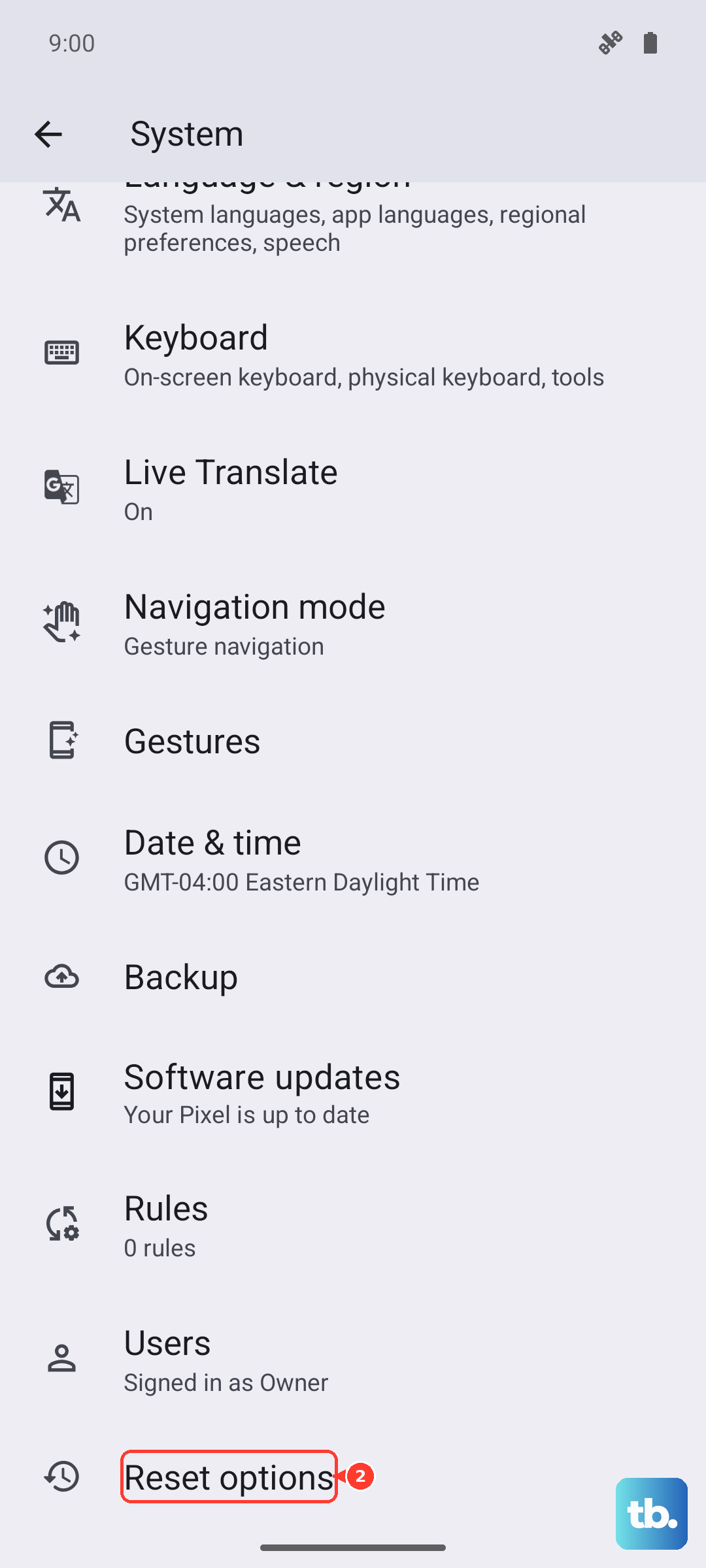
Go to Settings > System > Reset options > Reset Wi-Fi, mobile & Bluetooth. Tap Reset settings. This clears saved Wi-Fi networks, Bluetooth pairings, and cellular configurations. You'll need to re-enter Wi-Fi passwords, but it often fixes messaging issues tied to corrupt network data. It doesn't erase any personal files.
Remove and Reinsert Your SIM Card
Power off your Pixel. Use the SIM eject tool (or a paperclip) to pop out the SIM tray from the left edge. Remove the SIM card, check for any dust or damage, then reinsert it firmly. Power the phone back on. This forces the device to re-register with your carrier's network, which can resolve provisioning issues.
Update Carrier Settings and APN
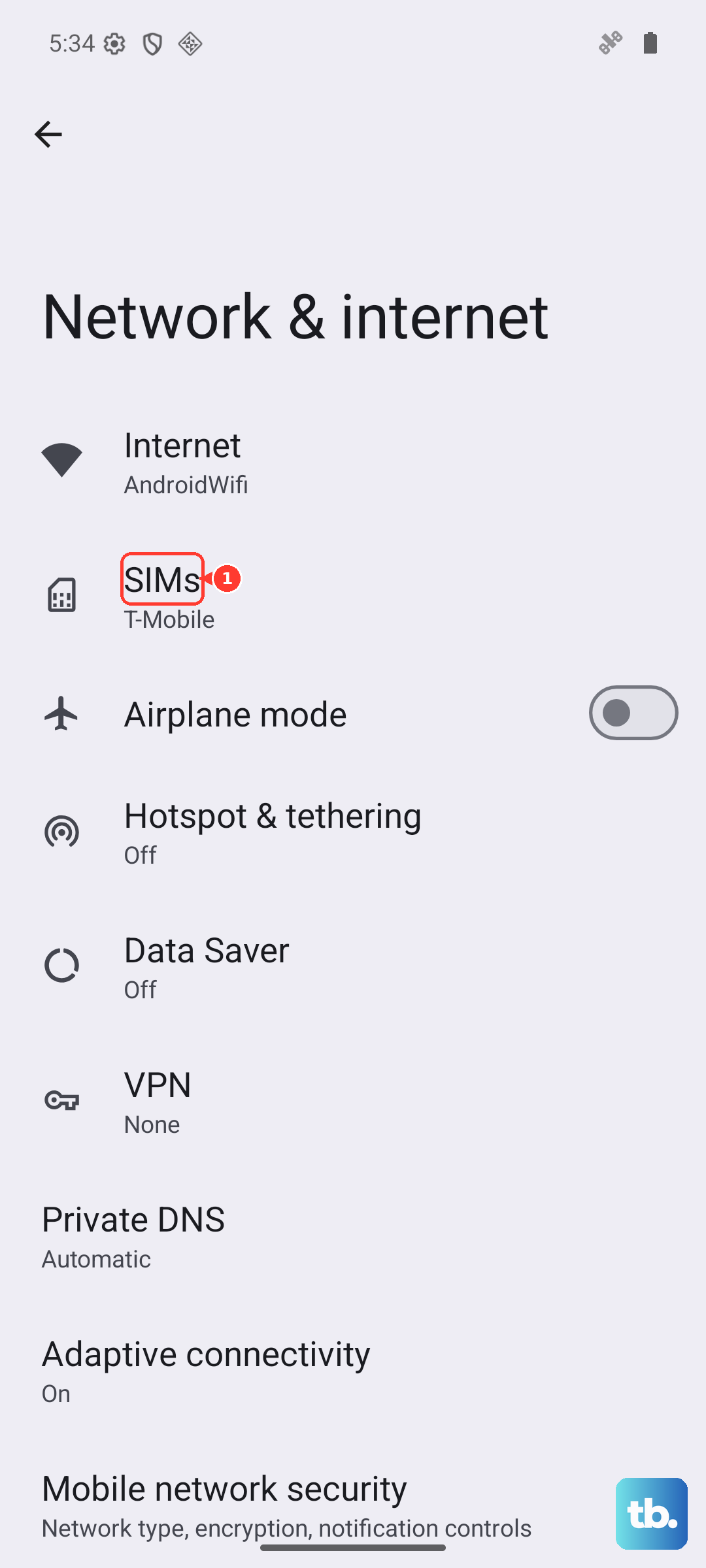
Carrier settings updates sometimes fix messaging problems. Open Settings > About phone > Carrier settings. Tap Check for update if available. Also verify your Access Point Name (APN) is correct. Go to Settings > Network & internet > SIMs > Access Point Names. Compare the entries with your carrier's official APN settings (available on their website). An incorrect APN can block MMS and RCS.
Contact Your Carrier
If you've tried everything and messages still won't send, the issue might be on your carrier's end. Your SMS/MMS service could be suspended, or there might be a block on your account. Call your carrier and ask them to check that messaging features are active on your line. They can also refresh your connection from their side.