
You tap a photo in Messages and it just keeps spinning. The download bar never moves. MMS messages are stuck, and you're left wondering what's wrong with your Pixel 9 Pro XL. This usually comes down to network settings, a temporary glitch, or the app's cache getting in the way.
Let's walk through the fixes that actually work on this phone.
Start With a Force Restart
Your Pixel 9 Pro XL might just need a fresh start. Press and hold the Power button and Volume up button together until the power menu pops up. Tap Restart and wait for the phone to boot back up. This clears up any temporary software hiccups that could be blocking MMS downloads.
Check Mobile Data and Airplane Mode
MMS needs an active mobile data connection. Wi-Fi alone won't cut it. Swipe down twice to open Quick Settings and make sure mobile data is toggled on. If you see the signal is weak, try moving to a spot with better coverage.
A quick trick: toggle Airplane Mode on for about ten seconds, then turn it off. This forces your phone to reconnect to the network fresh. I've seen this kickstart stuck MMS downloads more than a few times.
Turn Off Wi‑Fi Temporarily
Some carriers route MMS through the mobile network even when Wi-Fi is connected, but sometimes the phone gets confused and tries to use Wi-Fi anyway. In the same Quick Settings panel, tap the Wi‑Fi icon to disable it, then try downloading the MMS again. If it works, you can turn Wi‑Fi back on after the message comes through.
Make Sure Auto‑Download Is On
Open the Messages app and tap the three dots in the top‑right corner. Go to Settings > Multimedia Messages and make sure Auto‑retrieve is turned on. While you're there, enable Roaming Auto‑retrieve too if you travel or live near a border. This ensures MMS downloads automatically even when you're on a roaming network.
Clear the Messages App Cache
If the app is holding onto old data, it can interfere with new downloads. Go to Settings > Apps > Messages > Storage & cache and tap Clear cache. This won't delete your conversations, just temporary junk. Try downloading the MMS again after.
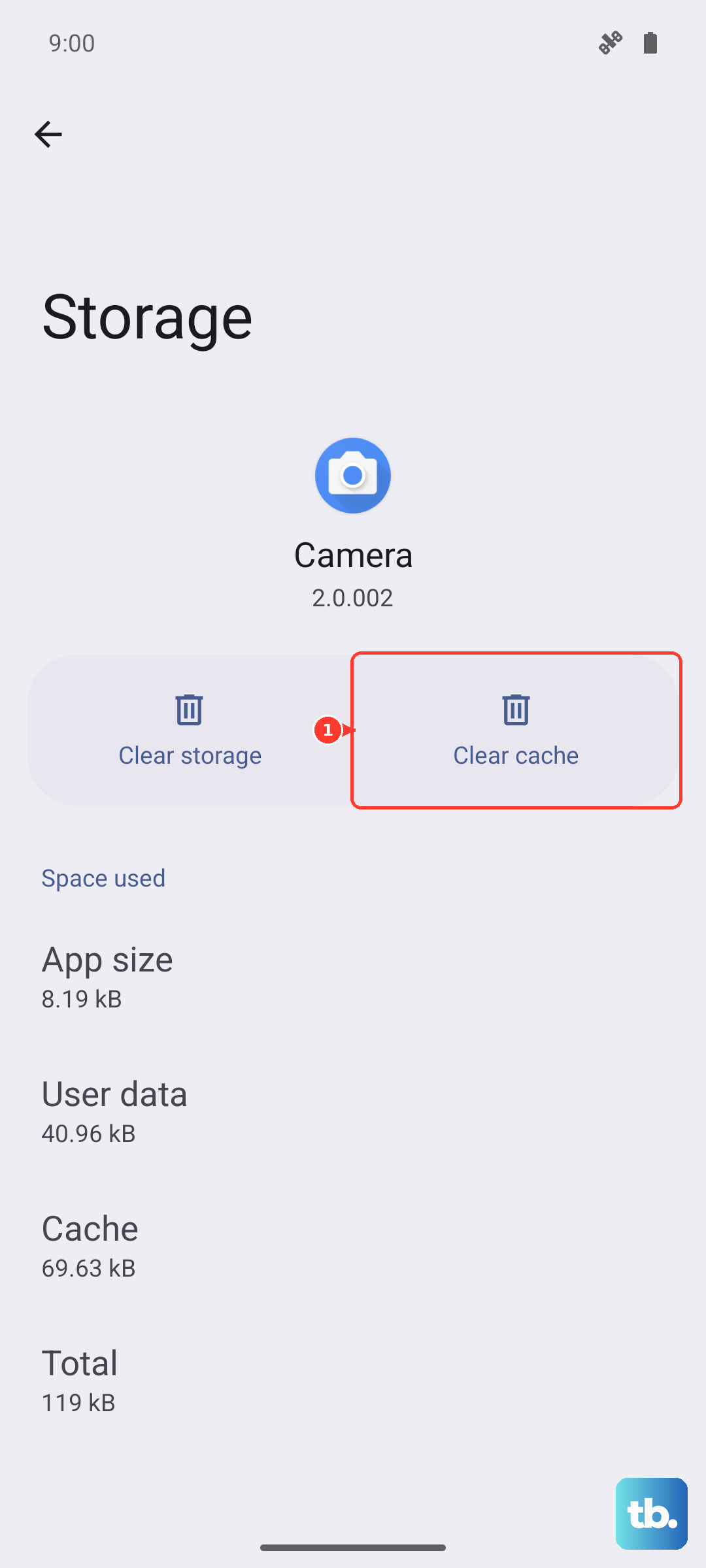
Still stuck? You can also clear the cache for Carrier Services that app handles the backend for MMS and RCS. Find it in the same Apps list, tap Storage & cache, and clear its cache too.
Check Your APN Settings
Wrong Access Point Name (APN) settings are a common reason MMS won't download. Head to Settings > Network & internet > SIMs > Access Point Names. Compare what you see with your carrier's recommended APN values. Pay special attention to the MMSC, MMS proxy, and MMS port fields even one wrong character can break MMS.
Most carriers publish their correct APN settings on their support pages. If you're not sure, a quick web search for "your carrier name + APN settings" will bring them up. Edit the APN for your current SIM and save it. Then reboot the phone.
Reset Network Settings
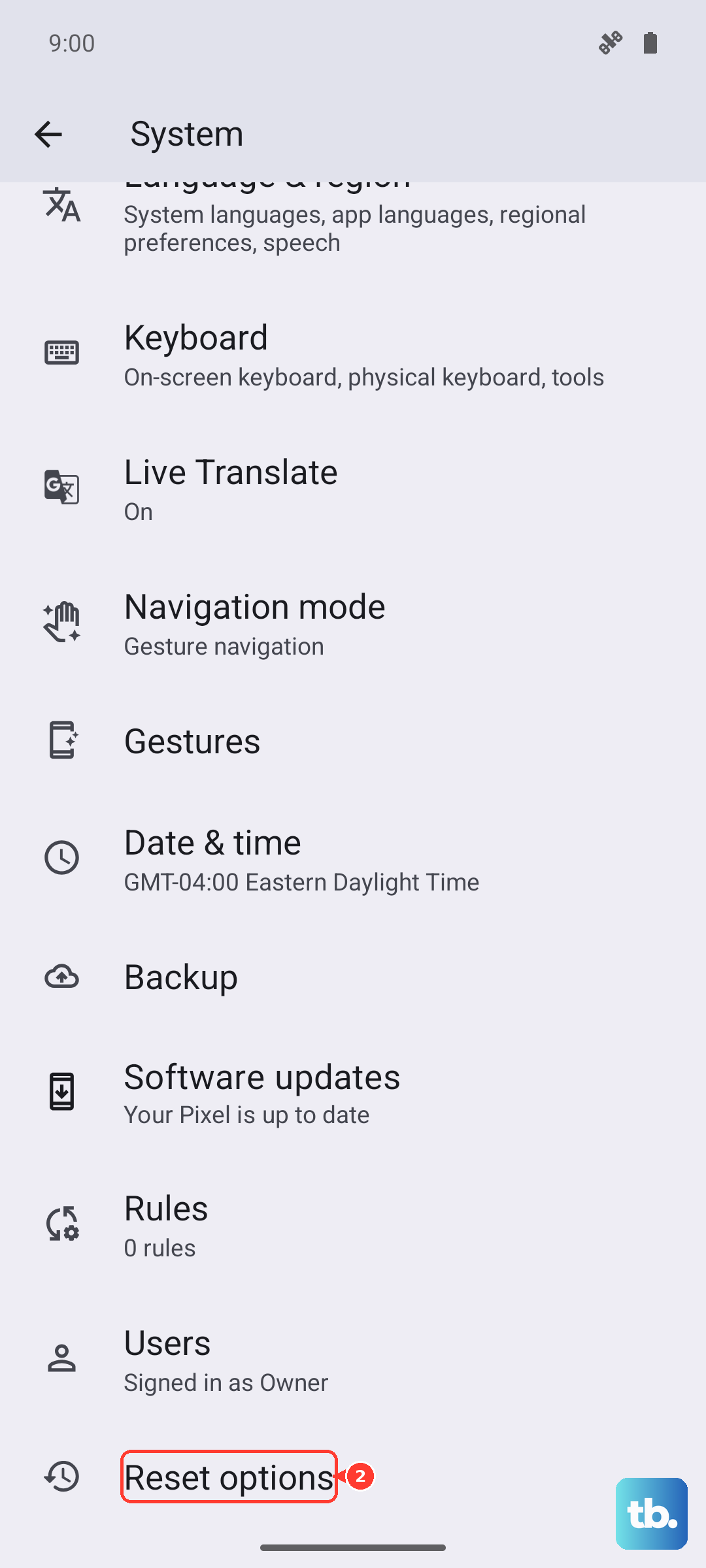
This resets all Wi‑Fi, Bluetooth, and mobile network configurations without touching your photos or apps. Go to Settings > System > Reset options > Reset Wi‑Fi, mobile & Bluetooth. Confirm the action, and your phone will restart. You'll need to reconnect to Wi‑Fi networks afterward, but it often fixes MMS issues that other steps miss.
Update Your Phone’s Software
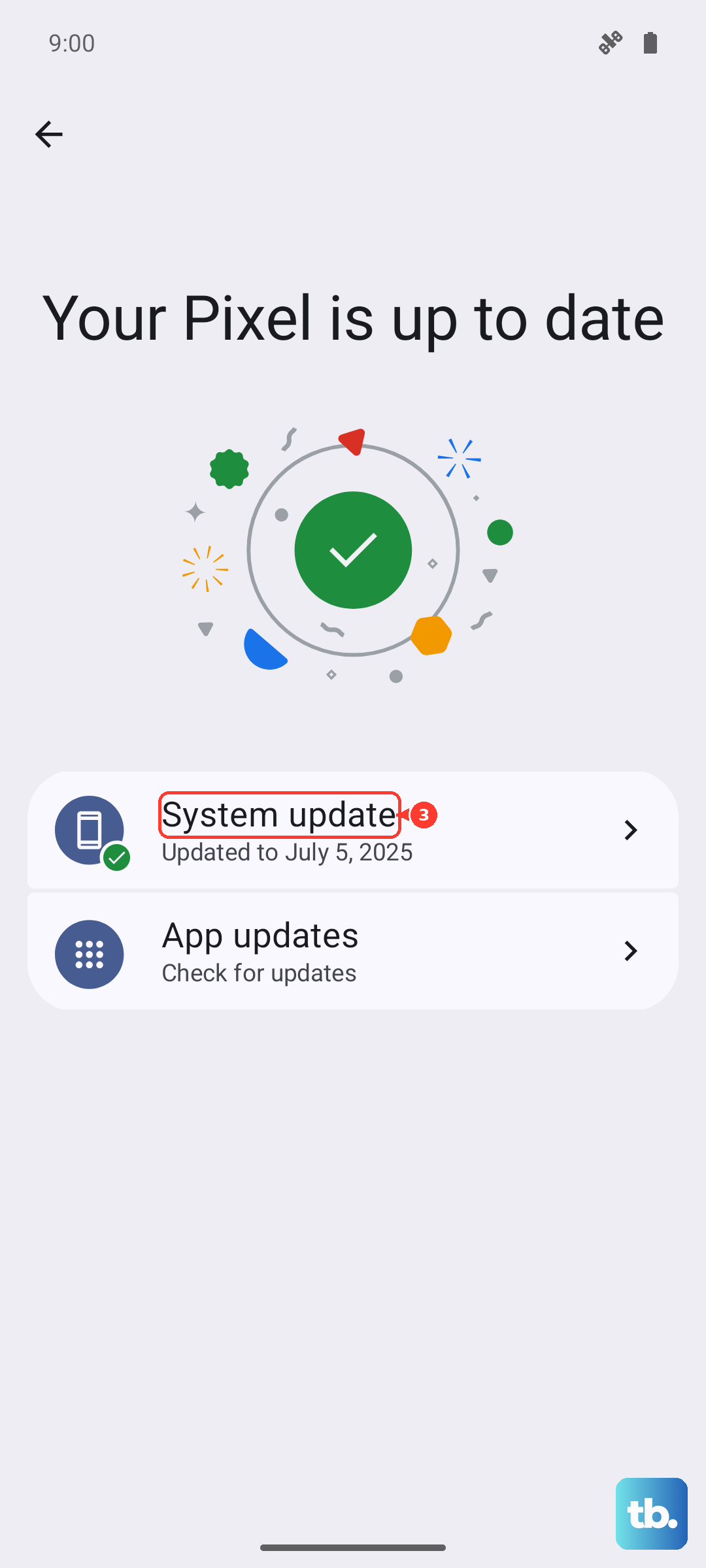
Google regularly pushes updates to Android 14 that include bug fixes for messaging. Go to Settings > System > System update and check for any pending updates. If one is available, download and install it, then see if MMS starts working.
Check if RCS Is Interfering
Android's chat features (RCS) sometimes conflict with regular MMS, especially when the sender isn't using RCS. Open Messages > three dots > Settings > Chat features. Try toggling Enable chat features off. After a few seconds, turn it back on. This refreshes the connection to Google's servers and can clear up MMS download delays.
If that doesn't help, you can disable chat features entirely for a minute, then try downloading the stuck message. Re‑enable it afterward.
Factory Reset as a Last Step
If none of the above works, a factory reset will wipe the phone clean and often resolve stubborn software issues. Back up your photos, contacts, and anything else you don't want to lose. Then go to Settings > System > Reset options > Erase all data (factory reset). Set the phone up as new and test MMS before restoring your apps. If it works, you can restore from backup. If it still doesn't, the problem likely sits with your carrier's network or your account.
Most MMS download problems on the Pixel 9 Pro XL clear up with a force restart, a cache clear, or a quick APN check. Work through these in order and you'll likely have those photos and videos coming through again.