
A black screen on your Google Pixel 9 Pro XL can feel like a brick in your hand, but it doesn't always mean permanent failure. The phone might still be running, or a software crash could be hiding the display. Let's get that screen back.
Force Restart the Pixel 9 Pro XL
This is the easiest fix and the one you should try first. Press and hold the Power button and the Volume Up button at the same time. Keep holding until the power menu shows up on the screen. Then tap Restart from that menu.
If the screen is completely black and you don't see the power menu immediately, don't let go. Keep holding both buttons for a solid 10-15 seconds. The phone will vibrate and restart on its own if the system is locked up.
Charge It the Right Way
A fully drained battery looks identical to a dead phone. Plug your Pixel 9 Pro XL into a charger and give it at least 15-30 minutes before trying anything else. The Pixel 9 Pro XL supports up to 37W wired charging, so you need a USB-C Power Delivery charger to get any real speed.
Here's where a known issue kicks in: the original Google cable that came in the box has been reported to stop working for some users. If you're not seeing any charging indicator, swap that cable for a different one, like the cable from an iPad or another certified USB-C cable. Also watch for the Check charging accessory notification. That pop-up usually means the cable or charger isn't fully compatible or is damaged.
If you use a third-party charger, don't be surprised if it can't hit the 37W max. Many chargers simply don't speak the right PD language for this phone. A Google 45W charger is your best bet for consistent fast charging. And if Smart charging is turned on in your battery settings, it can slow things down intentionally. Try disabling it under Settings > Battery > Charging optimization.
Look for Physical Damage
Inspect the screen closely for cracks, impact marks, or dark blotches. If the phone still vibrates when you get notifications or makes sounds, the phone itself is probably working, but the display hardware might be toast. Give the phone a gentle squeeze near the bezel to see if the screen flickers, which can indicate a loose internal connector.
Is the Brightness Turned All the Way Down?
It sounds silly, but it happens. If the auto-brightness sensor gets confused, the screen can drop to a level that looks completely off. Try asking Google Assistant to "turn up the brightness to 100 percent." Or swipe down twice from the top of the screen to open the full Quick Settings panel and drag the brightness slider all the way to the right.
Boot Into Safe Mode
A third-party app can sometimes crash the display driver and make the screen go black. Safe mode disables all downloaded apps so you can test whether that's the culprit. Press and hold the Power button, then tap and hold Power off until the safe mode prompt appears. Tap OK to reboot into safe mode.
If the screen works fine in safe mode, you know a downloaded app is causing the black screen. Uninstall recently installed apps one by one until the problem goes away. Reboot normally to leave safe mode.
Restore via a Computer Using Recovery Mode
If the phone is completely unresponsive to button combinations, connecting it to a computer might work. Plug your Pixel 9 Pro XL into a PC or Mac using a USB-C cable. Open a command prompt or terminal and type adb reboot recovery. If ADB recognizes the phone, it will immediately boot into recovery mode.
Once you're in recovery mode, use the volume buttons to navigate. Select Wipe data/factory reset as a last resort. This erases everything, so only do this if you've already tried every other option and have a backup saved.
Manually Enter Recovery Mode
When ADB isn't an option, you can force the phone into recovery mode with a hardware button combo. Start with the phone turned off. Press and hold the Power button and Volume Down button simultaneously. Keep holding until the bootloader menu appears. Use the volume buttons to scroll to Recovery mode and press the Power button to select it.
Your phone will show a dead Android logo with a "No command" message. Don't panic about that. Press and hold the Power button, then tap the Volume Up button once. That brings up the full recovery menu where you can try a factory reset or wipe the cache partition.
Check for Water or Moisture Damage
The Pixel 9 Pro XL has an IP68 rating, so it's designed to handle submersion. But salt water, chlorinated pool water, or a drop just deep enough can still cause problems. If your phone was recently near water, power it off completely and set it in a dry, ventilated area for 24-48 hours.
Don't use a hair dryer or put it in a bag of rice. Rice dust can get into the charging port and cause more damage. Just let it sit and dry naturally. If the screen comes back but flickers, water may have gotten into the display connector and you'll need a repair.
Update or Factory Reset (If You Can Get In)
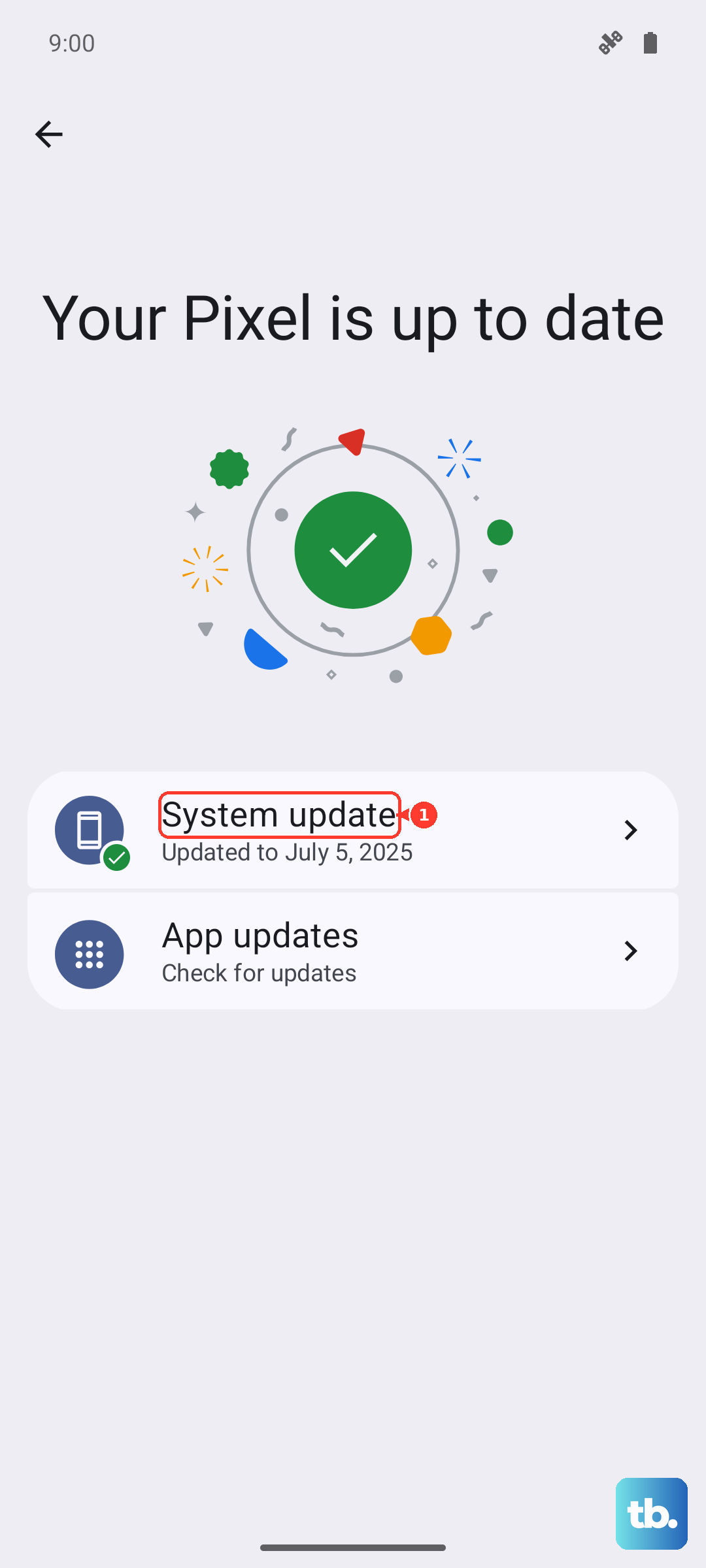
If the screen works sometimes but keeps going black, a software update might fix the display stability. Go to Settings > System > System update and check for an update. Google pushes monthly security patches that sometimes address screen-related bugs.
If the screen is genuinely black but the phone responds to button presses and vibration, try a full factory reset from recovery mode as described above. This will wipe everything, but it's often the only way to clear a deep software glitch that's killing the display driver.











