
Downloading apps on your Google Pixel 9 Pro XL should be a one-tap process, but sometimes things just stall. You tap install, the progress bar barely moves, or you get a cryptic error code instead of the app you wanted. Most of the time, this is a quick fix that doesn't require digging through menus for hours.
Here are the fixes that actually work for the Pixel 9 Pro XL, starting with the simplest.
The Quick Checks You Shouldn't Skip
Before anything else, confirm your internet connection is actually working. Pull down the notification shade and check whether Wi-Fi or mobile data is connected and showing signal. If you're on Wi-Fi and the download is stuck, try turning Wi-Fi off and using mobile data instead. Google Play uses port 5228 for downloads, and some public or work Wi-Fi networks block that port entirely.
If switching networks does the trick, you've found the culprit. If not, the next step takes about thirty seconds.
Restart Your Pixel 9 Pro XL
A simple restart clears up a surprising number of app download issues. Press and hold the Power button and the Volume up button at the same time until the power menu pops up. Tap Restart and wait for the phone to boot back up. Try downloading an app from the Play Store once it's back on.
This isn't a factory reset or anything destructive. It just clears out whatever temporary glitch might have been blocking the download.
Fix Date and Time Settings
Your Pixel 9 Pro XL uses your device's clock to authenticate with Google servers when you download apps. If the time is off, even by a few minutes, Google may reject the request.
Open Settings and search for "Date" to jump straight to the date and time settings. Make sure Set automatically is toggled on. If it's already on but you're still having trouble, switch it off, set the time manually, wait a few seconds, then switch automatic back on. This refreshes the sync and usually fixes things.
Clear the Play Store Cache
Corrupted cache data in the Google Play Store itself is a common cause of stalled downloads. Go to Settings > Apps > Google Play Store and tap Storage & cache. Tap Clear cache, this won't affect your account or installed apps.
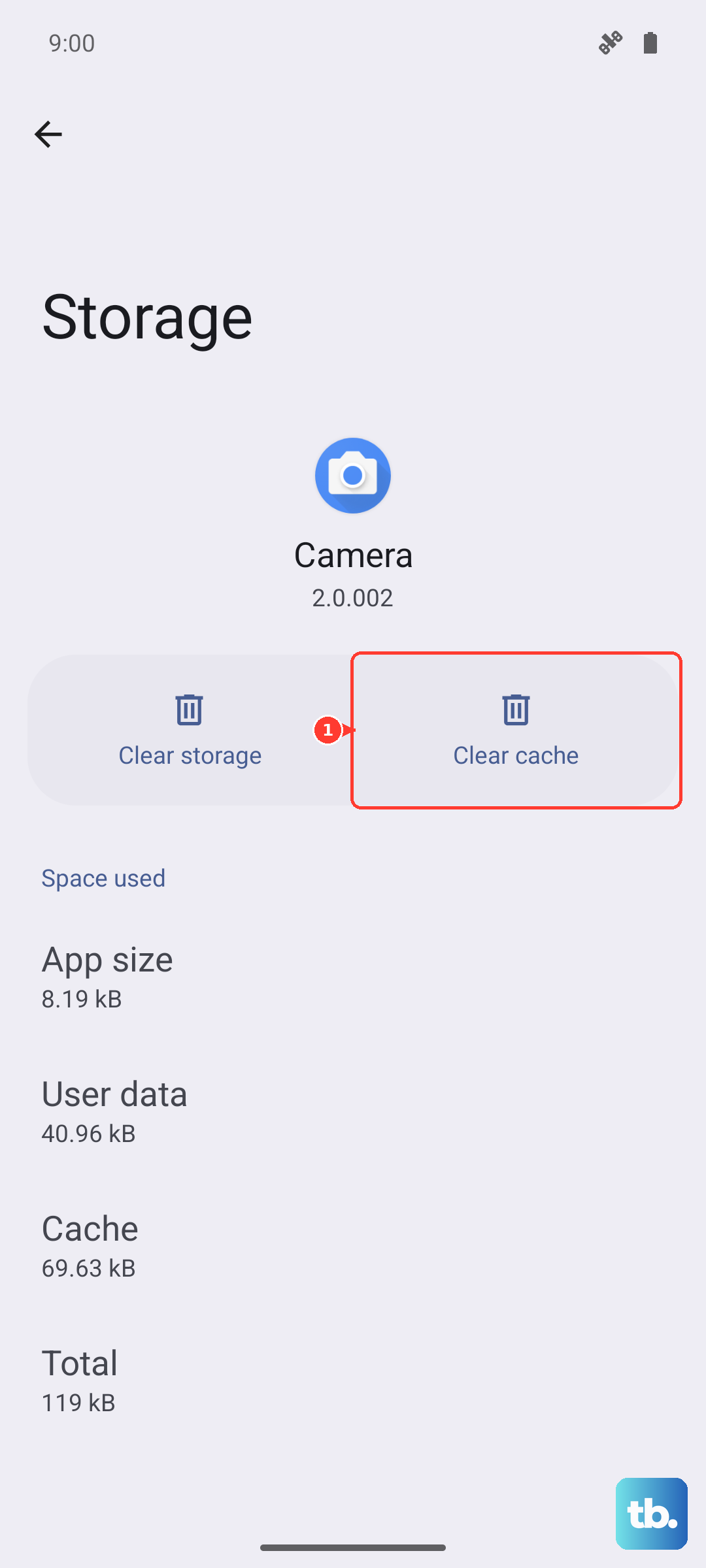
If the download is still stuck after clearing the cache, go back and tap Clear storage as well. This effectively resets the Play Store to its default state. You'll need to sign back into your payment settings, but your installed apps are unaffected.
Check Download Manager
The Download Manager is a system app that handles all app installs in the background. If it's disabled or its data is corrupted, nothing will download.
Open Settings > Apps and tap the three-dot menu in the top-right corner. Select Show system to reveal hidden system apps. Scroll down to Download Manager and check if it's enabled. If not, tap Enable. Then go into its Storage & cache section and tap Clear cache and Clear storage.
Clear Google Play Services Cache
Google Play Services is the backbone that connects your Pixel to Google's servers. If it's having problems, app downloads are one of the first things to break.
Go to Settings > Apps > Google Play Services. Tap Storage & cache and then Clear cache. If that doesn't help, tap Manage storage and tap Clear all data. A word of warning: clearing all data may log you out of some Google services temporarily, but it's safe and usually fixes the issue.
After doing this, force stop the app by going back to the app info screen and tapping Force stop. Restart your Pixel and try again.
Refresh Account Sync
Sometimes your Google account sync gets stuck, and refreshing it is all you need. Go to Settings > Passwords & accounts and tap your Google account. Tap Account sync, then tap the three-dot menu and select Cancel sync. Wait about thirty seconds and the sync will begin again automatically.
If canceling and waiting doesn't work, you can remove your Google account entirely and re-add it. Go to Settings > Passwords & accounts, tap your Google account, tap Remove account, and confirm. Then tap Add account and sign in again. This forces a complete re-sync of everything.
Uninstall Google Play Store Updates
If the download problem started after a recent Play Store update, rolling it back can help. Go to Settings > Apps > Google Play Store, tap the three-dot menu, and select Uninstall updates. This reverts the Play Store to its factory version.
Your Pixel will automatically update the Play Store again within a day or so. If the problem doesn't come back after the update re-installs, it was probably a glitch in the update process itself.
Check Storage Space
The Pixel 9 Pro XL comes with generous storage, but it can fill up fast with high-res photos and large apps. If you see an "Insufficient space" error, you need to free up room.
Go to Settings > Storage and take a look at what's using the most space. Videos, backups, and old app caches are usually the biggest offenders. Tap Free up space to let the system suggest files you can delete safely. You can also browse through your installed apps in Apps and uninstall anything you haven't used in months.
Update Your Pixel's Software
Google regularly pushes software updates to the Pixel 9 Pro XL that fix bugs and improve compatibility. If you're running an older version of Android 14, a known download bug might be the cause.
Open Settings > System > Software update and tap Check for update. If an update is available, download and install it. Your phone will restart when it's done, and app downloads should work normally afterward.
When Specific Error Codes Appear
If you see Error 911, it's almost always a Wi-Fi issue. Try switching to mobile data or connecting to a different Wi-Fi network. Clearing the Play Store cache as described above also helps.
For DF-BPA-09 or "Error Processing Purchase", clear the cache and data for Google Services Framework, it's a system app you can find by enabling "Show system" in the apps list. This usually clears the error immediately.
The Pixel 9 Pro XL is a well-optimized device, and most download issues trace back to one of these common causes. Start with the network check and the restart, then work your way through the cache clears if needed. You'll be downloading apps again in no time.