
When your Google Pixel 9 Pro gets stuck on "Sending..." for a picture message, it's usually a quick fix. The most common culprit is a simple setting or a temporary network hiccup. I'd start by checking your mobile data connection first.
Check Your Mobile Data and MMS Settings
MMS messages require mobile data to send, even if you're on Wi-Fi. First, pull down the quick settings shade and make sure mobile data is turned on. The icon looks like two arrows pointing up and down.
Next, open the Google Messages app and tap your profile picture in the top right. Go to Messages settings > Advanced. Here, make sure both "Auto-download MMS" and "Auto-download group MMS" are enabled. If they're off, your phone won't retrieve the data needed to send or receive pictures properly.
Verify Your APN Settings
Incorrect Access Point Name (APN) settings from your carrier can block MMS. Go to Settings > Network & internet > Mobile network > Advanced > Access Point Names.
Tap the APN for your carrier (like "T-Mobile US" or "Verizon"). You'll need to check your carrier's support site for the exact MMS settings, but look for fields labeled "MMSC," "MMS proxy," and "MMS port." If anything looks wrong, you can tap the three-dot menu to reset to default.
Toggle Airplane Mode
A quick network refresh can clear up a temporary signal glitch. Swipe down from the top of your screen twice to open the full quick settings panel. Tap the Airplane Mode icon to turn it on, wait about 15 seconds, then tap it again to turn it off.
This forces your Pixel to reconnect to your cellular network from scratch. After it reconnects, try sending the MMS again. This often works if the Tensor G4 modem had a brief hiccup.
Force Stop and Clear the Messages App Cache
Go to Settings > Apps > See all apps. Find and tap "Messages." On the app info screen, tap Force stop, then tap Storage & cache.
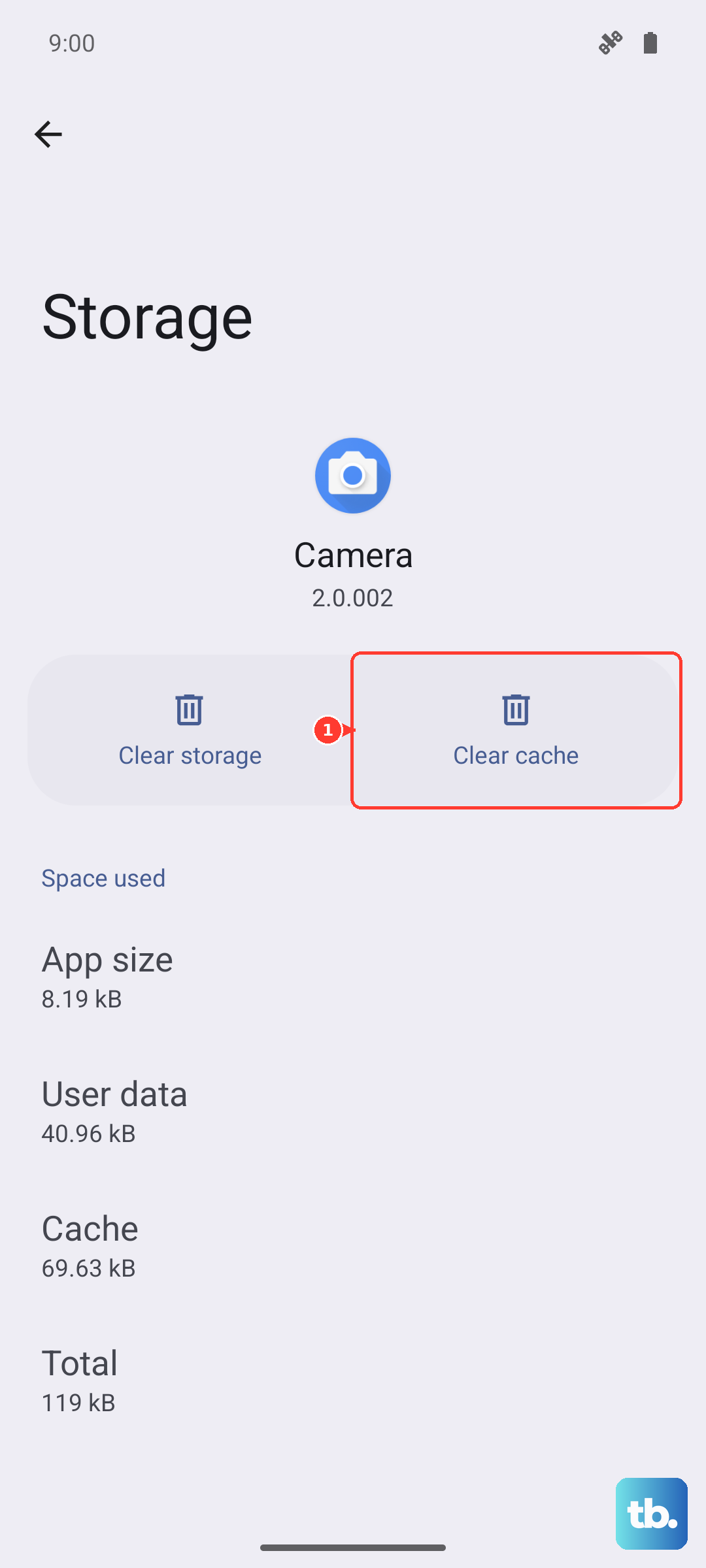
Tap "Clear cache." This deletes temporary files that might be causing the app to malfunction, without touching your message history. After clearing, open Messages and try sending your picture again.
Check for a Carrier Services Update
Carrier Services is a background app that manages your connection to your mobile network. Open the Google Play Store, tap your profile picture, and go to Manage apps & device > Manage.
Tap "Installed" and find "Carrier Services." If an update is available, you'll see an "Update" button. Installing the latest version can resolve MMS compatibility issues specific to your carrier and Android 15.
Disable VPN or Data Saver
If you're using a VPN, it might be routing your MMS traffic through a server that blocks it. Turn off your VPN temporarily from the quick settings shade and try sending the message.
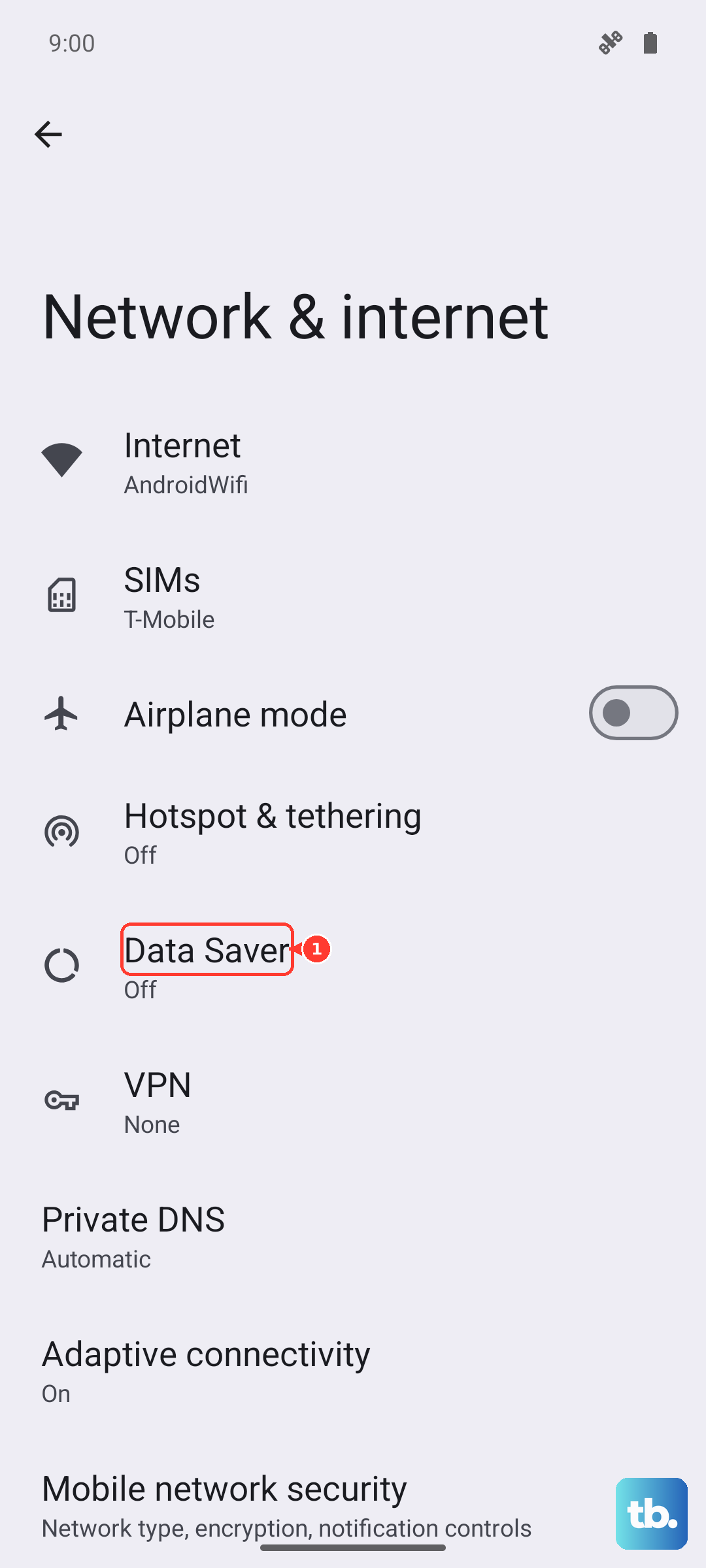
Also, check if Data Saver is on. Go to Settings > Network & internet > Data Saver. If it's enabled, it restricts background data and can prevent MMS from sending. You can turn it off, or tap "Unrestricted data" to allow the Messages app to work even with Data Saver on.
Update Your Android Software
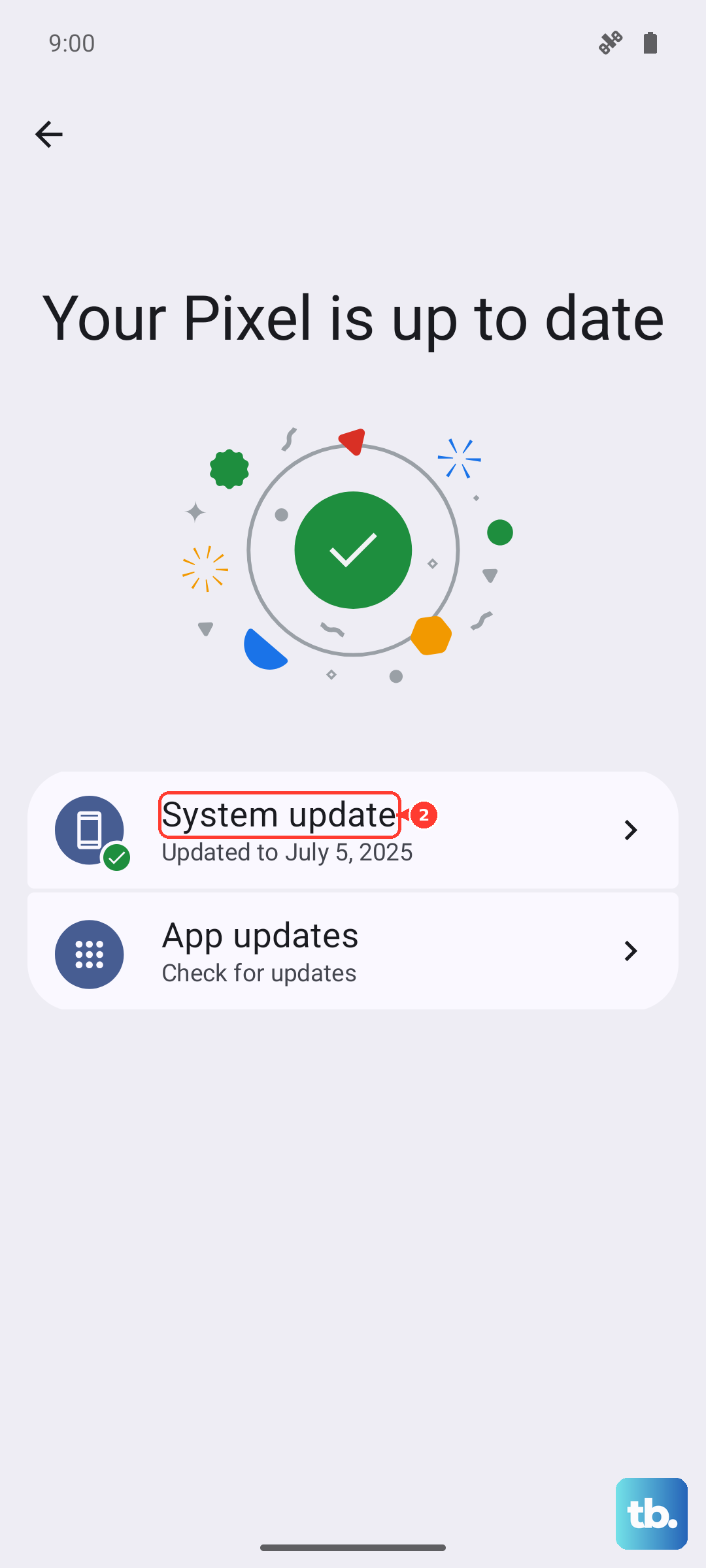
System updates often include fixes for connectivity bugs. Go to Settings > System > System update. Tap "Check for update." If one is available, install it. Make sure your phone is connected to Wi-Fi and has a good charge first.
Try a Different Messaging App
To rule out a problem with the Google Messages app itself, try sending an MMS with a different app. You can download something like Textra from the Play Store as a quick test.
If the picture sends successfully through another app, the issue is isolated to Google Messages. You can then go back and try clearing its data (not just cache) from the app settings, but note this will erase your message history within the app.
Reset Your Network Settings
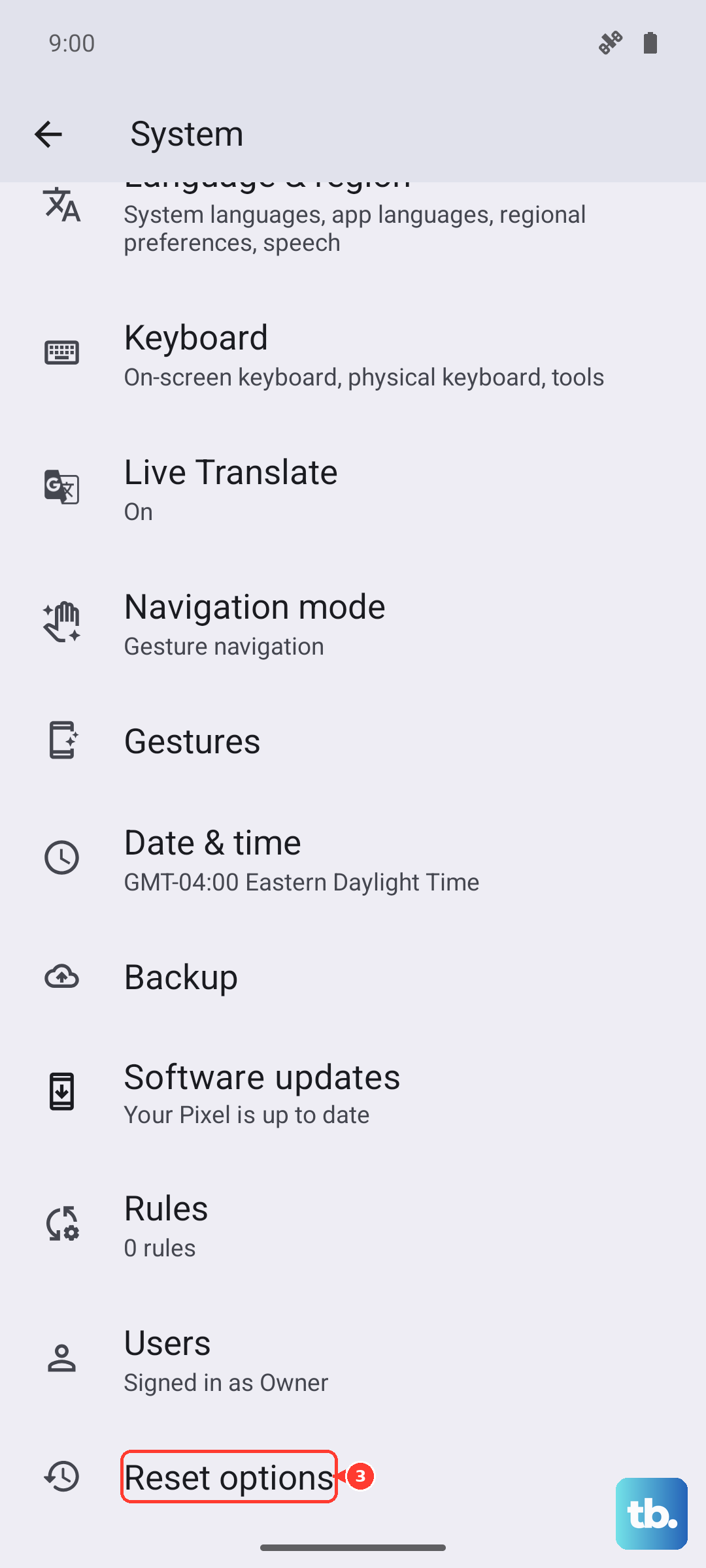
This will erase all your saved Wi-Fi networks, Bluetooth pairings, and cellular settings. Go to Settings > System > Reset options. Tap "Reset Wi-Fi, mobile & Bluetooth."
Confirm the reset. After your phone reboots, you'll need to reconnect to Wi-Fi and re-pair Bluetooth devices. This is a solid step if you're having general network issues alongside the MMS problem.
Perform a Force Restart
If the phone is unresponsive or the issue persists, a force restart can clear deeper software glitches. Simply press and hold the Power button on the right side of your Pixel 9 Pro for about 30 seconds.
Keep holding it until you see the Google logo appear on the screen, then release. The phone will boot up normally. This is different from a standard restart and often fixes stubborn issues.