If your Google Pixel 9 Pro isn't buzzing for calls or notifications, it's a surprisingly common hiccup. The good news is that it's almost always a software setting or a minor glitch you can fix yourself in a few minutes.
Start With a Force Restart
Before you dive into settings, give your Pixel a fresh start. This clears out any temporary bugs in Android 17 that might be telling the vibration motor to stay quiet. Just press and hold the Power button for about 30 seconds, until you see the Google logo appear and the phone restarts.
It's the quickest thing to try and often solves the problem right away. I'd start here every time.
Check Your Sound and Vibration Settings
Open your Settings and go to Sound & vibration. The first thing to look at is the "Vibrate for calls" toggle. Make sure it's switched on. If it's already on, try turning it off and back on again.
Right below that, you'll see "Also vibrate for calls when ringing." This is a separate setting that adds an extra buzz, so check that one too. Sometimes a simple toggle is all it takes to wake the motor back up.
Verify Your Ring Mode
Your Pixel can be in one of three modes: Sound, Vibrate, or Silent. If it's set to Silent, you won't get any vibration at all. You can check this quickly by pressing the Volume Up or Down button on the side of the phone.
A pop-up will show your current mode. Make sure the bell icon is selected, not the speaker with a line through it (Silent) or just the vibration icon. You can also set this in Settings > Sound & vibration under "Ring mode."
Adjust Vibration Strength and Pattern
Maybe your phone is vibrating, but it's just too faint to feel, especially if it's in a pocket or on a soft surface. Go back to Settings > Sound & vibration and tap on "Vibration & haptics." Here you'll find sliders for "Call vibration strength" and "Notification vibration strength."
Crank those up to the max and see if it makes a difference. You can also try changing the "Vibration pattern" for calls and notifications. Sometimes switching from the default pattern to something else can kick the system back into gear.
Review App-Specific Notification Settings
If you're only missing vibrations from a specific app like Messages or Gmail, the issue is likely in that app's notification permissions. Go to Settings > Apps > [App Name] > Notifications.
Tap on the specific notification category (like "Messages" for your texting app) and make sure the "Vibrate" option is enabled. On Android 15, notification controls are very granular, so it's easy for one setting to get turned off by accident.
Test the Haptic Feedback
To rule out a complete hardware failure, see if the vibration motor works at all. Go to Settings > Sound & vibration > Vibration & haptics and look for "Touch feedback."
Enable "Touch vibration" and then tap the toggle switch or use the slider. You should feel a short, sharp buzz. If you feel this, the motor itself is working, and the problem is isolated to ring and notification settings. If you feel nothing here, it points to a deeper issue.
Check for a Software Update
Google is constantly pushing updates to fix bugs. An outdated version of Android could have a known issue with the vibration controller. Go to Settings > System > System update and tap "Check for update."
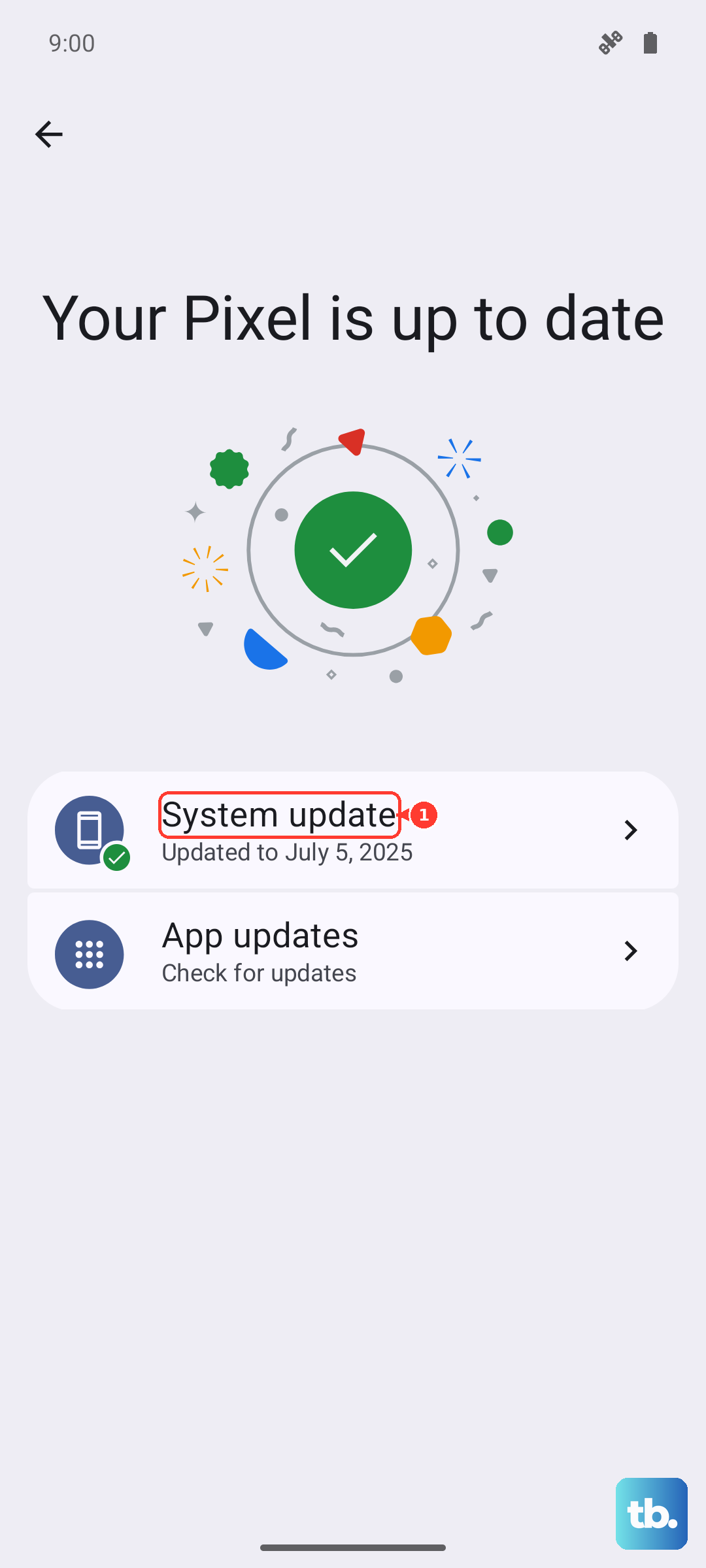
If an update is available, install it. It's a good idea to be on Wi-Fi and have your phone plugged into its 27W charger for this, as the Tensor G4 chip can get warm during the process.
Boot Into Safe Mode
This tells you if a third-party app you installed is causing a conflict. To enter Safe Mode, press and hold the Power button until the power menu appears. Then, tap and hold the "Power off" option on your screen.
A prompt will ask if you want to reboot to Safe Mode. Tap "OK." Your phone will restart with "Safe mode" in the bottom corner. Test your vibration now. If it works in Safe Mode, a recently downloaded app is the culprit. Restart your phone normally to exit Safe Mode and start uninstalling recent apps one by one.
Reset App Preferences or Network Settings
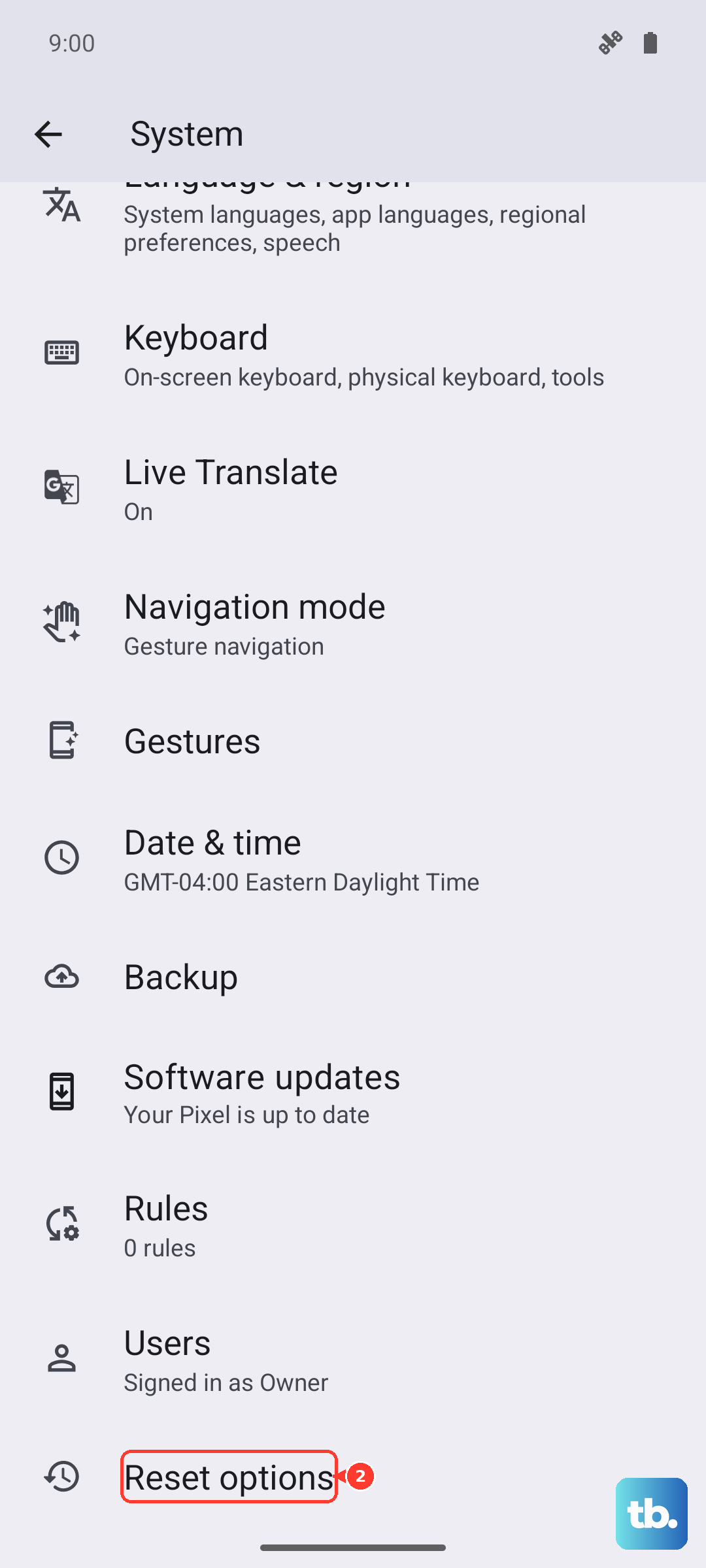
This is a less drastic reset that won't delete your personal data. It resets all your app permissions, notification settings, and default apps back to factory state. Go to Settings > System > Reset options.
Tap "Reset app preferences." Confirm. After your phone resets, you'll need to re-allow notifications for your apps, but it can clear up strange conflicts causing the vibration to fail.
Consider a Factory Reset (Last Resort)
If you've tried everything and the vibration motor fails even the touch feedback test, a factory reset is the final software step. This will erase all data on your phone, so you must back up everything important to Google Drive first.
Go to Settings > System > Reset options > Erase all data (factory reset). Follow the prompts. If the vibration still doesn't work after setting up the phone as new, the hardware itself, likely the vibration motor or its connection, may be faulty and need repair.