
Hold down the power button for 30 seconds or more. Keep holding it until you feel the phone vibrate and see the Google logo appear. This force restart is the single most effective fix for an unresponsive Pixel screen, especially if it happened after an app update or the phone got warm.
If touches seem to go missing, run an online online touch test first. The grid fills in wherever the screen registers contact, so gaps stand out immediately.
Clean the Screen and Your Fingers
It sounds simple, but a dirty screen or damp fingers are common culprits. Use a soft, slightly damp microfiber cloth to wipe the entire screen clean. Dry it thoroughly.
If your fingers are wet, greasy, or very dry, the touchscreen can struggle to register your taps. I'd start with this, as the Pixel 9 Pro's fingerprint sensor can also be inconsistent with moisture present.
Remove Any Screen Protector or Case
A poorly fitted tempered glass screen protector or a case that presses on the edges of the display can interfere with touch sensitivity. Take the case off and carefully remove any screen protector.
Test the touch response on the bare screen. If it works perfectly, you'll know the accessory was the problem. Look for a different brand that's certified for the Pixel 9 Pro's curved edges.
Boot Into Safe Mode
Safe mode temporarily disables all third-party apps. To enter it, press and hold the power button on the screen until the power menu appears. Then, tap and hold the "Power off" option.
You'll see a prompt to reboot to safe mode. Tap "OK." If the touchscreen works perfectly in safe mode, a recently downloaded app is causing the conflict. You'll need to uninstall apps one by one to find the culprit.
Check for a Software Update
Google frequently releases updates that fix bugs, including touchscreen issues. Connect to Wi-Fi and go to Settings > System > System update.
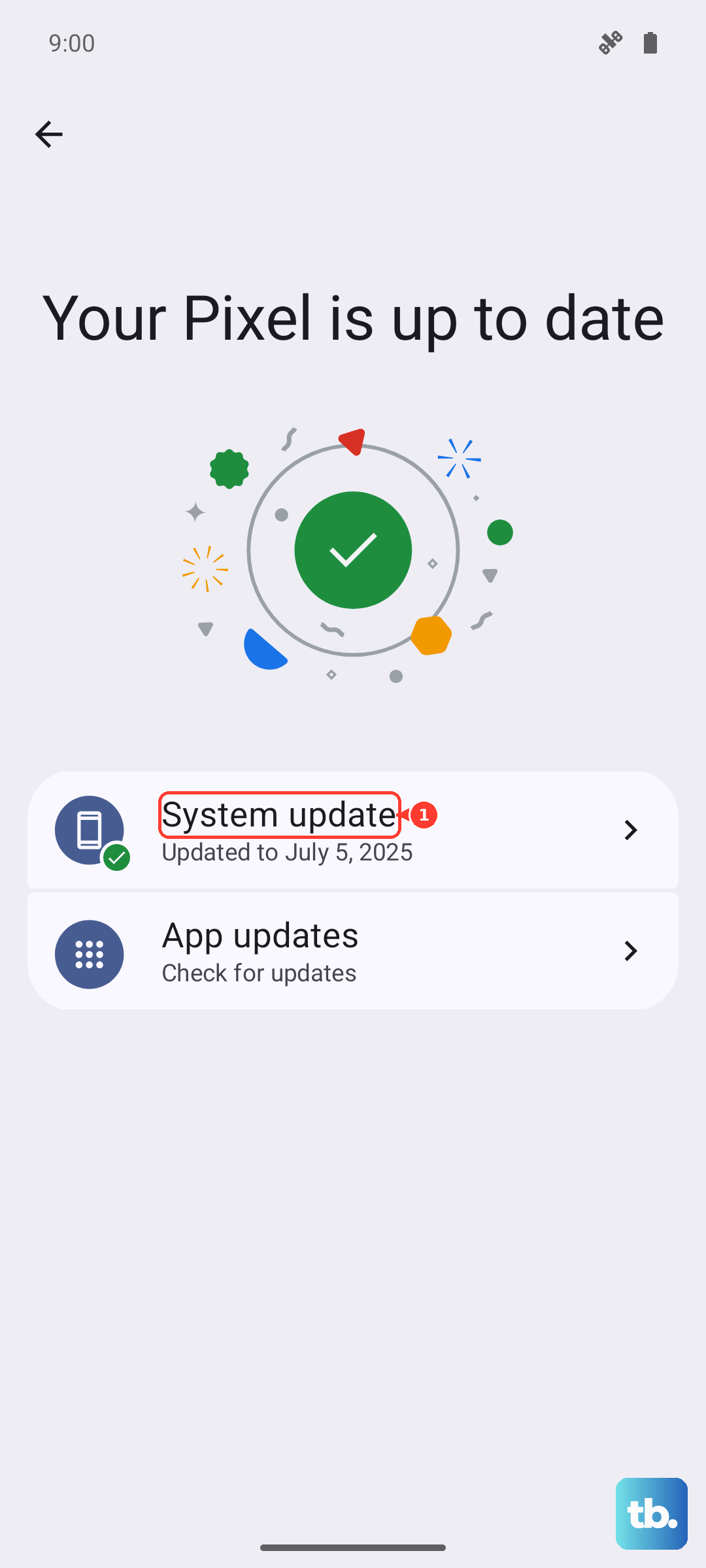
Tap "Check for update." If an update is available, install it. It's a good idea to keep Adaptive Charging enabled, as it helps manage battery health during these longer update processes.
Calibrate the Touchscreen
Android has a hidden diagnostic menu for testing hardware. Open your phone app and dial *#*#2664#*#* (which spells TOUCH). This launches the touch screen test.
Follow the on-screen instructions to draw patterns and tap targets. This process can sometimes recalibrate the digitizer. If the test fails or shows dead zones, the issue is likely hardware-related.
Perform a Factory Reset
This erases all data, so it's a last resort. First, ensure your data is backed up to Google One. If the screen is completely dead, you can sometimes initiate this from recovery mode.
To get there, power the phone off. Then, press and hold the power button and volume down button together. When the Android mascot appears, press and hold the power button, then tap volume up once to enter the menu. Use the volume keys to navigate to "Wipe data/factory reset" and select it with the power button.
Consider the Charging Source
While rare, using a very low-quality or incompatible charger can cause electrical interference that affects the touchscreen. Unplug the phone from any charger or dock and test the screen.
For wireless charging, I've seen the best results with the official Google Pixel Stand (2nd gen) for full 15W speed. Try using the phone on battery power alone to rule out a power delivery issue.
If the screen remains unresponsive after all these steps, especially following any physical damage or exposure to liquids, the digitizer itself may be faulty. The issue could be related to internal connections, which would require a professional assessment.