
Missing notifications on your Google Pixel 9 Pro can mean you're late to messages, miss important emails, or don't see calendar reminders. It's a common but fixable problem, often tied to Android 15's battery optimization or app-specific settings. Let's get your alerts working again.
Check Do Not Disturb and Focus Modes
Start with the simplest check. Swipe down from the top of your screen twice to open the full Quick Settings panel. Look for the Do Not Disturb icon (a circle with a line through it). If it's highlighted, tap it to turn it off.
Also, check if any Focus modes are active. Long-press the Do Not Disturb tile or go to Settings > Sound & vibration > Do Not Disturb. See if a schedule or rule is blocking notifications when you don't expect it to.
Restart Your Pixel 9 Pro
A quick restart clears out temporary glitches in the system that can stall notification delivery. Just press and hold the Power button, then tap Restart. If your phone is completely unresponsive, you can force a restart by holding the Power button for about 30 seconds until you see the Google logo.
Review App-Specific Notification Settings
Android allows deep control per app. Go to Settings > Apps > [App Name] > Notifications. For an app like Gmail or Messages, make sure notifications are toggled On at the top.
Scroll down and check each notification category (like "Primary" for Gmail). Tap into each one and ensure Sound and Pop on screen are enabled. Sometimes, an app update can reset these permissions.
Disable Adaptive Battery for Critical Apps
Adaptive Battery is great for longevity, but it can sometimes be too aggressive. To stop it from delaying notifications for a specific app, go to Settings > Apps > [App Name] > Battery.
Change the battery setting from "Optimized" to Unrestricted. This tells Android not to restrict the app's background activity, which is essential for real-time alerts. I'd do this for your messaging, email, and calendar apps first.
Clear the App's Cache and Data
Corrupted temporary files can break notification functionality. Go to Settings > Apps > [App Name] > Storage & cache. Tap Clear cache first. This is safe and won't delete your personal data within the app.
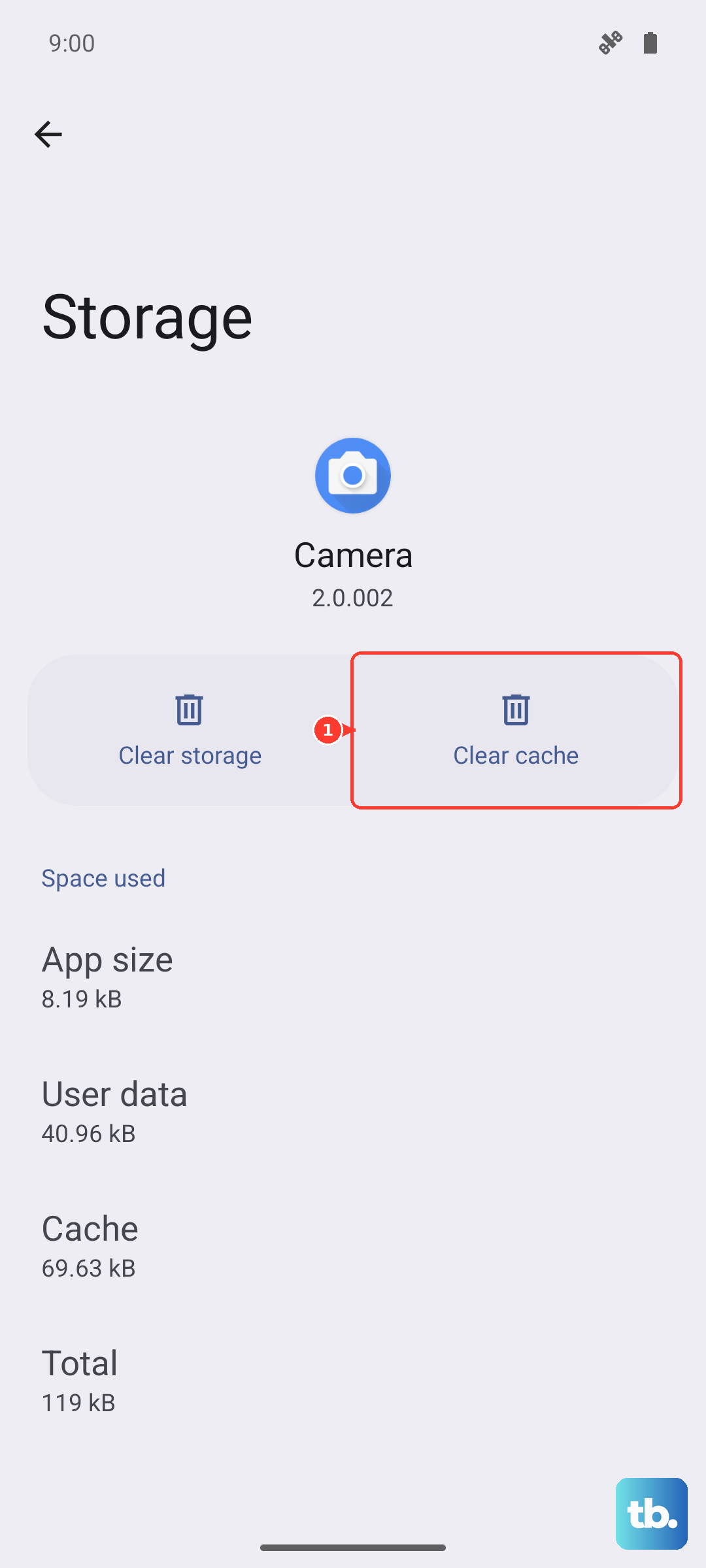
If the problem persists, you can tap Clear storage or Clear data. Warning: this will reset the app to its default state, so you may need to log back in and reconfigure some settings, but your account data is safe in the cloud.
Check Notification History
Android has a handy log to see if notifications arrived but were silently dismissed. Go to Settings > Notifications > Notification history and toggle it on if it isn't already.
You can then look back at the last 24 hours. If you see the missing notification listed here, it means the system received it but something (like a Focus mode or a swipe) dismissed it. This helps you diagnose if it's a delivery or a display problem.
Update the Problem App
An outdated app version might have a bug affecting notifications. Open the Google Play Store, tap your profile icon, and go to Manage apps & device. Under "Updates available," see if the app in question is listed. Tap Update next to it.
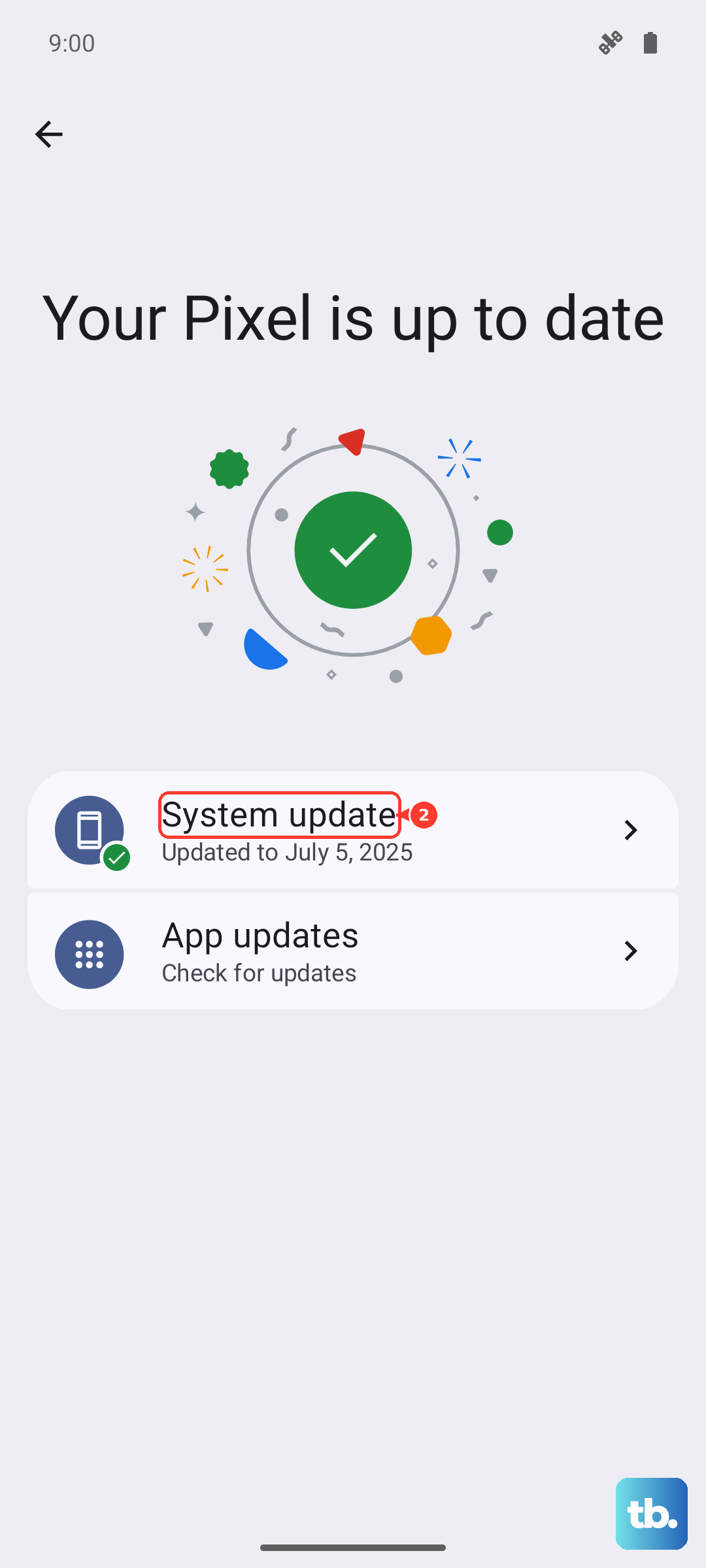
For system apps like Google Play Services, which handles many core functions, updates are crucial. Go to Settings > Security & privacy > System & updates > Google Play system update to check for a newer version.
Reset App Preferences
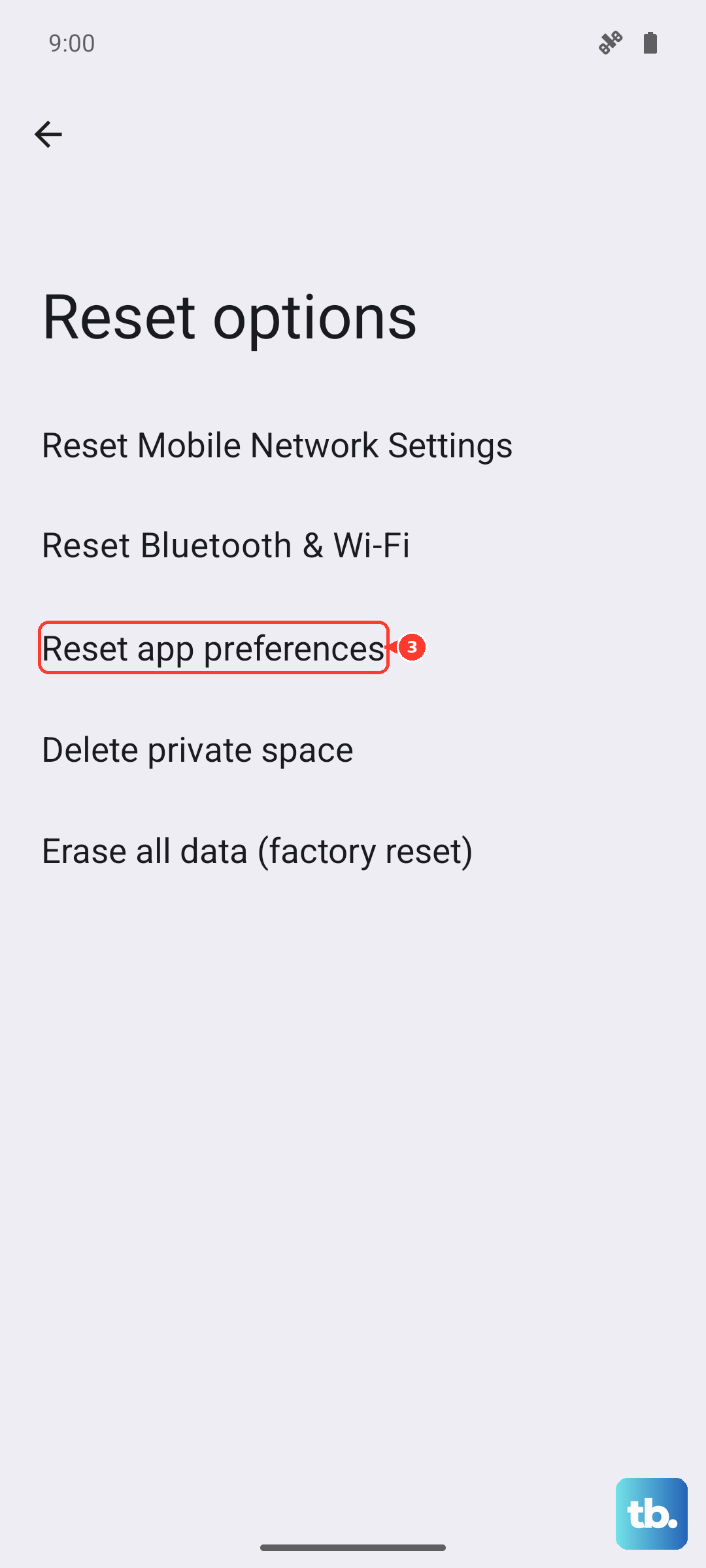
This resets all your app permissions, notification settings, and default app assignments without deleting any personal data. It's a broad but effective fix for system-wide notification weirdness.
Navigate to Settings > System > Reset options. Tap Reset app preferences and confirm. You'll need to re-grant permissions like microphone or location when apps ask for them again, and re-enable notifications for your key apps.
Disable Battery Saver Mode
Battery Saver severely limits background activity to conserve power, which will stop most notifications. Pull down the Quick Settings shade and make sure the Battery Saver icon isn't active. You can also go to Settings > Battery > Battery Saver to turn it off and check its schedule.
If you need Battery Saver on but can't miss alerts from a specific contact, look into using Adaptive Connectivity settings or whitelisting apps as "Unrestricted" in their battery settings as mentioned earlier.
Review Digital Wellbeing & Parental Controls
Features meant to help you disconnect can sometimes be too effective. Open the Digital Wellbeing app or find it in Settings. Check the Focus mode and Bedtime mode schedules to ensure they aren't active during your daytime hours.
Also, go to Settings > Digital Wellbeing & parental controls > Parental controls. If any are set up, they might include rules that block notifications during certain times.
Ensure Network Connectivity is Stable
The Tensor G4 modem in the Pixel 9 Pro, while capable, can sometimes struggle with maintaining a consistent data connection compared to some rivals, especially in weaker signal areas. Notifications need a stable data link (Wi-Fi or mobile) to come through instantly.
Try toggling Airplane mode on and off from the Quick Settings to reset your radio connections. If you're on Wi-Fi, try forgetting and reconnecting to the network. For mobile data, ensure it's enabled in Settings > Network & internet > Internet.











