
When your Google Pixel 9 Pro stops ringing, it's easy to miss important calls without ever knowing. This can stem from a simple toggle you accidentally enabled or a deeper network hiccup, especially with the Tensor G4 modem's known performance quirks. I'd start with the quick checks below, as they resolve the majority of these silent phone issues.
Start With These Quick Checks
First, pull down the Quick Settings shade from the top of your screen twice and make sure the Airplane Mode icon isn't lit up. If it is, tap it to turn it off. A simple force restart can clear temporary glitches; just press and hold the Power button for about 30 seconds until you see the Google logo.
Also, check your signal bars. If you're down to one or none, try moving to a different location. The Pixel 9 Pro's modem can struggle in weak signal areas compared to some rivals, so this is a common culprit.
Review Your Do Not Disturb and Focus Modes
Android 15's Focus modes are powerful but can easily block calls. Swipe down and tap the Do Not Disturb or your active Focus mode tile to see its settings. Tap into the settings and ensure "Calls" are allowed, or that your favorite contacts are set as exceptions.
You can also check this in Settings > Notifications > Do Not Disturb. Look at the "Allowed people" section to make sure calls aren't being silenced across the board.
Check for Call Blocking and Spam Filters
Google's spam protection is great, but it can sometimes be overzealous. Open your Phone app, tap the three-dot menu in the top right, and go to Settings > Spam and Call Screen.
Here, you can see if "Call Screen" is set to automatically screen suspected spam calls, which might delay or block them. Also, tap "Blocked numbers" to review your list and unblock any numbers you need to receive calls from.
Verify Your SIM Card and Network
A loose or faulty SIM card is a classic reason for call problems. Grab the SIM ejector tool that came with your Pixel and pop out the tray. Remove the SIM, give the gold contacts a gentle wipe with a soft cloth, and reseat it firmly.
If you see "Emergency calls only" or no signal, contact your carrier from another phone. They can check for outages, ensure your account is active, and sometimes reprovision your line on their network, which often helps.
Disable Any Active Call Forwarding
Call forwarding could be sending your calls straight to voicemail without your knowledge. To check, open the Phone app, tap the three-dot menu, and go to Settings > Calling accounts > [Your Carrier].
Look for "Call forwarding" in the menu. Tap it and make sure all options, like "Always forward" or "When busy," are set to "Turn off" or your carrier's default number.
Reset Your Pixel's Network Settings
This clears out any corrupted network configurations that might be preventing calls. Go to Settings > System > Reset options. Tap "Reset Wi-Fi, mobile & Bluetooth."
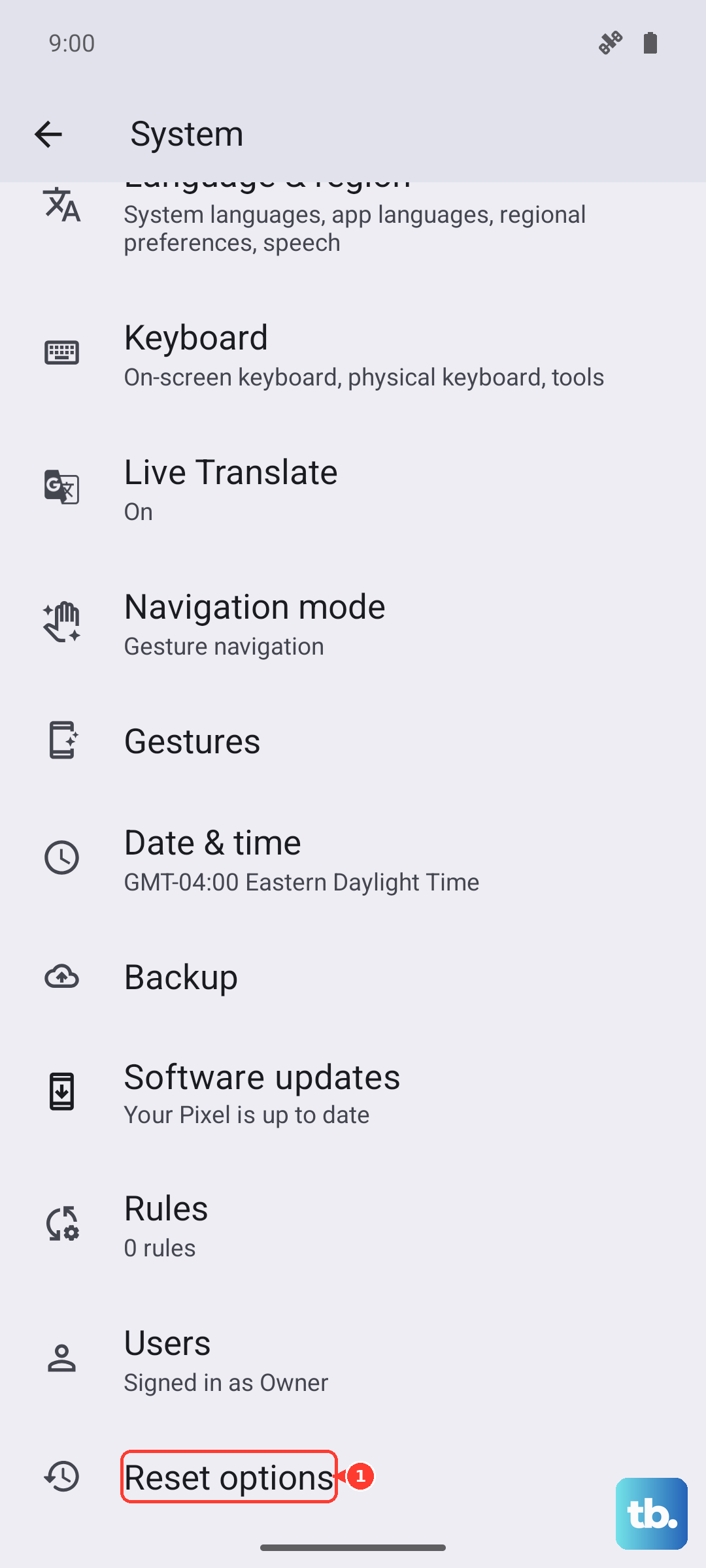
Remember, this will erase all saved Wi-Fi passwords, Bluetooth pairings, and custom network preferences, so you'll have to reconnect to everything afterward. It's a clean slate for your network connections.
Update Your Pixel 9 Pro Software
Google frequently releases updates that fix connectivity bugs. Go to Settings > System > System update and tap "Check for update." If an update is available, install it while your phone is connected to Wi-Fi and charging.
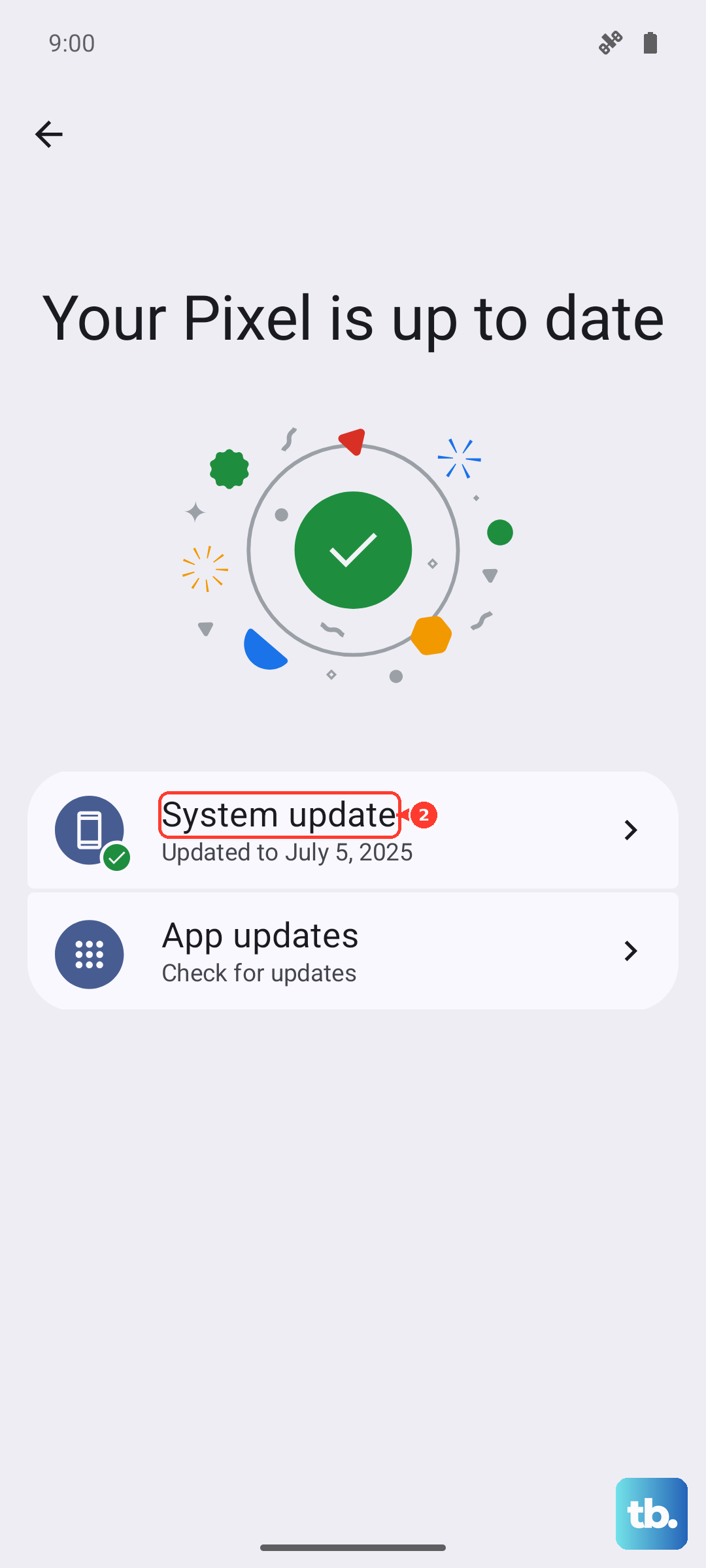
Keeping your phone on the latest Android 15 build is crucial, as updates often include stability improvements for the modem and calling system.
Clear the Phone App's Cache and Data
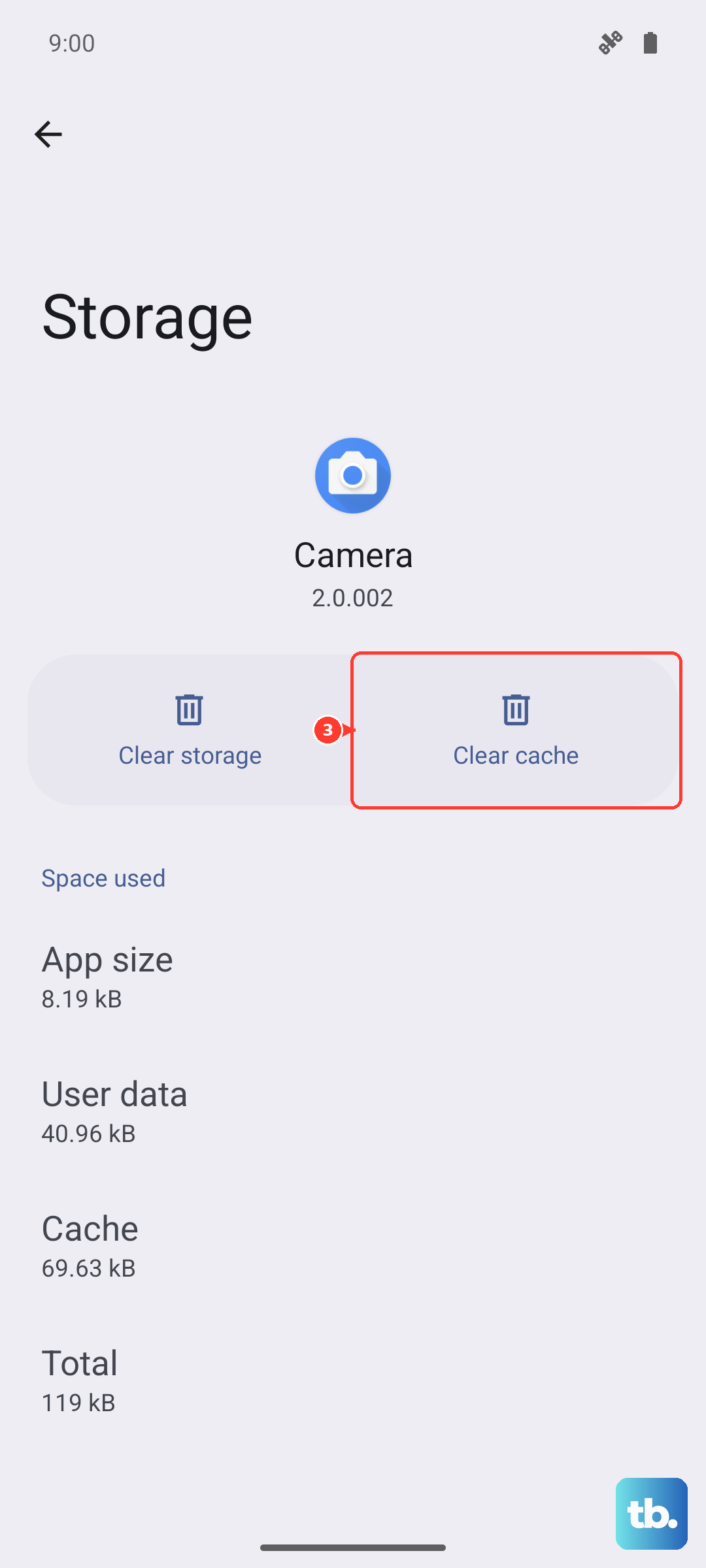
Sometimes the Phone app itself gets bogged down with bad data. Go to Settings > Apps > See all apps. Find and tap "Phone" in the list, then select Storage & cache.
Tap "Clear cache" first. If the problem persists, you can try "Clear storage" or "Clear data." This will reset the app to its default settings, so you may lose your call history and any custom settings within the app.
Check for Problematic Third-Party Apps
An app with call or contact permissions could be interfering. Think about any apps you installed around the time the problem started, especially call recorders, dialers, or heavy battery savers.
You can boot your Pixel 9 Pro into Safe Mode to test. Hold the Power button, then tap and hold the "Power off" icon on-screen until you see the Safe Mode prompt. In Safe Mode, if calls work, a third-party app is likely the cause. You'll need to uninstall apps one by one to find the culprit.
Try a Network-Specific SIM Swap or Reset
If you're still stuck, a visit to your carrier's store can be the fastest fix. They can test your SIM card in another device and give you a new one if it's faulty. This is often more effective than troubleshooting at home.
As a very last step, you could consider a factory reset via Settings > System > Reset options > Erase all data (factory reset). Back up everything important to Google Drive first, as this will wipe your phone completely. This rules out any deep-seated software corruption.