
Seeing that dreaded "No Service" or empty signal bars on your Pixel 9 Pro is a real headache. You're suddenly cut off from calls, texts, and mobile data. The good news is that most of the time, this is a temporary glitch you can fix yourself in a few minutes.
I'd start with the simplest fix first. Grab your Pixel 9 Pro and press and hold the Power button for about 30 seconds. Keep holding it even after you see the power menu or the screen goes black. The phone will eventually force a restart on its own.
This clears out any temporary software bugs that might be hanging up the modem, which is the chip that handles your cellular connection. It's the single most effective first step for any sudden signal loss.
Check Your Physical Connection and Location
Before diving into settings, rule out the obvious. First, check if you're in an area with known poor coverage, like a basement, a concrete building, or far out in the countryside. Your status bar is the quickest indicator.
Next, power down your phone and pop out the SIM card tray using the ejector tool that came in the box. Give the gold contacts on the SIM card a quick look and a gentle wipe with a soft, dry cloth. Reinsert the SIM carefully until the tray clicks firmly into place, then power the phone back on.
It's also worth a quick check to see if your mobile carrier is experiencing a widespread outage. You can visit their website's status page or check social media like X (formerly Twitter) for reports from other users in your area.
Toggle Your Connection States
Sometimes the phone's radio just needs a nudge. Swipe down twice from the top of your screen to open the full Quick Settings panel. Look for the Airplane Mode icon and tap it to turn it on. Wait about 10 seconds, then tap it again to turn it off.
This forces your phone to completely disconnect from and then reconnect to all wireless networks, which can shake loose a stuck connection. While you're there, also try turning Mobile Data off and back on using its toggle.
For a more targeted refresh, go into your settings. Open the Settings app, tap Network & internet, then tap Internet. Find your mobile network in the list and tap the settings gear icon next to it. Tap the switch to turn it off, wait a moment, and turn it back on.
Update Your Access Point Name (APN)
Your APN is like the address your phone uses to find your carrier's network. If these settings are wrong or corrupted, you won't get service. To check them, go to Settings > Network & internet > SIMs.
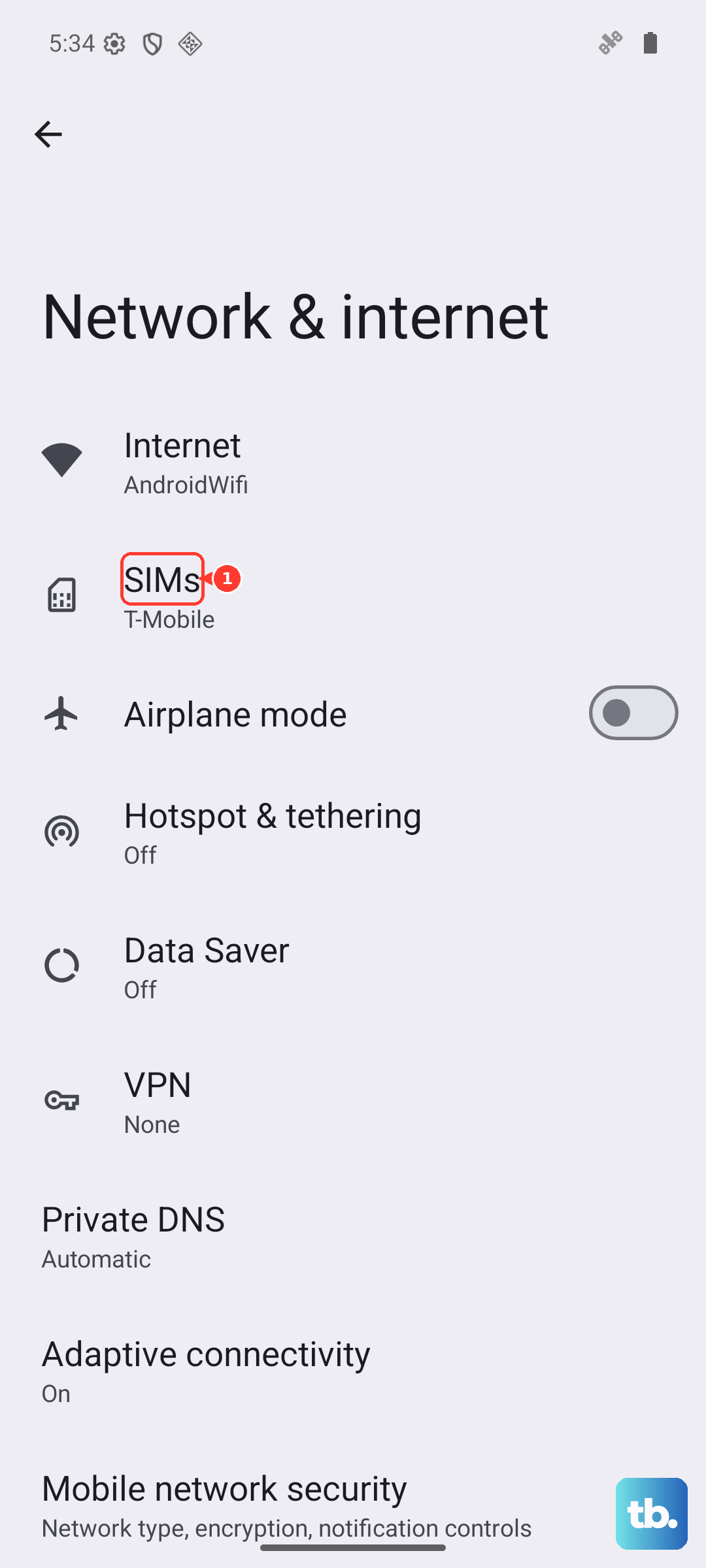
Tap on your active SIM, then scroll down and tap Access Point Names. You should see a list, usually with one selected. The safest move here is to tap the three-dot menu in the top right and select Reset to default.
If that doesn't populate the correct settings, you'll need to get them directly from your carrier. You can usually find them on the carrier's support website by searching for "APN settings," or you can call their customer service. You'll manually enter details like the APN name, MMSC, and APN type.
Reset Your Network Settings
This is a more thorough step that clears all your network-related configurations without touching your personal photos or apps. It will forget all your saved Wi-Fi networks and passwords, unpair Bluetooth devices, and reset your mobile network settings to factory defaults.
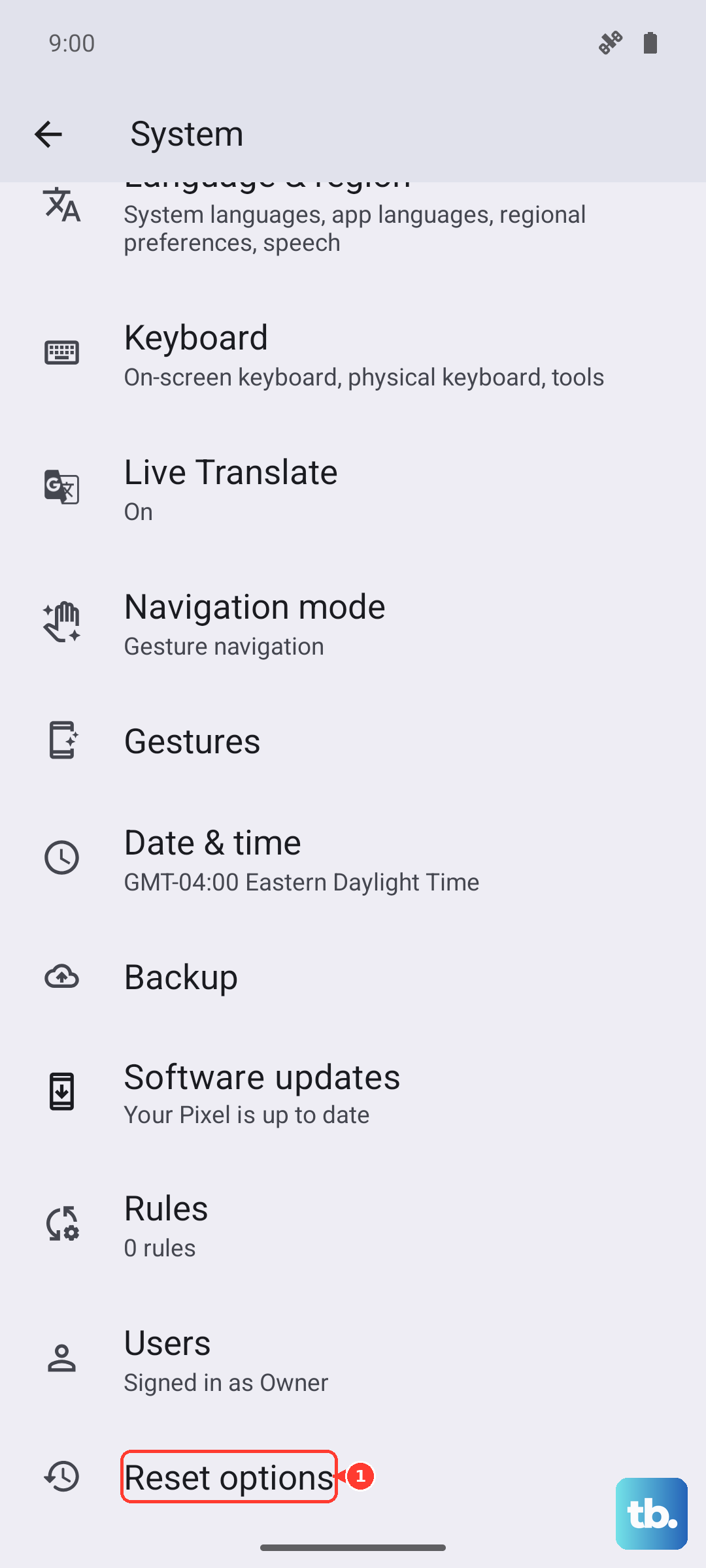
To do this, open Settings and go to System > Reset options. On this menu, tap Reset Wi-Fi, mobile & Bluetooth. You'll be asked to confirm your PIN or pattern, and then the phone will restart. After it boots up, you'll need to reconnect to Wi-Fi and re-pair any Bluetooth accessories.
Check for a Software Update
Google is consistently releasing updates for Pixel phones that fix bugs and improve performance, including modem stability. An outdated system could be the culprit behind your signal woes.
Go to Settings > System > System update. Tap Check for update. If an update is available, especially one labeled with the current month's security patch, download and install it. Make sure your phone is connected to Wi-Fi and has at least a 50% charge before starting the update.
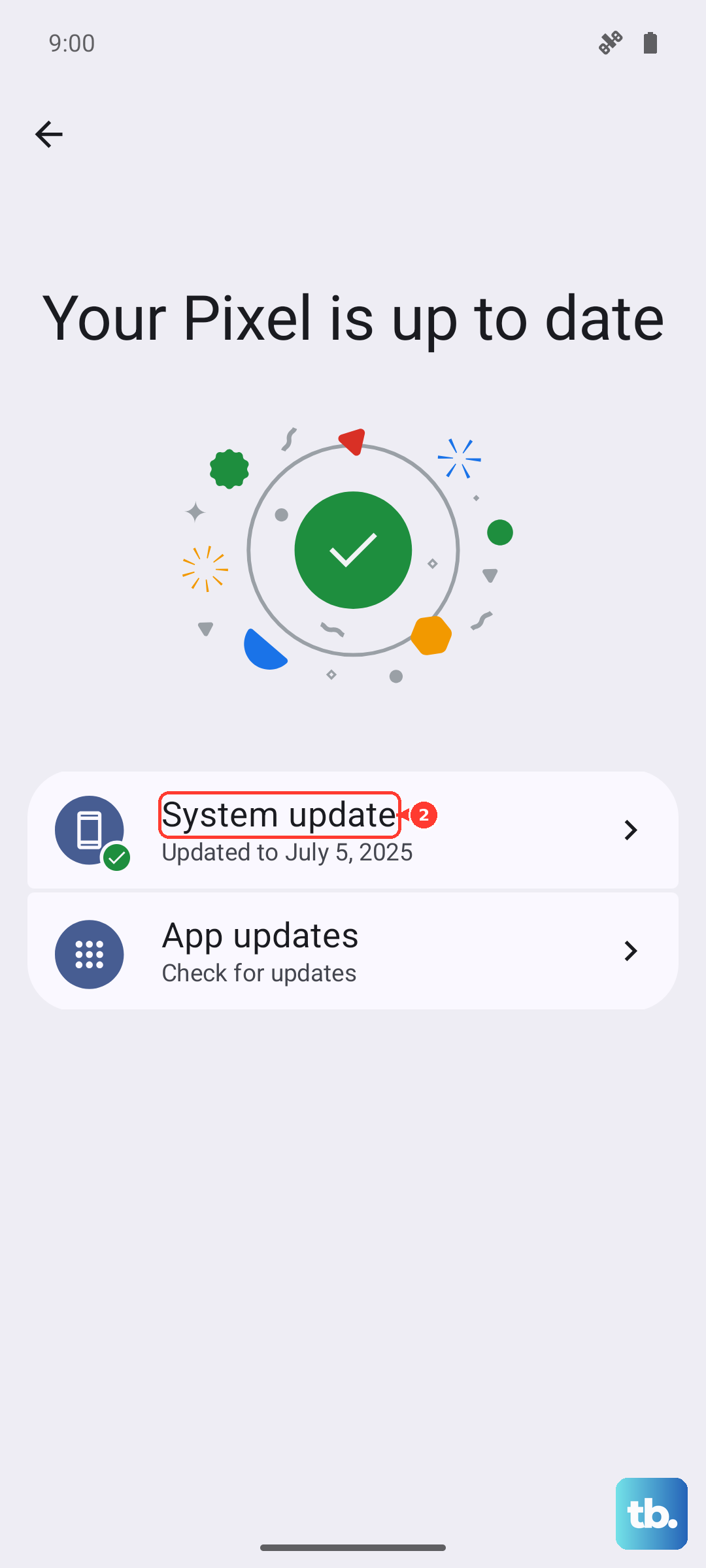
After the update installs and your phone restarts, give it a minute to re-establish a cellular connection. Major Android version updates (like from Android 15 to 16) can sometimes require this extra moment.
Use the Phone Information Menu
Android has a hidden diagnostic menu that lets you see the raw state of your radio. Open your Phone app and dial *#*#4636#*#*. This will automatically open the Testing menu.
Tap Phone information. Here, you can see detailed data about your network. Look for a dropdown menu labeled Set preferred network type. Try changing it to a different standard, like NR/LTE/GSM/WCDMA, then back to NR/LTE.
You'll also see a toggle for Radio power. You can try turning the radio off, waiting a few seconds, and turning it back on. This is a more direct version of toggling Airplane Mode. When you're done, just back out of the menu; your changes will be applied.
Review Your SIM and Account Status
If you're still without service, the issue might be with the SIM card itself or your carrier account. The easiest test is to take your SIM card and put it into another unlocked phone. If that phone also gets no service, the problem is with the SIM or your account.
Contact your carrier's support. They can check if your line is active, if there's an unpaid bill suspending service, or if the SIM card has been deactivated. They can also run a network refresh on their end for your specific line, which often helps.
If the SIM is old or damaged, they can issue you a new one. Many carriers now offer eSIM activation for the Pixel 9 Pro, which is a digital SIM that eliminates any physical connection issues entirely. You can set this up in Settings > Network & internet > SIMs > Add a carrier.
Consider the Tensor G4 Modem
It's worth noting that some users have reported the Tensor G4 modem in the Pixel 9 Pro can be less robust in very weak signal areas compared to some phones with Qualcomm modems. If you're consistently in a low-coverage zone, this might be a contributing factor.
In these situations, making sure Wi-Fi Calling is enabled can be a huge help. Go to Settings > Network & internet > SIMs > [Your SIM] and turn on Wi-Fi Calling. This allows calls and texts to route over any Wi-Fi network you're connected to.
Also, be mindful that the phone can get warm during intensive tasks. While this is normal, extreme heat can affect all components, including the modem. If the phone is hot and has no service, let it cool down in a shaded place, then try the force restart again.
Perform a Factory Reset
This is your last resort before seeking hardware repair. A factory reset wipes the phone back to its original out-of-the-box state, eliminating any deep-seated software corruption. You must back up everything important first using Google One or by manually transferring files to a computer.
To start, go to Settings > System > Reset options > Erase all data (factory reset). You'll be guided through several confirmation screens. After the reset, set up the phone as new initially, without restoring a backup, to see if the signal returns on a clean system.
If your Google Pixel 9 Pro still shows no service after a factory reset, the issue is likely hardware-related. This could be a faulty antenna connection or a problem with the modem itself. At this point, you would need to contact Google Support or an authorized repair center for further diagnosis.