
When your headphones stop working with your Google Pixel 9 Pro, it can ruin your music, calls, and videos. The phone might not detect them at all, send sound to the speaker, or play audio that's crackly and distorted. Let's get your audio back on track.
A browser based quick headphone test makes this easy to confirm. If both sides play test tones correctly there, the headphones are fine and the problem is in the device or app.
Restart Your Pixel 9 Pro
This is the quickest fix for a lot of weird software glitches, including audio problems. Press and hold the Power button for about 30 seconds, until you see the Google logo appear and the phone restarts. I've found this clears up temporary audio routing issues more often than not.
Check the Physical Connection and Volume
If you're using wired headphones, make sure the USB-C plug is fully inserted into the port. For wireless models, ensure they have enough battery. Then, press the volume up button on the side of your Pixel to make sure the media volume isn't turned all the way down. You can also check the on-screen slider.
Clean the USB-C Port
Lint and pocket debris are the enemies of the USB-C port. If your wired headphones aren't being detected, this is a very common culprit. Gently use a wooden toothpick or a soft-bristled brush to clean out the port. Avoid using anything metal that could damage the contacts inside.
Forget and Re-Pair Your Bluetooth Headphones
Go to Settings > Connected devices. Tap on the name of your headphones, then tap the gear icon (or "Settings" next to them). Select Forget. Put your headphones back into pairing mode, then find and select them again in your Pixel's Bluetooth list. A fresh pairing often solves connection problems.
Check the Audio Output Selection
Sometimes your Pixel sends sound to the wrong place. When media is playing, pull down the notification shade twice and look at the media player widget. Tap the small device icon next to the play button. A menu will pop up showing all available outputs; make sure your headphones are selected here, not the phone speaker.
Toggle Bluetooth Off and On
A simple refresh of the Bluetooth radio can work wonders. Swipe down from the top of your screen to open the Quick Settings panel and tap the Bluetooth icon to turn it off. Wait about ten seconds, then tap it again to turn it back on. Try reconnecting your headphones afterward.
Check for App-Specific Audio Issues
If the problem only happens in one app, like YouTube or Spotify, the issue might be there. Force close the app by swiping it away from the recent apps overview. Then, check the app's own settings for any audio or playback options. Clearing the app's cache in Settings > Apps can also help.
Update Your Pixel's Software
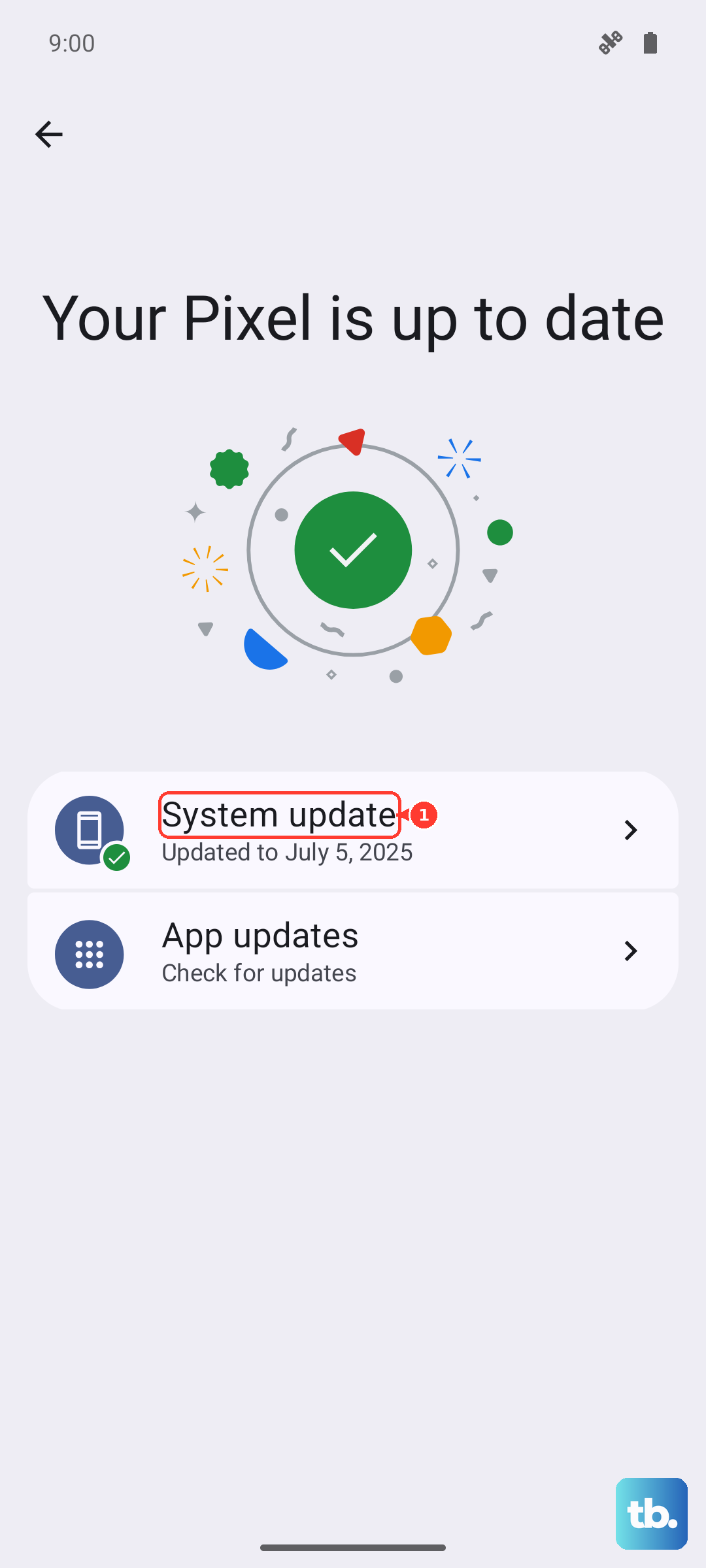
Google frequently releases updates that fix bugs, including audio and Bluetooth issues. Go to Settings > System > System update and tap "Check for update." If an update is available, install it. Keeping your Pixel 9 Pro on the latest available version of Android is one of the best ways to ensure stability.
Reset Your Bluetooth and Network Settings
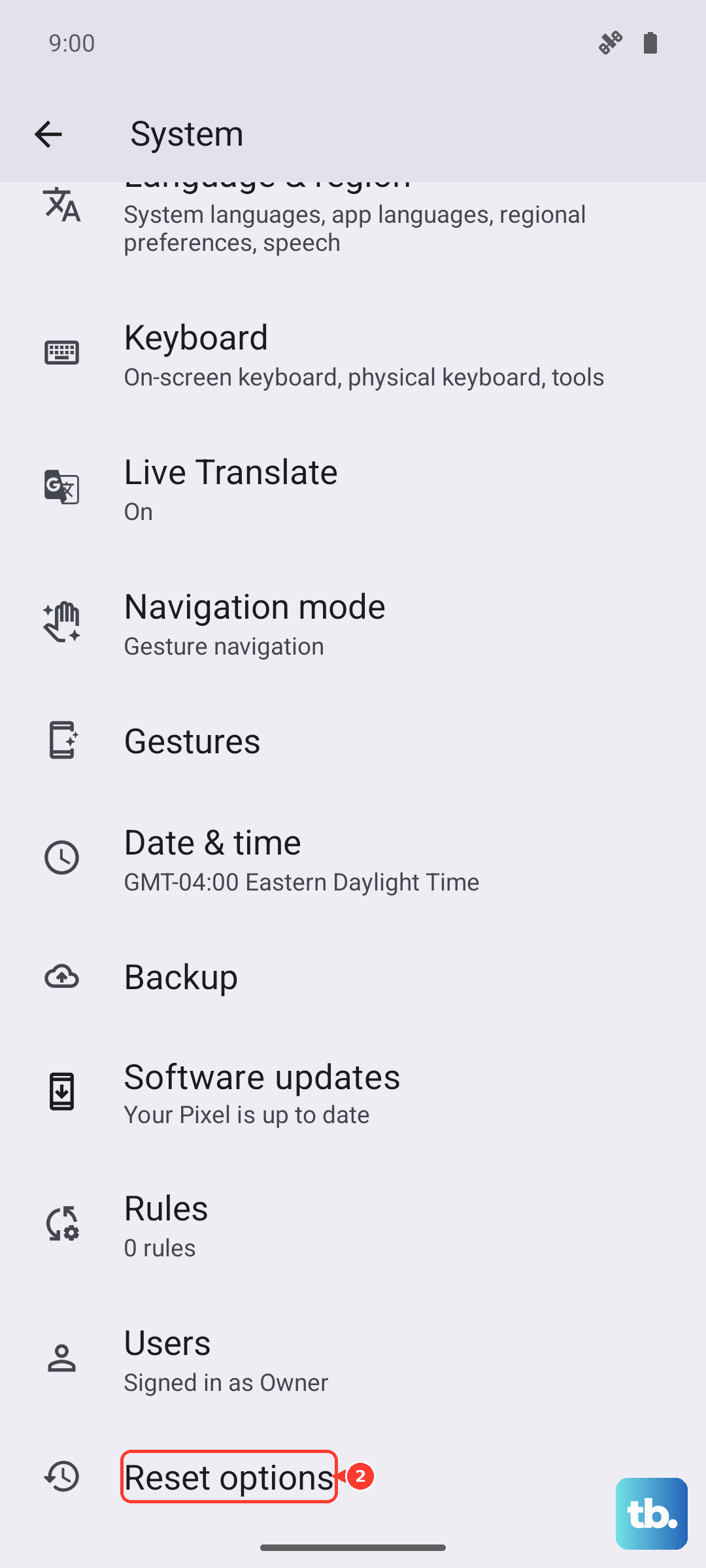
This is a more thorough step than just toggling Bluetooth. Navigate to Settings > System > Reset options. Tap on Reset Wi-Fi, mobile & Bluetooth. This will erase all saved networks and Bluetooth pairings, so you'll need to reconnect to your Wi-Fi and headphones afterward. It resolves deeper configuration conflicts.
Check for Stuck Headphone Mode
If your Pixel shows a headphone icon in the status bar when nothing is plugged in, the phone's audio system is confused. First, clean the USB-C port very thoroughly. Then, try plugging and unplugging a wired headset a few times. If the ghost icon remains, the restart or network reset mentioned earlier usually clears it up.