
A frozen Google Pixel 9 Pro is incredibly frustrating. The screen might be stuck on an app, the lock screen, or just a black screen that won't respond to taps or swipes. In my experience, this is almost always a temporary software hiccup that you can resolve without losing any of your photos or data.
Force Restart Your Pixel 9 Pro
This is the go-to fix for a completely unresponsive phone. Simply press and hold the Power button for about 30 seconds. Don't let go when you feel the vibration or see the screen flash. Keep holding until you see the Google logo appear, which signals the phone is restarting. This process doesn't erase any of your personal information.
Give It a Moment to Process
Your Pixel might seem frozen when it's actually just working hard in the background. This can happen after a major system update, while it's processing a lot of photos with Magic Eraser, or if an app is stuck. If the back of the phone feels warm, that's a clue it's still active. I'd wait a solid five to ten minutes before trying a force restart.
Plug It Into a Charger
A battery that's completely drained can cause the phone to become unresponsive. Grab your USB-C cable and a reliable charger. For the fastest charge, use a compatible 27W or higher USB-PD charger. Plug it in and leave it for at least 20 minutes before you try turning it on again. The phone needs a basic charge to even begin the restart process.
Close the Problem App
If your home screen and other apps work, but one specific app is frozen, you can force close it. Swipe up from the bottom of the screen and hold to enter the recent apps view. Find the frozen app's preview and swipe it all the way to the top of the screen to close it. You can then relaunch it from your app drawer. If the same app keeps freezing, check for updates in the Google Play Store.
Check Your Available Storage
When your phone's storage is critically full, the system has no room to create temporary files it needs to run, which can lead to freezing. If you can get into your settings, go to Settings > Storage. Look for large files or apps you don't use. Try to free up at least 5GB of space to give the system some breathing room and prevent future issues.
Install the Latest Android Update
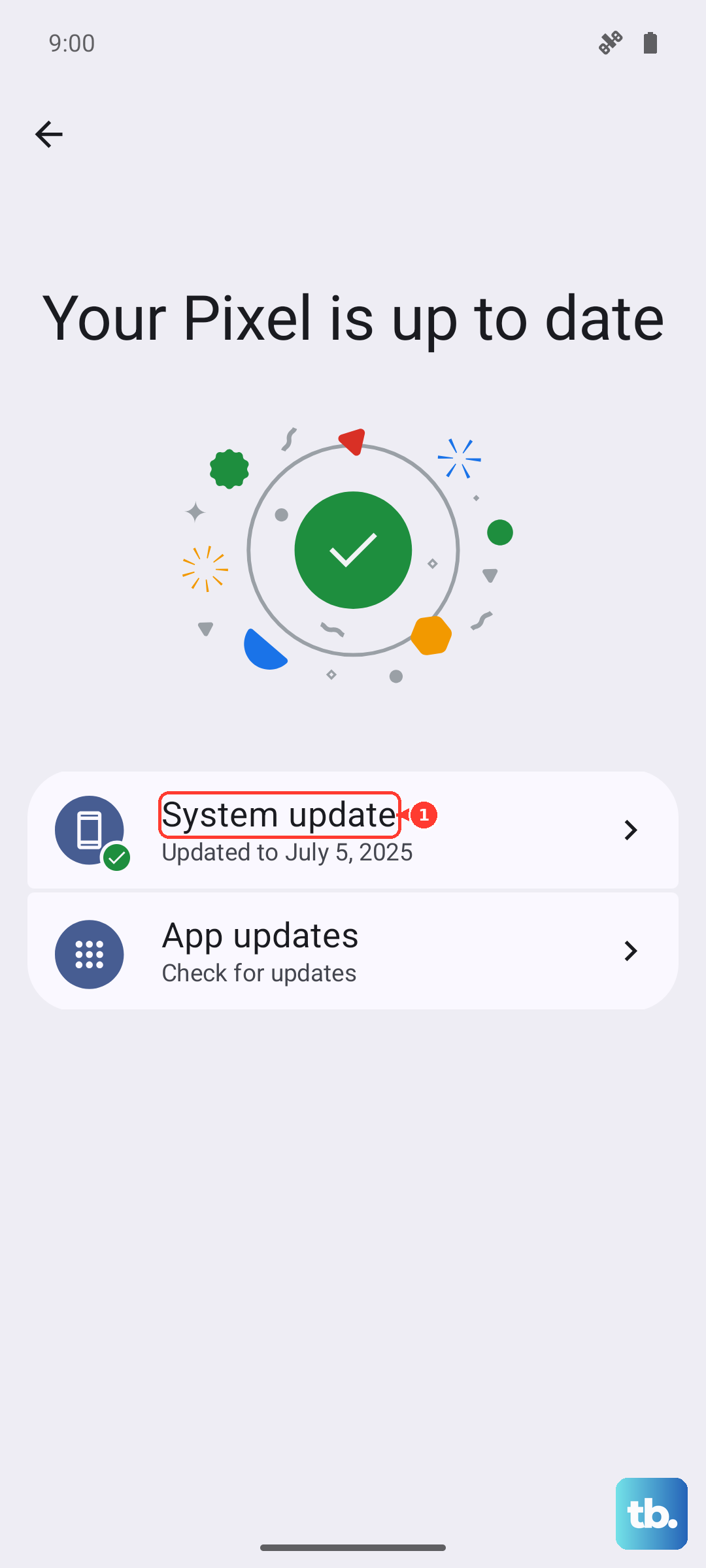
Software bugs that cause freezing are often patched in updates. After you've restarted your phone, go to Settings > System > System update and tap "Check for update." Install any available update. If your phone freezes during the update process itself, you may need to use a computer to reinstall the software.
Reset Your App Preferences
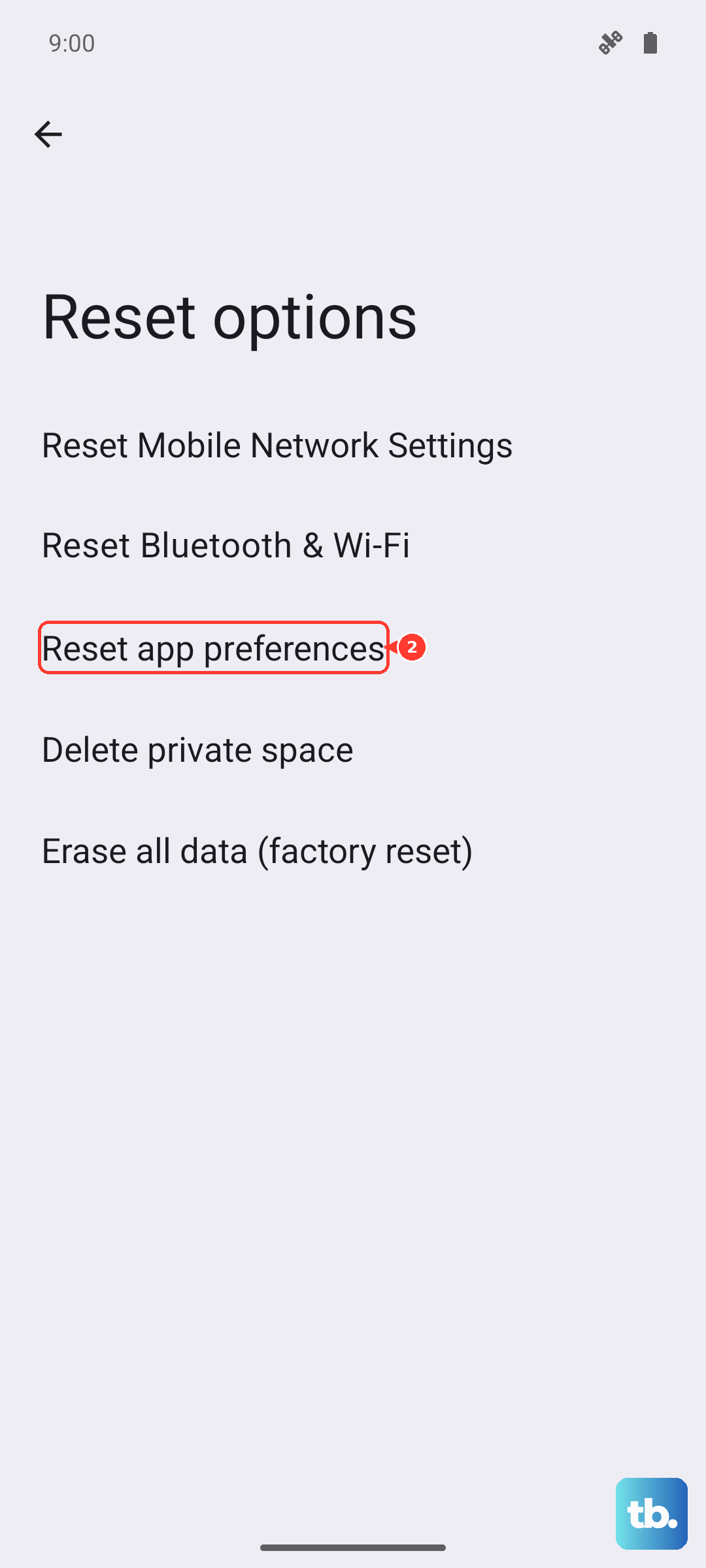
Corrupted settings for your default apps or permissions can sometimes cause instability. You can reset these without touching your personal data. Go to Settings > System > Reset options > Reset app preferences. This will reset disabled apps, notification settings, and default app assignments, which can clear up the issue.
Reinstall Software via Computer
For a phone that won't restart normally, you'll need to use a computer. First, install Android Flash Tool on a Chrome browser or use the Android SDK Platform-Tools. Connect your powered-off Pixel to the computer with a USB-C cable, then boot it into Recovery Mode by holding Power + Volume Down. From the menu, use the volume keys to select "Recovery mode" and press the power button. You can then choose to sideload an update, which attempts to repair the software without a full wipe.
Let an Overheated Phone Cool Down
The Tensor G4 chip in the Pixel 9 Pro can get warm during intensive tasks like extended video recording or gaming. As a protective measure, the phone will throttle performance or freeze if it gets too hot. If the device is warm to the touch, take it out of its case, move it out of direct sunlight, and stop charging it. Let it sit for 15-20 minutes to cool down before trying to use it again.