
A blurry camera on your Pixel 9 Pro can ruin a perfect shot, making everything look soft or out of focus. The issue might be with the main sensor, the telephoto lens, or only appear in certain lighting. Before you worry about a hardware defect, work through these solutions.
Clean the Camera Lenses
Start with the simplest fix. Gently wipe the camera bar on the back of your Pixel 9 Pro with a soft, lint-free microfiber cloth. Fingerprints, dust, or a bit of pocket lint on any of the lenses will cause haze and blur in your photos. Avoid using your shirt or rough paper towels, as they can scratch the lens coating over time.
Remove Your Phone Case
Some cases, even well-designed ones, can interfere with the camera system. The cutout might be slightly misaligned or the case material itself could be reflecting light back onto the lens. Take the case off and snap a test photo. If the image is sharper, you've found your culprit.
Use Tap to Focus
Open the Camera app and tap directly on your subject on the screen. You'll see a focus ring appear. The phone's AI might be focusing on the background or a different part of the scene, especially in complex shots. Tapping tells it exactly where to focus. You can also press and hold on the screen to lock focus and exposure.
Switch Between Camera Lenses
Your Pixel 9 Pro has multiple lenses. If blur is only happening at one zoom level, the issue might be isolated to that specific sensor. In the Camera app, tap the zoom options (like 0.5x, 1x, or 5x) to switch lenses. If the 5x telephoto is blurry but the main 1x lens is sharp, you know the problem is specific to that telephoto module.
Force Close the Camera App
Swipe up from the bottom and hold to enter the app overview. Find the Camera app and swipe it all the way up to close it. Then, reopen it and try focusing again. A temporary software glitch can cause the autofocus motors or image processing to malfunction, and a fresh start often clears it right up.
Restart Your Pixel 9 Pro
If closing the app didn't help, a full restart is the next step. Press and hold the Power button for about 30 seconds, until you feel a vibration and see the Google logo. This reboots the entire system, including the camera hardware drivers, which can resolve deeper software hiccups.
Check for Software Updates
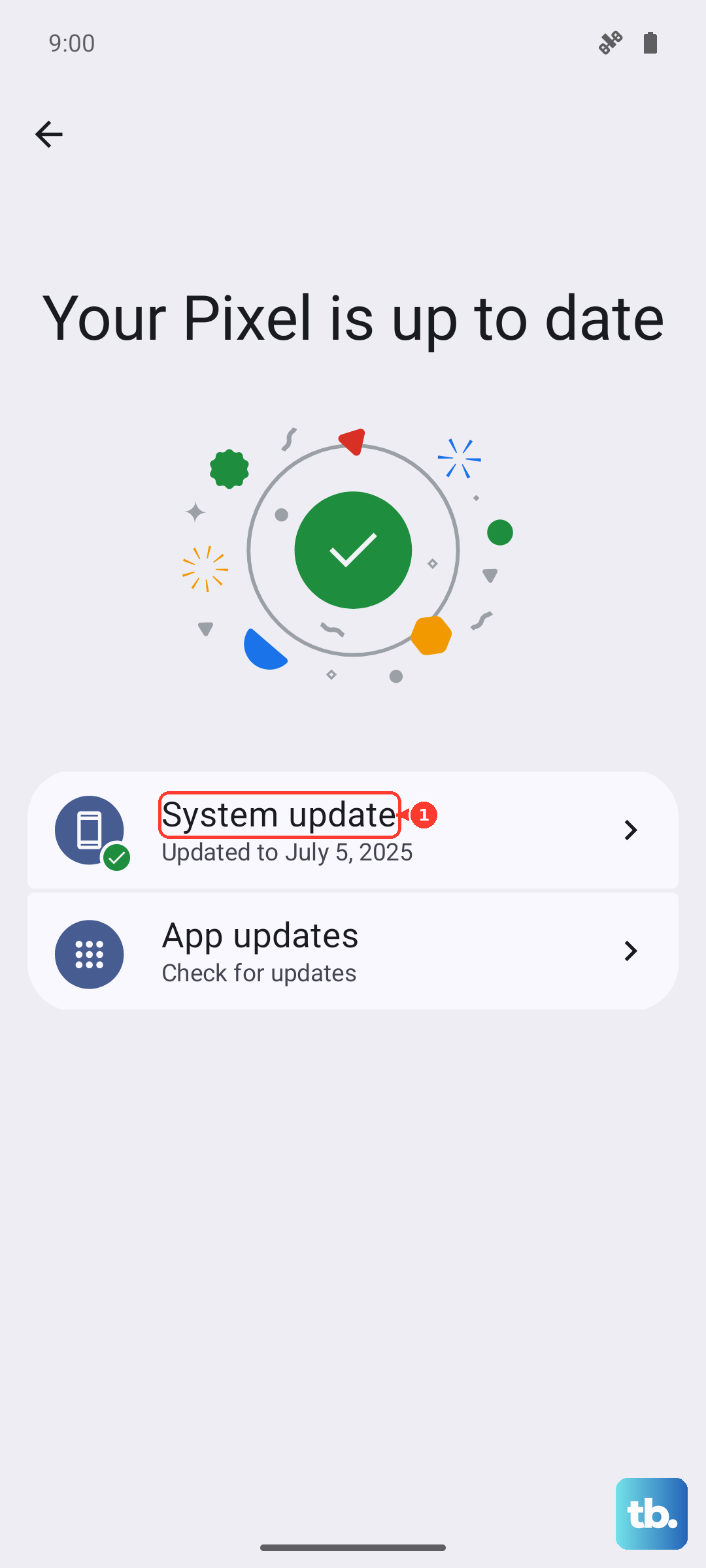
Google frequently releases updates that improve camera performance and fix bugs. Go to Settings > System > System update and tap "Check for update." Installing the latest Android security patch or feature drop could include a fix for a focusing issue you're experiencing.
Clear the Camera App's Cache
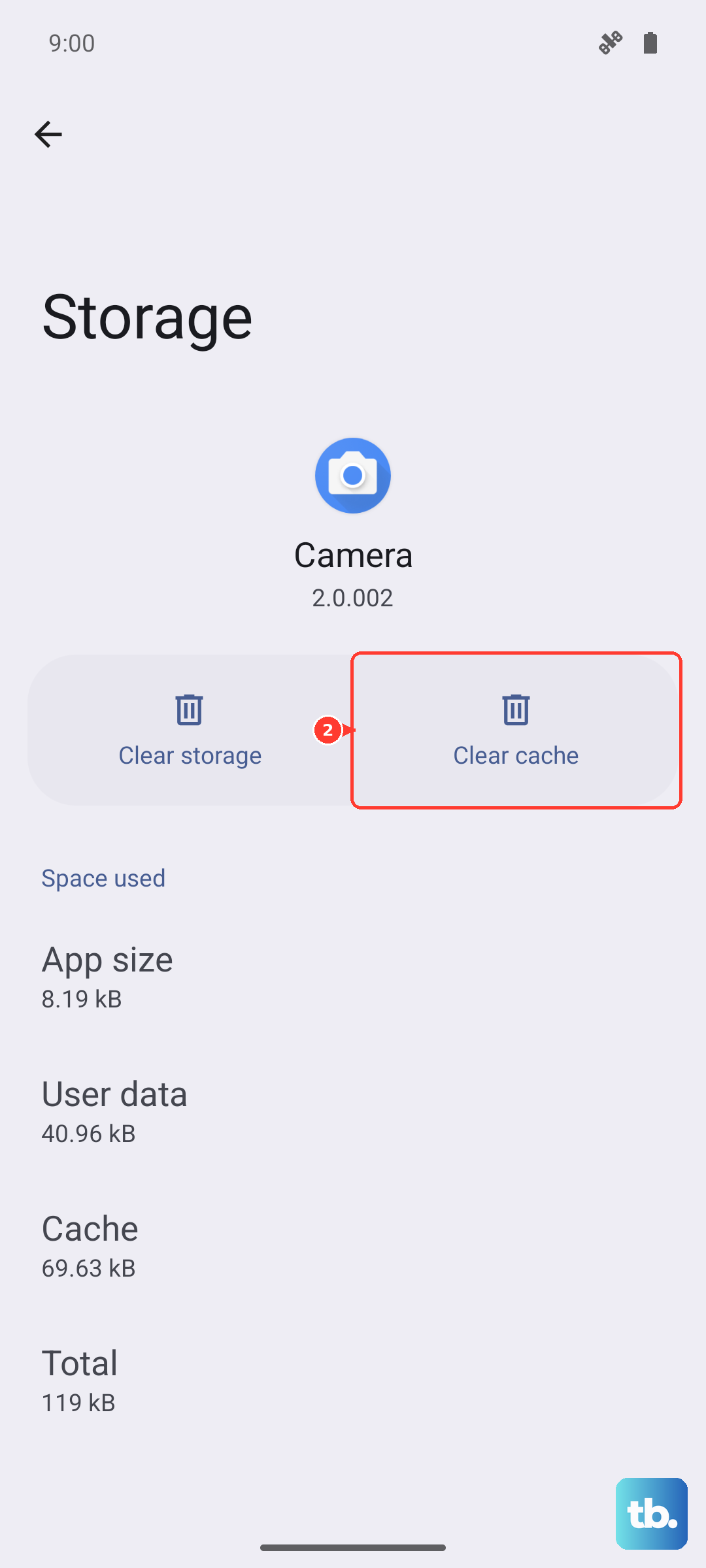
Corrupted temporary data can cause odd behavior. Go to Settings > Apps > See all apps. Find and tap "Camera," then select Storage & cache. Tap "Clear cache." This won't delete any of your photos, but it will reset the app's temporary files, which can stabilize performance.
Disable Advanced Features Temporarily
The Pixel's computational photography is powerful, but in some scenarios, it might struggle. Open the Camera app and tap the settings gear. Try turning off Top Shot or Motion photos for a moment. You can also switch to "Pro" mode if available, which gives you manual control over focus, to see if the issue is with the automatic processing.
Inspect for Physical Damage or Moisture
Look closely at the camera bar. Are there any cracks over the lenses or signs of impact? Also, moving from a cold environment to a warm one can cause condensation to form inside the lens housing, creating a permanent foggy look. Let the phone sit at room temperature for 20-30 minutes to see if it clears.
If you've tried all these steps and one specific lens remains consistently blurry, there may be a hardware fault with the optical image stabilization (OIS) mechanism or the sensor itself. I'd recommend focusing on using the other, working lenses for your photos in the meantime.