Is your Google Pixel 9 Pro stuck in one orientation and refusing to flip when you turn it sideways? It's a common hiccup where the auto-rotate feature just stops responding, leaving you manually switching modes for videos or photos.
The cause can be anything from a quick settings toggle to a deeper software glitch. Here are the most reliable ways to get your Pixel's screen rotation working smoothly again.
Toggle Auto-Rotate in Quick Settings
The absolute first thing to check is whether you've accidentally locked the rotation. Swipe down from the top of your screen twice to open the full Quick Settings panel. Look for the icon that looks like a phone with arrows circling it; this is the auto-rotate toggle.
If it's highlighted or says "Portrait," tap it. It should change to indicate auto-rotate is now active. I've found this solves the issue about half the time, as it's easy to bump this setting when pulling the phone from a pocket or bag.
Enable Home Screen Rotation
By default, the Pixel launcher doesn't rotate to landscape, even with auto-rotate on. If you want your home screen and app drawer to rotate, you need to dig into the settings. Open Settings and go to Display > Lock screen.
Here, you'll find an option for "Auto-rotate screen." Tap on it, not just the toggle next to it. Inside this menu, you should see a setting called "Rotate the home screen." Switch this on if you want your home screen to follow your phone's orientation.
Force Restart Your Pixel 9 Pro
If the toggle is correct but rotation is still frozen, a simple reboot can clear out temporary system bugs. Just press and hold the Power button until the power menu appears, then tap "Restart."
For a more thorough refresh, you can perform a force restart. This is different from a standard reboot and doesn't erase any data. Press and hold the Power button for about 30 seconds, until you feel the device vibrate and see the Google logo appear as it restarts.
Check for App-Specific Rotation Locks
Some apps, especially video players or games, have their own internal rotation settings that override the system. If rotation fails in one app but works everywhere else, the app itself is likely the culprit.
Open the app and look for a lock icon or a settings menu within it. Also, consider if you recently installed a new app before the problem started. Some utility or customization apps can interfere with sensor permissions.
Update Android and Your Apps
Since the Pixel 9 Pro now runs Android 16, Google is constantly pushing updates that fix bugs. A software glitch could be disabling your accelerometer. Go to Settings > System > System update to check for and install any available OS updates.
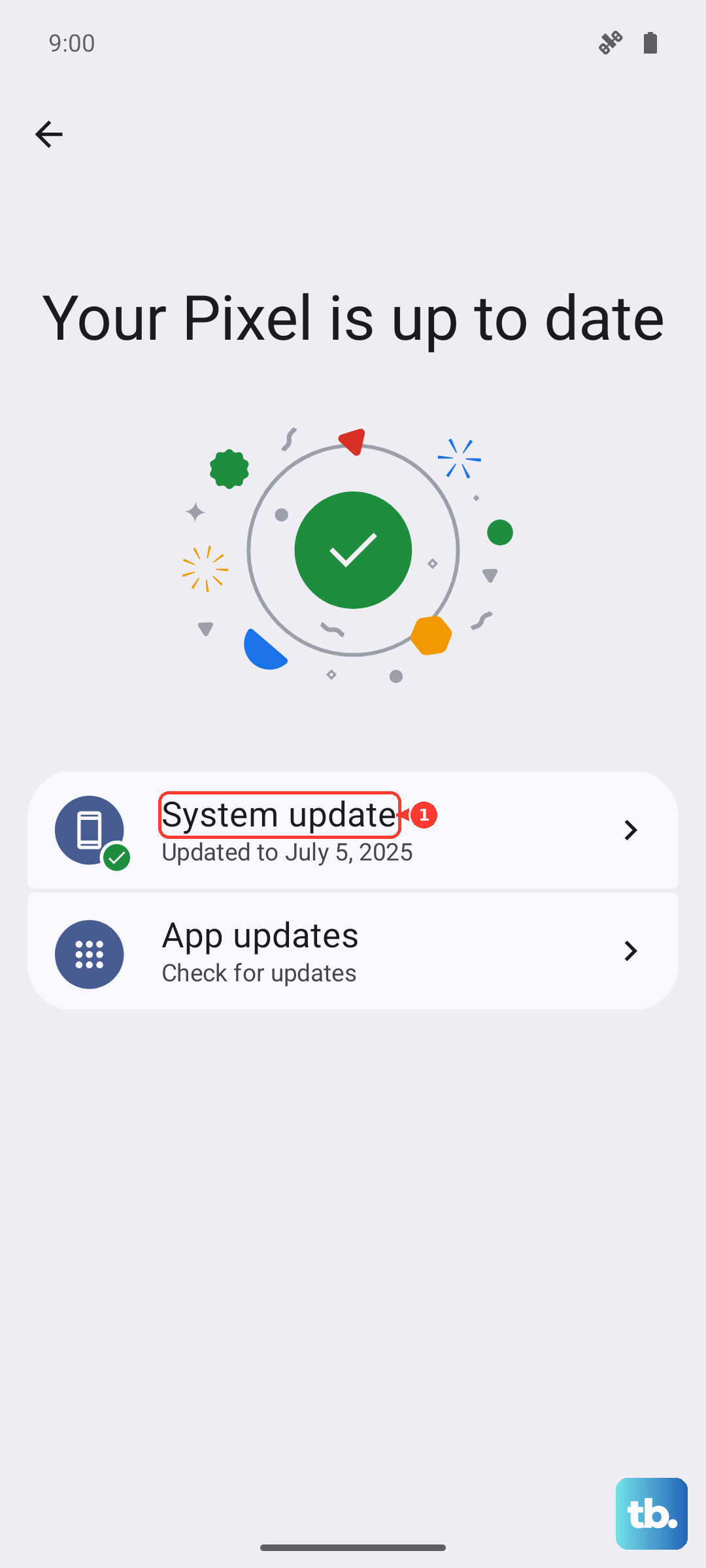
While you're there, head to the Play Store and update all your apps, too. An outdated app with a buggy full-screen implementation can sometimes cause rotation to stick.
Test Your Phone's Sensors
Auto-rotate depends on the accelerometer and gyroscope. You can test these hardware components directly. Open your Phone app and dial *#*#7287#*#*. This code opens the Pixel Diagnostics tool, a built-in hardware-testing suite.
Look for an option related to sensors or hardware tests. The menu can vary, but selecting a sensor test will usually show live data. Tilt and rotate your phone; if the values for X, Y, and Z axes change, your sensors are physically working.
Check for Physical Interference
This sounds simple, but it's worth noting. The Pixel 9 Pro's touchscreen is very sensitive. If your palm or finger is resting on the screen edge while you try to rotate the device, it might prevent the orientation change.
Also, a very thick or poorly fitted case, especially one with a built-in kickstand or magnet, could potentially interfere with the sensors. Try testing rotation without the case to rule this out.
Consider a Software Reset
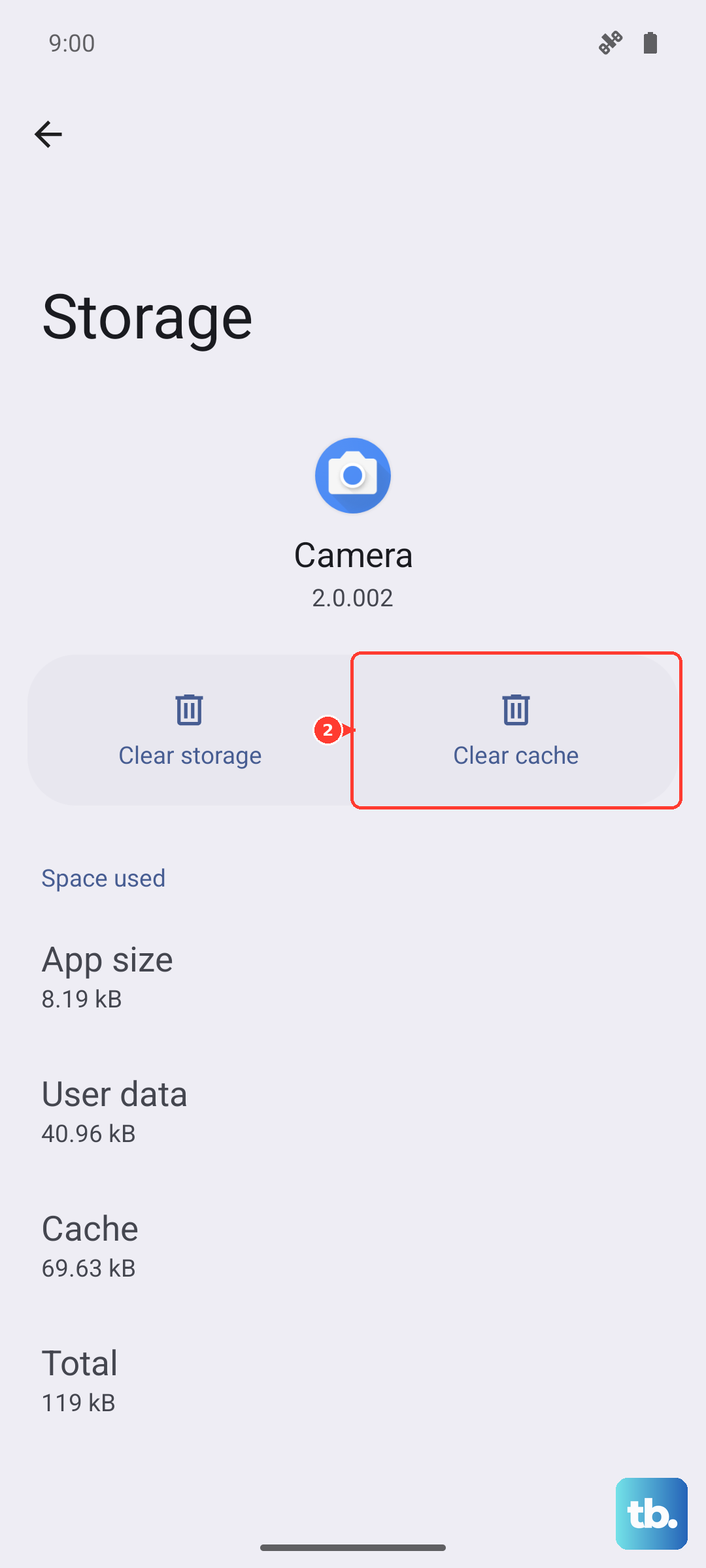
If you've tried everything and the sensor test shows the hardware is functional, a software issue is the likely cause. Before a factory reset, try clearing the cache for the "Android System" app. Go to Settings > Apps > See all apps.
Tap the three-dot menu, select "Show system," then find "Android System." Go into its storage settings and tap "Clear cache." This removes temporary data without affecting your personal files. If the problem persists across multiple restarts and updates, a factory reset may be the final step, but be sure to back up your data first.