When your Google Pixel 9 stops ringing, it can leave you wondering if you're missing important calls. This is a common hiccup that can stem from a few different places, from a simple toggle in your settings to a network hiccup with your carrier. The good news is you can usually get things working again with a few straightforward checks.
Start With These Quick Pixel Fixes
Before we get into the weeds, run through these basic steps. They solve the majority of call reception problems on the Pixel 9. First, pull down the Quick Settings shade from the top of your screen twice and make sure Airplane Mode is off. If it was on, toggle it off and wait a moment for your mobile connection to re-establish.
Next, give your phone a fresh start. Press and hold the Power button for about 30 seconds until you feel it vibrate and the Google logo appears. This force restart can clear out temporary software glitches that might be blocking calls. Also, take a quick glance at your signal bars in the top-right corner; if you're in a basement or a rural area with poor reception, that could be the simple answer.
Check Do Not Disturb and Focus Modes
It's easy to accidentally silence your phone. On Pixel, Google now groups Do Not Disturb and other interruption controls under Modes. Swipe down from the top, tap Modes, and make sure Do Not Disturb is turned off. For a more detailed look, go to Settings > Modes and open Do Not Disturb, Bedtime, Driving, or any custom mode you use.
Review each mode's settings and schedules. Under Notification filters, check People to make sure calls are allowed from the contacts you expect, or turn the mode off while you test incoming calls.
Review Your Call Blocking and Spam Settings
Google's call screening and spam protection is useful, but a blocked contact can still make calls look like they never arrived. Open your Phone app, tap the three-dot menu in the top-right, and go to Settings > Blocked numbers. Make sure a number you're expecting calls from hasn't been added there by mistake.
You can also check Call Screen. Open the Phone app, tap the three-dot menu, and go to Settings > Spam and Call Screen or Call Screen, depending on what your Phone app shows. On Pixel 7 and newer, Google lists protection levels for spam, possibly faked numbers, and first-time callers; temporarily turn automatic screening down or off if unknown callers are not ringing through.
Investigate Network and Carrier Issues
The problem might not be your Pixel 9 at all. Sometimes it's a temporary outage or account issue with your mobile carrier. Try making a call from another phone on the same network, if you can, to see if the problem is widespread. You can also visit your carrier's website or app to check for reported service outages in your area.
It's also worth giving your SIM card a quick check. Power off your phone, pop out the SIM tray with the included tool, and gently remove the SIM card. Blow any dust out of the tray, reseat the card firmly, and pop it back in. A loose or dirty SIM contact can definitely cause call problems.
Reset Your Pixel's Network Settings
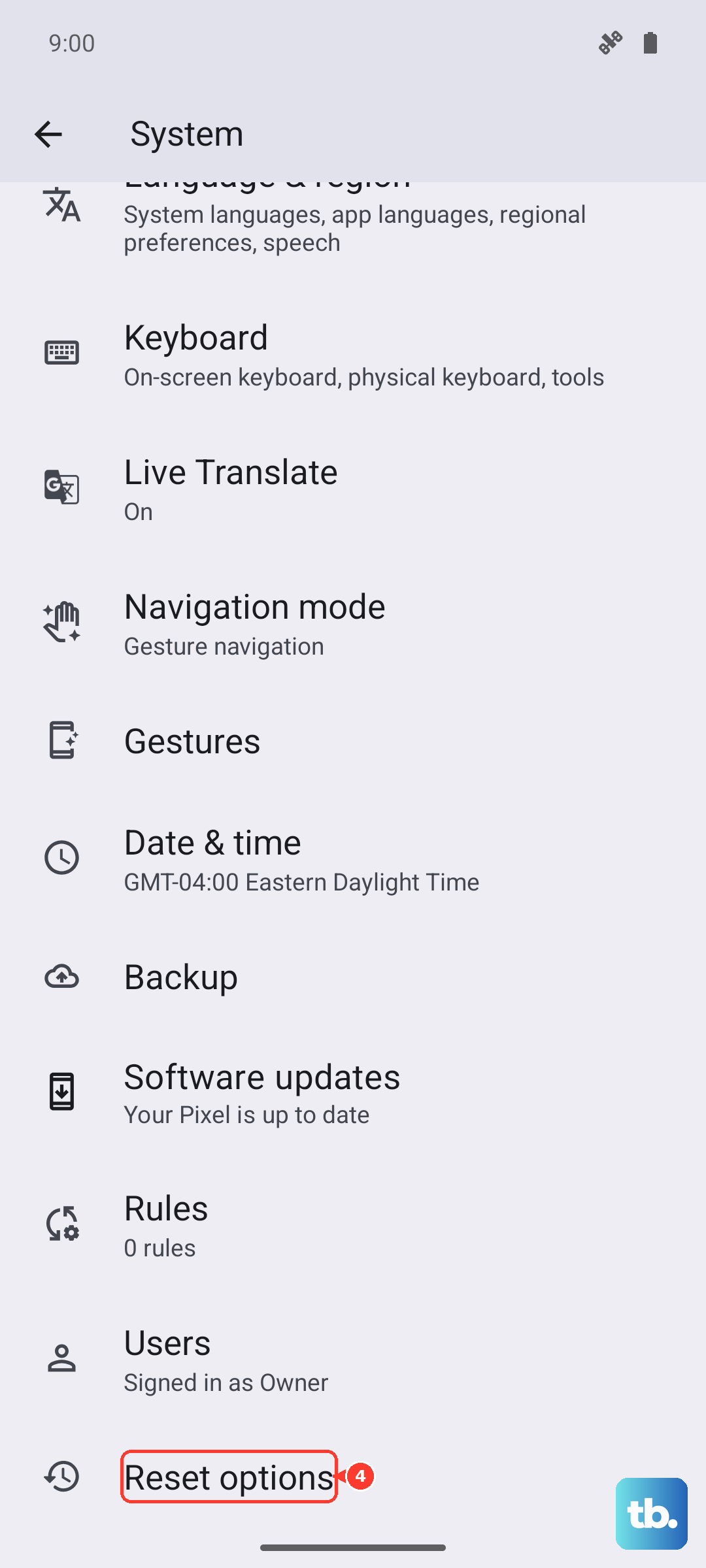
If you're still having trouble, resetting your mobile network settings can clear up corrupted cellular connection data. Go to Settings > System > Reset options. Tap Reset mobile network settings.
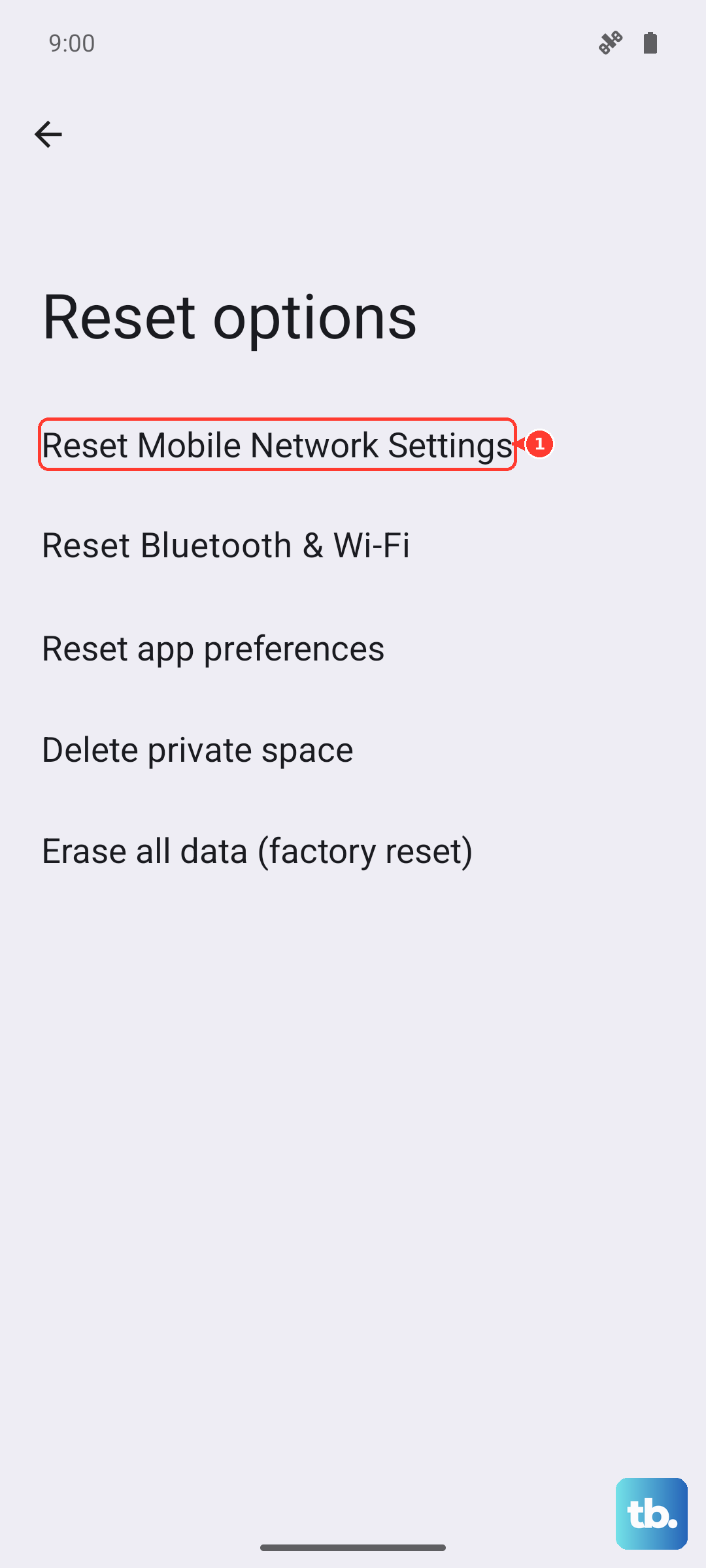
This resets your mobile network settings to default. It does not erase saved Wi-Fi networks or unpair Bluetooth devices; Google lists Reset Bluetooth & Wi-Fi as a separate reset if you need it. After the mobile reset, test incoming calls again.
Update Your Phone App and Android Software
Outdated software can lead to bugs that affect calling. First, check for updates to the Phone app itself. Open the Google Play Store, tap your profile icon, and go to Manage apps & device > Updates available. See if the "Phone by Google" app has an update pending.
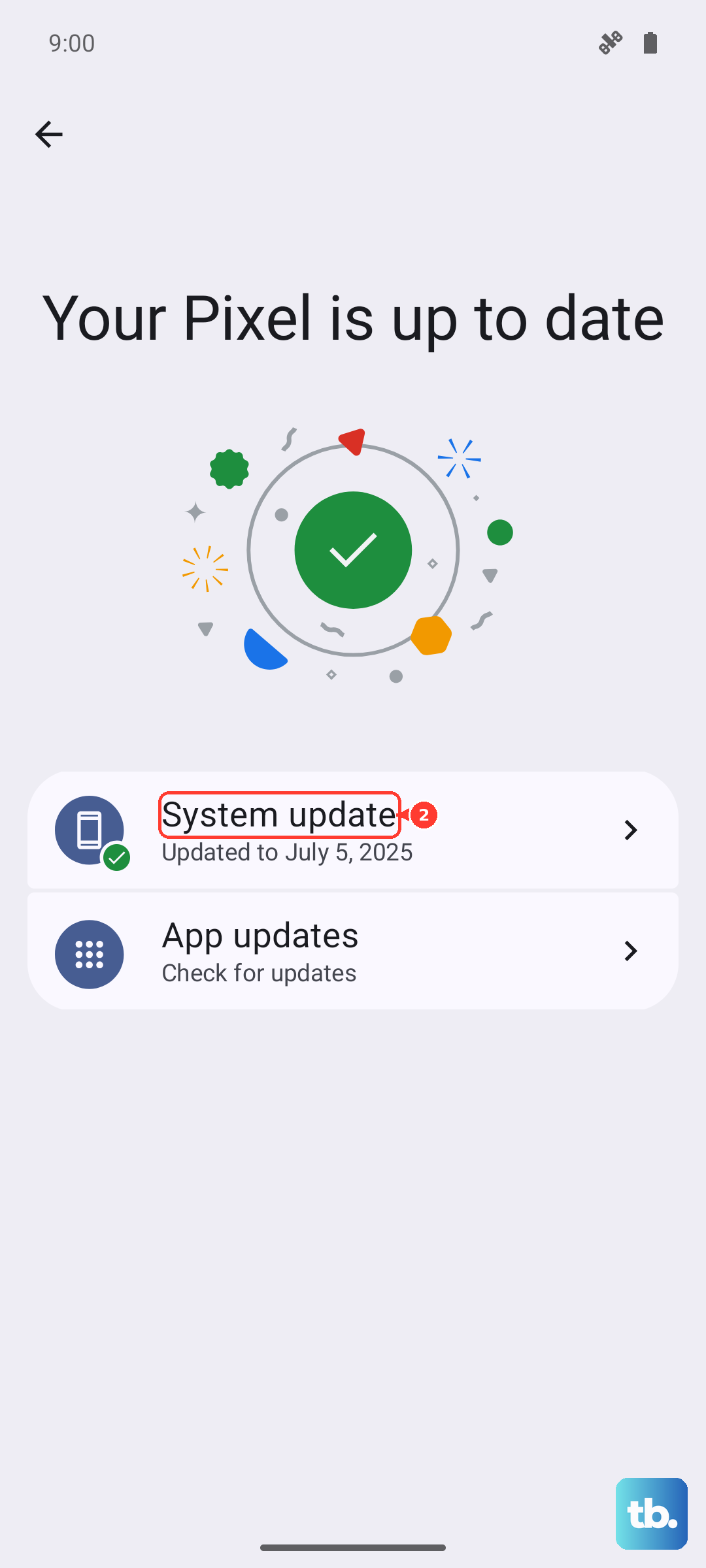
Next, check for a system update. Go to Settings > System > System update. If an update is available, especially a Feature Drop or a security patch, install it. These updates frequently include fixes for connectivity and telephony issues specific to Pixel phones.
Clear the Phone App's Cache and Data
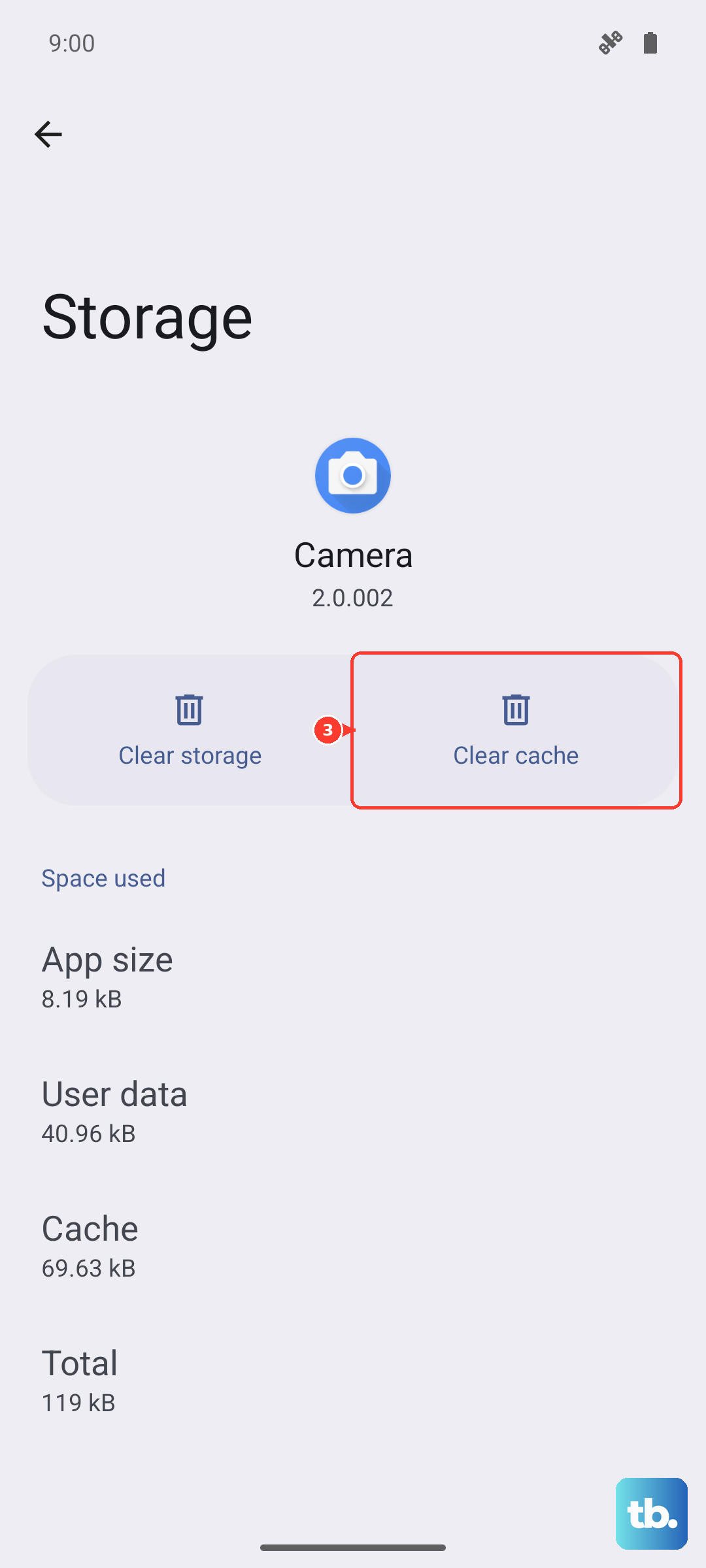
Sometimes cached data used by the Phone app gets corrupted. Head to Settings > Apps > See all apps. Find and tap on Phone. Then, go to Storage & cache.
Tap Clear cache first. This only deletes temporary data. Use Clear storage, Manage space, or Clear all data only if you're comfortable resetting the Phone app's stored data and settings; Android's own help says clearing storage permanently deletes app data.
Check for Problematic Third-Party Apps
An app you recently installed could be interfering with call functions. Think about any call recorder apps, dialer replacements, or aggressive battery savers you've added. Try booting your Pixel 9 into Safe Mode to see if the problem goes away.
To do this, press and hold the Power button and Volume Up button together until the power menu appears. Then, press and hold the "Power off" or "Restart" option on your screen. You'll get a prompt to reboot to Safe Mode. Tap "OK." In Safe Mode, all third-party apps are disabled, but Airplane Mode turns on automatically, so turn it back off before testing calls. If you can receive calls normally here, a downloaded app is likely the culprit. Restart your phone to exit Safe Mode and start uninstalling recent apps one by one to find the offender.
Verify Call Forwarding Isn't Active
Call forwarding could be silently sending all your calls to another number. This is carrier-controlled, so don't rely on the hidden Android testing menu. Check your carrier's support page or app for the right disable step; on Verizon, for example, dialing *73 from the phone turns Call Forwarding off and should play a confirmation tone or message.
If that code doesn't apply to your carrier or doesn't work, contact your carrier and ask them to verify that call forwarding is off on your line. Then test incoming calls again.
Consider a Factory Reset
If you've tried everything else and calls are still not coming through, a factory reset is the final step. This will erase all data from your phone, so it's crucial to back up everything important first using Google One or your preferred method.
Once backed up, go to Settings > System > Reset options > Erase all data (factory reset). Follow the on-screen prompts. After the reset, set up your phone as new initially to see if the calling issue is resolved before restoring your backup, as the backup could potentially restore a problematic setting.