
Seeing that "No Service" or "Emergency Calls Only" message on your Google Pixel 9 is incredibly frustrating. You're suddenly cut off from calls, texts, and mobile data. The good news is that most signal problems on the Pixel 9 have a simple fix you can do in a minute.
Let's jump straight into the most common solution. A simple restart can clear temporary software glitches that are blocking the cellular radio. Just press and hold the Power button for a few seconds and tap "Restart." If your screen is frozen, you'll need to force restart it by holding the Power button for a full 30 seconds until you see the Google logo.
Check Your Connection Basics
First, swipe down from the top of your screen twice to open the full Quick Settings panel. Make sure the Airplane Mode icon isn't highlighted. If it is, tap it to turn it off. While you're there, also tap the Mobile Data icon to turn it off, wait a few seconds, and then tap it again to turn it back on.
It's also worth checking if you're in an area with known poor coverage. Try moving near a window or stepping outside. If you see even one bar of signal, the issue is likely with your phone's settings, not the tower.
Reinsert Your SIM Card
A loose or dirty SIM card is a classic culprit for signal drops. You'll need the SIM ejector tool that came with your Pixel 9. Gently push it into the small hole on the left side of the phone's frame to pop out the SIM tray.
Remove the SIM card and give the gold contacts a quick wipe with a soft, dry cloth. Blow any dust out of the SIM tray slot, then carefully reinsert the card and push the tray back in until it clicks. Wait a minute for the phone to re-register on the network.
Reset Your Network Settings
If the quick fixes didn't work, resetting your network settings is a powerful next step. This clears all your saved Wi-Fi networks, Bluetooth pairings, and cellular configurations without touching your personal data like photos or apps.
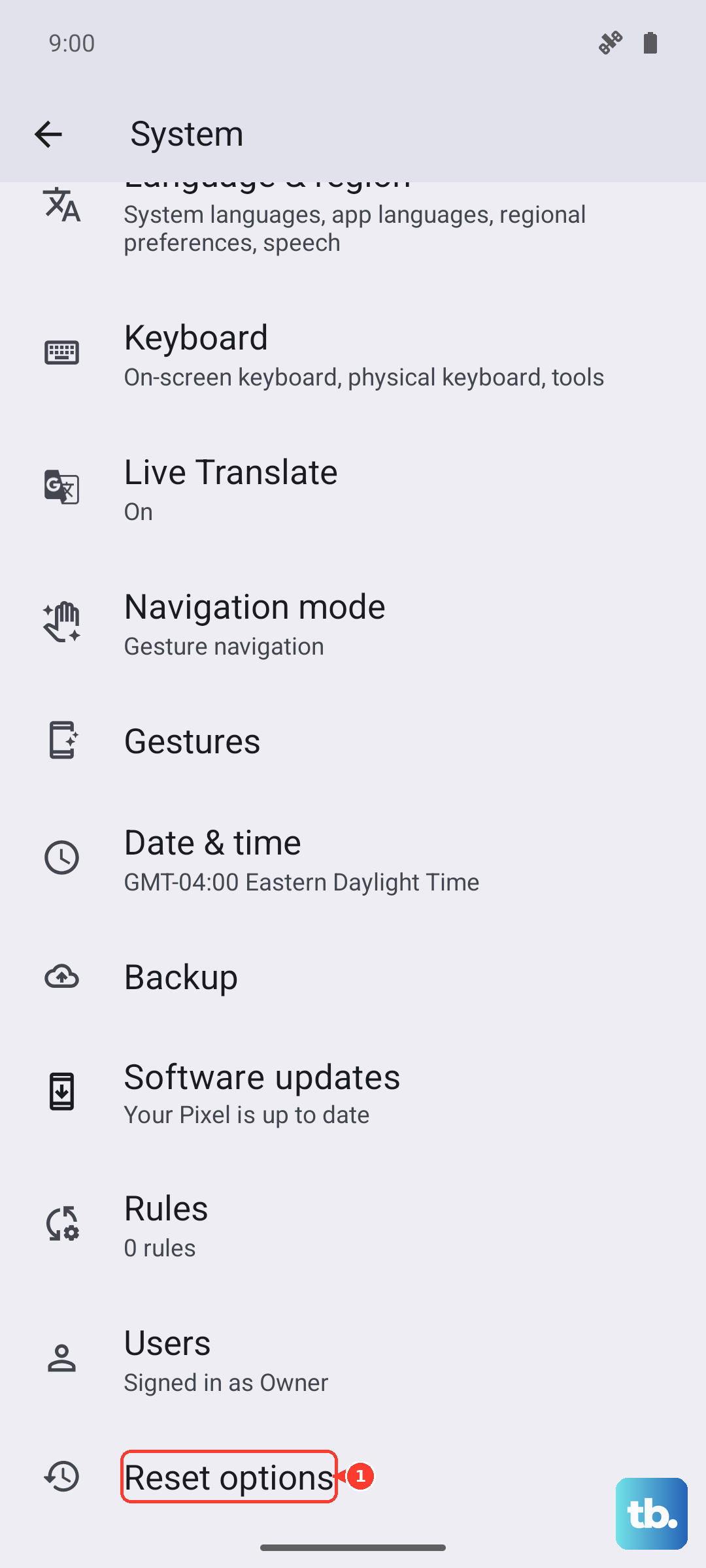
Go to Settings > System > Reset options. Tap on Reset Wi-Fi, mobile & Bluetooth and confirm. Your Pixel 9 will reboot. After it starts up, you'll need to reconnect to Wi-Fi and re-pair Bluetooth devices, but this often resolves stubborn network bugs.
Update Your Access Point Name (APN)
Your APN is like the address your phone uses to find your carrier's network. If these settings are wrong, you get no service. Open Settings > Network & internet > SIMs. Tap on your active SIM and then select Access Point Names.
You should see a list with at least one APN for your carrier. If the list is empty or you're unsure, the safest move is to tap the three-dot menu in the top right and select Reset to default. This will load the standard settings from your SIM card.
Manually Select Your Network Operator
Sometimes your Pixel gets stuck trying to connect to a weak or incompatible tower. You can force it to search for the right one. Go back to Settings > Network & internet > SIMs and tap your SIM.
Look for Network operators or Carrier and tap it. The phone will scan. When the list appears, select your carrier's name explicitly instead of "Choose automatically." Wait a minute to see if your signal bars return.
Use the Phone Information Menu
Android has a hidden diagnostic menu that's very useful. Open your Phone app and dial *#*#4636#*#* (which spells INFO). This will open the Testing menu. Tap on Phone information.
Here, you can see the state of your radio. First, tap Run Ping Test to check connectivity. Then, look for a dropdown menu near the top. Make sure it's set to a mode like NR/LTE/GSM/WCDMA (automatic). You can also try tapping Turn off radio, then Turn on radio to force a fresh connection.
Check for a Carrier Services Update
Beyond the normal Android system updates, Google and your carrier push updates through the "Carrier Services" app. These are critical for network compatibility. Open the Google Play Store, tap your profile icon, and go to Manage apps & device > Manage > Updates available.
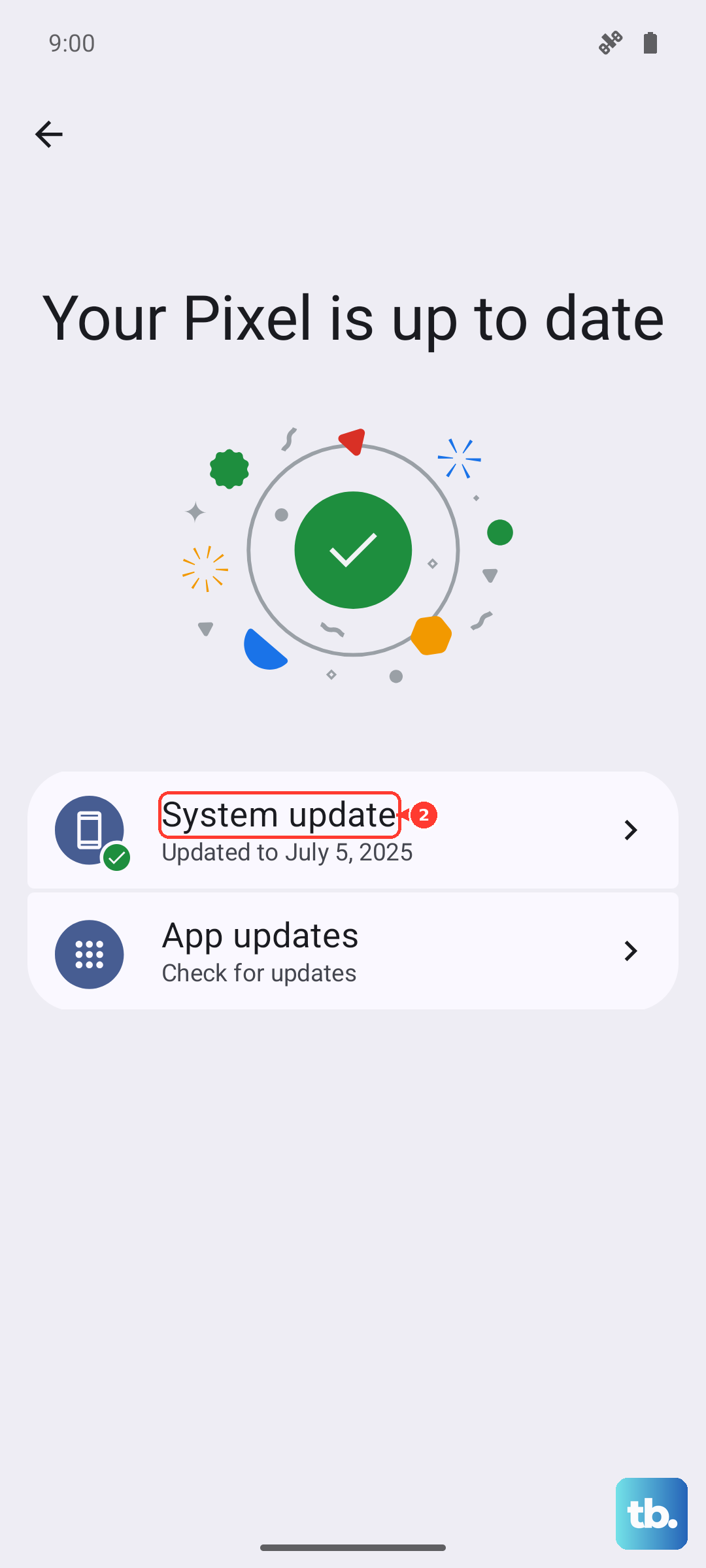
Look for "Carrier Services" in the list and update it. Also, check for any general system updates by going to Settings > System > System update. Installing the latest software can patch known signal issues.
Review Your VPN and Security Apps
Third-party VPNs or overly aggressive security apps can block your phone's connection to cellular networks. If you have a VPN app running, open it and disconnect. Then, go to Settings > Network & internet > VPN to make sure no VPN profile is active.
For security apps, you might try temporarily disabling them in Settings > Apps to see if your signal returns. Some firewall features can mistakenly block essential system processes.
Contact Your Carrier for Support
If you've tried everything here, the problem might be on your carrier's end. There could be a local tower outage, a problem with your account, or your SIM card could be faulty. Give them a call using Wi-Fi calling or another phone.
They can check for outages, reprovision your line on their network, and tell you if you need a new SIM card. If your SIM is old, switching to a new one often solves mysterious connectivity problems. They can usually mail you one or you can pick it up at a store.