
That "Unfortunately, Gboard has stopped" message popping up on your Pixel 9 can really stop you in your tracks. It's a common hiccup, but you can usually get your keyboard back with a few quick steps.
Force Stop and Restart Gboard
This is the first thing I'd try. It clears out any temporary glitch that's hanging up the app. Head to Settings > Apps > See all apps.
Find Gboard in the list and tap on it. On the app info screen, tap Force Stop and confirm. After that, just back out and try opening your keyboard again in a text field.
Restart Your Pixel 9
If force stopping didn't do the trick, a full phone restart is a great next move. It clears the system's memory and can fix a surprising number of app-related issues.
Press and hold the Power button (or the Power and Volume up buttons together, if holding Power alone opens your assistant), then tap Restart. If your screen is completely unresponsive, you can force a restart by holding the power button down for about 30 seconds until the phone reboots.
Clear the Gboard App Cache and Data
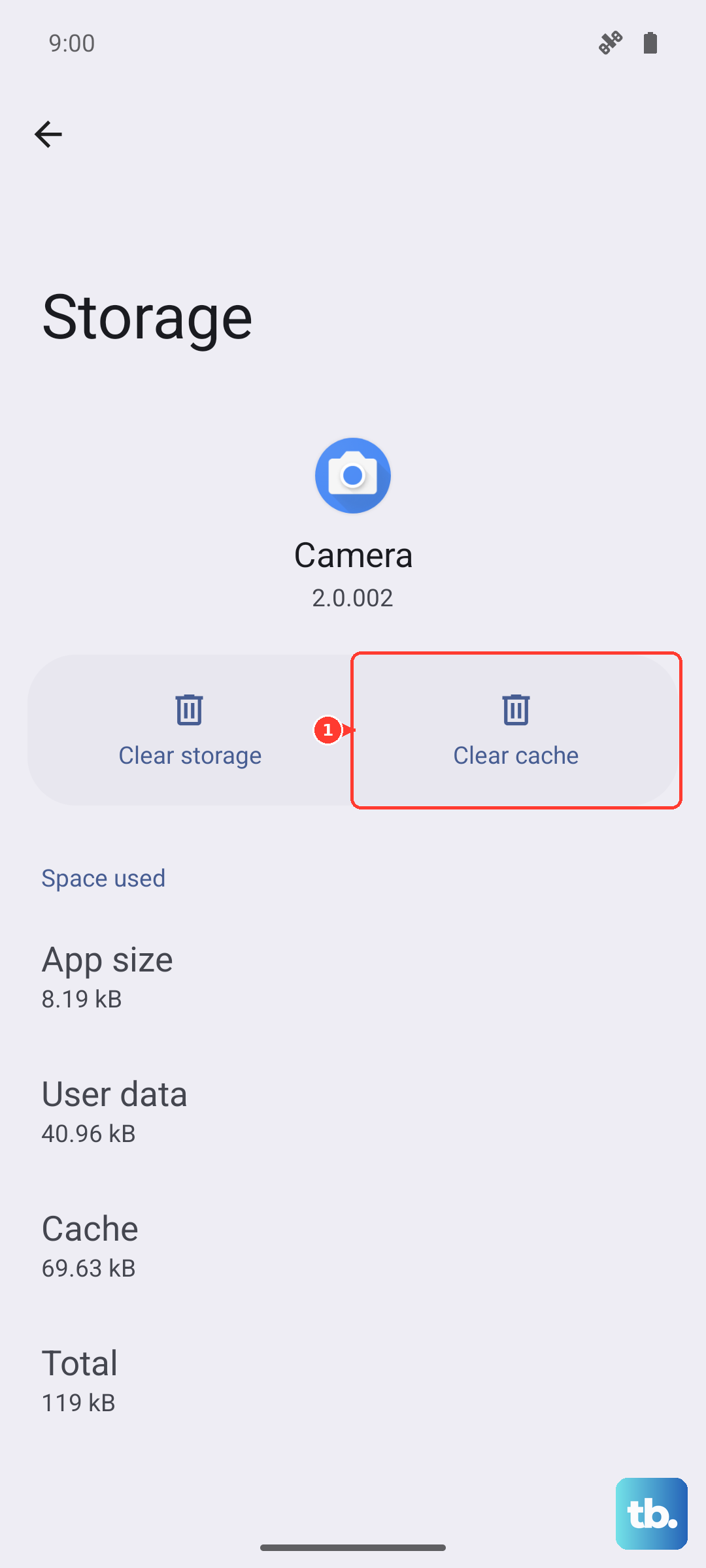
Sometimes the temporary files the app stores get corrupted. Clearing the cache is safe and won't delete your personal dictionaries or saved snippets.
Go back to Settings > Apps > Gboard > Storage & cache. Tap Clear cache. If the problem persists, you can try Clear storage or Clear data next, but be aware this will reset Gboard to its default settings and you'll lose any custom words you've added.
Update Gboard and Android
An outdated app or system software can cause conflicts. Open the Google Play Store, tap your profile icon, and go to Manage apps & device.
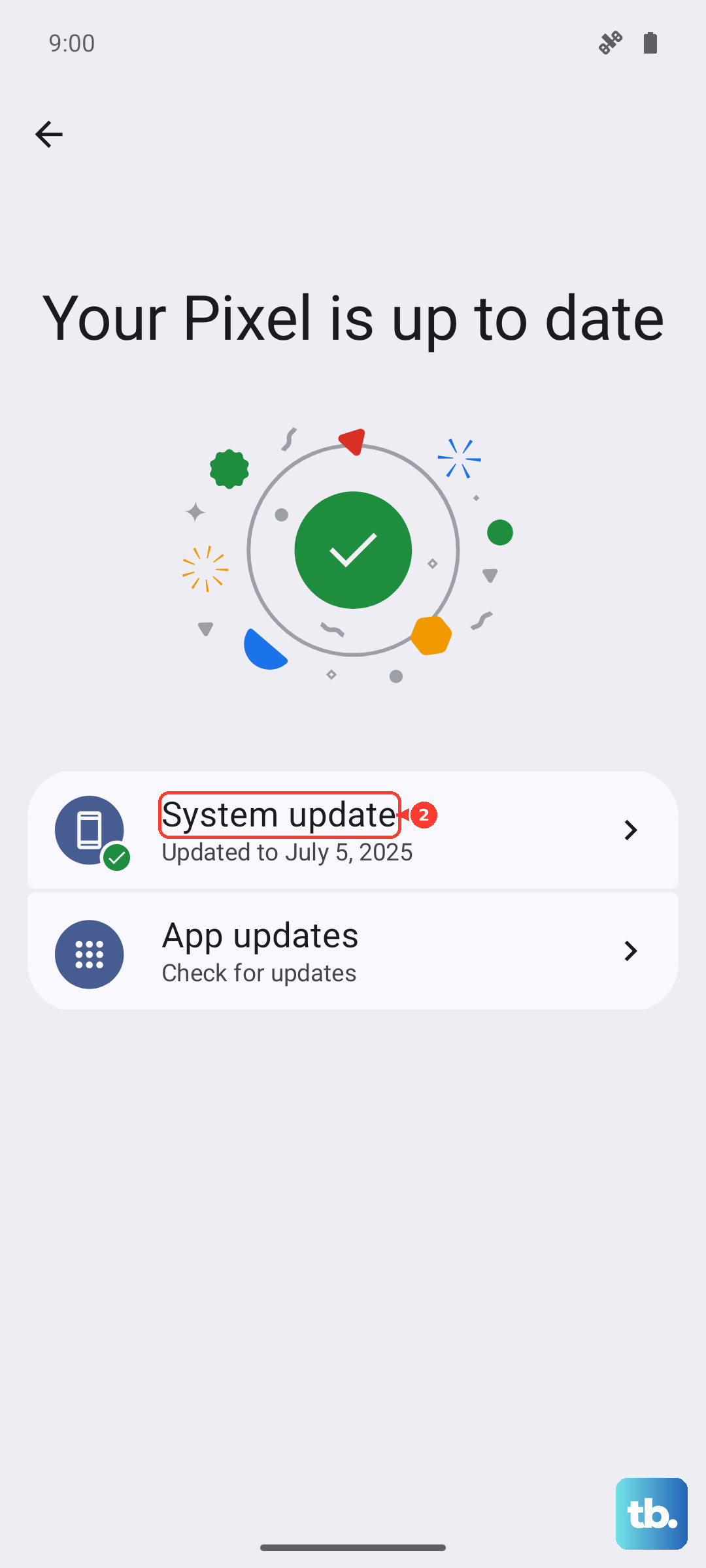
Under "Updates available," see if Gboard is listed. If it is, update it. Also, check for a system update by going to Settings > System > System update. Pixel Feature Drops and monthly security patches often include bug fixes for issues just like this.
Check Your Keyboard Settings and Defaults
It's possible the system got confused about which keyboard to use, especially if you've installed other ones. Go to Settings > System > Keyboard > On-screen keyboard (on some phones, such as the Fairphone, this is under Settings > System > Languages & input > On-screen keyboard).
Make sure Gboard is toggled on here. You can also tap Default keyboard to ensure Gboard is selected. If you see other keyboards listed, you might try disabling them temporarily to see if there's a conflict.
Boot Into Safe Mode
This is a good way to check if a recently downloaded third-party app is causing the trouble. Safe mode temporarily disables all apps you didn't get from the Play Store with the phone.
Press and hold the Power button and Volume Up button together until the power menu appears. Then, press and hold the "Power off" text on your screen. A prompt to reboot to safe mode will pop up. Tap it.
If your keyboard works perfectly in safe mode, you know a downloaded app is the culprit. You'll need to restart to exit safe mode, then uninstall apps one by one, starting with the most recent, to find the offender.
Try a Different Keyboard App
As a workaround, installing another keyboard can get you typing again immediately. Apps like Microsoft SwiftKey or OpenBoard are solid alternatives.
Just download one from the Play Store, and when you first try to type, your Pixel 9 will ask which keyboard you want to use. Select the new one and set it as default. You can always switch back to Gboard later after you've fixed it.
Reset App Preferences
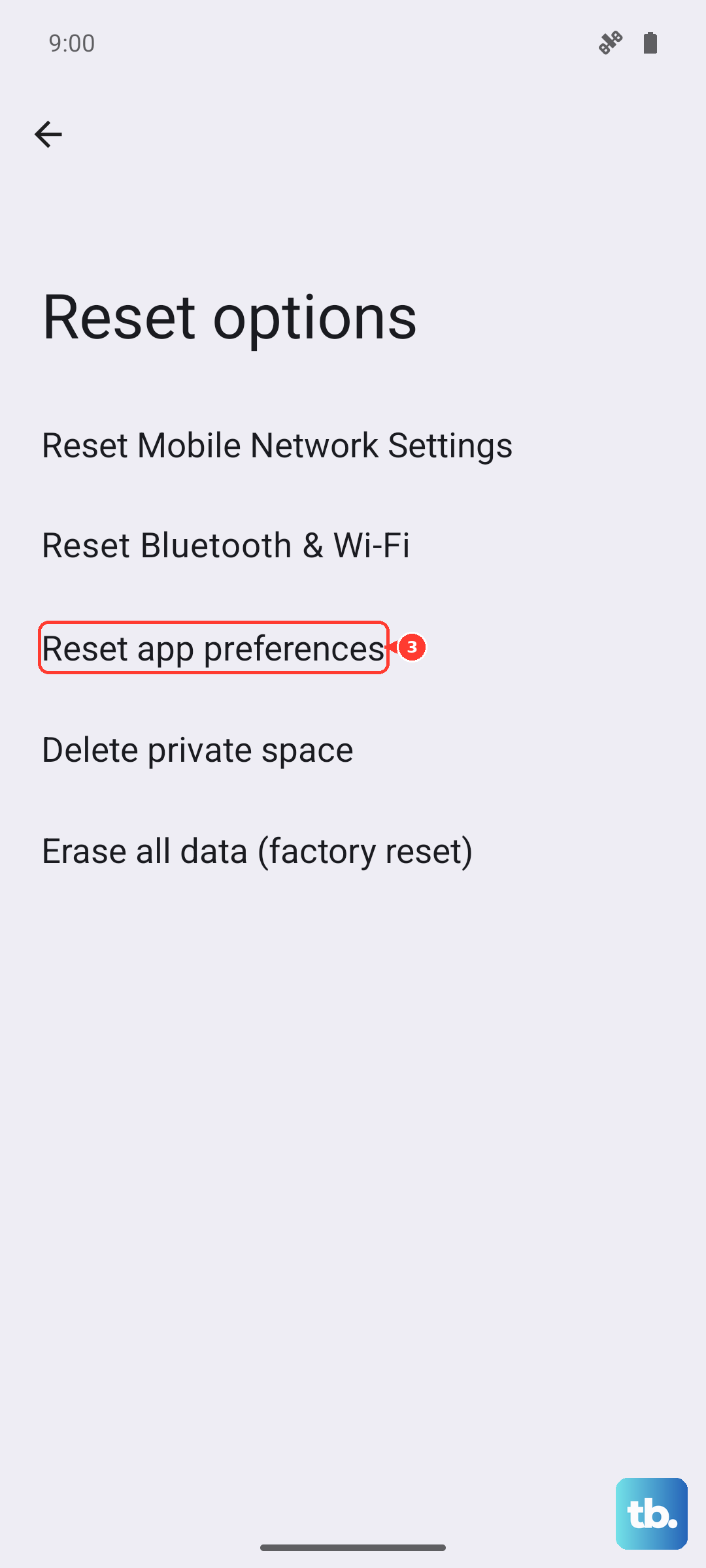
This resets all your app-related settings, like default apps, permissions, and background data restrictions, back to factory defaults. It won't delete any of your personal data or apps themselves.
Go to Settings > System > Reset options. Tap Reset app preferences and confirm. After your phone reboots, you'll need to re-grant permissions to apps when they ask, but it can clear up persistent keyboard issues.
Check for Accessibility Service Conflicts
Some accessibility services, like password managers or screen readers, can sometimes interfere with the keyboard's input. If you use any, try temporarily turning them off.
Navigate to Settings > Accessibility. Look under "Downloaded apps" and "System" for any services that are turned on. Toggle them off one at a time, testing your keyboard after each, to see if one is causing the problem.