When your headphones stop working with your Google Pixel 9, it can ruin your music, calls, and videos. The phone might not detect your wired earbuds, fail to connect to your Bluetooth headphones, or send all the sound to the phone's speaker instead. Here's how to get your audio back on track.
Start with a free headphone test that checks left and right channels, stereo order, bass, and treble. Two minutes there tells you whether the hardware needs attention at all.
Restart Your Pixel 9
Press and hold the Power button for about 30 seconds until you feel a vibration and see the Google logo. This force restart clears out temporary software glitches that often cause audio and Bluetooth problems. It's the first thing I'd try, as it fixes a lot of weird behavior instantly.
Check the Physical Connection and Volume
For wired headphones, make sure the USB-C plug is fully inserted into the port. Press the volume up button on the side of your phone to ensure the volume isn't muted or set too low. You should see the on-screen volume bar increase. Also, check that your Bluetooth headphones are charged and powered on.
Clean the USB-C Port
Lint and pocket debris are the most common culprits for wired headphone issues. Gently clean out the USB-C port on the bottom of your Pixel 9 using a wooden toothpick or a soft-bristled brush. Avoid using metal objects. A clean port ensures a solid connection for both audio and charging.
Forget and Re-Pair Your Bluetooth Headphones
Go to Settings > Connected devices. Tap on the name of your headphones, then tap the gear icon or "Settings" next to them. Select Forget or Unpair. Put your headphones back into pairing mode, then find and select them again in your Pixel's Bluetooth list. This creates a fresh connection profile.
Check and Change the Audio Output
Sometimes audio gets routed to the wrong place. While playing media, pull down the notification shade twice and tap the media player notification. You should see an output selector icon. Tap it to make sure your headphones are selected, not the phone speaker or another device like a smartwatch.
Toggle Bluetooth Off and On
Swipe down from the top of your screen to open Quick Settings and tap the Bluetooth icon to turn it off. Wait about 10 seconds, then tap it again to turn it back on. This simple refresh of the Bluetooth radio can resolve pairing and stability issues with wireless headphones.
Check for Software Updates
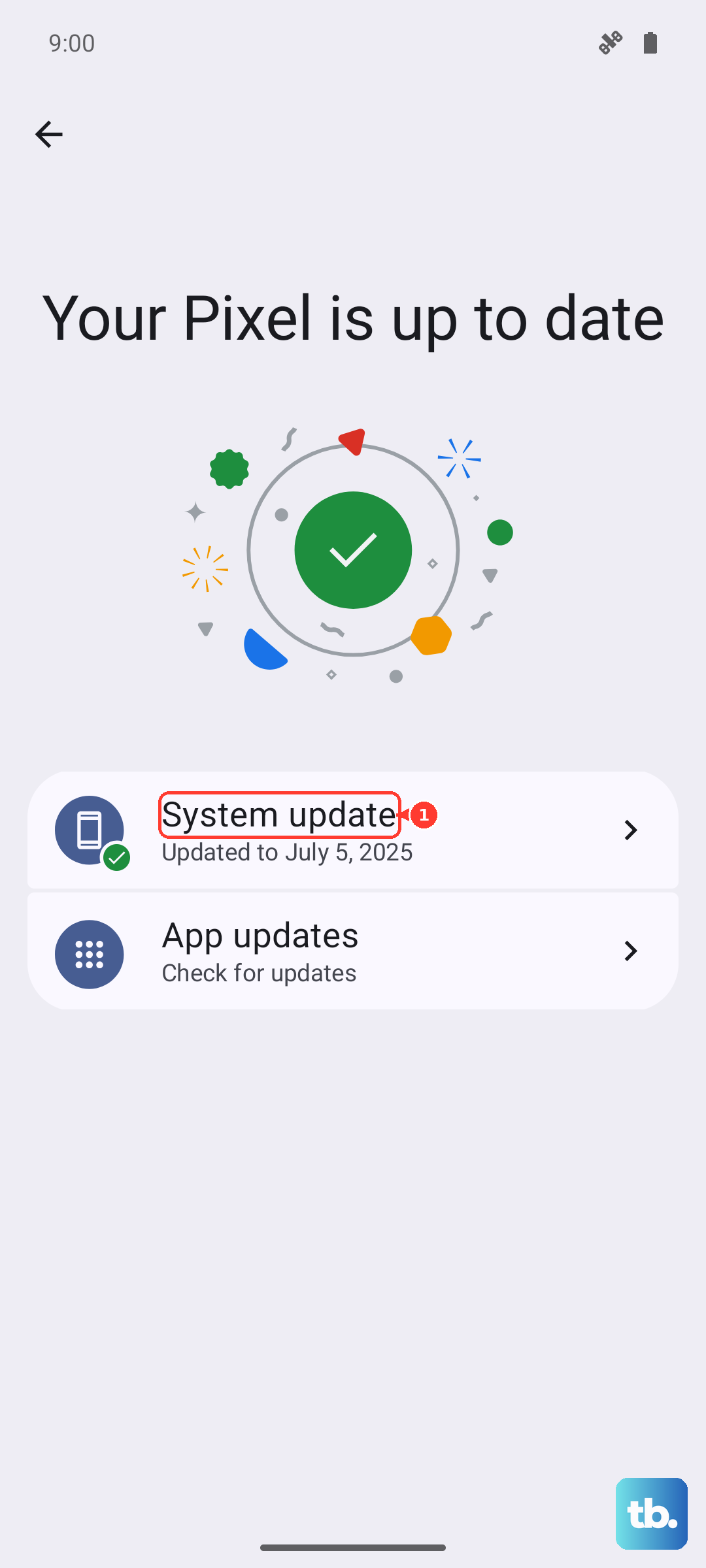
Go to Settings > System > System update. Google frequently releases updates that fix bugs, including audio and Bluetooth problems. This is especially important after a major Feature Drop update, as Pixel-specific bugs can sometimes pop up. Keeping your phone updated is a reliable preventative step.
Reset Your Bluetooth and App Preferences
If problems persist, you can reset your network settings. Go to Settings > System > Reset options. Tap Reset Wi-Fi, mobile & Bluetooth. This will erase all saved networks and Bluetooth pairings, so you'll need to reconnect to everything. It clears out any corrupted connection data causing the issue.
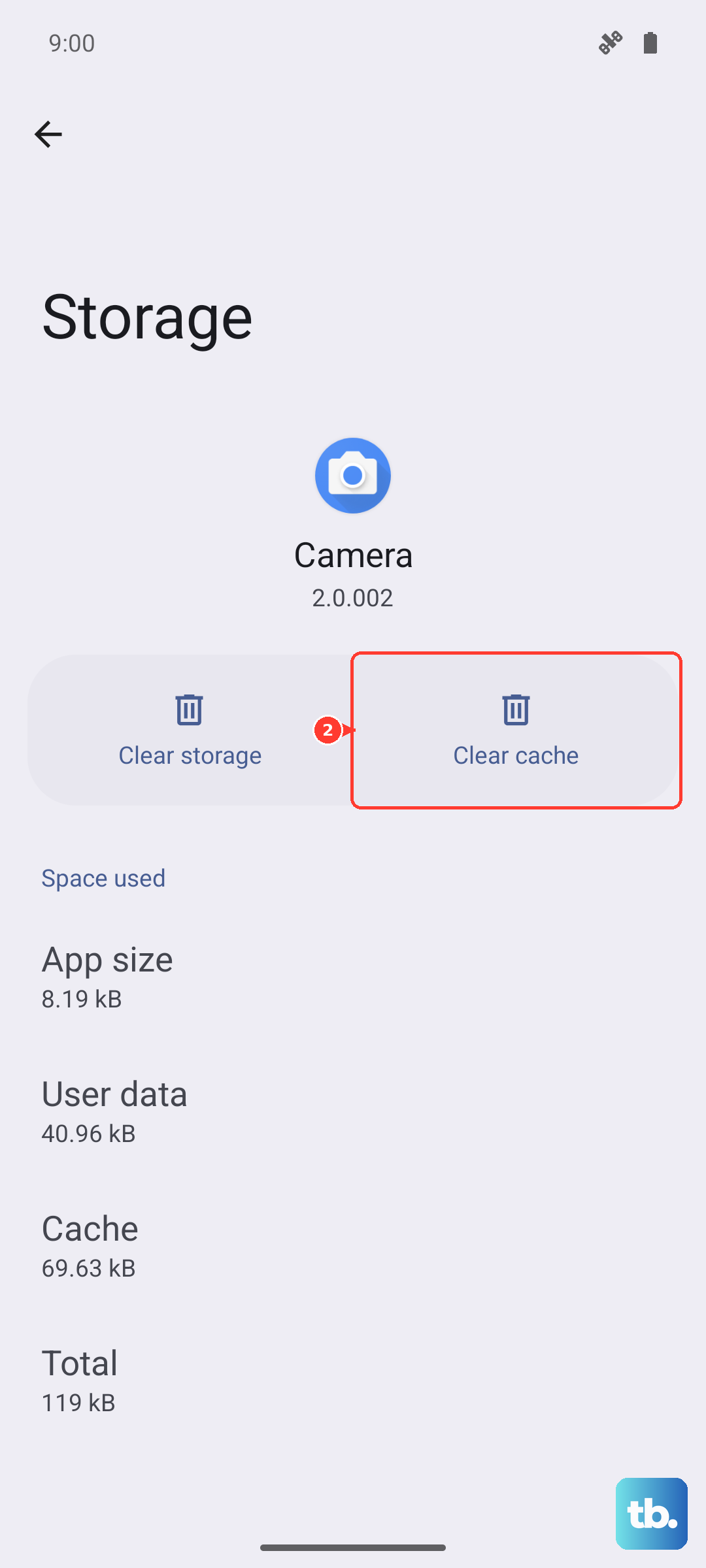
For app-specific audio problems, like sound only failing in Spotify or YouTube, go to Settings > Apps, select the problematic app, and tap Force stop, then Storage & cache > Clear cache. Don't clear storage unless you're okay with losing app data, as that will log you out.