
When your Google Pixel 9's location is off, it's more than just a navigation headache. It can stop ride-sharing apps, weather widgets, and even photo geotagging from working correctly. The good news is that most GPS problems on the Pixel 9 are software glitches you can fix yourself in a few minutes.
I'd start with the quick refresh below. It solves the issue more often than you'd think.
Refresh Your Location Connection
Pull down the Quick Settings panel from the top of your screen twice to see all the toggles. Tap the Location icon to turn it off, wait about ten seconds, and then tap it again to turn it back on. This simple reset clears the temporary connection state between your phone and the GPS satellites.
While you're there, also toggle Airplane mode on and off. This resets all the radios, including the one for GPS, and can clear up any conflicts. Just swipe down, tap the airplane, wait 15 seconds, and tap it again to disable.
Check Your Pixel's Location Settings
Android 15 on the Pixel 9 gives you fine control over how location works. Open Settings and go to Location. First, make sure the main switch at the top is on.
Next, tap on Location services. For the best possible accuracy, especially for turn-by-turn navigation, select High accuracy. This mode uses GPS, Wi-Fi, Bluetooth, and cellular networks to pinpoint you. The "Battery saving" mode uses only Wi-Fi and cellular, which is much less precise and can cause problems in apps that need exact GPS data.
Verify App Permissions
Sometimes the GPS itself is working fine, but the app you're using doesn't have permission to access it. Go to Settings > Apps and select the app giving you trouble, like Google Maps or Waze.
Tap Permissions and find the Location permission. Make sure it's set to "Allow all the time" or "Allow only while using the app," depending on what the app needs. If it's set to "Don't allow," that's your problem right there.
Restart Your Google Pixel 9
A full restart is a classic fix for a reason. It clears out system cache and resets all services, including the location service that might be stuck. Just press and hold the Power button and Volume Up button together until the power menu appears, then tap "Restart."
If the phone is completely unresponsive, you can force a restart. Press and hold the Power button for about 30 seconds until you feel a vibration and see the Google logo. This is different from a standard restart and can clear deeper glitches.
Review Power-Saving Features
The Pixel's battery-saving features are great for longevity but can interfere with background location. Go to Settings > Battery and make sure "Battery Saver" is turned off. When this is on, it severely restricts background processes.
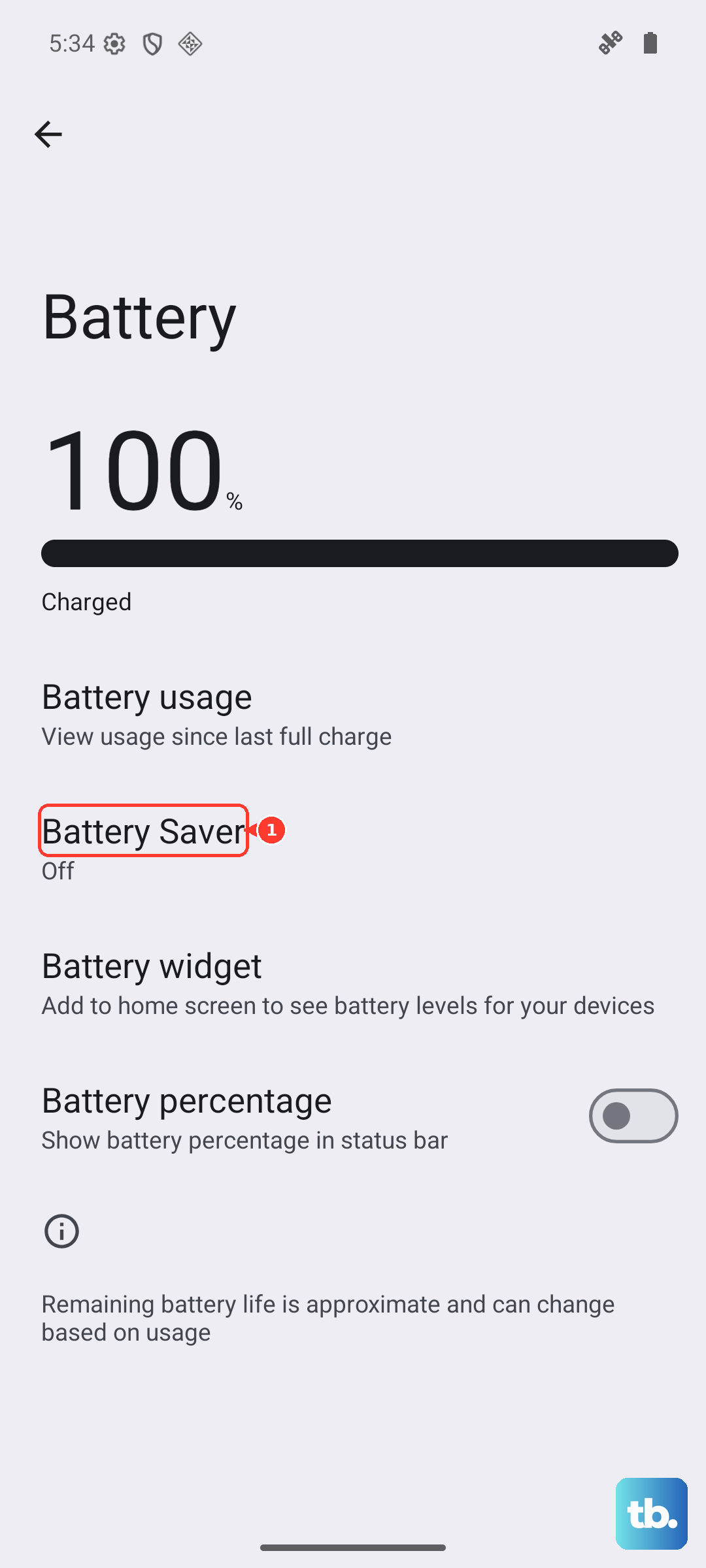
Also, check Settings > Battery > Adaptive preferences. Adaptive Battery learns your habits and can sometimes restrict apps it thinks you don't use often. If a navigation app is being restricted, it might not get the location data it needs. You can turn Adaptive Battery off temporarily to test.
Update Your Apps and System
An outdated version of Google Maps or your system software can have bugs that break GPS functionality. Open the Play Store, tap your profile icon, and go to Manage apps & device. Tap "Update all" to get the latest versions of everything.
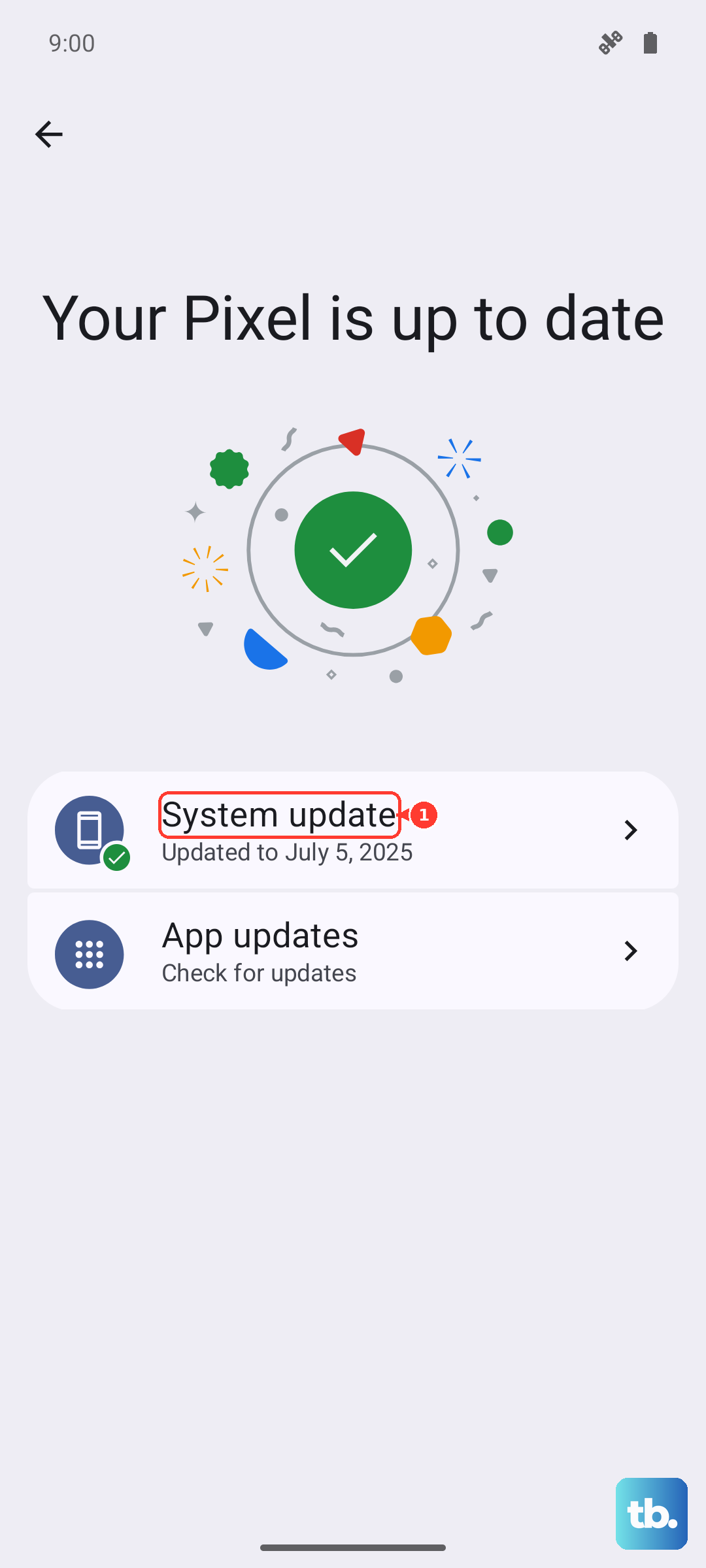
For the system, go to Settings > System > System update. Your Pixel 9 will check for any available Android 15 updates or monthly security patches. These updates often include fixes for connectivity issues, so it's worth installing them.
Clear the App's Cache and Data
If a specific app like Maps is acting up, its stored data might be corrupted. Go to Settings > Apps > [App Name] > Storage & cache. Tap "Clear cache" first. This deletes temporary files without affecting your saved places or settings.
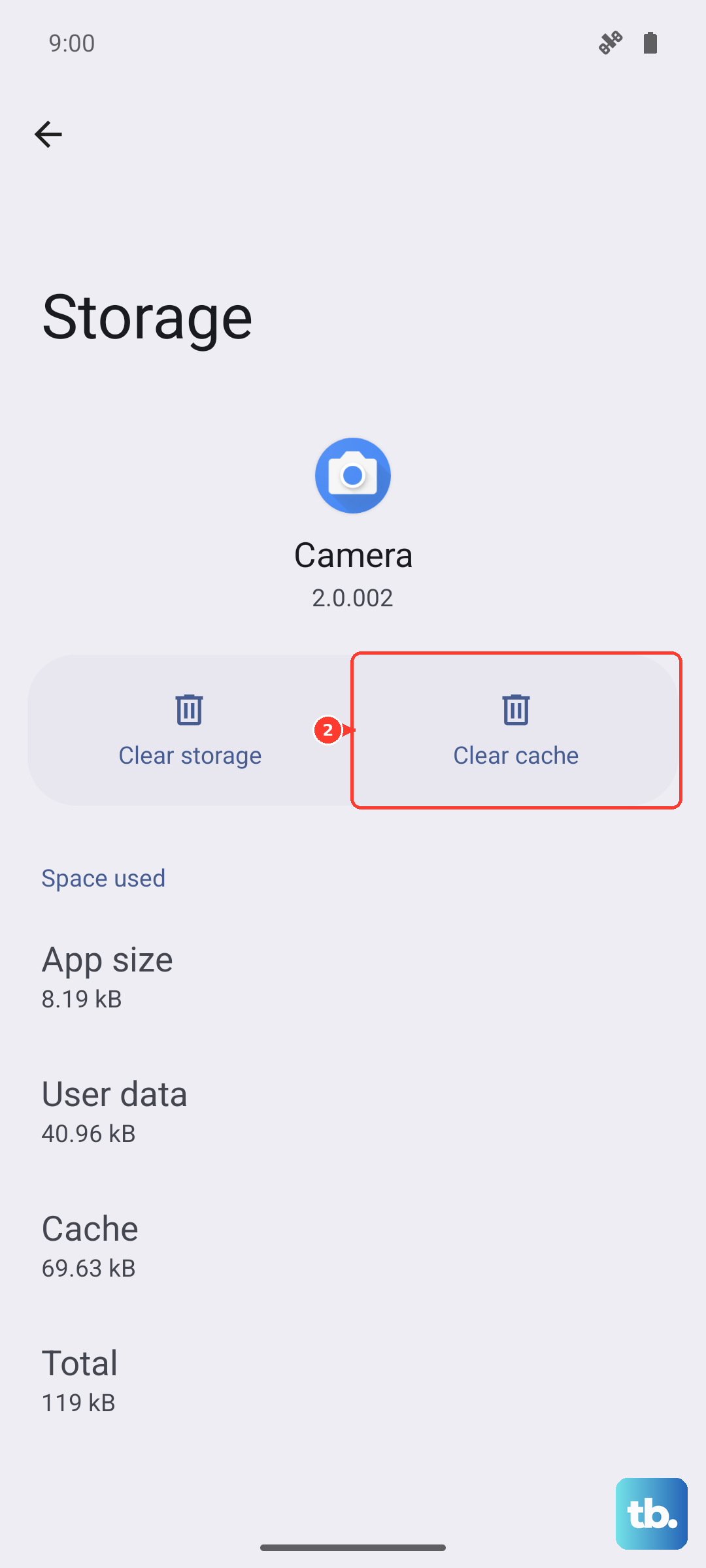
If the problem persists, you can tap "Clear storage" or "Clear data." Be warned, this will reset the app to its default state, so you'll lose any offline maps or custom settings within that app. It's a more thorough fix, but try the cache first.
Test in Safe Mode
This helps you figure out if a third-party app you installed is causing the conflict. Press and hold the Power button and Volume Up button together until the power menu appears. Then, tap and hold the "Power off" option on your screen.
You'll get a prompt to reboot into Safe Mode. Tap "OK." Once the phone restarts, you'll see "Safe mode" in the bottom corner. Try your GPS app now. If it works perfectly in Safe Mode, a downloaded app is the culprit. Restart the phone normally to exit Safe Mode and start uninstalling recent apps one by one to find the bad one.
Check Your Physical Environment
GPS signals come from satellites, and they need a relatively clear path to the sky. Being inside a building, a parking garage, or a dense urban area with tall buildings can weaken or block the signal. Try stepping outside or near a window.
Also, some phone cases, particularly those with metal plates or very thick designs, can interfere with the antenna. Try removing your case temporarily to see if the GPS accuracy improves.
Use a GPS Status App
If you've tried everything and the GPS is still dead, you need to see what the hardware is doing. Download a free app like "GPS Status & Toolbox" from the Play Store. Open it and go to the satellite view.
If the app shows your phone connecting to multiple satellites (the dots will turn green) but your navigation app still doesn't work, it's a software or app-level issue. If the app shows zero satellites, or the phone can't see any at all, it could point to a deeper software fault or, less commonly, a hardware problem with the antenna.